5G Cellular Router Guide: Setup, Optimization, and Troubleshooting
Learn how to select, install, and optimize a 5G cellular router for reliable home or small office internet with practical steps from WiFi Router Help.


With a 5G cellular router, you can establish home or small-office internet using a cellular SIM. Start by inserting a data-enabled SIM, powering the device, and accessing the admin interface to configure the WAN connection and Wi‑Fi network. Ensure you have an adequate data plan and reliable 5G coverage for best results.
Understanding what a 5G cellular router is
A 5G cellular router is a networking device that uses cellular networks to provide Wi‑Fi in your home or office. Unlike a traditional cable modem, it relies on your SIM-enabled data plan to access the internet. The WiFi Router Help team notes that these devices combine a mobile modem with router hardware, so you get both cellular connectivity and local network features in one box. Common configurations include a built-in router, a dedicated WAN port for a secondary internet source, and support for multiple Wi‑Fi bands. When you bring a 5G router into your network, you should plan for coverage, data limits, and signal strength, especially in areas with weaker 5G availability. This is a practical solution for remote locations, temporary setups, or backup internet scenarios, where you prioritize flexibility over fixed-line guarantees.
Scenarios where a 5G cellular router shines
Many households and small offices benefit from cellular routers in several situations: primary internet in areas without affordable fiber, backup connectivity during outages, or mobility needs in RVs and vacation homes. With a 5G router, you can quickly deploy coverage in rooms far from a fixed line, or provide guest networks without sharing your primary credentials. It also lets you scale internet access during events or remote work. Still, performance depends on coverage and carrier plans; heavy streaming or gaming may consume data quickly, so you’ll want a plan with caps or unlimited options. According to WiFi Router Help, the key is to assess local 5G availability and choose a model with good antenna support to maximize signal capture indoors. In practice, you’ll compare carriers, check speed claims, and verify the device’s supported bands before purchase.
Key features to compare when choosing a 5G cellular router
Choosing the right model hinges on several features: cellular modem compatibility (5G NR subsets), antenna options (internal vs. external), and SIM support (physical SIM vs. eSIM). Look for dual-band Wi‑Fi (2.4 GHz and 5 GHz), Wi‑Fi 6 or higher for better efficiency, and robust processing power for multi‑device networks. Additional features that affect everyday use include QoS for prioritizing video calls, a built-in firewall, VPN support, and parental controls. You should also evaluate USB ports, Ethernet WAN, and whether the device offers firmware updates, remote management, and diagnostics. Finally, consider form factor and power requirements, since a compact router in a backpack or camper may need different adapters than a desk-based unit. The WiFi Router Help guidance emphasizes choosing a router with solid security defaults and straightforward administration to minimize setup friction.
Setup basics: placement, SIM, and initial configuration
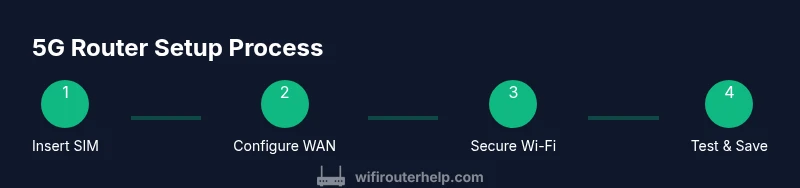
Begin by verifying you have a data-enabled SIM with an active plan and good coverage. Insert the SIM into the router’s SIM slot, connect the device to power, and wait for it to boot. Use a smartphone or computer to access the device’s admin interface, typically via a browser connected to the router’s default network. Follow the on-screen prompts to select the 5G auto WAN mode, set an APN if required by your carrier, and choose your initial Wi-Fi name and password. Save settings, apply, and reboot if necessary. If you’re replacing an existing router, consider saving a backup of the old configuration, so you can roll back if needed. WiFi Router Help recommends documenting your network details and keeping the default login credentials secure during setup.
Optimizing performance and reliability
After setup, optimize for signal strength and stable throughput. Place the router in a central, elevated location away from metal surfaces, microwaves, and large appliances. If you have external antennas, ensure they’re oriented to maximize 5G reception and internal signal distribution. Configure channel width and band steering to balance loads across devices; enable QoS to prioritize time-sensitive traffic, such as video conferencing. Regularly monitor data usage and connect a secondary WAN if you have a backup link. Keep firmware up to date and enable automatic updates if the router supports them. If your 5G signal is weak, experiment with tethering a 4G/5G modem as failover or using an external antenna kit. The WiFi Router Help approach stresses a proactive monitoring mindset and documenting improvements with before after tests.
Security, maintenance, and long-term care
Security must be at the core of any 5G router deployment. Change the default admin password, enable a firewall, and enable encryption WPA3 if available. Use a VPN for sensitive traffic and audit connected devices regularly. Turn on automatic firmware updates to close known vulnerabilities, and back up key configuration settings offline. Track data usage to avoid unexpected charges and review guest network access periodically. If you notice unusual activity, reboot the router and perform a factory reset if problems persist, then reconfigure from scratch using a secure backup. WiFi Router Help underscores the importance of routine maintenance and a documented security plan, so you can preserve performance while protecting devices on your network.
Tools & Materials
- 5G cellular router(Choose a model with at least 2.4 GHz and 5 GHz Wi-Fi, and a dedicated 5G modem.)
- Data SIM with active plan(Ensure plan supports 5G speed and coverage in your area.)
- AC power adapter or built-in battery(Check voltage and amperage as per device spec.)
- Ethernet cable (Cat5e or better)(For wired WAN or initial admin access.)
- External antennas (if provided)(Helpful for weak indoor signal.)
- Smartphone or computer for admin access(Use a secure browser to access the device's admin interface.)
- Small screwdriver or SIM eject tool(Only if you need to access the SIM slot.)
- Notebook or digital document(Record configuration, SSID, passwords, and settings.)
Steps
Estimated time: 45-60 minutes
- 1
Insert the SIM card
Power off the router, locate the SIM slot, and insert a data-enabled SIM according to the manufacturer instructions. Confirm the SIM is seated properly and there are no visible obstructions. Power the device back on and wait for it to initialize.
Tip: Tip: Use the SIM eject tool to avoid bending the card or damaging the slot. - 2
Connect to the admin interface
On a computer or smartphone, connect to the router's default Wi-Fi or via an Ethernet cable. Open the default gateway URL in a web browser and log in with the recommended credentials. If you cannot access the interface, reset to factory settings and try again.
Tip: Tip: Use a guest network only for initial access to keep main credentials secure. - 3
Configure the 5G WAN settings
Navigate to the WAN or network settings and select 5G auto or the specific mode advised by your carrier. Enter APN details if required and choose the preferred 5G bands for stability. Save and apply changes, then allow the router to reconnect.
Tip: Tip: Some carriers require APN customization; check your plan documentation before saving. - 4
Set up the Wi-Fi network
Create a unique SSID for your main network and set a strong, unique password. Choose WPA2 or WPA3 security if available and enable guest networks if you want to separate guests from your main devices.
Tip: Tip: Use a long password and consider a different SSID for 2.4 GHz and 5 GHz bands if your devices support band steering. - 5
Enable security features
Turn on the router's firewall, VPN support if needed, and any built-in antivirus or intrusion prevention features. Disable remote admin unless you require it and limit admin access to trusted devices.
Tip: Tip: Regularly review connected devices and revoke access for unfamiliar endpoints. - 6
Test connectivity and monitor
Run a basic speed test, verify LAN devices can reach the internet, and check data usage on the plan. If performance is off, adjust antenna placement and QoS rules.
Tip: Tip: Keep a log of baseline speeds for future comparisons after updates or changes. - 7
Document and backup configuration
Export or copy the current router configuration to a secure location. Store credentials safely and note any special settings that differ from defaults.
Tip: Tip: Create a quick reference sheet with SSID, passwords, and admin URL for future maintenance.
People Also Ask
What is a 5G cellular router?
A 5G cellular router is a device that uses the 5G cellular network to provide Wi-Fi for homes or offices. It combines a cellular modem with routing capabilities to deliver internet without a fixed line.
A 5G router uses mobile networks to create wifi for home or office internet, without needing a traditional wired connection.
Can a 5G cellular router be used as my primary internet?
Yes, in many areas a 5G router can serve as primary internet. Availability and plan costs vary by carrier, so evaluate coverage and data needs before relying on it as the sole link.
Yes, but check coverage and data limits first.
Do I need a special data plan?
A data plan is required for most 5G routers. Look for plans with enough data and good peak speeds; unlimited or high-cap plans are common choices for households with multiple devices.
You will need a data plan with adequate data for your usage.
What affects 5G performance at home?
Performance depends on signal strength, carrier network congestion, device antenna quality, and how you configure the router. Proper placement and band selection can noticeably improve speeds.
Performance depends on signal, congestion, and device setup.
How can I improve 5G signal indoors?
Use external antennas if available, position the router near windows to improve line-of-sight with cell towers, and minimize interior obstacles. Some routers also support mesh extenders for broader coverage.
Try external antennas and strategic placement near windows.
Is it secure to use a 5G router?
Security depends on proper configuration: strong admin passwords, encryption, and regular firmware updates. Avoid exposing the admin interface to the internet.
Yes, with proper configuration and updates.
Watch Video
What to Remember
- Understand that a 5G router provides flexible internet via cellular networks.
- Choose features that match your coverage and device needs.
- Follow a clear setup process and document credentials.
- Secure the network and monitor data usage regularly.
- Keep firmware up to date for best performance and safety.