How to Set Up a 5G SIM Router: A Practical Guide
Learn how to set up a 5G SIM router at home with a SIM card, configure APN, secure your network, and optimize performance. This practical guide covers hardware, plans, and troubleshooting to help homeowners deploy reliable cellular internet.


Goal: Set up a 5G SIM router to deliver reliable home Wi‑Fi using a cellular data plan. You'll need a 5G-capable router, an active SIM with a data plan, and a computer or phone for configuration. This guide covers inserting the SIM, configuring APN, securing the network, and basic troubleshooting.
What is a 5G SIM router and when to use it
A 5G SIM router is a standalone device that uses a cellular SIM card to access a 5G network and share that connection over Wi‑Fi or wired Ethernet. It’s ideal for homes in areas with strong cellular coverage, temporary locations like rentals, or as a portable hotspot when fixed broadband is unavailable. Compared to a traditional cable modem, a 5G SIM router provides flexibility, quick deployment, and the ability to switch carriers or plans without changing hardware.
When should you consider a 5G SIM router? If your internet needs are modest and you want a simple, backup, or flexible solution, this option can be compelling. If you have reliable fiber or cable service, a fixed broadband router might still be the most economical and fastest choice, but a 5G router serves as a strong secondary connection or primary option during outages. Look for support for the latest 5G bands, robust antennas, and the ability to handle multiple devices simultaneously.
Key features to look for in a 5G SIM router
Not all 5G SIM routers are equal. Key features to evaluate include support for the latest 5G bands and fallback to 4G/3G when coverage is limited, the number and type of Wi‑Fi radios, and the available ports (LAN, WAN, USB) for wired devices or modem backup. A good model should offer:
- Dual‑band or tri‑band Wi‑Fi with a strong CPU and ample RAM to manage multiple simultaneous connections.
- Easy administration through a web UI or mobile app, plus status indicators for signal strength, data usage, and connected clients.
- Security options such as a firewall, guest network, WPA3 encryption, and the ability to disable remote administration.
- Firmware updates and a clear upgrade path, preferably with auto‑update enabled by default.
- Optional features like VPN support, QoS to prioritize video calls or gaming, and MU‑MIMO for efficient device communications.
Additionally, verify SIM compatibility and carrier support, including APN presets and the potential for eSIM support in future models. For homes with pets or children, consider parental controls and guest network isolation to protect devices.
How to choose a SIM card and carrier
Choosing the right data plan is as important as selecting the router itself. Start by checking coverage maps and real‑world performance in your area. Then compare data allowances, price, and whether the plan supports tethering or hotspot sharing. Some carriers require a dedicated hotspot plan, while others include data allowances with standard SIM plans. Consider your typical monthly usage: streaming, video conferencing, browsing, and smart home devices all consume different amounts of data.
Activate the SIM in another device first if possible to confirm compatibility and APN settings. When you move the SIM to the router, ensure the device recognizes the SIM and that the correct APN values are loaded. If you’re unsure, contact the carrier’s support or refer to their official documentation. Finally, confirm whether your plan allows multiple devices on the same account and any throttling rules after a data cap.
Practical setup considerations and network planning
Plan your router location to optimize cellular reception and Wi‑Fi coverage. Place the device near a window or on a higher surface to improve signal strength, away from metal appliances and large mirrors. If the router supports external antennas, connect them and adjust for the best balance between 2.4 GHz and 5 GHz performance. Use a single SSID for both bands or separate networks if you need to manage different device groups. Ensure a stable power supply to prevent outages during setup and operation.
Optimizing performance and reliability
Enable features like Quality of Service (QoS) to prioritize work devices, video calls, or gaming traffic. Use the strongest security protocol available (prefer WPA3) and ensure every connected device supports it; if not, use WPA2 with a strong password. Regularly check for firmware updates and enable automatic updates if possible. Monitor data usage to avoid overage, and set up alerts or limits if your router supports them. For households with multiple users, consider guest networks to isolate IoT devices from main computers.
Troubleshooting common issues
If the router won’t connect to the cellular network, reseat the SIM, verify the SIM is active, and double‑check APN settings. If data isn’t flowing, confirm there’s no data cap reached or a plan restriction on hotspot sharing. If devices can’t connect to Wi‑Fi, verify the SSID and password, and reboot the router. If the network is slow, try repositioning the router, ensuring it’s not blocked by walls or interference, and check signal strength. Persistent power or hardware issues may require firmware reflash or contacting the manufacturer.
Tools & Materials
- 5G SIM router(Ensure it supports the 5G bands used in your area and has a compatible SIM slot.)
- Active SIM with data plan(Check that the plan allows tethering/hotspot if you plan to share the connection.)
- Computer or smartphone for setup(Used to access the router’s admin interface or mobile app.)
- SIM ejector tool or a paperclip(Needed to open the SIM tray if the router uses a tray-based slot.)
- Ethernet cable (optional)(Useful for a wired initial configuration or troubleshooting.)
- External antenna (optional)(May improve reception in weak signal areas.)
Steps
Estimated time: 25-40 minutes
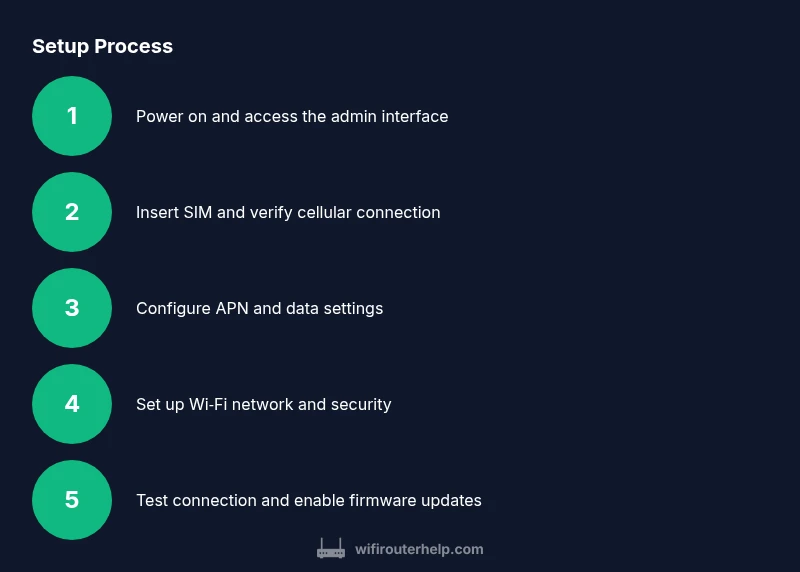
- 1
Power on and access admin interface
Connect the router to power and join its default network from a computer or phone. Open a web browser or the router’s app and enter the default IP address or scan the QR code to access the admin interface. This first login is your opportunity to secure the device by changing the default credentials.
Tip: Note the default login details before changing anything; secure them immediately. - 2
Insert SIM and verify cellular connection
Insert the SIM card into the router’s SIM slot following the manual. Power cycle if needed, then check the admin interface for a status indicator showing cellular registration. Confirm the device shows 5G or the best available network.
Tip: Make sure the SIM is activated and not locked to another device or carrier. - 3
Configure APN and data settings
Navigate to Cellular or WAN settings and enter the APN values provided by your carrier. Save the changes and reboot if required. Verify data connectivity in the status page after the reboot.
Tip: If you don’t have APN values, contact the carrier or consult their official documentation. - 4
Set up Wi‑Fi network and security
Create a unique SSID for your network and set a strong, long password. Enable WPA3 if available; otherwise use WPA2‑AES with a modern passphrase. Enable guest networking if you have visitors or IoT devices that don’t need full access to the main network.
Tip: Use a different password for the guest network and limit guest access to essential services. - 5
Test connection and enable firmware updates
Run a quick web test or speed test from a connected device to confirm internet access. Check the router’s firmware update section and enable automatic updates if possible. Keep a note of the current firmware version for future reference.
Tip: Enable automatic updates to stay protected against new threats and bugs.
People Also Ask
Do I need a data plan to use a 5G SIM router?
Yes. A 5G SIM router relies on a cellular data connection, so you must have an active data plan.
Yes. You need a data plan to use a 5G SIM router.
Can a 5G SIM router replace my fixed broadband?
It can serve as a primary connection in areas with strong cellular coverage or as a reliable backup during outages. Assess your exact coverage and data needs before deciding.
It can be the primary internet source in good coverage areas, or a reliable backup.
Are 5G SIM routers carrier-locked?
Some routers are locked to a carrier. If you need flexibility, look for an unlocked model or check if the carrier allows unlocking after a period.
Some are carrier-locked; check the model and carrier policies.
How do APN settings affect connectivity?
APN settings tell the router how to connect to the carrier’s data network. Correct APN values are essential for internet access.
APN settings tell the router how to reach the carrier’s network; correct values matter.
How can I monitor data usage on a 5G SIM router?
Use the router’s built‑in data usage tools in the admin interface or app. You can set alerts and caps if supported.
Most routers show data usage in the UI; set alerts if available.
Is 5G security risk higher than other connections?
Security levels depend on configuration. Use strong passwords, enable encryption, and keep firmware updated to minimize risks.
Security hinges on your settings; keep firmware updated and use strong passwords.
Watch Video
What to Remember
- Secure admin access before connecting devices
- Choose a compatible data plan with adequate data
- Configure APN correctly for internet access
- Protect your Wi‑Fi with strong passwords and encryption
- Keep firmware up to date for security and performance