SIM Card WiFi Router: A Practical How-To Guide
Learn how to set up a SIM card WiFi router, choose the right model, configure APN, secure your network, and troubleshoot common issues for reliable cellular internet at home.


Learn how to deploy a SIM card wifi router to deliver cellular internet to your home. This guide covers choosing a plan, inserting the SIM, configuring APN, securing your network, and troubleshooting common connectivity issues. According to WiFi Router Help, a SIM card router can simplify internet access where fixed lines are unavailable.
What is a SIM card WiFi router and when to use it
According to WiFi Router Help, a SIM card wifi router is a standalone device that uses a cellular SIM to access mobile data and shares that connection over WiFi to all home devices. This setup is ideal when you lack a reliable fixed broadband line, are in an area with poor fiber or cable options, or need a portable internet solution for a vacation home or a temporary workspace. Cellular networks come with varying speeds and data policies, so choosing a router with 4G/5G support and flexible APN options helps maximize performance. A good SIM router also simplifies device management and firmware updates, because you manage everything from one admin panel. As with any internet access, your experience hinges on signal strength, plan data caps, and how you place the router for optimal reception. If you expect multiple devices streaming video or gaming, look for a model with robust WiFi (dual-band or tri-band), enough RAM, and a capable processor. In short, a SIM card wifi router can replace or supplement fixed broadband when you plan for data usage, signal environment, and real-world speed expectations. The key is to start with a clear data plan and a device that fits your home layout.
Key compatibility and prerequisites
Before you buy or configure, confirm that your router supports the carrier bands, APN settings, and SIM type you plan to use. Ensure you have an active data plan, a SIM card that is not locked to another device, and the correct SIM size (nano, micro, or standard) or eSIM option if supported. Verify that the router's WAN mode can handle DHCP/PPPoE/Static as required by the carrier, and check whether external antennas are available to improve reception. If you anticipate weak signal, a high-gain antenna or a better position near a window can help. WiFi Router Help analysis shows some carriers restrict tethering or hotspot features on certain plans, so read the terms and confirm compatibility before committing. Finally, update the router firmware to ensure security and access to new features, such as improved QoS controls and firewall options.
How to choose the right SIM card router
Focus on compatibility, performance, and features when choosing. Verify the modem supports 5G if you want future-proof speeds, and confirm the device works with your local carriers' bands. Look for dual-band WiFi (2.4 GHz and 5 GHz) and support for the latest security protocols (WPA3). Check ports: at least 1-2 gigabit LAN ports, a USB port for storage or tethering, and whether the device supports external antennas. If you need mobility, consider a model with optional battery or a compact form factor. Data capacity matters: while dense households benefit from larger data caps or unlimited plans, lighter users can choose mid-tier plans. Also evaluate the user interface: a clean admin panel, clear APN configuration, and intuitive parental controls. Some routers offer built-in VPN, guest networks, or UPnP; decide which extras matter for your household. Finally, consider future upgrades: if you might switch carriers or add more devices, pick a router known for firmware updates and good warranty support.
Planning your network and data plan
Map your home layout to estimate signal needs; decide between a single central router or additional extenders; think about data consumption patterns such as streaming, gaming, and remote work. Choose a data plan with sufficient monthly allowance and fair-use terms; if you expect to overload, pick a plan with higher caps or a business plan. Take note of travel: if you will move locations often, a portable router with a compact design may be best. Gather the needed items (SIM, screwdriver, micro-SD card if NAS is desired) and ensure you have the official APN settings from your carrier.
Optimizing coverage and data usage
Place the router in a central, elevated location away from thick walls and metal appliances. Position antennas (if external) for maximum signal, and use the 2.4 GHz band for range and the 5 GHz band for speed where devices support it. Enable QoS to prioritize work devices or streaming services, and consider enabling a guest network for visitors. If your coverage is patchy, use a WiFi extender or a mesh node that supports your cellular router, ensuring compatibility. Monitor data usage through the admin panel and set alerts when you approach your plan limit. Finally, schedule large downloads for off-peak hours if your plan allows throttling or fair-use terms.
Security, maintenance, and troubleshooting
Change the default admin username and password during setup, and disable remote management unless you need it. Keep firmware up to date to patch vulnerabilities and unlock features. Regularly review connected devices and remove strangers from your network. If you experience no internet after setup, verify APN settings, check SIM status, and restart the device. If speeds are slow, test signal with a mobile app or speed test in different rooms, and consider upgrading antennas or moving the router to improve reception. For ongoing issues, consult your carrier about SIM activation status and roaming options; if the SIM is carrier-locked, you may need to unlock it. Safety notes: avoid moisture and keep the device on a stable surface away from heat sources.
Tools & Materials
- SIM-enabled WiFi router(Must have a built-in cellular modem)
- Active data plan(Plan with sufficient data for home use)
- SIM card (nano/standard/eSIM)(Check size required by router)
- Power adapter(Original or compatible)
- External antenna (optional)(For weak signal areas)
- Laptop/phone to access admin panel(For configuration)
Steps
Estimated time: 25-45 minutes
- 1
Verify prerequisites and plan
Confirm your data plan, SIM compatibility, and router features before starting. Verify that the router supports the carrier bands and APN settings. Have a clear understanding of the devices that will connect and the coverage area you aim to cover.
Tip: Triple-check the SIM size and plan limits before you begin. - 2
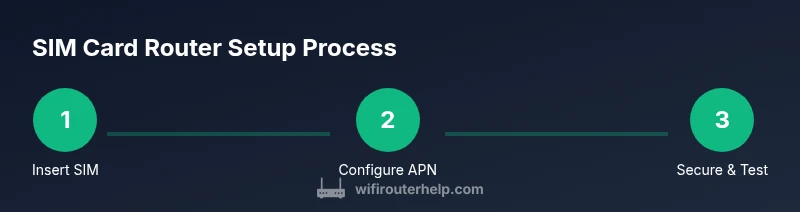
Insert SIM and power on
Power off the router, insert the correctly sized SIM card, reseat if needed, then power the device back on. Wait for the indicator lights to stabilize and confirm the device recognizes the SIM.
Tip: Ensure the SIM is activated and not locked to another device. - 3
Connect to the admin panel
Connect a computer or phone to the router via Ethernet or its default WiFi. Open the router’s admin URL and log in using the default credentials supplied by the manufacturer. Change the password immediately after first login.
Tip: Bookmark the admin URL and update the password to a strong unique one. - 4
Configure WAN and APN
Set the WAN/Internet connection type to DHCP or PPPoE as required by your plan. Enter the APN values provided by your carrier and save the settings. Restart the device to ensure the changes take effect.
Tip: Copy APN details exactly from the carrier to avoid misconfiguration. - 5
Set up Wi‑Fi and security
Change the network name (SSID) and set a strong WPA3 (or at least WPA2) password. Enable guest networks if you have visitors and disable WPS if available for better security.
Tip: Use a unique SSID and a password with at least 12 characters including numbers and symbols. - 6
Enable protection and update
Enable the firewall, enable automatic firmware updates if available, and disable remote administration unless needed. Create a backup of the current configuration.
Tip: Regularly check for and install firmware updates to close security gaps. - 7
Test connectivity
Connect multiple devices and run speed tests in different rooms. Verify DNS resolution and latency. If issues arise, recheck APN and signal strength.
Tip: Test with both wired and wireless devices to isolate issues. - 8
Monitor data usage
Set data usage alerts, review connected devices, and adjust QoS rules to prioritize essential traffic during peak times.
Tip: Set caps or alerts to avoid unexpected overages. - 9
Back up and recover
Export the configuration to a file and store it securely. Verify that you can restore the settings from the backup if needed.
Tip: Keep backups offline in a safe place.
People Also Ask
What is a SIM card WiFi router?
A device that uses a cellular SIM to access mobile data and shares that connection over WiFi to your devices.
A cellular router that provides WiFi from mobile data.
Do I need a data plan for the router?
Yes, you must have an active data plan; terms vary by carrier and device.
Yes, an active data plan is required.
Can I use eSIM?
If your router supports eSIM, you can activate it digitally; otherwise use a physical SIM.
If supported, you can use eSIM instead of a physical SIM.
Will this replace fixed broadband entirely?
A SIM card router can serve as a primary or backup solution, depending on data plan and signal.
It can be primary or backup, depending on coverage and plan.
What APN settings will I need?
APN values vary by carrier; obtain exact APN, username, and password from your provider.
Carrier-provided APN details are essential for connectivity.
What should I do if data is throttled or capped?
Review data usage in the admin panel, adjust QoS, and consider upgrading to a higher-cap plan for more headroom.
Check usage, adjust settings, or upgrade your plan to avoid throttling.
Watch Video
What to Remember
- SIM card routers enable cellular internet in homes without fixed lines.
- APN and data plan terms are critical for reliable connectivity.
- Secure setup with strong passwords and updated firmware.
- Position and extras (antennas, extenders) boost coverage.
- Monitor data usage to manage caps and avoid throttling.