Router SIM Setup: Cellular Internet for Home WiFi
Learn how to use a router SIM for cellular Internet: choose a SIM, install, configure APN, and optimize home WiFi with a practical, step-by-step guide.


With a router SIM, you can provide cellular Internet to your home network by inserting a SIM card or enabling an eSIM in your router, then configuring APN and roaming settings. This guide gives a step-by-step workflow for choosing the right SIM, installing it, activating data, and optimizing performance, plus common troubleshooting tips.
What is a router SIM and when to use it
A router SIM refers to a SIM card or eSIM that lives inside a compatible WiFi router, enabling cellular data to feed your home network instead of a fixed broadband line. With a router SIM, you get Internet through cellular networks (4G/5G) just like a phone does, but shared across all devices via the router. This setup is especially useful in areas with unreliable fixed connections, during a broadband outage, or for temporary setups such as a cabin or a construction site. It also helps if you want to keep a dedicated data plan for IoT devices, guest networks, or a secondary connection for critical work. The WiFi Router Help team has found that many households use router SIMs as a resilient backup, while others rely on them as their primary link in mobile-friendly homes or remote locations. Before you invest, assess coverage in your area, data needs, and the router’s cellular capabilities, including supported bands and SIM formats.
According to WiFi Router Help, a router SIM can offer a practical path to Internet resilience, especially when fixed lines are slow or unavailable. Treat it as part of a broader home-network strategy, not a sole replacement for your primary service. If your goal is uninterrupted work-from-home or streaming, verify provider coverage and your router’s modem capabilities first.
Choosing the right SIM plan and carrier for a router
Selecting the right SIM plan means matching data needs to coverage, speed, and cost. Start by estimating typical usage (browsing, streaming, video calls) and consider a data plan that offers enough headroom without aggressive throttling. If you expect peak usage or multiple devices, look for plans with higher data allowances or truly unlimited data. Roaming support matters if you travel or live near borders; verify that roaming is allowed and that the carrier provides predictable speeds in your region. For IoT devices on a separate network, a low-cost data plan can be a good fit. WiFi Router Help analysis shows that households with router SIMs often optimize by pairing a dedicated data plan with a compatible router that can switch between cellular and fixed-line WAN as needed.
Physical SIM vs eSIM in routers
Many modern routers support both physical SIM cards and eSIM, but not all. If your router offers both, you can switch between SIM types based on availability and cost. Physical SIMs require a tray and a SIM-ejector tool, while eSIM is downloaded digitally. Check your router’s manual for the exact steps to activate an eSIM, which can simplify procurement and provisioning. Some routers lock to a specific carrier, while others are unlocked and work with any SIM that fits the bands. In some regions, operators offer data-only SIMs or eSIM profiles optimized for home routers. Ensure the chosen option is compatible with your router’s modem and firmware version.
Inserting the SIM and initial checks
Power down the router before handling the SIM, to avoid static or electrostatic discharge. If you’re using a physical SIM, insert it into the correct slot and reseat the tray firmly. Power up the device and watch the status lights for a moment to confirm cellular connectivity. Access the router’s admin page from a connected computer or phone, and navigate to the WAN or Cellular section to verify the modem detects the SIM. If you don’t see a signal, recheck the SIM orientation and ensure you’ve selected the right SIM slot (some routers have separate slots for primary and secondary SIMs).
Configuring APN, roaming, and network mode
APN settings tell the router how to route data over the cellular network. In many routers, you’ll enter the APN name, username, and password if required by your carrier; some carriers only require the APN field. If your plan supports roaming, enable roaming to maintain connectivity when you’re outside your home network’s coverage area. Select the appropriate network mode (auto, 4G/5G only, or 3G/4G fallback) based on your region and device capabilities. After saving, test a quick connection by loading a webpage or streaming a short video. If the connection fails, double-check APN values against your carrier’s official documentation and try resetting the modem or rebooting the router.
Securing and managing your router SIM connection
Security is essential when routing cellular data to your home network. Use a strong admin password, enable firewall features, and restrict remote management if not needed. Consider enabling a guest network for devices that don’t require access to your main network and always keep firmware up to date to mitigate known vulnerabilities. If your router supports VPN passthrough, configure a VPN for remote access without exposing your internal network to the Internet. For data privacy, review the router’s DNS settings and consider using a trusted DNS service. Regularly review SIM usage logs, especially if you share access with guests or family members, to avoid unexpected data charges.
Optimizing signal and coverage
Cellular signal strength depends on many factors: distance to the nearest tower, building materials, and antenna design. Place the router in a central, elevated location away from thick walls and large metal objects. If your router supports external antennas, experiment with their direction to maximize signal. In challenging spaces, consider a signal-boosting kit or a small external antenna mounted near a window. For larger homes, a mesh network or additional access points can distribute the cellular WAN more evenly. Ensure your router firmware supports advanced antenna configurations and any vendor-specific features for signal optimization.
Data usage and billing considerations
Cellular data plans can be expensive if you don’t manage usage carefully. Monitor data consumption through the router’s dashboard and set alerts when you approach your monthly limit. Use quality-of-service (QoS) features to prioritize critical work devices during peak hours. If you’re using a backup connection for outages, keep a buffer by lowering video streaming quality and updating firmware to control background data transfers. Some plans throttle speeds after a data cap; in those cases, understand the timetable and adjust usage accordingly. Keep an eye on roaming charges if you travel frequently or if you have devices that consume data in the background.
Advanced features: dual-SIM, failover, VPN
High-end routers support dual-SIM configurations for failover, load balancing, or increased data capacity. A true failover setup automatically switches to the secondary SIM if the main connection drops, which can be crucial for home offices or security systems. VPN support allows remote access while preserving privacy and data integrity. If your router supports VPN passthrough or client mode, configure it according to the manufacturer’s instructions and your security policy. Regularly test failover to ensure you understand how quickly you regain connectivity and whether additional hardware is needed for optimal reliability.
Troubleshooting common issues
If the router SIM isn’t recognized, start with a power cycle and reseat the SIM. Verify you’re using the correct APN for your carrier and region. If you see a weak signal, try repositioning the router or using an external antenna. For roaming failures, check that roaming is enabled and that your plan supports it. If speeds are slow, monitor network congestion and confirm you aren’t hitting a data cap. In persistent cases, contact the carrier or the router manufacturer for diagnostics and potential firmware updates.
Common mistakes and best practices
Avoid using a data plan that doesn’t fit your actual usage; overspending is common with unlimited plans that aren’t well matched to household needs. Don’t disable essential security features in an attempt to fix connectivity; a robust firewall and updated firmware are your first line of defense. Always back up APN and Wi-Fi credentials in a secure location. Finally, test the setup during different times of day to understand real-world performance before depending on it as your sole Internet source.
AUTHORITY SOURCES
For further reading and official guidance, consult:
- https://www.fcc.gov
- https://www.ntia.gov
- https://www.cisa.gov
These sources provide official guidance on cellular networks, device interoperability, and security best practices related to router SIM deployments.
note”:null},
Tools & Materials
- Router with SIM slot or eSIM support(Ensure 4G/5G capability and check carrier compatibility with the router model.)
- Data SIM card or eSIM(Choose a data plan with adequate data and coverage for your area.)
- SIM ejector tool(Only needed if using a physical SIM tray.)
- Power supply and Ethernet cable(Stable power and a wired connection for initial configuration.)
- APN settings reference(Have carrier APN values on hand or saved as a document.)
Steps
Estimated time: 45-90 minutes
- 1
Verify hardware compatibility
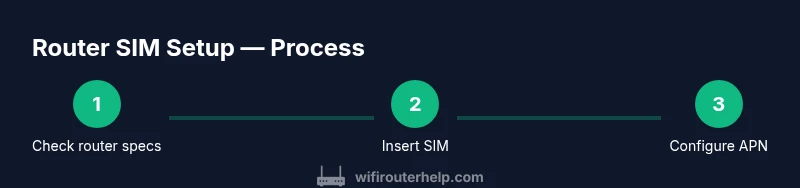
Check that your router supports SIM-based Internet (physical SIM or eSIM) and that the modem bands align with your carrier’s network. Read the user manual and confirm the WAN settings suitable for cellular connectivity.
Tip: If you’re unsure, contact the manufacturer’s support to confirm model capabilities before purchasing a SIM. - 2
Prepare the SIM and router
If you’re using a physical SIM, insert it in the correct slot and reseat the tray. If you’re using an eSIM, obtain the profile from your carrier and prepare to install it in the router’s UI.
Tip: Keep the device powered off during insertion to prevent static damage. - 3
Access the router admin page
Connect a device to the router’s network (wired or wireless) and open the admin URL printed on the device label. Log in with your admin credentials and navigate to the Cellular or WAN settings.
Tip: If you forgot the password, use the factory reset method described in the manual. - 4
Enter APN and roaming settings
Input the carrier’s APN values and enable roaming if you plan to use the service away from home. Set the network mode to auto to let the router choose the best available speed.
Tip: Some carriers require only the APN; others need a username/password as well. - 5
Test connectivity
Save changes and reboot if needed. Check the status page for a cellular signal, then load a webpage or run a speed test to verify performance.
Tip: If there is no signal, try a different SIM slot or restart the modem first. - 6
Enable failover or dual-SIM (optional)
If your router supports it, configure a secondary WAN or SIM for automatic failover during outages, or use load balancing to share traffic.
Tip: Test failover by simulating an outage to ensure seamless handoff. - 7
Secure and monitor
Update firmware, change default admin credentials, and set up a guest network. Monitor data usage to avoid unexpected charges.
Tip: Schedule firmware updates and set data alerts in the router’s UI.
People Also Ask
What is a router SIM and how does it work?
A router SIM is a SIM card or eSIM embedded in a compatible router to provide cellular Internet access. It powers your home network via 4G/5G connectivity rather than a fixed broadband line.
A router SIM lets your router connect to the cellular network so your home devices can access the Internet without wired broadband.
Can I use my phone’s SIM in a router?
In most cases, you should use a dedicated data SIM or an eSIM plan designed for devices. Some carriers issue SIMs restricted to phones or require data-only profiles for routers.
Phone SIMs may not work reliably in a router; check with your carrier for a data-only profile.
What APN settings do I need to configure?
APN settings vary by carrier; you typically need the APN name, and sometimes a username and password. Check your carrier’s official documentation and input values in the router’s Cellular/ WAN settings.
APN values come from your carrier; enter them in the router’s settings to enable data.
Is roaming needed for router SIMs?
Roaming is useful if you move between regions where your home carrier has limited coverage. Enable roaming only if your data plan supports it to avoid unexpected charges.
Roaming helps when you travel, but verify plan terms first.
How can I monitor data usage on a router SIM?
Use the router’s dashboard to view data consumed per device and overall usage. Set alerts if available to prevent exceeding your plan.
Check the dashboard for data usage and set up alerts if your router supports them.
What should I do if I lose cellular signal?
First, verify SIM seating and restart the modem. If that fails, check carrier status pages for outages and confirm you’re on the correct network mode.
If signal drops, reboot and check whether there’s a carrier outage.
Watch Video
What to Remember
- Choose the right SIM plan aligned with coverage and data needs
- Verify router compatibility before purchasing a SIM
- Configure APN and roaming correctly for reliable cellular Internet
- Enable security features and monitor data usage to protect your setup
- WiFi Router Help recommends testing in real conditions to confirm performance