Mobile Internet Router Setup: Step-by-Step Guide for Home
Learn how to set up a mobile internet router, choose a data plan, configure a secure Wi-Fi network, and optimize performance for home use with practical steps from WiFi Router Help.


By the end of this guide, you will know how to set up a mobile internet router, choose a compatible SIM or eSIM, insert it, and configure a secure Wi-Fi network for multiple devices. You'll also learn basic optimization and safety practices to keep your home network reliable and private. This approach works with most carriers and supports shared connectivity across devices.
What is a mobile internet router and when to use one
According to WiFi Router Help, a mobile internet router is a portable device that broadcasts a cellular data connection as Wi‑Fi to multiple devices. It shines in places with unreliable fixed broadband, during travel, in remote work setups, or as a reliable backup for a home network. If you’re in a rural area with spotty cable or fiber access, a mobile router can provide a steadier, flexible option for laptops, tablets, and smart devices. This is especially useful for households that rent short-term spaces, work from vacation homes, or want uninterrupted internet during outages.
Key features to look for in a mobile internet router
When shopping for a mobile internet router, focus on these core features:
- SIM compatibility: nano-SIM, micro-SIM, or eSIM support and carrier provisioning.
- Cellular support: 4G/5G bands, with broad coverage for your region.
- Wi‑Fi standard: Wi‑Fi 5 (802.11ac) or Wi‑Fi 6 (802.11ax) for better speeds and efficiency.
- Antennas and signal quality: external or internal antennas, multiple antennas for better reception.
- Network ports: at least one Ethernet LAN port; USB ports for tethering or charging.
- Security: built-in firewall, VPN support, guest network, and strong admin controls.
- Battery life and portability: size and battery capacity for truly mobile use, if needed.
- Management features: cloud or app-based setup, firmware updates, and parental controls.
A good router will balance performance, battery, and data plan concerns, while offering clear menus for settings changes. WiFi Router Help recommends prioritizing security features and regular firmware updates as part of ongoing maintenance.
How it differs from a traditional home router
A traditional home router plugs into a fixed broadband connection (fiber, cable, or DSL) and distributes that wired internet via Wi‑Fi. A mobile internet router relies on cellular data, so you’re limited by data plans, network latency, and coverage.
- Mobility: You can move the router to where you get the best signal or keep it in a car, RV, or cabin.
- Data plans: Your usage is tied to a cellular plan, with potential data caps, overage fees, and throttling.
- Network management: Some mobile routers offer simpler interfaces; others provide advanced controls like QoS, VPN, and guest networks.
- Latency and reliability: Cellular networks can be more variable than fixed lines, but modern 5G networks reduce delay and improve burst speeds. Your setup should expect fluctuations and plan accordingly.
Getting started: choosing a SIM plan and device compatibility
Before buying a mobile internet router, verify carrier compatibility and band support. Check the router’s specifications for 4G/5G bands and confirm you can activate an add-on data plan (or eSIM) with your chosen carrier. Consider your household data needs: streaming, conferencing, gaming, and smart home devices typically require higher data allowances and possibly prioritization features. If you already have a cellular plan, confirm it supports tethering and that the carrier allows multiple devices on a hotspot. In regions with mixed coverage, evaluate regional plans or eSIM options for flexibility.
Step-by-step setup overview
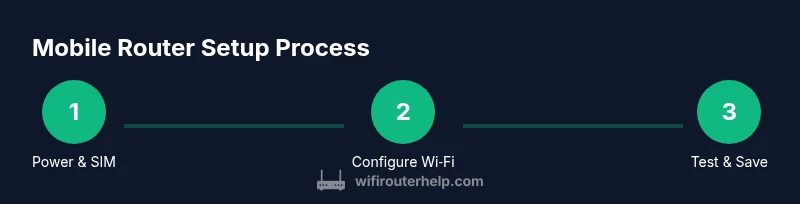
This overview maps to the detailed steps in the dedicated STEP-BY-STEP section. Start by powering the router with the active SIM/eSIM installed, then connect a device to the router’s default Wi‑Fi network. Access the admin page, update firmware if available, create a strong SSID and password, enable security features (firewall, WPA3 when possible), and test connectivity across devices. Finally, enable a guest network if you often have visitors and back up your configuration.
Optimizing performance and range
To maximize speed and coverage:
- Place the router centrally in your home, elevated if possible, away from large metal objects, and near windows to improve reception.
- Use the 5 GHz band for devices near the router and leave 2.4 GHz for farthest corners and older devices.
- Enable beamforming or MU-MIMO if supported, and consider adjusting channel selection to avoid congestion.
- Prioritize important devices with QoS rules if your router supports it; limit nonessential connected devices during heavy usage.
- Monitor data usage and adjust plan or data saver settings to avoid throttling or overage.
WiFi Router Help notes that real-world performance depends on signal strength and network congestion; planning around peak hours can help maintain reliability.
Security, safety, and maintenance
Security should be central to your setup:
- Change the default admin password immediately and document the new one securely.
- Keep firmware up to date to mitigate vulnerabilities.
- Use WPA3 (or WPA2 at minimum) with a strong, unique Wi‑Fi password.
- Enable a guest network to protect your devices and data.
- Consider a VPN for sensitive activity and disable WPS if possible.
- Regularly review connected devices and remove unknown clients.
Regular maintenance reduces the risk of intrusions and ensures long-term reliability. WiFi Router Help analysis shows users who keep firmware updated and monitor connected devices report better overall performance and fewer interruptions.
Troubleshooting common issues
Encountering issues is common when introducing mobile internet routers:
- No internet after setup: verify SIM/eSIM activation, APN settings, and gateway status; reboot the router.
- Weak signal: move the router to a higher location, near a window, or try a different carrier’s SIM if allowed.
- Devices not seeing the network: ensure the SSID is broadcast and the password is correct; refresh device Wi‑Fi settings.
- Slow speeds: run a speed test across 2.4 GHz and 5 GHz bands, check for data cap throttling, and update firmware.
- IP or DNS issues: check DHCP settings and consider setting a public DNS (e.g., 1.1.1.1) in the router’s configuration.
If problems persist, perform a factory reset and reconfigure from scratch, keeping backup configurations for quick recovery. WiFi Router Help emphasizes methodical testing after each change.
Real-world use cases and best practices
Mobile internet routers work well in several scenarios:
- Backup internet for a home office during outages.
- Flexible connectivity while traveling or in a rental property.
- Rural areas with limited wired options but decent cellular coverage.
- Small families sharing a single data plan for mobile devices and smart-home gadgets.
Best practices include mapping your coverage, choosing a plan with adequate data, enabling security features, and maintaining a routine check of device firmware.
Maintenance checklist for ongoing reliability
Create a monthly routine:
- Check for firmware updates and apply them.
- Review connected devices and adjust access permissions.
- Re-run a speed test to verify performance expectations.
- Validate that data usage remains within plan limits and set alerts if available.
- Backup router configuration and note any changes in a secure location.
A proactive maintenance habit reduces surprises and keeps your home network dependable.
Tools & Materials
- Mobile internet router(Device you will configure and use as the hotspot)
- Active SIM card or eSIM plan(Ensure data plan compatibility and carrier support)
- Power supply or USB-C cable(To power the router during setup and use)
- Laptop or smartphone for configuration(Used to access the router’s admin interface)
- Ethernet cable (optional)(For wired admin access or temporary setup)
- SIM eject tool (optional)(Only if the SIM tray requires a tool)
Steps
Estimated time: 25-40 minutes
- 1
Power on and insert SIM/eSIM
Insert the active SIM or enable the eSIM per the device manual. Ensure the router powers on and recognizes the SIM. Wait for the status indicators to show a solid signal before proceeding.
Tip: Double-check SIM orientation and tray/slot compatibility before powering. - 2
Connect a management device to the router
Connect your laptop or smartphone to the router’s default Wi‑Fi network or use a LAN cable for initial access. This initial connection will let you reach the admin interface without needing prior network knowledge.
Tip: Use the device you will primarily manage the network with during setup. - 3
Open the router's admin page
In a browser, enter the router’s default IP address (commonly 192.168.0.1 or 192.168.1.1). Log in with the default credentials found in the manual or on the device label.
Tip: Change the default username and password immediately after login. - 4
Check for and install firmware updates
Navigate to the firmware/update section and check for available updates. If updates exist, install them fully and avoid interrupting the process.
Tip: Keep a backup of your current configuration before updating. - 5
Configure your Wi‑Fi network
Set a unique SSID, enable encryption (prefer WPA3 if available), and create a strong, memorable password for all devices.
Tip: Use a long password that includes letters, numbers, and symbols. - 6
Set security features
Turn on the router firewall, enable NAT if needed, and disable WPS if possible. Consider enabling VPN support for sensitive activity.
Tip: Document your admin password and VPN settings securely. - 7
Create a guest network
If you have visitors, enable a guest network separate from your main devices to reduce risk and keep guest traffic isolated.
Tip: Assign a distinct password for the guest network and rotate it periodically. - 8
Test connectivity on multiple devices
Connect several devices to the new network and run basic activities: web browsing, video call, and streaming tests to verify stability.
Tip: Test on both 2.4 GHz and 5 GHz bands where available. - 9
Save, back up, and review
Save your configuration, back up settings if the router supports it, and review device access periodically to maintain security.
Tip: Create and store a configuration backup in a secure location.
People Also Ask
What is a mobile internet router?
A mobile internet router is a portable device that shares a cellular data connection over Wi‑Fi to multiple devices. It’s ideal for travel, backup internet, or locations without fixed broadband.
A mobile internet router shares cellular data as Wi‑Fi to many devices and is great for travel or backups.
Do I need a data plan for a mobile router?
Yes. A data plan from a cellular provider is required to supply the router with internet access. Choose a plan based on your expected usage and coverage.
Yes, you need a data plan; pick a plan that fits your usage and area.
Can I use it with home broadband?
Yes, you can use a mobile router as a backup or supplementary connection. It won’t replace a stable fixed line for all tasks, especially in low-coverage areas.
Yes, it can supplement fixed broadband as a backup, not always a full replacement.
What speeds can I expect from a mobile router?
Speeds vary by carrier, plan, signal quality, and network congestion. Tests in your home should guide expectations for streaming and calls.
Speeds depend on the carrier, coverage, and network load; test in your space.
Is it safe to leave a mobile router on all day?
Generally safe with proper ventilation and firmware updates. Monitor for heat and ensure the unit has adequate airflow.
It's usually safe if the router has good ventilation and stays updated.
How can I extend coverage in a larger home?
Place the router centrally, consider a Wi‑Fi extender or mesh system, and use 5 GHz for close devices while 2.4 GHz covers farther areas.
Try central placement and possibly a mesh system for bigger homes.
Watch Video
What to Remember
- Define your data needs and choose a compatible SIM/eSIM plan.
- Secure the network with a strong password and up-to-date firmware.
- Use separate guest networks to protect primary devices.
- Test and monitor performance across bands and devices for reliability.