WiFi Mobile Router: Setup, Security, and Optimization
Learn how to choose, set up, and optimize a wifi mobile router for reliable on-the-go internet with practical steps and security tips from WiFi Router Help.


According to WiFi Router Help, a wifi mobile router turns cellular data into a private Wi‑Fi network, portable and easy to secure. This quick guide shows how to choose a model, get it online, secure the network, and optimize performance so you can enjoy reliable internet on the go. Follow the steps below for setup and common troubleshooting tips.
Understanding what a wifi mobile router is
A wifi mobile router is a compact device that creates a private wireless network using cellular data from a SIM card. It acts as a portable gateway, letting you connect multiple devices without depending on fixed broadband. According to WiFi Router Help, a wifi mobile router turns cellular data into a private Wi‑Fi network, portable and easy to secure. This makes it ideal for travel, remote work, or households that want internet on the go. In practice, most models include a built-in modem, one or more LAN ports, a small display or app for management, and a battery or USB-C charging. The key difference from a traditional home router is cellular connectivity rather than a fixed line; you pay for data rather than a monthly line rental. Understanding these basics helps you pick the right device for your needs and budget.
How mobile routers differ from traditional home routers
Traditional home routers connect to fixed broadband (DSL, cable, fiber) and distribute internet via Wi‑Fi inside a home. A wifi mobile router uses a cellular network as its backbone and often includes a built-in modem, battery, and SIM slot. Portability is the major advantage, enabling internet access in cars, parks, cafes, or vacation homes. Performance depends on cellular signal strength, carrier band support, antenna quality, and the device's ability to handle concurrent connections. Some models also offer Ethernet ports for wired devices and USB tethering for phones. On cost, mobile routers usually require a data plan with a SIM; data limits, roaming fees, and hotspot policies vary by carrier. For many users, the line between portable hotspot and dedicated mobile router has blurred as devices gained larger batteries and better processing power. The WiFi Router Help team notes that a well-chosen mobile router can substitute for a home router in compact spaces, while a dedicated plan ensures reliability.
Core features to look for in a wifi mobile router
When evaluating wifi mobile routers, prioritize features that improve reliability and security. Look for a cellular modem that supports 4G/5G and multiple bands, a dedicated SIM slot with data plan compatibility, and a robust battery or reliable charging options. A modern device should offer dual-band Wi‑Fi (2.4 GHz and 5 GHz), support for at least WPA3 security, and a capable processor to handle multiple devices simultaneously. Additional niceties include Ethernet ports for wired devices, USB tethering, a companion mobile app, and straightforward firmware updates. If you travel often, check battery capacity (mAh), pass-through charging, and the ability to operate while charging. The right model also adds features like guest networks, QoS, and a responsive admin interface that makes configuration quick and repeatable.
Choosing between a portable hotspot and a true mobile router
A portable hotspot is typically smaller, simpler, and designed for quick device sharing in limited quantities. A true wifi mobile router, however, emphasizes flexibility: more Ethernet ports, better range, stronger processing power, extended battery life, and often more advanced security settings. If you need to support several devices in a cabin, RV, or work site, a dedicated mobile router with a data plan will usually outperform a basic hotspot. Consider your use case: casual browsing on a single phone vs. streaming, conference calls, or gaming on multiple devices. The WiFi Router Help team recommends matching the device capability to your data plan and coverage area for reliable results.
Setting up your wifi mobile router: unboxing and initial setup
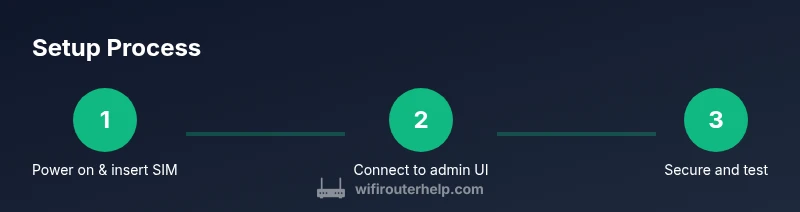
Unboxing begins with verifying the kit includes the router, SIM, charging accessories, and a quick-start guide. Charge the device fully before the first use. Insert a valid SIM with an active data plan into the SIM slot and power on the router. Connect a computer or smartphone to the router’s default network name (SSID) using the default password printed on the device or in the manual. Open the admin interface via the provided URL and login with the default credentials to begin setup. The initial wizard will guide you through basic settings, including WAN type, time zone, and admin password. Be sure to update firmware immediately to ensure security and compatibility with the latest networks.
Configuring security and SSID: best practices
Security starts with changing the default admin password and the network SSID to something unique. Enable WPA3 if supported; otherwise, WPA2 with a strong, long password is the minimum. Disable WPS if your device offers it, and enable the built-in firewall. Consider enabling a guest network for visitors to prevent guests from accessing your main devices. Keep remote management disabled or restricted to trusted IP addresses. Regular backups of configuration settings help you recover quickly after a reset or firmware update.
Optimizing performance: signal, channel, and band choices
Performance hinges on cellular signal quality and radio settings. If the router supports band steering, enable it so devices preferentially select the best band. For congested environments, use the 5 GHz band for nearby devices and reserve 2.4 GHz for distant or low-throughput devices. If your router has external antennas, position them to maximize signal in the room where you work. Running a quick speed test after setup helps verify throughput and stability. QoS (Quality of Service) rules can prioritize video calls or gaming traffic when multiple devices share the network.
Advanced settings: NAT, DHCP, firewall, UPnP
NAT and DHCP should be enabled by default, but review their ranges to avoid IP conflicts with other networks. The firewall should be on to block unsolicited inbound traffic. UPnP can simplify device discovery but may introduce security risks; disable UPnP if you don’t need it. If your router supports VPN pass-through, enable it to ensure secure connections for remote access. Regularly check for firmware updates to keep these features current and defended against new threats.
Troubleshooting common issues
If devices can’t connect, ensure the SIM is active and cellular data is enabled in the admin panel. A weak signal may be resolved by repositioning the router or moving closer to windows with better reception. If the router cannot access the internet, verify APN settings, roaming configurations, and data plan limits. For slow speeds, test with a single device, then add more; observe if latency spikes during peak hours. If the device won’t boot, perform a factory reset and reconfigure from scratch, ensuring you have a recent backup.
Battery life and power management
Portable routers rely on battery efficiency. To extend life, lower screen brightness if available, reduce beacon intervals, and disable features you don’t need. When possible, operate the device while plugged into a power bank or charger to maintain performance without exhausting the battery. Some models support charging while in use; check compatibility and power requirements in the manual.
Travel and data planning: roaming, data caps
Before international travel, verify roaming options and local data plans to avoid unexpected charges. Use data usage alerts and set caps or throttling to prevent overages. If you rely on the router in multiple locations, carry a spare SIM or a plan that supports roaming and multiple profiles. Understand hotspot policies from your carrier to avoid conflicts with personal data plans.
Verdict: The WiFi Router Help recommendation
In our assessment, a well-chosen wifi mobile router paired with a suitable data plan delivers reliable on-the-go internet for home, travel, and work. The WiFi Router Help team emphasizes modeling your setup around signal quality, device capacity, and security. With careful configuration and ongoing maintenance, a portable router becomes a dependable backbone for your devices wherever you go.
Tools & Materials
- SIM card with data plan(Ensure the plan supports hotspot/tethering if needed)
- Power supply or power bank(Charge before use; keep a bank for on-the-go)
- Smartphone or computer for configuration(Access the admin interface and apply settings)
- USB-C cable(For charging or rapid setup if needed)
- User manual or quick-start guide(Helpful for model-specific steps)
Steps
Estimated time: 60-90 minutes
- 1
Power on and insert SIM
Insert a valid SIM with an active data plan into the router's SIM slot. If the device uses a nano- or micro-SIM, use the appropriate adapter. Power on the device and wait for the cellular indicator to show a healthy connection.
Tip: Double-check SIM seating and signal strength before proceeding. - 2
Connect to admin interface
On a computer or phone, connect to the router's default Wi-Fi network and open the admin URL from the user manual. Log in with the default credentials to begin configuration.
Tip: Change the default password immediately after login. - 3
Update firmware
Navigate to the firmware update section and install any available updates. Updates improve security and compatibility with newer cellular networks.
Tip: Back up your current configuration before updating. - 4
Set a strong SSID and password
Create a unique network name and a strong password. Prefer WPA3 if available; otherwise, use WPA2 with a long passphrase.
Tip: Avoid personal identifiers in the SSID to protect privacy. - 5
Enable essential security features
Turn on the firewall, enable NAT, and consider disabling WPS if it exists. Set up a guest network for visitors and restrict admin access to trusted devices.
Tip: Disable remote administration unless you need it. - 6
Configure data and roaming settings
If traveling, adjust roaming options and APN as needed. Set data usage alerts to avoid overages and consider a roaming plan if you're abroad.
Tip: Test roaming behavior on a short trip first. - 7
Optimize performance
Choose the best band (2.4 GHz vs 5 GHz) for each device and enable band steering if available. Activate QoS for latency-sensitive apps.
Tip: Run speed tests from multiple devices to confirm stability. - 8
Create a guest network and parental controls
Set up a guest network to keep your main network private. Enable parental controls if needed to manage access for children.
Tip: Limit guest network bandwidth to protect your own usage. - 9
Test connectivity and backup settings
Connect several devices and verify internet access. Save and back up the configuration; keep a record of SSID and password in a safe place.
Tip: Document setup steps for future resets or replacements.
People Also Ask
Do I need a SIM card to use a wifi mobile router?
Most wifi mobile routers rely on a cellular SIM card; without an active data plan, you won't have internet via cellular networks. If you plan to use it with home broadband, consider a traditional router instead.
Yes, a SIM with data is usually required for cellular connectivity.
What security should I use on a wifi mobile router?
Use WPA3 if available, otherwise WPA2 with a strong password. Enable the router firewall and disable WPS if possible. Change the admin password during setup.
Opt for WPA3 or WPA2 with a strong password and enable the firewall.
Can I use a mobile router as my primary home router?
Yes, for light usage or as a backup. For heavy streaming or gaming, ensure your data plan and cellular signal meet demand.
It can work, but confirm your plan and signal quality.
How can I extend battery life on a portable router?
Lower transmit power where possible, disable unused features, and use a power bank for extended use.
Turn off features you don’t need and use a power bank.
What should I do if I travel internationally?
Check roaming options and local data plans. Enable roaming cautiously to avoid high charges.
Explore roaming options and data plans before you travel.
How do I reset a portable router to factory defaults?
Use the reset button or hold the pinhole reset for 10-15 seconds, then reconfigure using a backup if available.
Reset using the reset button and reconfigure from scratch.
Watch Video
What to Remember
- Choose a model with good cellular bands and plan compatibility.
- Secure your network with WPA3 and a strong password.
- Keep firmware up to date and back up settings regularly.
- Monitor data usage to avoid overage fees.
- Test with multiple devices for consistent performance.