Mobile WiFi Router Guide: Setup, Optimize & Troubleshoot
Learn to choose, configure, and optimize a mobile wifi router for reliable internet on the go. This step-by-step guide covers setup, security, and troubleshooting for homeowners and tech enthusiasts.


Goal: Set up a reliable, portable internet solution using a mobile wifi router. You'll learn how to pick the right device, configure the network, secure it, and optimize performance for home or travel. This guide includes a step-by-step setup, practical tips, safety considerations, and troubleshooting strategies to help you stay connected on the go.
What is a mobile wifi router?
A mobile wifi router is a compact device that creates a private Wi‑Fi network using cellular data from a SIM or embedded eSIM. It differs from a simple phone hotspot by providing dedicated hardware, more reliable antennas, and battery options designed for travel and home use. According to WiFi Router Help, the right mobile wifi router should match your data needs, signal environment, and power availability. In practice, these devices let you share a single cellular connection with multiple devices, maintain a stable network, and manage traffic more predictably than phone tethering. When evaluating models, look for features like dual-band radios, 2.4 GHz and 5 GHz support, external antenna options, and easy management via a web UI or app. Portability does not mean sacrificing performance; modern routers balance compact form with strong range, secure software, and flexible SIM support.
Key features to look for in a mobile wifi router
Key features help you balance portability with performance. Look for 4G/5G compatibility and data plan flexibility, support for nano or micro SIMs or eSIM, and durable battery life. Dual-band Wi-Fi (2.4 GHz and 5 GHz) is standard; if available, consider tri-band or newer Wi-Fi 6/6E for crowded spaces. An Ethernet WAN port is helpful for backup connectivity, and USB-C connectivity can power the device or share internet from a phone. Management should be easy via a web UI or mobile app, and security options like WPA3, guest networks, and a firewall are essential. If you travel often, battery capacity and charging options become a top priority. Finally, verify that the router supports your preferred carriers and bands in your country.
Planning your setup: network architecture for portable networks
Before you power up, map out how the mobile wifi router will fit your home or travel needs. Decide if you want a single primary network plus a guest network, and set aside a dedicated IP range (for example 192.168.10.0/24) to keep devices organized. Consider NAT mode and DHCP settings to simplify connections for phones, laptops, and smart devices. If you frequently work from home while traveling, enable a QoS rule to prioritize video calls or conferencing apps. For shared spaces, setting up a captive portal or basic authentication can help manage access. Finally, ensure you have a clear power plan, as many travelers rely on portable chargers and car adapters.
Coverage, placement, and interference: getting the best signal
Placement dramatically affects performance. Elevate the router on a shelf or window sill away from metal objects and microwaves. Keep distance from thick walls and large metal appliances that can block signals. If your router supports external antennas, angle them toward the area where devices will be used most. Use the 5 GHz band for near distances and the 2.4 GHz band for longer reach through walls. In automatic mode, the router may switch bands, but manual tuning often yields better stability in challenging environments. Battery life also improves with moderate usage and cooler temperatures; avoid charging in direct sunlight for extended periods. For consistent results, run a quick speed test after repositioning and adjust accordingly.
Security best practices for portable routers
A portable router can be as secure as a home router if you follow best practices. Change the default admin password immediately and disable remote admin access unless you need it. Enable WPA3 security and create a strong, unique SSID for your network. Regularly check for firmware updates and apply them during a stable internet session rather than on the go. Use a guest network for visitors to keep your main network private and monitor connected devices through the admin interface. Finally, consider enabling a firewall and UPnP only if you know the implications.
Troubleshooting common issues with mobile wifi routers
Most problems are user-induced or environment-related. If you have no internet, verify your data plan is active and the APN settings are correct for your carrier. If devices cannot connect, double check the SSID and password and forget and rejoin the network. For weak or inconsistent signals, reposition the router, reduce interference, or toggle band selection. If the admin page is unreachable, ensure you are connected to the router's local network and try a factory reset after backing up settings. Finally, always check for firmware updates when troubleshooting recurring issues.
Maintenance and long-term care
Keep your portable router clean and dust-free, and store it in a cool, dry place. Update firmware regularly to receive security fixes and performance improvements, and back up your configuration before major upgrades. Monitor battery health and cycle the battery occasionally to preserve capacity. If you rely on it for travel, carry a spare USB-C cable and a compact power bank for reliability. Periodic checks of connected devices help you spot issues early and prevent loss of service during important moments.
Real-world usage scenarios and practical tips
A mobile wifi router shines when you travel, work remotely, or need a reliable backup connection. In a hotel or cafe, it can replace unstable public networks with a private secure network. For families or small teams, a single device can serve multiple laptops, tablets, and phones with consistent speeds. When planning a long trip, calculate data needs, select a plan with roaming options if applicable, and set up a simple data usage rule to avoid overage charges. In all cases, keep security settings in place and consider periodic reboots to refresh connections and address minor glitches.
Tools & Materials
- Mobile wifi router(Choose a model with dual-band Wi‑Fi and a long-lasting battery)
- SIM card or eSIM plan(Check carrier compatibility and data terms)
- Power bank or reliable charging cable(At least 10,000 mAh for travel)
- Ethernet cable (optional)(Backup WAN or initial setup if supported)
- Smartphone or laptop(Used to configure the router's admin UI)
Steps
Estimated time: 35-60 minutes
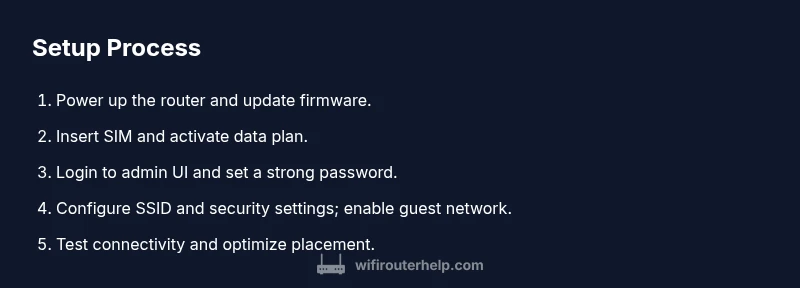
- 1
Power up and update firmware
Plug in the router and allow it to boot. While it boots, check for firmware updates via the admin interface and install them if available. This ensures you start with the latest security patches.
Tip: Keep the router plugged into a reliable power source during updates. - 2
Insert SIM and activate data plan
Insert the SIM card or enable the eSIM, then activate a data plan compatible with the router. Verify the device shows an active cellular signal before proceeding.
Tip: Choose a plan with sufficient data and roaming options if you travel. - 3
Login to admin UI and set a base network
Connect a device to the router's default network, open the admin URL, and log in with the default credentials. Change the admin password to a strong, unique value.
Tip: Use a secure device for setup to avoid credentials exposure. - 4
Configure SSID and security settings
Change the network name (SSID), set a strong password, enable WPA3 if available, and disable remote admin unless needed. Create a separate guest network if you plan to share with others.
Tip: Avoid using common names; use a unique SSID. - 5
Test connectivity and optimize placement
Run speed tests on multiple devices, compare results in different locations, and adjust the router position or antenna angles for best signal. Save your preferred configuration once you find the optimal setup.
Tip: Document the best placement and passkey for easy future setup.
People Also Ask
What is a mobile wifi router?
A mobile wifi router is a portable device that creates a private Wi-Fi network using cellular data. It often supports 4G/5G, has a battery, and can connect multiple devices.
A portable router that uses cellular data to create Wi-Fi for your devices; ideal for travel or remote work.
Do I need a SIM card for mobile routers?
Most mobile wifi routers require a SIM or eSIM with an active data plan. Check compatibility with your carrier and the device.
Yes—most devices need a SIM or eSIM with a data plan and carrier compatibility.
How can I improve coverage on the go?
Position the router for optimal signal, use external antennas if available, and minimize interference from walls and electronics. Battery management also helps.
Move the router to a higher spot and away from obstacles; consider a booster if available.
Is a mobile router secure?
Yes, if you enable WPA3, use a strong password, disable remote admin, and keep firmware updated. Use a guest network for visitors to keep your main network private and monitor connected devices through the admin interface.
Yes—secure it with a strong password and regular updates.
How do I update the firmware?
Check the admin interface for updates, apply them, and avoid interrupting the process. Back up settings before upgrading.
Go to the router's admin page, check for updates, and follow prompts.
Watch Video
What to Remember
- Assess data needs to select the right router.
- Secure your network with WPA3 and a strong password.
- Test coverage and reposition for best signal.
- Keep firmware up to date for security and performance.