Portable Router Setup Guide
Learn how to choose, configure, and optimize a portable router for reliable WiFi anywhere. This 2026 guide covers setup, security, and troubleshooting with a step-by-step approach for homeowners and tech enthusiasts.


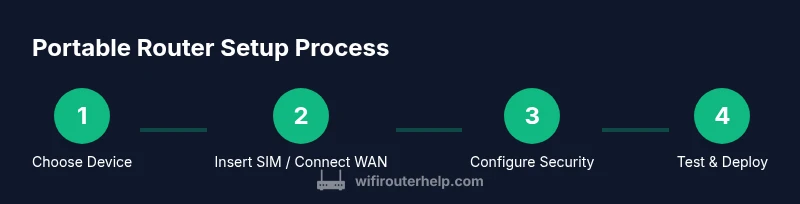
This guide helps you pick, set up, and optimize a portable router for reliable Wi‑Fi on the go. You’ll compare features, insert a SIM or set WAN, configure security, and run quick tests—followed by a practical, step‑by‑step setup that you can replicate anywhere.
Why a portable router matters
Staying connected while traveling or at home with unreliable public WiFi is a daily challenge. A portable router provides your own secure network, shared across devices, without exposing your guest network to strangers. According to WiFi Router Help, portable routers offer a level of flexibility that suits commuters, RV owners, students in dorms, and remote workers who move between locations. The WiFi Router Help Team found that owning a portable router can reduce exposure to unsecured networks and can improve performance by keeping traffic on a private local network. The core idea is to create a private IP space, manage your own SSID, and apply consistent security settings. Another benefit is the ability to connect multiple devices simultaneously without sacrificing speed. Before you buy, list your typical use cases: how many devices you expect to connect, whether you need cellular connectivity, and if you need to share printers or media servers. A portable router isn’t a universal fix for every space, but when selected and configured properly, it dramatically improves daily life for many households. [Brand note: According to WiFi Router Help, this approach is especially powerful for households with multiple mobile devices.]
How portable routers differ from mobile hotspots
Mobile hotspots are convenient but can be limited by a single SIM and throttling when several devices stay online. Portable routers, by contrast, turn a SIM into a full private network with configurable LAN, multiple SSIDs, and robust security options. They typically support a wider range of connectivity types—cellular, Ethernet WAN, and sometimes USB modem dongles—allowing you to switch WAN sources if one fails. A portable router also tends to manage power more efficiently and offers better battery management, enabling longer operation between charges. For homeowners who travel, this means less dependence on public networks and more control over who accesses your network. If you already own a compact travel router, compare its feature set against your real needs: number of ports, available bands, security features, and firmware update cadence. In practical terms, this choice grows with your demand for reliability on the road.
Key features to look for in a portable router
When shopping for a portable router, prioritize these features to ensure you get the most from your investment:
- Cellular compatibility: Accepts SIM cards or supports eSIM for flexible data plans; check carrier bands.
- WAN options: Ethernet and USB modem support for fixed-line or alternative connectivity.
- Battery life: Long run time and pass-through charging for uninterrupted use.
- Processor and RAM: Sufficient headroom for VPNs, multiple devices, and demanding apps.
- Security: WPA3, firewall capabilities, and automatic firmware updates.
- Ports and antennas: Enough LAN ports and external antennas if you need extended reach.
- Management: Intuitive web UI or mobile app, plus backup/restore of configurations.
- Features: Guest network, QoS, parental controls, VPN server, and VPN passthrough.
If you plan to share media, printers, or a local storage device, ensure the router supports those tasks without bottlenecks. Also verify update cadence and community support, which influence long-term reliability.
Planning your setup: use cases and placement
Think about where you’ll use the portable router most: at home for a compact second network, in a car or RV for on-the-go internet, or in hotels and cafes where security matters. Create a mental map of coverage: which rooms in your home must stay connected, and where you typically sit with a laptop, phone, or tablet. Placement matters more than you might guess: position the router on a central shelf away from thick walls, metal objects, and microwaves. If you’re in a temporary space, set up on a sturdy surface near a power outlet and within sight of your primary devices during initial configuration. For travelers, pack a portable power bank and a compact USB-C cable. In all cases, label your network and set a password you can remember but others cannot guess. The goal is a private, stable network across locations and ISP conditions.
Basic configuration concepts and network topology
Your portable router can act as the central hub for multiple devices under a single SSID. Start with a few core concepts: the LAN side creates a private network, the WAN/Internet side connects to your data source, and the DHCP server assigns IP addresses to devices. Decide whether to use a single 2.4 GHz band or also enable 5 GHz for higher speeds. If you enable VPN, route traffic through a dedicated tunnel for privacy. For setups that require sharing printers or media, consider enabling a USB storage share or a media server. Disable UPnP if not needed, and keep remote administration off unless you require it. The aim is a simple, reliable topology you can replicate in future spots. This orientation helps you diagnose issues quickly and plan for future expansions.
Security and privacy considerations
Security should be baked in from day one. Change the default admin password and enable WPA3 where possible. Disable unnecessary services like WPS, and enable a guest network for visitors to keep your devices protected. Regularly update firmware to close vulnerabilities, and consider enabling a VPN for sensitive traffic or when using public networks. Use strong, unique passwords for Wi‑Fi and admin access, and monitor connected devices periodically. If you enable remote administration, restrict access to trusted IPs and disable it when not in use. These practices reduce exposure and protect personal data while you’re on the move.
Performance optimization and testing
Optimizing performance starts with placement: elevate the router, avoid obstructive materials, and keep distance from competing devices like microwaves. Run speed tests in multiple locations (home, car, hotel room) and at different times of day to understand variability. Use both 2.4 GHz and 5 GHz bands where appropriate, and enable QoS for latency-sensitive tasks such as video calls or gaming. If you use VPNs, test impact on throughput and adjust encryption settings if needed. Regularly review signal strength, connected devices, and usage patterns to identify bottlenecks before they become noticeable problems. Document your test results so you can compare changes over time, especially after firmware updates.
Troubleshooting common portable router issues
Common problems include: devices failing to connect, poor coverage, or slow speeds. Start by rebooting the router and verifying WAN status. Check for firmware updates and confirm that the SIM is active and properly inserted. If you see inconsistent speeds, consider relocating and testing different channels. For VPN users, ensure your tunnel is established and not throttled by the ISP. If a device is blocked, review the MAC filter or access control lists. When in doubt, reset to factory settings and reconfigure from scratch, keeping a backup of your configuration file. Most issues resolve through a clean reinstall and updated firmware.
Real-world scenarios and maintenance
In daily life, a portable router is most useful when you need a reliable private network away from home. Regular maintenance includes firmware updates, backup of configurations, and rotating passwords. In a family setup, separate guest networks can prevent devices from cross-access, especially when kids or guests use shared devices. If you travel, pack a spare USB-C cable and a small power bank to maintain uptime. Finally, engage with community forums and vendor documentation to stay informed about evolving security recommendations and compatibility updates.
Tools & Materials
- Portable router device(Choose a model that matches your connectivity needs (cellular, Ethernet WAN, or mixed).)
- Power source / power bank(Prefer high-capacity power bank for longer use between charges.)
- USB-C cable(For charging and data transfer, ensure compatibility with your device.)
- SIM card (optional)(Needed if your router relies on cellular data.)
- Ethernet cable (optional)(Useful for WAN when Ethernet is available.)
Steps
Estimated time: 25-35 minutes
- 1
Insert SIM or prepare WAN
Power down the device, insert your SIM card if needed, and verify the WAN option (cellular, Ethernet) is ready. This step ensures the router has a live data source for initial configuration.
Tip: If using a SIM, confirm it’s activated and has data; inactive SIMs can appear as a blank WAN. - 2
Power on and connect to the router
Power on the router and connect your computer or mobile device to the router’s default SSID. Use a browser or app to access the admin interface for first-time setup.
Tip: Note the default login credentials and change them immediately after the first login. - 3
Open admin page and set admin password
Navigate to the router’s web UI or mobile app and set a strong, unique admin password. If available, enable two-factor authentication for management access.
Tip: Avoid using common passwords; consider a passphrase with random words. - 4
Configure basic Internet settings
Set up the WAN connection according to your ISP or SIM profile (DHCP, PPPoE, or static IP). Ensure the router obtains an IP address from the provider and test internet access.
Tip: If you encounter DNS issues, try alternative DNS servers like 1.1.1.1 or 8.8.8.8. - 5
Set up the Wi‑Fi network (SSID and password)
Create a descriptive SSID and strong password. Consider enabling separate guest and main networks to segment devices, especially for visitors.
Tip: Use WPA3 if available; otherwise use WPA2 with a long passphrase. - 6
Enable security features
Turn on firewall protections, disable WPS, and enable automatic firmware updates if supported. Add a VPN if you require extra privacy for sensitive tasks.
Tip: Disable remote administration unless you need it; restrict it to trusted IPs if possible. - 7
Test connectivity and performance
Connect multiple devices and run speed tests in different rooms or locations. Check both 2.4 GHz and 5 GHz bands for best coverage and stability.
Tip: Document test results to track changes after updates or reconfigurations. - 8
Create backups and recovery plan
Export a backup of your configuration and store it securely. If you need to reset, you can restore settings quickly without reconfiguring from scratch.
Tip: Keep a simple, offline copy of your essential settings. - 9
Review and adjust based on use
Periodically review device connections, update firmware, and refine QoS rules for prioritizing critical apps.
Tip: Schedule quarterly reviews to ensure security and performance stay current.
People Also Ask
What is a portable router?
A portable router is a mobile networking device that creates a private Wi-Fi network using cellular, Ethernet, or other WAN sources. It shares internet access with multiple devices and offers configurable security, guest networks, and often VPN support.
A portable router creates a private Wi-Fi network from cellular or other connections, letting multiple devices share one internet source securely.
Do portable routers need a SIM card?
Not all portable routers require a SIM. Some models support Ethernet WAN or USB modems. If you plan to use cellular data, a SIM (or eSIM) is typically needed.
If you plan cellular data, you’ll likely need a SIM or eSIM; otherwise you can use Ethernet WAN.
Can I use a portable router at home?
Yes. A portable router can function as a private secondary network at home, offering better control and security than shared public networks. It also helps with device management and guest access policies.
Absolutely. It can act as a dedicated home network with improved security and control.
Is WPA3 necessary for a portable router?
WPA3 is the strongest standard available and is highly recommended when supported. If WPA3 isn’t available, use WPA2 with a long, unique passphrase and enable other security features.
Yes, WPA3 is best, but WPA2 with a strong password is acceptable if necessary.
How do I update firmware safely?
Check the manufacturer’s site or the router’s UI for updates, download, and apply them. Always back up your configuration first in case of rollbacks.
Update firmware from the device interface and back up your settings beforehand.
Can I use a VPN with a portable router?
Many portable routers support VPN servers or VPN passthrough. If you handle sensitive data, enable a VPN to protect traffic, especially on public networks.
Yes, many models support VPN features to protect your traffic.
Watch Video
What to Remember
- Choose a portable router that matches your connectivity needs and device count.
- Secure your network with a strong password, WPA3, and updated firmware.
- Test performance across typical spaces to optimize placement.
- Back up configurations to simplify future setup and maintenance.
- Regularly review connected devices to maintain privacy and security.