Handheld Router Guide: Setup, Use, Troubleshooting
Learn how to choose, configure, and optimize a handheld router for portable Wi‑Fi at home or on the go. Step-by-step setup, security best practices, data planning, and troubleshooting tips for reliable mobile connectivity.


Goal: Learn how to choose a handheld router, set it up, and optimize it for mobile or home use. You’ll need a charged power source, a data-enabled SIM/eSIM, and access to the device’s web UI or companion app. After following this guide, you’ll have a portable Wi‑Fi hotspot ready for travel, camping, or as a backup home link.
What is a handheld router and who needs one?
A handheld router, commonly called a pocket Wi‑Fi hotspot, is a compact, battery-powered device that creates a dedicated Wi‑Fi network using cellular data or a built‑in modem. Its portable form lets you carry a reliable internet connection wherever you go, without tying up your home router. For homeowners, remote workers, travelers, and enthusiasts, a handheld router can supplement a fixed network by providing coverage in spaces where Wi‑Fi is weak or absent. According to WiFi Router Help, the appeal lies in simplicity and flexibility: you can share a data plan with multiple devices, switch networks on the fly, and avoid lengthy setup for temporary needs. The key is to choose a model that matches your usage: battery life, network compatibility, supported frequencies, and security features all influence real‑world performance. When used correctly, a handheld router becomes a dependable mobile hotspot or backup link that keeps your devices online when traditional options falter. This guide walks you through selection criteria, setup steps, and practical tips to get the most from your handheld router.
Key features to evaluate before buying
Buying a handheld router is about balancing portability with performance. Consider battery life vs. size; larger batteries deliver longer runtimes but add weight. Check the cellular modem compatibility: ensure it supports the bands used by your data plan, and whether it accepts a physical SIM or relies on eSIM. Look for dual‑band Wi‑Fi (2.4 GHz and 5 GHz) for better performance with multiple devices. Review port options such as USB-C for charging and, in some models, USB tethering to share a wired connection. Antenna design can influence range, while firmware update policy matters for security and feature access. If you travel, a compact device with robust heat management helps in warm environments. Finally, security features matter: WPA3 support, a hidden default network, guest networks, and straightforward password management protect your data when you’re sharing a hotspot in public spaces. WiFi Router Help recommends mapping your needs to a few realistic scenarios—camping, commuting, or as a backup plan at home—to narrow down a shortlist.
First-time setup: what you’ll need
Before you power on, gather the essentials and plan your first setup. You’ll typically need a charged handheld router, a data SIM or eSIM, and a device to configure the router (a smartphone or computer). Have the official manual handy for model-specific steps, including how to access the device’s web UI or companion app. Ensure you have a stable power source for the initial configuration to avoid mid‑setup drops. If you’re using a data SIM, verify the plan is active and has coverage in your area. In some cases, you may need to insert the SIM, while in others you’ll activate an eSIM via an app. When the device boots for the first time, it will broadcast a default network; you’ll use this to connect your laptop or phone and begin the configuration. As you prepare, create a rough plan for the network name (SSID) and a strong password, and note any security features you want enabled from the start.
Daily use: placement, coverage, and power management
Placement matters for handheld routers. Keep the device in a central location away from walls or metal objects to maximize signal distribution to nearby devices. Avoid keeping it in pockets, bags, or enclosed spaces that block the antenna. If you’re on the move, test speed as you walk, noting any drops that may require repositioning. Power management is critical: many handheld routers run from a built‑in battery, so monitor battery life and plan charging before long sessions. When possible, use a high‑quality USB‑C charger and consider a small power bank for extended trips. For better coverage at home, place the device away from other electronics that could cause interference and near areas where you use devices most often. If your router supports mesh or external antennas, use them to extend reach.
Security and privacy considerations
Security should be configured from day one. Change default admin credentials and enable WPA3 if available; if not, use WPA2 with a strong password. Disable WPS to reduce brute‑force risk and hide the network name if the device supports it. Create a dedicated guest network for visitors to keep your main network protected. Keep firmware up to date to mitigate vulnerabilities. Regularly review connected devices and revoke access for gadgets you no longer own or use. If you’re traveling, turn on a firewall feature if offered and enable automatic security updates. Remember that a handheld router is a portable hotspot; the more you secure it, the less risk you take when using public networks.
Data planning and usage tips
Data planning is essential when using a handheld router. Choose a plan that fits your typical needs—light browsing, streaming, or large downloads—and keep an eye on data caps. If you have multiple devices, enable device‑level access controls or a guest network to prevent one device from consuming the entire pool. Some devices support data‑saver modes that reduce video quality or disable background sync to extend battery life. Consider monitoring tools or app dashboards to track usage in real time. When planning trips, download offline maps or content ahead of time to minimize data use. If your usage fluctuates seasonally, a flexible pay‑as‑you‑go plan can prevent overages while still keeping you online.
Troubleshooting common issues
Common handheld router problems include no internet after setup, weak signal, or rapid battery drain. Start with simple checks: verify the SIM status, confirm you’re connected to the device’s hotspot, and restart the router to clear transient errors. If there’s no internet, verify APN settings and confirm the data plan is active. For weak coverage, adjust placement, unlock higher frequency bands, or enable a better antenna configuration if your model supports it. Battery drain can stem from high transmit power, poor signal requiring more energy, or a faulty battery; reduce TX power if available, close unused apps on connected devices, and replace the battery if performance doesn’t recover. If problems persist, consult the manufacturer’s support portal or firmware update notes for model‑specific fixes.
Maintenance and future-proofing
Keep your handheld router current with firmware updates and security patches. Regularly check for new features that enhance security and performance, and note any planned end‑of‑life for older devices. If your data needs grow, plan ahead by comparing new models that support faster cellular standards or larger batteries. Store the device in a cool, dry place and avoid exposure to moisture. Consider having a backup handheld router or a lightweight travel charger as part of your travel kit so you’re never offline when your primary device is unavailable.
Real-world use cases: travel, backup home, remote work
For travel, a handheld router can replace hotel Wi‑Fi frustrations by providing one stable hotspot for all devices. As a backup home link, it offers financial and practical redundancy if your fixed connection goes down. Remote workers can rely on a handheld router for flexible workspaces, whether in a cafe, a co‑working space, or on the road. The key is to understand where you’ll be using it most, which devices need access, and how much data you’ll typically require. With thoughtful selection and setup, a handheld router becomes a reliable, portable extension of your home network or a trustworthy travel companion.
Authority sources
To deepen understanding and verify best practices, consult official resources:
- https://www.fcc.gov
- https://www.cisa.gov
- https://www.nist.gov/topics/wifi
Tools & Materials
- Power source (USB-C battery bank or wall charger)(Fully charged and capable of delivering 5V/2A or more)
- SIM card or eSIM with data plan(Active plan with coverage in your area)
- USB-C charging/data cable(For charging during setup and updates)
- Smartphone or computer for setup(To access the setup interface or app)
- Small user manual or quick-start guide(Helpful for model-specific steps)
- Optional: external antennas or heat-resistant stand(Improves range or stability in hot environments)
Steps
Estimated time: 20-40 minutes
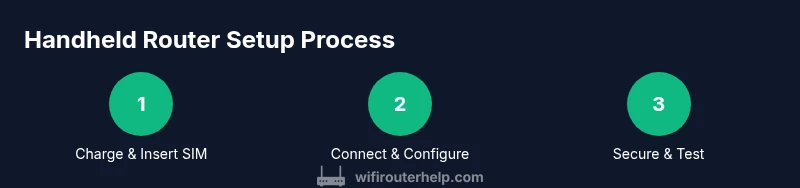
- 1
Charge and power on
Plug in the handheld router and allow it to reach a full charge. Once powered, observe the boot indicators to confirm the device is functioning. This step ensures you won’t lose configuration during setup.
Tip: Use a high‑quality USB‑C charger to minimize charging time and avoid power drops. - 2
Insert SIM/eSIM and activate data
If your device uses a physical SIM, insert it according to the hardware guide. For eSIM, activate the plan via the device app or web UI, then confirm data connectivity.
Tip: Double‑check APN settings if you experience no data after activation. - 3
Connect to the default network
On your phone or computer, scan for the router’s default SSID printed on the device and connect. If prompted, enter the default password from the manual.
Tip: Change the temporary password immediately after connecting to prevent unauthorized access. - 4
Open the setup UI and update firmware
Access the router’s web UI or mobile app and check for firmware updates. Apply any available updates to improve security and performance.
Tip: Keep a note of any updated features introduced by the firmware. - 5
Configure essential settings
Set a unique network name (SSID), strong password, and security mode (prefer WPA3; use WPA2 if unavailable). Enable guest networking if you share the hotspot with visitors.
Tip: Turn off unnecessary services to minimize attack surface. - 6
Test the connection and optimize
Run speed tests and check device compatibility with your primary devices. Adjust placement and TX power if needed to balance performance and battery life.
Tip: Create a simple performance baseline to compare future tweaks. - 7
Document and secure
Record your network name, password, and any custom settings. Regularly review connected devices and revoke access for dormant gear.
Tip: Schedule periodic firmware checks to stay current.
People Also Ask
What is a handheld router and how does it differ from a traditional router?
A handheld router is a portable hotspot that uses cellular data to create Wi‑Fi. Unlike a fixed home router, it travels with you and depends on mobile coverage. It’s best as a backup or travel solution rather than a primary home network.
A handheld router is a portable hotspot that uses cellular data to create Wi‑Fi. It’s ideal as a backup or travel solution rather than your main home network.
Do handheld routers require a data plan?
Yes, most handheld routers require a data plan or SIM/eSIM to access mobile networks. Check coverage, data limits, and roaming options for your typical usage.
Yes, you’ll need a data plan or SIM for most handheld routers to access mobile networks.
Can I use a handheld router at home as a primary link?
It’s possible for backup or secondary connectivity, but a handheld router is usually not a full substitute for a wired or fixed wireless home setup, especially for high‑bandwidth needs.
You can use it as a backup or secondary link at home, but it’s not typically a full substitute for fixed internet.
What security steps should I take first?
Change the default admin password, enable WPA3 if available, configure a strong guest network, and keep firmware updated.
Change the default password, enable WPA3, set up a guest network, and keep firmware up to date.
How can I extend battery life during travel?
Use a larger battery bank, lower transmit power if supported, and disable nonessential features when you don’t need them.
Carry a larger power bank, reduce transmit power if possible, and disable unnecessary features when not in use.
What data plan features matter most for a handheld router?
Look for sufficient data allowance, reasonable throttling policies, roaming options, and easy plan management from your provider.
Choose a plan with enough data, reasonable throttling, and clear roaming options.
Watch Video
What to Remember
- Choose a handheld router with adequate battery life and compatible bands.
- Secure the device with WPA3 and a strong password from day one.
- Plan data usage and monitor consumption to avoid overages.