Router 5G: Setup, Optimization, and Troubleshooting
A comprehensive, step-by-step guide to choosing, setting up, and optimizing a router 5g for reliable home WiFi. Learn SIM readiness, placement, band selection, firmware updates, and essential security and troubleshooting tips.


By the end of this guide, you’ll know how to select, set up, and optimize a router 5g for reliable home WiFi. You'll verify SIM readiness, choose the right bands, place the device for best coverage, apply security settings, and perform firmware updates. The steps apply to both standalone 5G routers and hybrid setups.
Why 5G routers matter
5G routers bring cellular reliability and portability to home networks, making them a practical option for backup internet, remote properties, or places with limited fixed broadband. When you deploy a router 5g, you’re tapping into a modern wireless standard designed for high throughput and low latency. According to WiFi Router Help, a well-placed 5G router can deliver stable speeds for streaming, gaming, and smart-home devices in many environments, provided you choose a model that supports the right bands and a capable plan. This section will help homeowners understand where a router 5g fits in their overall network strategy and what to expect in typical real-world conditions. Remember that coverage, data caps, and signal strength vary by carrier and location, so set realistic expectations and plan for contingencies.
Understanding 5G router basics
A router 5g is a WiFi router that incorporates a built-in 5G modem, enabling cellular connectivity without a separate gateway device. This can be especially useful if fiber or cable service is temporarily unavailable or as a mobile hotspot for a home office. Key concepts include SIM versus eSIM support, dual-band wireless radios (2.4 GHz and 5 GHz), and the need to configure APN settings for your carrier. When you see “5G” in the product name, it often refers to the cellular link rather than the WiFi standard itself, so the device can provide both cellular internet and local WiFi. In practice, you’ll use the cellular link as the primary internet source, with WiFi distributing the signal to connected devices.
SIM readiness and connectivity options
Most router 5g devices require a SIM card from your cellular plan. Some models support eSIM, which can simplify provisioning. Before you start, verify that your plan includes a compatible data allowance and that the SIM size matches the router’s tray (nano or micro). Once inserted, power the device and check the status lights to confirm the modem is registered on the network. If your router supports multiple SIM profiles, you can switch between them for testing or failover. If you don’t have a SIM, you won’t be able to access 5G networks unless you use a separate cellular modem and bridge mode, which is less common in home routers.
Choosing the right 5G router for your home
Selecting a router 5g depends on several factors: the bands supported by the device, the number of antennas, CPU/RAM for multitasking, and the presence of a built-in firewall and USB ports for storage or 4G/5G failover. Look for devices that support the bands used in your region, robust security features (prefer WPA3), and easy-to-use management interfaces. If you plan to stream on multiple devices simultaneously or run a smart home hub, choose a model with ample processing power and reliable firmware update support. Remember to check carrier compatibility and whether the unit can operate in standalone mode with a fixed broadband connection if necessary.
Placement, antennas, and channel optimization
Placement matters more on a 5G router due to variability in cellular signal strength. Place the router near a window or higher on a shelf, away from thick walls and metal appliances. If the device has external antennas, adjust them for best signal toward the area where you use the most devices. For WiFi, prioritize 5 GHz for nearby devices and 2.4 GHz for longer ranges through walls. Use auto channel selection when available, and consider manually locking to a less congested channel if you notice interference from neighbors.
Configuring security and Wi‑Fi settings
Security should be your top priority. Change the default admin password immediately and enable WPA3 whenever possible. Create a strong SSID and unique password, and enable a guest network for visitors. Turn on the router’s firewall and disable UPnP if you don’t need it for gaming or NAT traversal, as it can expose devices to external threats. Regularly review connected devices and revoke access for unknown clients. A well‑secured router 5g minimizes exposure to common attacks while preserving performance for trusted devices.
Firmware updates and maintenance
Firmware updates fix bugs, close security gaps, and often improve performance. Enable automatic updates if you trust the vendor, and periodically check for latest releases. Before applying updates, back up your configuration if the option exists. After updating, verify connectivity and test key services (streaming, gaming, video calls) to ensure features are preserved. Maintaining current firmware helps ensure compatibility with new devices and apps in your home network.
Troubleshooting common 5G router issues
If you encounter issues, start with the basics: power cycle, reinsert the SIM, and confirm the device shows a healthy cellular link. Common problems include weak cellular signal, overused data plans, IP conflicts, and misconfigured APN settings. Use the admin panel to check status indicators, verify the WAN/LAN settings, and test with different devices. If problems persist, consult carrier status pages for outages and test with a different SIM in the same router to determine if the issue is hardware-related.
How to test and measure speeds
Speed testing should be done across multiple devices and times of day to understand performance. Use reliable speed-test tools and compare results against your plan’s advertised speeds as a rough benchmark. Consider testing both wired (if available) and wireless connections, and document latency, jitter, and throughput. Use these results to fine‑tune QoS rules or adjust placement and channel selection for better throughput to critical devices.
Advanced tips for mesh and multi-device networks
If your home requires broader coverage or more stable connections for many devices, consider a mesh system that can integrate with a router 5g. Ensure compatibility, and configure a single SSID and password to simplify roaming. Place nodes strategically to minimize dead spots and maintain a consistent wireless experience across floors. Remember that each added node introduces some latency, so balance coverage with performance requirements.
Tools & Materials
- 5G router with integrated modem(Ensure SIM/eSIM support and carrier compatibility)
- Cellular SIM card or eSIM(Active data plan with sufficient allowance)
- Power adapter and cable(OEM adapter recommended)
- Ethernet cable (optional but recommended)(For wired speed testing or bridge mode)
- Computer or smartphone(To access admin interface and configure settings)
- Pen and paper or digital notes(For recording SSIDs, passwords, and settings)
Steps
Estimated time: 30-60 minutes
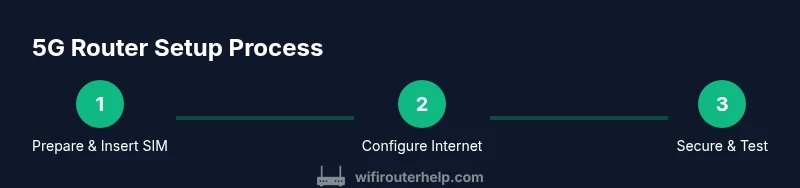
- 1
Gather and prepare equipment
Unbox the router 5g, confirm all components are present, and identify SIM/eSIM options. Have your data plan ready and a device for setup. This helps prevent mid‑setup interruptions and ensures you can immediately verify connectivity.
Tip: Label the SIM slot and note the model’s default WiFi name for quick recovery if needed. - 2
Insert SIM and apply power
Insert the SIM or enable eSIM as your primary internet source, then plug in the router and wait for it to boot. Look for a stable status LED indicating a registered cellular link before moving on.
Tip: If the device requires a reboot after SIM insertion, do so to ensure the network handshake completes. - 3
Connect a device to the admin interface
Using a computer or phone, connect to the router’s default WiFi network or the LAN port. Open a web browser and enter the device’s IP address or a provided setup URL to access the admin portal.
Tip: Keep a record of the default login credentials in case you need them later. - 4
Run the setup wizard and configure the internet
Follow the setup wizard to configure the WAN/5G connection, including APN if required by your carrier. This step establishes the initial internet route and confirms that the router can reach the internet.
Tip: If you’re unsure about APN settings, contact your carrier or use the auto-detect feature if available. - 5
Set up Wi‑Fi names and security
Create a unique SSID for both 2.4 GHz and 5 GHz networks and set strong passwords. Enable WPA3 if supported, enable guest networks for visitors, and disable WPS to reduce exposure to threats.
Tip: Use a passphrase with at least 16 characters combining upper/lowercase letters, numbers, and symbols. - 6
Update firmware and verify features
Check for firmware updates and install the latest version. After updating, re-check your internet connection and test essential services to ensure everything works as expected.
Tip: Enable automatic updates if you trust the vendor and want ongoing protection. - 7
Tune placement and channel selection
Move the router to a central location, adjust any antennas, and let the device select the best channel. If congestion appears on 2.4 GHz, prefer 5 GHz for nearby devices and 2.4 GHz for distant devices.
Tip: Limit nearby interference by keeping the router away from microwaves, cordless phones, and metal surfaces. - 8
Test speeds and document results
Run multiple speed tests across different devices and times of day. Compare results to your data plan and adjust QoS or device placement to optimize performance.
Tip: Record baseline speeds to track improvements after changes.
People Also Ask
What is a router 5G and when should I use one?
A router 5G combines a cellular modem with Wi‑Fi, delivering internet from a 5G network. It’s useful as a primary or backup connection, especially where fixed broadband isn’t available or as a portable home office solution.
A 5G router brings cellular internet to your home or office and works as a primary or backup connection.
Do I need a SIM to use a 5G router?
Most 5G routers require a SIM card or eSIM with an active data plan. Some models support dual SIM profiles for failover. If you don’t have a SIM, you won’t access 5G networks via that device.
Yes, a SIM or eSIM with a data plan is usually required.
Can a 5G router replace my modem or fiber connection?
A 5G router can replace a fixed modem in some setups, especially where cellular is the main service. For fiber or cable homes, a 5G router is typically a backup or secondary link unless you’re in a fiber-limited area.
It can replace a fixed modem in certain cases, but it often serves as backup or secondary service.
What affects 5G router speeds at home?
Speeds depend on cellular signal strength, carrier plan limits, network congestion, device capability, and how you distribute Wi‑Fi (band selection and placement).
Signal quality, data plan, and placement affect speeds the most.
Should I enable UPnP or keep it off for security?
UPnP can simplify device setup but may introduce security risks. If not needed, disable UPnP and rely on manual port forwarding for a more controlled environment.
Disable UPnP if you don’t need automatic port mapping.
How often should I update firmware on a router 5g?
Check for updates monthly or enable automatic updates if you trust the vendor. Updates address security and performance improvements.
Check for updates regularly or enable automatic updates.
Watch Video
What to Remember
- Choose a router 5g with carrier compatibility and adequate processing power.
- Secure your network with WPA3 and strong passwords.
- Position for optimal signal and test speeds to verify performance.
- Keep firmware up to date for security and reliability.