WiFi Router 5G: Setup, Performance, and Troubleshooting
Learn how to set up and optimize a WiFi Router 5G for fast, reliable home networks. This guide covers 5 GHz basics, security, optimization tips, and common troubleshooting steps.


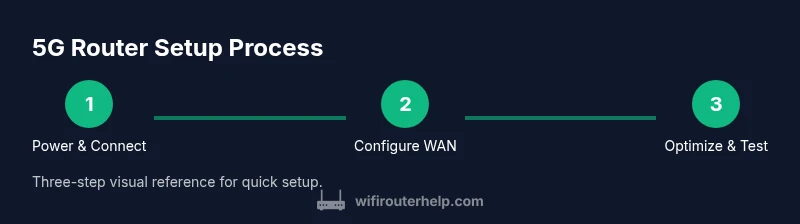
To configure a WiFi Router 5G, start by confirming your router supports 5G (either 5G cellular WAN or a dual‑band 5 GHz Wi‑Fi). Then power on, connect a computer, update firmware, and configure WAN, SSID, and security. Next, enable the 5 GHz network, optimize channel selection and placement, and run coverage tests. Finally, secure your network and monitor performance over time.
What a 'WiFi Router 5G' really means for home networks
In modern homes, the phrase WiFi Router 5G can refer to two related capabilities: a router that can connect to 5G cellular networks as a wide area network (WAN) backup, or a router that can broadcast fast Wi‑Fi on the 5 GHz band. These capabilities are not mutually exclusive; many devices deliver both. According to WiFi Router Help, households typically gain stronger performance when they enable the 5 GHz band for devices close to the router while keeping 2.4 GHz for farther coverage. A good 5G router also offers robust security, easy setup, and the ability to support multiple devices without noticeable slowdowns. Understanding these distinctions helps homeowners plan a network that scales with devices like smartphones, smart TVs, and IoT gear. The goal is not simply speed, but consistent coverage and reliable connections throughout the home.
Core features to look for in a 5G-ready router
When evaluating a 5G-capable router, look for dual-band or tri-band support (2.4 GHz plus 5 GHz), a dedicated 5G WAN option or a SIM slot for cellular backup, and modern CPU/RAM specs to handle multiple devices. Features like beamforming and MU‑MIMO improve signal directionality and simultaneous streams, while a solid firmware update cadence protects against vulnerabilities. Prioritize models with WPA3 security, a clearly labeled guest network, and a straightforward mobile app for monitoring. If you have a large home or several floors, consider a router that supports mesh expansion or has strong antenna design. Finally, ensure the device is easy to reset, has clear diagnostic tools, and provides stable VPN options if needed.
Planning your network layout and device mapping
A thoughtful plan saves time during setup and prevents dead zones. Start with a floor plan to identify the strongest central location for the router, then map high‑bandwidth devices (gaming PCs, streaming boxes) to the 5 GHz network and distant or wall‑mixed devices (IoT sensors, smart speakers) to 2.4 GHz. Consider future growth, such as adding more smart devices or expanding coverage to a detached studio. If you live in a multistory home, position the router near the center of the living space, not behind thick walls or metal furniture. Finally, decide whether you need a mesh system or single‑unit performance; mesh can dramatically improve coverage in large or irregular layouts.
Security and privacy best practices for 5G routers
Security should be a primary concern from day one. Enable WPA3 on all bands and disable legacy protocols. Change the default admin password and consider a unique SSID for each frequency band with strong, separate passwords. Activate automatic firmware updates to stay protected against new threats, and enable a hardware firewall if available. For guests, create a guest network with restricted access to your main devices and data. Regularly audit connected devices to detect unfamiliar or unauthorized equipment.
Coverage strategies: placement, extenders, and mesh options
Coverage quality is often a product of placement rather than hardware alone. Place the router at an elevated, central location away from thick walls and metal appliances. If coverage remains patchy on upper floors, you can add a dedicated mesh node or a range extender designed for your router’s ecosystem. For large homes, a mesh network provides seamless roaming and fewer dropouts compared to traditional extenders. If you use a cellular 5G WAN, ensure the SIM card is active and that you have a plan with sufficient data, then test signal strength in areas that previously had weak reception.
Performance tuning: channels, QoS, and beamforming
Choose the least congested 5 GHz channel for your environment; many routers offer automatic channel selection, which is a safe default. Enable beamforming to help focus the signal toward active devices and implement QoS rules to prioritize latency‑sensitive applications like video calls and gaming. If your router supports WPA3‑SAE, enable it for stronger password hashing. Consider disabling unused features like UPnP if you do not need them, and enable bandwidth monitoring so you can see which devices consume the most data. Regularly testing speeds at different times of day can reveal when adjustments are needed.
Troubleshooting common issues
Network slowdowns often stem from simple misconfigurations or interference. Start with a quick reboot and verify all cables are secure. Check that firmware is up to date and that the router’s admin password is strong. If devices cannot connect, re‑scan for the correct SSID and re‑enter the password. Interference from microwaves or neighbor networks can degrade performance; switching channels or enabling 5 GHz band steering can help. For persistent problems, reset the router to factory defaults and reconfigure from scratch, keeping a written record of your settings.
Real-world scenarios and upgrade decisions
A typical family with multiple streaming devices, a gaming console, and several smartphones can usually be served well by a solid 5G router with strong 5 GHz performance and optional mesh expansion. If you notice frequent buffering in peak hours or significant dead zones on upper floors, an upgrade to a mesh system or a higher‑end router with more RAM and better antennas may be warranted. Gamers and power users may benefit from advanced QoS and low‑latency features, while smart homes with many IoT devices benefit from stable, separate guest networks and per‑device access controls.
Quick checks you can run after setup
Run a few quick checks to validate your configuration: test Wi‑Fi speeds on multiple devices near and far from the router, verify the 5 GHz network performs well at typical distances, and ensure the guest network functions independently without accessing your main devices. Use a device’s network diagnostics to confirm IPv4/IPv6 configurations are correct and that local DNS resolution works. If any check fails, revisit WAN settings, DNS, and security configurations.
Tools & Materials
- 5G-capable router (with either 5G WAN support or dual-band 5 GHz Wi‑Fi)(Choose a model that matches your internet plan and home size; ensure it has a SIM slot if you plan to use cellular WAN.)
- Ethernet cable (Cat6 or higher)(For reliable initial setup and wired backhaul if needed.)
- Computer or smartphone for admin access(Connect via wired when possible for stability during setup.)
- Power supply and outlets(Ensure power is stable; avoid power strips with other high‑draw devices.)
- Pen and paper or digital notepad(Record SSIDs, passwords, and any custom settings.)
- Optional: Mesh nodes or extenders(Useful if your home has dead zones or you need seamless roaming.)
Steps
Estimated time: 75-90 minutes
- 1
Power on and connect
Place the router in a central, open area and connect the power adapter. If using a cellular WAN, insert the SIM card and wait for the device to fully boot before proceeding. A fully booted device will display stable LEDs and be discoverable on your network.
Tip: Let the router finish booting; a slow boot can indicate a hardware issue. - 2
Access the admin panel
Connect your computer to the router via Ethernet or a temporary Wi‑Fi network, then open the default gateway address in a web browser. Log in with the default credentials listed in the manual and immediately change the admin password for security.
Tip: Use wired connection when possible to avoid wireless dropouts during setup. - 3
Update firmware and reset if needed
Check for the latest firmware and install updates. If the device is behaving oddly or you notice existing misconfigurations, perform a factory reset and restore your preferred settings from a saved backup.
Tip: Back up current configurations before a reset to speed up reconfiguration. - 4
Configure WAN and internet access
Choose the correct WAN type (DHCP, PPPoE, or static IP) and enter any required credentials. If you use cellular WAN, ensure the SIM is active and data allowance is sufficient to avoid throttling.
Tip: Test internet connectivity with a quick ping to a reliable host after saving WAN settings. - 5
Set up 5 GHz network and security
Create a distinct 5 GHz SSID and strong password. Enable WPA3 where available, disable WPS, and enable a guest network if you have frequent visitors. Confirm both 2.4 GHz and 5 GHz networks are broadcasting.
Tip: Use separate names for guest and main networks to prevent accidental access to your devices. - 6
Tune advanced options and run tests
Enable QoS for latency‑sensitive activities, adjust channel selection, and consider beamforming if your router supports it. Run speed tests from multiple locations and devices to verify coverage and performance.
Tip: Document your configuration and run a final test after any future changes.
People Also Ask
What is the difference between a 5G router and a 5 GHz router?
A 5G router can connect to cellular networks (WAN), while a 5 GHz router broadcasts the faster 5 GHz wireless band inside your home. Some devices support both, offering flexible internet options.
A 5G router can connect to cellular networks, while a 5 GHz router is a faster Wi‑Fi band. Some devices support both, giving you flexible internet options.
Do I need a cellular plan for a 5G WAN router?
If your router uses a cellular WAN, you will need a data plan from a cellular provider. If you’re using it primarily as a Wi‑Fi access point with a fixed internet connection, no extra plan is required.
If you use the cellular WAN feature, you’ll need a data plan. If you’re using a standard wired internet connection, you won’t need an extra plan.
Is 5 GHz faster than 2.4 GHz in real homes?
In many cases, 5 GHz offers higher speeds and less interference than 2.4 GHz, but it has shorter range and poorer penetration through walls. Use 5 GHz for nearby devices and 2.4 GHz for farther or obstacle‑rich areas.
5 GHz is usually faster but shorter; 2.4 GHz travels farther and through walls better. Use both wisely based on distance and obstacles.
How can I improve WiFi coverage on multiple floors?
Optimize router placement, consider a mesh system or additional access points, and ensure backhaul connections are stable. Elevating the router and avoiding obstructions like thick walls can dramatically improve coverage.
Place the router in a central, elevated spot and use a mesh system if coverage is still spotty on other floors.
What security settings should I enable on a WiFi router?
Enable WPA3 on all bands, create strong passwords, disable WPS, keep firmware updated, and use a guest network for visitors. Regularly audit connected devices.
Turn on WPA3, use strong passwords, and keep firmware updated. Use a guest network for guests and disable WPS.
Can I use a mesh network with a 5G router?
Yes. You can connect a mesh system to a 5G router to extend coverage; ensure the mesh is compatible with your router and supports seamless roaming.
Yes, you can pair a mesh system with a 5G router to improve coverage and roaming between nodes.
Watch Video
What to Remember
- Enable the 5 GHz network for fast devices and short range.
- Secure your network with WPA3 and strong passwords.
- Place the router centrally for even coverage; add mesh if needed.
- Regularly update firmware and review connected devices.