SIM Card Router: Setup, Optimize, Troubleshoot for Home
Learn how to set up a sim card router for reliable home internet. This comprehensive guide covers setup, optimization, and troubleshooting for cellular WAN backups and primary connections.


By the end of this guide, you will set up a sim card router to provide cellular internet for your home, switch between networks, and maintain reliable uptime. You’ll need a compatible device, a data-enabled SIM, and access to the device’s admin interface (via Ethernet or Wi-Fi). This step-by-step approach covers setup, optimization, and troubleshooting.
What is a SIM Card Router and Why It Matters
A SIM card router is a networking device that combines a cellular modem with a router, allowing you to connect to the internet using a SIM card with a data plan. This means you can create a home network that relies on 4G/5G cellular connectivity instead of, or alongside, a traditional fixed broadband line. According to WiFi Router Help, sim card router setups are particularly valuable for homes in areas with limited fixed-line options, during outages, or for mobile work setups. When configured correctly, these devices deliver reliable Wi‑Fi across multiple rooms and devices, support for VPNs, and simple data usage monitoring. The core benefit is flexibility: you can deploy internet where Ethernet drops are impractical and quickly switch networks if one carrier experiences congestion or downtime.
In practical terms, a sim card router acts as both a gateway and a manager for your local network. It assigns IP addresses via DHCP, manages wireless bands, and routes traffic between devices and the internet. Some models even offer dual-SIM support, built‑in firewall features, and automatic failover to a secondary carrier. For homeowners, this translates into a resilient home office, reliable streaming, and better coverage in multi-story houses when outdoor antennas are used. WiFi Router Help’s guidance emphasizes choosing a device with good antenna options and solid firmware that supports automatic failover and easy remote management.
Common Use Cases for a SIM Card Router
There are several scenarios where a sim card router shines. First is a remote or vacation property without a fixed broadband line but with cellular coverage. Second, homes that experience frequent outages or flaky DSL/cable connections benefit from cellular backup. Third, small offices or home offices that want to avoid dedicated business internet lines can deploy a cellular router for a budget-friendly, scalable solution. Finally, travelers and remote workers can set up a secure, portable network in cars, vans, or temporary workspaces using a compact device. In all cases, the goal is to maintain reliable connectivity with predictable performance, while having a straightforward way to manage devices, monitor data usage, and enforce security.
Key Features to Look For in a SIM Card Router
When evaluating models, focus on features that directly impact reliability and ease of use. Look for: dual-SIM support or eSIM for true failover, WAN failover with automatic traffic re-routing, and multiple LAN ports for wired devices. A robust firewall, parental controls, and VPN passthrough are essential for security. Ensure the device supports common cellular bands for your region, offers easy firmware updates, and provides a clear admin UI (web or app). Additional niceties include built-in VPN clients, QoS for prioritizing work devices, and a user-friendly data usage dashboard. WiFi Router Help recommends verifying carrier compatibility, SIM unlock requirements, and whether the router supports seamless roaming between bands for stable coverage.
Basic Setup: Inserting the SIM, Powering On, and Accessing the Admin UI
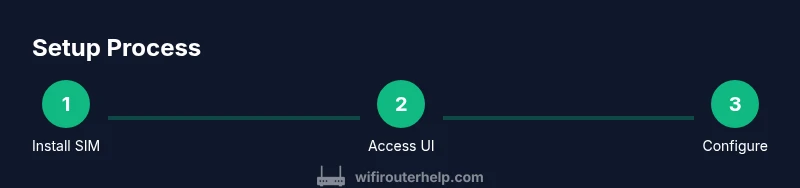
To begin, power off the device before inserting or removing a SIM card to avoid electrical damage or misreads. Insert the SIM into the SIM slot, ensuring the cut corner aligns with the holder. Power on the router and connect your computer or phone to the router’s default Wi‑Fi network or via Ethernet. Open a web browser and navigate to the router’s admin address (often 192.168.1.1 or a similar local address). The first login typically uses a default username like admin and a password provided in the manual. It’s crucial to change these credentials immediately to protect your network. Depending on the model, you may need to enter the APN settings for your carrier, enable SIM data, and confirm the device recognizes the SIM before proceeding with network setup. WiFi Router Help recommends keeping a copy of the SIM’s ICCID and the carrier’s APN details for quick reference.
Configuring Network Settings: APN, Data Plans, DNS, DHCP
APN settings are carrier-specific and essential for establishing a data session. If your SIM doesn’t connect automatically, you’ll need to enter the APN, username, and password (if required). After a data session is established, configure DHCP so devices on your network obtain IP addresses automatically, or switch to a static IP plan for servers and printers if needed. DNS can be set to a public resolver (like Google or Cloudflare) or your preferred local DNS if you maintain a corporate VPN. For most households, enabling NAT and setting up a basic firewall ruleset suffices. If you require advanced features, enable VPN pass-through and configure port forwarding for remote access. Regularly check data usage in the router’s dashboard to avoid overages and plan accordingly.
In this phase, consider enabling a secondary WAN (another carrier or a wired backup) if supported. This provides seamless failover and improves uptime. WiFi Router Help stresses documenting the APN values and confirming the SIM's data plan supports your intended usage (e.g., video streaming, gaming, or conferencing).
Positioning and Performance: Antennas, Signal, and Coverage
Signal quality directly affects throughput and reliability. Place the router near a window or higher location to improve cellular signal reception, away from thick walls, microwaves, and metal objects that can cause attenuation. If the device includes external antennas, adjust them to point toward the nearest cell tower (you can use signal meters in the admin UI to guide placement). In larger homes, consider adding a ceiling-mounted access point or a compact mesh extension to distribute Wi‑Fi evenly. WiFi Router Help notes that even small improvements in antenna orientation can yield meaningful gains in speed and stability, especially when the cellular signal is marginal. Keep the router away from sources of RF interference, such as cordless phones or Bluetooth hubs.
Security, Updates, and Reliability
Secure your sim card router from the start by changing the default admin password and disabling remote management from the public internet unless you explicitly need it. Regular firmware updates are critical for security and feature improvements; enable automatic updates if available, and periodically check for new releases. Enable the router’s built-in firewall, enable WPA3 (or at least WPA2) for wireless clients, and consider setting up a guest network to isolate IoT devices. Implementing a simple monitoring routine—checking signal strength, data usage, and connected devices—helps you spot anomalies early. WiFi Router Help emphasizes performing these updates during a maintenance window to avoid unexpected reboots during peak usage.
Troubleshooting Common Issues
If the SIM is not detected, re-seat the card and verify the device recognizes the ICCID from the SIM. If you have no cellular data, test with another SIM or contact your carrier to confirm the data plan is active and the SIM is unlocked. Carrier APN misconfigurations are a frequent cause of failed data sessions; verify the APN, username, and password if required by your network. If speeds are slow, check signal strength and consider relocating the router or adding external antennas. In case of intermittent drops, inspect for overheating, update firmware, and review QoS rules that may throttle certain traffic. Finally, ensure your devices are not blocking the router’s access via firewall rules on your computer or NAS devices.
Daily Maintenance and Best Practices
Set up a recurring reminder to check firmware updates and review data usage. Create a simple backup plan for essential services—VPN, DNS, and critical devices—so you can quickly reconfigure if the primary carrier fails. Maintain a spare SIM or an eSIM option if supported by the router to enable rapid switchover during outages. Document your setup steps, including APN values, router IP, and admin credentials, so future changes or replacements can be performed quickly. WiFi Router Help recommends periodic tests of failover scenarios to ensure automatic switching works as expected and to avoid surprises during outages.
Quick Start Checklist and Next Steps
With a working SIM card router, you’re ready to begin real-world testing. Run throughput tests from multiple rooms, verify wired devices, confirm parental controls are in place, and ensure the guest network is isolated. If you rely on the router for business continuity, draft a maintenance calendar and set up alerts for data usage and device offline status. As you gain experience, explore advanced configurations like VPN, QoS tuning for conferencing, and multi-carrier failover optimization. The WiFi Router Help team recommends keeping a detailed inventory of devices, SIM cards, and data plans to simplify future upgrades.
Tools & Materials
- SIM card with data plan(Ensure the plan supports your expected data usage and roaming needs)
- SIM ejector tool or paperclip(Helpful for accessing newer SIM slots)
- SIM-compatible router(Device with cellular modem and routing capabilities)
- Power adapter or power bank(Stable power supply; avoid USB ports on computers for uptime)
- Ethernet cable (Cat 5e/6)(For a wired connection to a computer or switch)
- PC or mobile device with browser(Admin access to the router UI via HTTP/HTTPS)
- Printer and notebook or digital note system(Record device credentials and APN values)
- Backup SIM or eSIM option (optional)(Helps with rapid failover testing)
Steps
Estimated time: 30-60 minutes
- 1
Unpack and identify ports
Inspect the router and locate the SIM slot, WAN/LAN ports, and power input. Confirm you have the required cables and a clear space to place the device. This ensures you can connect devices and access the UI without obstruction.
Tip: Take a quick photo of the back panel for future reference. - 2
Insert the SIM card
Power off the device before inserting the SIM. Align the SIM with the cut corner facing the correct direction, and gently push until it clicks into place. Power the router back on and watch the indicator lights for SIM recognition.
Tip: If the SIM isn’t recognized, re-seat it or try another SIM to rule out a faulty card. - 3
Connect to power and boot
Plug in the power supply and allow the unit to boot completely. Wait for the status lights to indicate a stable cellular connection (often a steady data or signal light). Avoid unplugging the device during the boot process.
Tip: If the device runs hot, move it to a cooler location after initial setup. - 4
Access the admin UI
Use a computer or mobile device to connect to the router’s default Wi‑Fi network or an Ethernet port. Open a browser and enter the default IP address or URL specified in the manual. Log in with the provided credentials and immediately change them to secure values.
Tip: Bookmark the admin URL for quick future access. - 5
Configure APN and WAN settings
Enter the APN details specific to your SIM provider. If required, input username and password for the APN. Enable the data connection and test a basic web page to confirm connectivity.
Tip: Keep a written record of APN values and carrier requirements. - 6
Set up DHCP, DNS, and firewall
Enable DHCP for your local network or configure static IPs for critical devices. Choose a reliable DNS resolver and apply firewall rules that protect your network while allowing necessary traffic.
Tip: Consider enabling NAT and a basic VPN passthrough if you use remote services. - 7
Enable failover and QoS
If your router supports WAN failover, configure a secondary WAN or data path. Set QoS rules to prioritize work devices, videoconferencing, and streaming services during peak times.
Tip: Test failover by simulating a primary link outage to verify seamless switching. - 8
Secure and update
Change the default admin password, disable unnecessary remote management, and check for firmware updates. Enable automatic updates if available and enable a regular security check schedule.
Tip: Back up your configuration after the initial setup.
People Also Ask
What is a SIM card router and how does it differ from a standard router?
A SIM card router combines a cellular modem with a router, allowing internet access via a SIM data plan. It differs from a traditional router by relying on cellular networks rather than fixed broadband.
A SIM card router uses cellular data instead of a fixed line, giving you internet wherever cellular service is available.
Do I need a data plan for a SIM card router?
Yes. A data-enabled SIM is required, and the plan should support your expected usage (streaming, browsing, work). Check for roaming options if you travel.
Yes—you’ll need a data plan on the SIM card to provide internet through the router.
Can I use an eSIM with a SIM card router?
Some models support eSIM or dual-SIM configurations, which can simplify switching carriers or adding a backup line.
Some routers support eSIM or dual-SIM—great for switching networks without swapping physical cards.
What is WAN failover and why is it useful?
WAN failover automatically switches traffic to a backup connection if the primary path drops, improving uptime.
WAN failover automatically switches you to a backup network if the main one goes down.
How do I update firmware safely?
Check for updates in the admin UI, enable automatic updates if available, and perform updates during a low-usage window.
Check for and apply firmware updates during a quiet time to keep your router secure.
What should I do if there’s no cellular signal?
First, verify SIM seating and carrier status. Re-seat SIM, relocate the device, or try a different carrier if possible.
No signal? Check the SIM seat, try another SIM, and adjust location for better reception.
Watch Video
What to Remember
- Understand how a SIM card router creates a flexible home network
- Configure APN and WAN settings correctly for reliable data
- Position, secure, and update the device to maximize uptime
- Enable failover and QoS for consistent performance
- Regular maintenance reduces outages and data surprises