Setting Up Verizon Router: A Practical Step-by-Step Guide
Learn how to set up a Verizon router quickly and securely. This step-by-step guide covers connecting to your modem, configuring Wi‑Fi name and password, enabling security features, and testing your home network.


By following this guide, you will confidently set up a Verizon router, connect it to your modem, configure the Wi‑Fi name and password, and secure your home network. Essential items include your Verizon account credentials, a compatible router, and the supplied cables. After setup, test devices and review firmware updates to keep your network safe.
Why Setting Up Verizon Router Properly Matters
According to WiFi Router Help, a deliberate setup of the Verizon router is the foundation of a stable home network. A well‑configured device reduces interference, improves security, and helps devices connect reliably from the kitchen to the home office. When you set up the router correctly, you gain predictable coverage, easier device management, and fewer late‑night troubleshooting sessions. This is especially important for households with smart speakers, streaming TVs, and work devices that demand consistent connectivity. By investing a little time upfront, you’ll avoid common misconfigurations such as leaving the default admin password active, broadcasting the wrong SSID, or running older encryption protocols.
Key takeaway: a structured Verizon router setup minimizes troubleshooting later and supports safer, more reliable home networking.
Prerequisites and Planning
Before you touch any cables, assemble the essentials and verify service readiness. You should have your Verizon account credentials handy, a powered Verizon router (or a compatible third‑party router), and the modem if your service uses a separate device. Locate the coax/phone line, the router’s power adapter, and an Ethernet cable for initial configuration. Decide on a clear network name (SSID) and a strong password before you begin; planning reduces the risk of repeated reconfigurations. WiFi Router Help emphasizes writing down the default IP address and admin login details—the quick reference can save you minutes during setup. Keep a quiet space with good lighting so you can read labels and follow instructions without rushing.
Verizon Equipment Options: Router Provided vs BYO (Bring Your Own)
Verizon often supplies a router tailored to FiOS or wireless services, facilitating the quickest, most straightforward setup. If you already own a router that supports your service band and compatible configurations, you may opt to use it as a BYO option. The advantage of Verizon’s own router is smoother auto‑config, guaranteed compatibility, and easier support channels. BYO routers offer customization and sometimes superior coverage, but they can require manual configuration, potential firmware limitations, and additional steps to ensure compatibility with the ONT or gateway device. WiFi Router Help recommends weighing the trade‑offs in your home size, device density, and needed features (like QoS or parental controls) before choosing BYO.
Understanding Network Basics: SSID, Password, and Security
Your network name (SSID) is how devices identify your Wi‑Fi signal. Choose a unique SSID that doesn’t reveal your home address or personal details. The password should be long and random, ideally a passphrase that combines letters, numbers, and symbols. In security terms, modern networks should enable WPA3 or at least WPA2‑PSK with AES encryption. Disable WPS if you can, and keep the router’s admin interface accessible only on trusted devices. Understanding these basics helps you both diagnose connectivity issues and implement robust protections against unauthorized access.
Step-By-Step Setup Overview (High-Level Guidance)
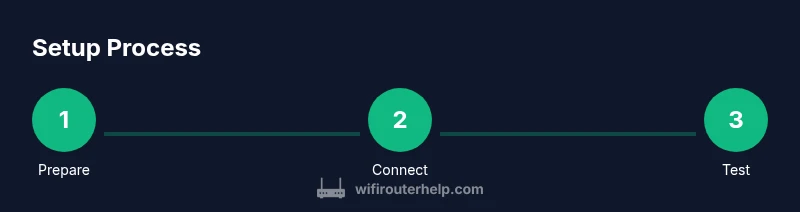
This section provides an overview of the flow you’ll follow during the formal step‑by‑step instructions. You’ll verify service readiness, connect hardware, access the router’s admin page, and configure Wi‑Fi and security settings. The core idea is to ensure a clean, documented baseline before introducing smart home devices, printers, or guest networks. If you are using a BYO router, some steps may vary slightly, but the general principles stay the same: stable physical connections, correct login credentials, and secure, personalized network settings.
Optimizing Wi‑Fi Performance: Channels, Bands, and Placement
For most homes, the 2.4 GHz band penetrates walls better but offers lower speeds, while the 5 GHz band provides higher speeds over shorter distances. The Verizon router should broadcast both bands, with a short, memorable SSID for everyday devices and a separate guest network if you want to isolate visitors. Position the router centrally, elevated, and away from thick furniture, cordless phones, and microwaves that can cause interference. If coverage gaps appear, consider a mesh extender or a wired backhaul. Fine‑tuning channel selection can yield noticeable improvements, especially in dense apartment layouts or multi‑story homes. Regular firmware updates also help maintain performance and security.
Secure Admin Access and Firmware Updates
Always change the default admin password and enable automatic firmware updates when possible. This reduces the risk of unauthorized changes and ensures you receive the latest security patches. If your device supports it, enable firewall features and disable remote administration unless you need it for authorized support. Keeping your firmware current also helps improve compatibility with new devices and IoT ecosystems. Maintain a simple change log so you can trace when settings were modified and why.
Troubleshooting Common Issues
If devices cannot connect, first verify the physical connections: coax to modem, modem to router, power, and the router’s indicator lights. Reboot the modem and router in sequence to reset the connection state. Check that you are connected to the correct SSID and that the password was entered accurately. If you still have issues, test with a wired connection to rule out Wi‑Fi problems. Reaching out to Verizon support may be necessary when the issue persists beyond basic troubleshooting.
Authority Sources and Ongoing Maintenance
To reinforce best practices, consult official guidance from trusted sources. The Federal Communications Commission provides consumer tips on securing wireless networks, while CISA highlights home network security basics. The FTC also offers practical steps for keeping home networks safe. These resources support a safer, more robust Verizon router setup and ongoing maintenance.
Tools & Materials
- Verizon account credentials(Phone number or account email used for login)
- Modem (if required)(The device that connects to Verizon's network)
- Router device(Verizon-provided or compatible third‑party router)
- Ethernet cable(For wired setup between modem and router)
- Power outlet(Keep router powered during setup)
- Laptop/phone(For configuring the router's admin page)
- Paper and pen(Note SSID and password after setup)
Steps
Estimated time: 30-60 minutes
- 1
Prepare your gear
Gather all required items and confirm service readiness. This minimizes backtracking during setup and reduces troubleshooting time.
Tip: Have login credentials on hand and confirm your modem is connected to the Verizon network. - 2
Connect modem to the network
If you have a separate modem, connect it to the coax line and power it up. Ensure the connection lights indicate a synced link before proceeding.
Tip: Wait 2-3 minutes for the modem to initialize before continuing. - 3
Plug in the Verizon/on‑site router
Connect the router’s WAN port to the modem's Ethernet port. Power on the router and wait for the status lights to stabilize.
Tip: Use a direct Ethernet connection to avoid Wi‑Fi interference during initial setup. - 4
Access the router admin page
From a connected device, open the default IP (e.g., 192.168.1.1) or follow the on‑screen instructions from Verizon. Log in with your admin credentials.
Tip: If you don’t know the IP, check the label on the router or consult the manual. - 5
Set SSID and password
Change the network name (SSID) and set a strong WPA2/WPA3 passphrase. Avoid common names and predictable defaults.
Tip: Use a unique passphrase with at least 12 characters. - 6
Configure security and admin access
Enable auto‑updates, change the admin password, and consider disabling WPS. Enable firewall settings if available.
Tip: Disable remote management unless you need it for support. - 7
Test and optimize
Connect multiple devices to verify Internet access and verify speed. Run a basic speed test and adjust channel if needed.
Tip: Use 2.4 GHz for compatibility and 5 GHz for performance where possible. - 8
Document and maintain
Save configuration details and note firmware version. Schedule periodic checks for updates and performance.
Tip: Keep a log of changes to revert if needed.
People Also Ask
Do I need the Verizon router, or can I use a third-party router?
You can use a third‑party router if it is compatible with your service, but Verizon’s own router offers streamlined setup and support. Always verify compatibility before buying.
You can use another router, but verify compatibility first; Verizon's own router often makes setup smoother.
How do I reset my Verizon router to factory settings?
Locate the reset button on the back of the router, press and hold for 10-15 seconds with a paperclip, then reconfigure from scratch.
Press and hold the reset button for 10-15 seconds to reset, then set up from the beginning.
Why is my Wi‑Fi not visible after setup?
Ensure the router is broadcasting the SSID, confirm the 2.4 GHz/5 GHz bands are enabled, and verify you’re connected to the correct network.
Make sure the router is broadcasting and you’re connected to the right network.
How can I improve performance on Verizon Wi‑Fi?
Place the router in a central, elevated location, update firmware, select the best channel, and consider a mesh setup if coverage is poor.
Improve placement, update firmware, and choose optimal channels to boost performance.
What should I do if I can’t connect to the Internet after setup?
Double-check cables, verify modem is online, reboot devices, and contact Verizon support if the issue persists.
check cables, reboot, and contact support if issues continue.
Watch Video
What to Remember
- Prepare credentials and gear before starting
- Follow the steps in order to avoid backtracking
- Secure Wi‑Fi with a strong password and updated firmware
- Document settings to simplify future changes