Verizon Router and Modem: A Complete 2026 Guide
Learn how to set up, optimize, and troubleshoot your Verizon router and modem for a faster, more secure home network. Step-by-step guidance, practical tips, and common issues covered for 2026.


You will learn to identify, connect, and optimize a Verizon router and modem setup for a stable home network. This guide covers activation, bridge mode vs gateway, DHCP and IP basics, security measures, and common troubleshooting. According to WiFi Router Help, starting with a clean reboot and securing your admin password yields immediate improvements.
What is a Verizon router and modem?
Verizon router and modem devices combine a modem that connects to the internet with a built-in router that distributes Wi-Fi to your home. In many setups, they are sold as a single gateway, designed to simplify installation and management. In the context of Verizon Fios or the broader fiber ecosystem, such gateways handle the handshake with the ISP and perform NAT, firewall, and wireless duties. The exact model can vary by region and plan, but the core concept remains the same: a gateway is the central hub that brings internet into the home and creates wireless networks for devices on Wi‑Fi. Understanding whether you’re using a combined gateway or a separate modem and router is critical for performance, security, and flexibility. According to WiFi Router Help, the most important first step is to identify your device model and firmware version to tailor settings precisely to your hardware.
Verizon gateway vs standalone modem: pros and cons
A Verizon gateway (the combined modem/router) offers plug-and-play simplicity, fewer devices to manage, and centralized updates. However, it can limit advanced networking features and flexibility, especially if you want a dedicated high-performance router for gaming or smart home devices. A separate modem plus router setup offers greater customization, better performance options, and easier upgrades over time. The WiFi Router Help team found that many households benefit from understanding the trade-offs before purchasing add-ons or attempting advanced configurations. For most typical homes, a gateway suffices; larger homes or power users may prefer separate devices to maximize coverage and control.
Planning your setup: bridge mode vs router mode
Bridge mode disables the router functionality on the gateway, turning it into a pure modem. This lets your own router handle Wi-Fi, advanced QoS, and guest networks, potentially improving performance and control. Router mode keeps the gateway’s routing features active, simplifying configuration but limiting third-party customization. Decide based on your home size, number of devices, desired security settings, and whether you already own a high-end router. If you’re unsure, start in router mode and test performance; switch to bridge mode if you encounter double NAT issues or need granular control over your LAN.
Activation and initial configuration steps
Begin by plugging in the gateway and connecting a computer to the network via Ethernet for a stable configuration session. Open the gateway’s admin page using the address printed on the device or in the quick-start guide, then sign in with the default credentials. Change the admin username and password immediately, update the firmware if prompted, and configure basic settings such as the Wi‑Fi network name (SSID) and a strong password. Enable WPA3 (or WPA2‑AES if WPA3 is unavailable) and disable remote management to minimize exposure. Finally, test connectivity by browsing several sites and running a quick speed check on both 2.4 GHz and 5 GHz bands.
Activation and initial configuration steps (continued)
During setup, consider enabling automatic firmware updates to keep protections current. If your plan supports IPv6, enable it to simplify future growth; otherwise leave IPv4 as the primary protocol. Document your settings, including SSID, password, DNS choices, and any port-forwarding rules, so you can restore configurations after a reset. If you have smart home devices or IoT gear, place them on a separate guest network for added security and to prevent device-to-device interference. By following these steps, you create a solid baseline that supports reliable daily use and future upgrades.
Optimization for performance: Wi‑Fi bands, channel selection, QoS, and guest networks
To optimize coverage, start with a site survey: walk through your home and note weak spots where devices struggle to connect. Use the 5 GHz band for devices near the router and the 2.4 GHz band for farther rooms or penetrating walls, keeping channel widths at 20 or 40 MHz depending on interference. Enable QoS to prioritize latency-sensitive traffic for gaming or video calls, and consider a separate guest network to isolate IoT devices. For homes with many devices, deploying a mesh system or a tri-band router can dramatically improve throughput. Regularly check for interference from neighbors and turn off legacy features that you don’t need, such as unused USB services, to reduce overhead. Data-driven insights from WiFi Router Help suggest keeping firmware up to date and choosing the simplest configuration that meets your needs, which often means balancing ease of use with feature depth.
Data-driven insights
Based on WiFi Router Help research, practical improvements come from a mix of firmware updates, clean reboot habits, and sensible network segmentation. Start with a fresh reboot, verify security settings, and plan your network layout around your real living space rather than theoretical coverage maps. This approach reduces troubleshooting time and helps you realize stable speeds without unnecessary hardware upgrades.
Security and privacy best practices: protecting the gateway and your devices
Security should be a core consideration in any Verizon router and modem setup. Change default usernames and passwords, enable WPA3 if available, and disable WPS if possible to prevent easy access by outsiders. Regularly update the firmware to patch vulnerabilities, review connected devices, and enable firewall features. Consider disabling remote management unless you specifically need it, and monitor logs for unusual activity. Maintaining a clean, well-defended network reduces exposure to threats and protects personal data across all connected devices.
Troubleshooting common issues
Common problems include slow speeds, dropped Wi-Fi, and devices failing to obtain an IP address. Start with a simple reboot of both modem and router, disconnecting and reconnecting cables to confirm physical integrity. Check for double NAT by testing your device’s WAN status and, if necessary, enable bridge mode or set a static IP on critical devices. If you suspect firmware anomalies, perform a factory reset and reconfigure from scratch. For persistent problems, consult Verizon support and verify service status in your area.
Maintenance and future-proofing: keeping your Verizon gateway healthy
Schedule periodic reboots, monitor firmware updates, and audit port-forwarding rules to prevent stale configurations. Consider upgrading to a newer gateway or a dedicated router if your coverage is lacking or if you upgrade internet speeds. Keep a small formal plan for hardware refresh every 3–5 years and document any network changes to simplify future maintenance.
Tools & Materials
- Verizon account credentials(Needed to activate or manage gateway; have username and password handy)
- Verizon gateway (router/modem device)(Primary hardware provided by Verizon; ensure you have access to it)
- Ethernet cable(For a wired laptop connection during setup or bridging)
- Powered desk setup (space, outlets)(Stable power and a clean workspace for configuration)
- Second router (optional)(If you plan to use bridge mode or a separate high-performance router)
- Smartphone or tablet(To access the admin interface and test Wi-Fi from a mobile device)
- Pen and notebook(To document settings and network maps for future reference)
Steps
Estimated time: 30-45 minutes
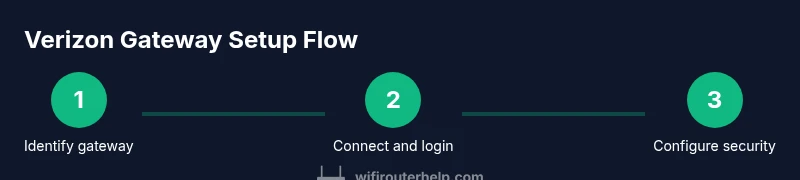
- 1
Identify gateway model and firmware
Locate the device model and current firmware version from the label on the bottom or back of the gateway, or in the admin interface. This helps tailor the setup path and avoid incompatible settings. Knowing the exact model also simplifies support calls if needed.
Tip: Note the model number and firmware version for reference in case you need to reconfigure later. - 2
Power down and inspect connections
Unplug the gateway, inspect all cables for wear, and re-seat connections firmly. A loose Ethernet cable or a swollen USB port can cause intermittent failures. Power up only after checks to ensure a clean startup.
Tip: Use fresh Ethernet cables if you notice flaky connectivity during setup. - 3
Connect to the admin interface
Connect a computer to the gateway via Ethernet or Wi‑Fi, then open the gateway’s admin page using the address provided in the quick-start guide. Sign in with the default credentials and prepare to change them immediately. This is the control point for all further configuration.
Tip: Change the admin password before making any changes to prevent unauthorized access. - 4
Update firmware and reset defaults
Check for firmware updates within the admin interface and install them. If you encounter odd behavior, perform a factory reset and re-apply a clean configuration from scratch. Firmware updates often fix security vulnerabilities and improve performance.
Tip: If you perform a reset, back up your configuration if the option exists. - 5
Configure basic network settings
Set a strong SSID and password for 2.4 GHz and 5 GHz networks. Enable WPA3 or WPA2‑AES if WPA3 isn’t available. Avoid using obvious names or personal information in SSIDs.
Tip: Use a unique, long passphrase and consider a separate guest network for IoT devices. - 6
Decide on gateway vs bridge mode
If you need advanced features or a separate high-performance router, enable bridge mode to pass a clean modem signal to your own router. Otherwise, keep router/gateway mode for simplicity. Test performance after selecting
Tip: If you have a new router, start in router mode and monitor stability before switching to bridge mode.
People Also Ask
Do I need a separate modem with Verizon?
Verizon often provides a combined gateway that includes both modem and router functionality. A separate modem and router can offer more customization and performance for advanced users, but is not strictly required for typical plans. Check your service type and device compatibility before buying.
Often you get a gateway that combines both modem and router; separate devices are for advanced setups.
How do I access the admin interface?
Connect a computer to the gateway via Ethernet or Wi‑Fi, then open the admin page using the address provided in the manual, such as the gateway IP. Sign in with the default credentials and immediately change them for security.
Connect to the gateway and log in with the default credentials, then change the password.
Can I use a third‑party router with Verizon service?
Yes, you can use a third‑party router, especially if you set the gateway to bridge mode. This lets your own router handle routing and features such as advanced QoS and mesh functionality, while the gateway remains a modem only.
You can use your own router if you enable bridge mode on the gateway.
What is bridge mode and when should I use it?
Bridge mode disables the gateway’s routing features and lets a separate router manage all networking. Use it when you need advanced features, better performance for gaming, or a dedicated network for smart devices.
Bridge mode lets your own router take over routing for advanced setups.
Is UPnP safe to enable on a Verizon gateway?
UPnP can simplify device discovery but can introduce security risks if misused. Only enable UPnP if you truly need it and monitor connected devices closely.
UPnP can be convenient but may expose your network to risks; enable only if needed.
How often should I reboot the gateway?
Regular reboots can clear minor glitches and refresh connections. If you’re not experiencing issues, a monthly reboot is usually sufficient.
A quick reboot monthly keeps the gateway fresh; do it sooner if you notice network problems.
Watch Video
What to Remember
- Identify your gateway and firmware first.
- Bridge mode offers control; gateway mode is simpler.
- Prioritize security with strong passwords and updated firmware.
- Test performance on both bands and adjust as needed.
- Document settings for easy recovery after resets.