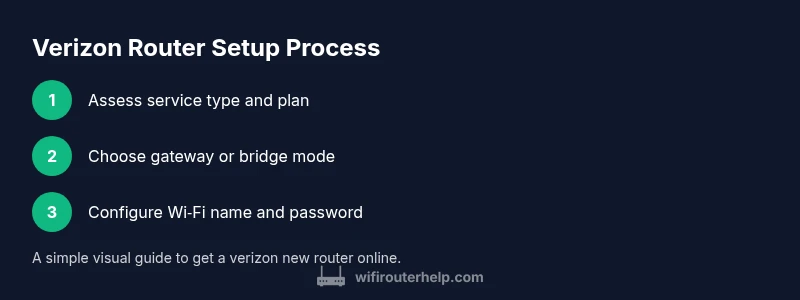
Verizon New Router Setup: A Complete Step-by-Step Guide
A practical, expert guide to installing and optimizing a verizon new router. Learn gateway vs standalone setups, IP passthrough, Wi-Fi security, and troubleshooting for a reliable home network.


This guide will help homeowners and tech enthusiasts install, configure, and optimize a verizon new router across common home layouts. Whether you’re using Verizon’s gateway or your own device, you’ll learn how to connect hardware, choose the right mode (gateway, bridge, or IP passthrough), set up secure Wi‑Fi, guest networks, and troubleshoot frequent connectivity problems to keep your home network fast and reliable for everyone.
verizon new router: Understanding the landscape
A verizon new router can mean different things depending on your service and equipment. For many households, the term refers to either replacing Verizon's built-in gateway with a dedicated router or running a separate router behind the gateway to extend control and coverage. The WiFi Router Help team emphasizes that clarity on your goals—speed, range, or advanced features—helps you choose the right setup from the start. In this section, we outline the core concepts, common configurations, and practical implications so you can decide whether you should use the gateway as your main router, or place a third-party router in front of or behind it. Throughout, the focus is on reliability, ease of use, and long-term maintenance.
- Define your coverage goals: consider the size of your home, wall materials, and the number of devices.
- Decide between gateway mode, bridge/IP passthrough, or a dual-router setup.
- Plan for future growth: security updates, firmware management, and guest access needs.
Gateway vs Stand-Alone Router: Pros and Cons
Choosing between a Verizon gateway and a stand-alone router affects how you manage the network. A gateway provides an all-in-one solution that is often simpler to set up but may limit customization and advanced features. A stand-alone router offers deeper control (custom QoS rules, advanced parental controls, and priority device handling) but can require more configuration and troubleshooting. When you adopt a verizon new router approach, you have to weigh convenience against flexibility. The WiFi Router Help team notes that most homes benefit from a hybrid approach: keep a basic gateway for essential services, then deploy a high-performance router for demanding tasks.
Key considerations:
- Coverage: A powerful standalone router can improve range in large homes.
- Features: Third-party routers typically offer more advanced QoS, security, and guest network options.
- Support: Using your own router may complicate support if your service relies on gateway-based features,
- Management: Centralized control and firmware updates are easier when you maintain a single device in the stack.
Prerequisites for a verizon new router
Before you start, confirm your service type and whether you will place a verizon new router in front of the gateway, in bridge mode, or as a separate device behind the gateway. Ensure you have the necessary credentials to access admin interfaces and manage the network. The following prerequisites help you avoid common misconfigurations:
- Valid account credentials with administrative rights on the Verizon device or the new router.
- A modern web browser and a device to perform configuration.
- A short Ethernet cable to establish a wired connection for initial setup.
- A plan for your SSID names and secure passwords. Consider creating separate networks for guests and IoT devices.
- A basic understanding of NAT, DHCP, and firewall concepts to prevent accidental exposure or double-NAT scenarios.
Preparing for Setup: Workspace and Security
Setting up a verizon new router starts with a clean workspace and a security-minded mindset. Keep your physical space organized, and gather essential items before you begin. This reduces setup time and minimizes mistakes.
- Create a dedicated setup area with a notebook for credentials and configuration notes.
- Photograph or log current network settings before you change anything.
- Make sure you have a reliable power source with surge protection; use a power strip if you plan to run multiple devices.
- Update the firmware on any devices you plan to use during the setup to reduce compatibility issues.
- Consider enabling a guest network during testing to keep your primary network isolated while you troubleshoot.
Tip: If you’re adopting IP passthrough or bridge mode, prepare to disable some firewall features on the gateway to avoid double NAT issues.
Basic Configuration: verizon new router Wi‑Fi basics
The core of any home network is the wireless setup. A verizon new router should be configured with a unique SSID, a strong password, and robust security settings. A typical configuration includes enabling WPA3 if available, disabling WPS, and turning on a firewall. For households with multiple devices, enabling a guest network helps you protect the main network while keeping guests operational.
- Create a unique SSID that does not reveal personal information.
- Use a long, complex passphrase (consider a phrase with numbers and symbols).
- Prefer WPA3 where supported; if not, WPA2-AES is acceptable.
- Disable WPS to prevent unauthorized access.
- Enable the guest network feature and restrict bandwidth where possible to keep primary devices performing well.
Note: If you’re bridging, ensure the main gateway does not conflict with the new router’s security settings.
Performance Tuning and Troubleshooting
Once the verizon new router is up and running, performance tuning helps you squeeze every last bit of bandwidth and reliability from your home network. This includes optimizing channel selection, ensuring the router firmware is current, and verifying that the network isn't experiencing interference from neighboring networks or electronics. Start with a basic channel plan and adjust based on observed performance.
- Test speeds at multiple points in your home to identify dead zones.
- Use a 5 GHz network for devices near the router and a 2.4 GHz network for farther devices.
- Regularly check for firmware updates and apply them when available.
- If you encounter persistent issues, try a factory reset and reconfigure from scratch using a known-good backup.
Common culprits include misconfigured NAT rules, double NAT, and interference from microwaves or Bluetooth devices. Address these by simplifying the network and limiting overlapping channels.
Common Pitfalls and How to Avoid Them
Even a well-planned setup can run into pitfalls. By anticipating these, you can save hours of frustration. The most frequent issues include unexpected double NAT when bridging, insufficient security settings, and misnamed networks.
- Pitfall: Double NAT — Avoid by using IP passthrough or bridge mode if you require your own router to handle NAT.
- Pitfall: Weak security — Always enable strong encryption and avoid using WPS.
- Pitfall: Overlapping channels — Use auto-channel selection or manually set a clear channel.
Preventative steps:
- Document changes and keep a backup of the configuration.
- Reboot devices after major changes to ensure the new settings are applied.
- Test with multiple devices to confirm stable performance across your network.
Tools & Materials
- Verizon account credentials (admin/owner)(Needed to access admin dashboard and verify service.)
- New router(The device you plan to install behind the Verizon gateway.)
- Ethernet cable (Cat5e or better)(For wired WAN connection between gateway and new router.)
- Web browser(Chrome, Edge, Safari, or equivalent.)
- Smartphone or computer(To access admin page and test connectivity.)
- Surge protector/power strip(Protects equipment during setup and operation.)
Steps
Estimated time: 30-60 minutes
- 1
Power off the gateway and connected devices
Shut down the current Verizon gateway and all attached devices to prevent electrical issues and ensure a clean slate for configuration.
Tip: Wait about a minute for components to fully power down before unplugging cables. - 2
Connect the new router to the gateway
Plug the new router’s WAN/Internet port into the gateway’s LAN port using a short Ethernet cable. This creates the wired backbone for your new setup.
Tip: Use a high-quality, short Ethernet cable to minimize interference and latency. - 3
Power on the new router
Turn on the new router and allow it to boot fully, which typically takes a couple of minutes. Watch the status LEDs for a solid connection indicator.
Tip: If the LED indicators are unclear, refer to the router’s manual for boot status guidance. - 4
Access the router's admin page
From a connected device, open a web browser and navigate to the router’s admin address as documented in the manual or on the device label. Log in with the admin credentials.
Tip: If you can’t reach the page, ensure your device is on the same network and disable any VPNs temporarily. - 5
Configure WAN/Internet settings
Set the WAN/Internet type based on your service (DHCP or PPPoE) and enable IP passthrough or bridge mode only if you intend to use your own router to manage NAT.
Tip: If bridging, leave firewall on the gateway with minimal rules to avoid conflicts. - 6
Set Wi‑Fi name and password
Create a unique SSID and strong password. Prefer WPA3 if available; otherwise, use WPA2‑AES for compatibility with older devices.
Tip: Avoid using personal information in the SSID; consider a passphrase rather than a single word. - 7
Enable security features
Turn on essential security features such as a firewall, guest network, and disabling WPS to prevent unauthorized access.
Tip: Update firmware promptly when prompted by the dashboard to protect against vulnerabilities. - 8
Test connectivity and optimize
Verify every major device connects and tests speeds across rooms. Adjust channel settings or QoS if needed to balance bandwidth.
Tip: Run a quick speed test from multiple locations to identify bottlenecks and reconfigure accordingly.
People Also Ask
Can I use a third-party router with Verizon home internet?
Yes, you can use your own router behind Verizon’s gateway by enabling IP passthrough or bridge mode, though some features may be limited. Check your service plan and device documentation for compatibility.
Yes, you can use your own router behind the gateway by enabling IP passthrough or bridge mode, though some features may be limited.
What is IP passthrough and when should I use it?
IP passthrough forwards the public IP to your own router so that the router handles NAT and firewall functions. Use it when you want full control of your home network with a separate router.
IP passthrough forwards the public IP to your own router so that your router handles NAT and firewall.
Do I need to reset the router after setup?
A reset is not always required, but a factory reset can help if you encounter configuration conflicts. Reapply your settings afterward and verify connectivity.
A reset isn’t always required, but a factory reset can help if you have configuration issues; reapply your settings afterward.
How can I improve Wi‑Fi performance with verizon new router?
Optimize placement, use the 5 GHz band for nearby devices, and ensure firmware is updated. Consider a second access point or mesh solution if coverage remains spotty.
Improve placement, use 5 GHz for nearby devices, and keep firmware up to date; consider adding a mesh system if needed.
What if devices can’t connect after setup?
Double-check cables, verify WAN settings, and confirm you’re on the correct network. Try rebooting devices and re-running the setup from a wired computer.
Check cables, WAN settings, and network; reboot devices and run setup again if needed.
Should I disable the Verizon gateway’s firewall when using IP passthrough?
No. If you enable IP passthrough, keep basic firewall protection on the gateway and ensure your own router provides security controls. This reduces exposure while maintaining a safety layer.
Keep basic firewall on the gateway when using IP passthrough, and rely on your own router for security controls.
Watch Video
What to Remember
- Decide gateway vs. standalone strategy before starting
- Use IP passthrough/bridge mode only if you need your own router to handle NAT
- Secure Wi‑Fi with strong passwords and modern encryption
- Test across rooms to identify coverage gaps and adjust settings
- Document settings and keep firmware up to date