rt ax86u pro: Complete setup and optimization guide
A comprehensive guide to configure and optimize the rt ax86u pro for reliable home Wi-Fi, covering WAN, Wi-Fi, security, QoS, firmware updates, and troubleshooting.


You will set up and optimize the rt ax86u pro for a fast, reliable home network. This guide covers WAN configuration, Wi‑Fi optimization, security hardening, QoS, and firmware updates. Follow the step‑by‑step actions to achieve a strong, stable connection across devices in a typical home.
What the rt ax86u pro is and why it matters
The rt ax86u pro is a capable Wi‑Fi 6 router designed for modern homes with multiple devices and smart gadgets. It combines strong wireless performance with flexible network controls, making it a solid choice for streaming, gaming, and remote work. The model emphasizes security features and ease of use, so you can deploy a robust home network without a steep learning curve. For homeowners seeking reliable coverage in living rooms, hallways, and basements, the rt ax86u pro supports stable connections across devices when placed thoughtfully and kept up to date. According to WiFi Router Help, the real value comes from pairing a well‑planned layout with regular maintenance. The goal is to provide steady, predictable performance rather than a single racecar speed.
Planning your network: topology and goals
Before touching a single setting, map out your space, devices, and priorities. List the number of wired devices (PCs, consoles, smart TVs) and wireless devices (phones, tablets, IoT gadgets). Decide which areas need the strongest signal and whether you will use range extenders or a mesh system later. The rt ax86u pro excels when you create distinct network zones: a fast main network for workstations and gaming, a guest network for visitors, and a dedicated IoT network with tighter access controls. Align your plan with your internet plan’s advertised speeds to avoid overprovisioning. Will you stream 4K content, support video conferencing, or host online games? A clear plan reduces trial‑and‑error changes and helps you fine‑tune settings quickly.
Wireless setup: optimizing 2.4GHz and 5GHz bands
Most homes benefit from keeping 2.4GHz and 5GHz on separate SSIDs, especially when devices frequently move between rooms. The 2.4GHz band travels farther and penetrates walls better but offers lower speed per device; the 5GHz band provides higher data rates with shorter range. For the rt ax86u pro, enable both bands and assign devices to the appropriate network by use case. Enable band steering if you want seamless transitions without manual switching, but monitor stability; some devices may prefer one band consistently. Channel selection matters; choose auto if interference is low, or manually pick a clear channel in your area. Consider enabling a 'Smart Connect' feature if the firmware supports it, but test to ensure critical devices don’t keep flapping between bands.
Wired backhaul and Ethernet: when to use gigabit links
Wired backhaul offers the most reliable performance for fixed devices. If you have a desktop PC, gaming console, or a home theater PC, connect them to the router’s LAN ports with high-quality Ethernet cables. Use a wired backhaul for mesh satellites or extenders if you expect heavy traffic in several rooms. The rt ax86u pro supports multiple LAN ports and smart switch features; enabling these can help isolate traffic and reduce wireless interference. When possible, place critical devices on hardwired connections to maximize latency and stability. If your internet plan delivers gigabit speeds, wired connections ensure you don’t saturate the wireless link in busy hours.
Security basics: WPA3, guest networks, and firewall
Security should be set as soon as you finish the initial configuration. Use WPA3‑Personal for the main network; enable WPA3‑/WPA2‑mixed mode if older devices are present. Create a strong administration password and disable remote management unless you need it. A guest network helps isolate visitors’ devices from your main infrastructure. Enable client isolation on guest networks to prevent cross‑device access. The built‑in firewall and recommended security features in the rt ax86u pro supplement your device’s defenses. Regularly review connected devices and revoke access when needed to minimize risk.
QoS and bandwidth management for mixed devices
Quality of Service (QoS) helps ensure critical devices get bandwidth during peak hours. In the rt ax86u pro, define service rules for gaming consoles, work laptops, and streaming devices to keep latency low for important tasks. If your network often handles video calls, set higher priority for those devices. Use a simple rule set initially: reserve a portion of bandwidth for essential devices, then tighten rules if you see congestion. Avoid over‑restricting non‑essential devices, or you will experience inconsistent performance. Periodically reassess QoS rules as your household device mix changes.
Advanced features: AiProtection, VPN, and USB storage
AiProtection built into the router offers malware protection and online privacy features; enable it as part of your baseline security. If you require private access to your home network from outside, consider a VPN configuration supported by the firmware. The rt ax86u pro supports USB storage for media sharing or network backups; connect a USB drive and enable network sharing through AiDisk or similar features. For more privacy, consider a separate VPN peer or service; ensure you understand the implications for performance. Always back up important configurations before experimenting with advanced features.
Maintenance: firmware updates and backup configurations
Firmware updates bring security patches, stability improvements, and new features. Check for updates on a schedule, such as monthly or when you notice issues; don't delay critical updates. When updating, ensure the device remains plugged in and avoid interruptions. After updating, verify your settings are intact and reapply any custom rules if needed. Make periodic backups of your configuration so you can restore quickly after a reset or hardware change. Keeping a simple change log helps you track what modifications were made and why.
Troubleshooting common issues
Most issues with the rt ax86u pro come from interference, misconfiguration, or outdated firmware. If performance drops, perform a quick speed test from multiple rooms and check that devices are on the correct bands. If a device can’t connect, ensure it has the latest drivers and firmware, and verify the device is not blocked by a firewall rule. A reset can be a last resort, but first try a factory reset and reconfigure from scratch using the guide. If you still have trouble, consult the manual, check the manufacturer’s site for known issues, or reach out to support channels.
Tools & Materials
- Router manual and power adapter(Keep included documents and power supply aligned with local voltage (100-240V).)
- Ethernet cable (cat5e or better)(Use at least a 1–2 meter cable for setup; longer runs may introduce minor latency.)
- Smartphone or computer with browser/app(Device for accessing the web admin or the ASUS app.)
- Internet service credentials (if applicable)(PPPoE or other ISP login details if your plan requires them.)
- Optional USB storage (for AiDisk)(USB drive for media sharing and backups.)
Steps
Estimated time: 20-40 minutes
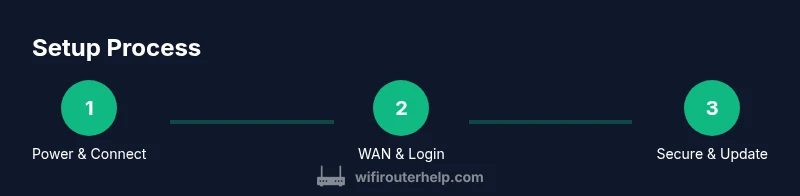
- 1
Power on the router and connect to modem
Plug in the router and power it on. Connect the router’s WAN port to your modem with an Ethernet cable. Wait for the status LEDs to indicate a stable boot and link. This establishes the base network from which you’ll configure settings.
Tip: Ensure the power outlet is stable and that you’re using the included power adapter. - 2
Access the admin interface
Connect your device to the router via Wi‑Fi or a wired link, then open your web browser or the ASUS Router app. Enter the default address or app address to reach the login screen, and sign in using the standard credentials. If you’ve changed credentials before, use the updated ones. This step lets you configure WAN, Wi‑Fi, and security settings.
Tip: If you can't find the login page, consult the manual for the exact address or reset briefly to restore defaults. - 3
Run the setup wizard
Launch the guided setup wizard to configure WAN/Internet, administrator access, and initial Wi‑Fi settings. Follow prompts to set your SSIDs, select WPA3 security, and enable essential features like guest networks. The wizard helps ensure you don’t miss critical options.
Tip: Use a strong admin password and store it securely. - 4
Configure WAN and Internet settings
Choose the appropriate WAN type (DHCP, PPPoE, or static IP) based on your ISP. Enter necessary credentials if required and test connectivity. This step ensures your device can reach the internet reliably before adding local network features.
Tip: If you’re unsure, start with DHCP and switch later as needed. - 5
Set up Wi‑Fi networks (SSIDs and security)
Create distinct SSIDs for 2.4 GHz and 5 GHz bands, or enable a single combined SSID if your firmware supports it. Enable WPA3‑Personal for the main network and enable a guest network if you frequently invite visitors. Save changes and verify device connections.
Tip: Consider labeling bands clearly (e.g., Home_2.4, Home_5) for easy device pairing. - 6
Enable security features and update firmware
Turn on AiProtection or built‑in firewall features, enable automatic firmware updates if available, and apply any recommended security settings. Check for updates if automatic updates are disabled, then reboot to complete the process.
Tip: Regular updates help close security gaps and improve stability.
People Also Ask
How do I access the rt ax86u pro admin page?
Access via the router's web interface or mobile app, then sign in with the default credentials and change them to a strong password.
Open the router's web interface or mobile app and log in with the default credentials, then change your password.
Can I use a guest network with the rt ax86u pro?
Yes. Enable a guest network and enable client isolation to keep guest devices separate from your main network.
Yes, enable a guest network and keep it isolated from your main network.
Should I update firmware immediately?
Check for updates regularly; firmware updates can improve stability and security. Install updates when available.
Check for updates regularly and install them when available.
What affects Wi‑Fi speed?
Interference, distance, channel choice, and device capabilities all affect speed. Adjust placement and channels to optimize.
Interference and distance affect speed; adjust placement and channels.
Is USB storage supported?
Yes, you can attach a USB drive for AiDisk or media sharing, subject to firmware support.
Yes, you can use USB storage for sharing via AiDisk depending on firmware.
Should I reset to factory settings before setup?
Only if the router is misbehaving; you will lose custom settings and must reconfigure.
Only reset if needed; you’ll have to reconfigure everything.
Watch Video
What to Remember
- Plan network layout before configuring.
- Enable WPA3 and a guest network for security.
- Keep firmware up to date to maintain stability.
- Test speeds across multiple devices and rooms.