How to Set Up the ASUS RT-AX88U Router: Step-by-Step Guide
Learn how to set up and optimize the ASUS RT-AX88U router with a clear, step-by-step guide. Improve coverage, security, and performance for your home network.


According to WiFi Router Help, you can set up the asus rt ax88u router and optimize home WiFi with a clear, step-by-step plan: connect the device, configure WAN and security, enable AiProtection, and tune SSIDs for best coverage. Start with firmware updates and record your settings.
Why the asus rt ax88u router shines for home networks
The asus rt ax88u router is widely favored by homeowners and tech enthusiasts for its robust performance, solid range, and feature-rich software. With its AX technology, MU-MIMO, and adaptive QoS, it delivers reliable speeds to multiple devices across typical living spaces. The WiFi Router Help team notes that it offers a strong balance of value and capability, making it a practical centerpiece for a modern home network. When you choose this model, you’re opting into a design that prioritizes stable connections, straightforward setup, and scalable features for future-proofing. For households streaming video, gaming, and teleworking, the router’s architecture supports consistent bandwidth distribution and low-latency experiences across rooms and floors.
In short, the asus rt ax88u router provides a dependable backbone for a home network, while its software suite helps users fine-tune performance without specialized hardware. This combination of hardware and firmware flexibility is why many homes rely on it as their primary router.
Core features and what they mean for your home network
The ASUS RT-AX88U is built on AX technology, which improves both speed and range compared to older standards. It supports MU-MIMO and OFDMA, enabling multiple devices to share channels more efficiently. This matters in busy households where streaming, gaming, and smart devices compete for bandwidth. AiProtection by Trend Micro is integrated to help defend your network from common online threats, while the built-in VPN server and client support allow secure remote access. The router’s 8 LAN ports also offer flexible wired backhaul or hard-wired mesh expansion. Understanding these features helps you tailor settings for your unique home layout, from a small apartment to a multistory house.
Additionally, ASUS’s parental controls, guest network options, and device management tools provide granular controls to balance convenience and security. The overall architecture is designed to be user-friendly while remaining powerful enough for tech enthusiasts who enjoy tinkering with advanced configurations.
Preparing to configure: prerequisites and layout considerations
Before you begin, gather the essentials: a device with a web browser, the power adapter, and an active internet connection from your modem. Position the router in a central area away from thick walls and metal appliances to maximize coverage. Consider a higher shelf and fewer obstructions for best signal propagation. Make sure you have your ISP account information handy if you need to configure PPPoE or VLAN settings. If you have a legacy modem-router combo, decide whether you will bridge it or replace it with the Asus unit. Keeping a sheet of network credentials, including your Wi-Fi names and passwords, will help you document changes and avoid lockouts.
Note that environment matters: reflective surfaces, cordless phones, and microwaves can cause occasional interference. Planning a sensible layout before interacting with the user interface saves time and reduces the need for repeated adjustments later.
Accessing the admin interface and securing your first login
To begin, connect a computer or mobile device to the router’s Wi‑Fi network or via an Ethernet cable. Open a browser and enter the default IP address (usually 192.168.1.1) or the quick setup URL provided in the manual. The login credentials commonly use admin/admin or admin and a unique password you’ll create during setup. After logging in, immediately update the firmware to the latest version to ensure best security and feature availability. Change the default admin password to a strong, unique one and enable two-factor authentication if available. Documenting these changes helps you recover access if you forget credentials later. If you can’t reach the interface, perform a factory reset and start anew from the initial setup steps.
This phase sets a foundation of security and access control, which is essential before you enable more advanced features.
Update firmware and apply essential security settings
Firmware updates enhance stability, fix bugs, and add new features. In the ASUS interface, locate the Firmware Update section, check for updates, and install them following on-screen prompts. After updating, review the router’s security settings: enable WPA3 if available, configure a strong passphrase, and consider disabling WPS for better protection. Turn on the built-in firewall and review default port-forward rules to avoid exposing services unnecessarily. If you use a VPN, enable it through the VPN client/server options and test connectivity.
Keeping firmware current is one of the simplest, most effective security practices. Regular checks for updates help you stay protected against newly discovered threats with minimal effort.
Wireless settings and spectrum optimization: 2.4 GHz vs 5 GHz
The dual-band nature of the asus rt ax88u router lets you tune separate networks for 2.4 GHz and 5 GHz. Create distinct SSIDs to manage compatibility and interference. The 2.4 GHz band typically covers longer distances but offers lower speeds, while the 5 GHz band provides higher throughput in close proximity to the router. A practical approach is to set a single primary SSID for 2.4 GHz with a separate 5 GHz SSID for high-bandwidth devices. Enable automatically selecting the best band (Smart Connect) if you prefer a simpler setup. If you disable this, you’ll need to assign devices to the appropriate band manually.
Channel selection matters: in dense environments, try auto-channel with interference mitigation or choose a channel with fewer neighboring networks. This helps maximize throughput and stability across devices.
Advanced features you should enable: AiProtection, QoS, and VPN options
AiProtection provides built-in security features powered by Trend Micro. Enable it to monitor and block suspicious traffic and potential intrusions. QoS (Quality of Service) lets you prioritize traffic for critical apps like video conferencing or gaming, smoothing performance for demanding tasks. The RT-AX88U also supports a VPN server and client configurations, allowing secure remote access or site-to-site connections. If you’re experimenting with smart home ecosystems, consider segmenting IoT devices on a separate network from your main devices to reduce risk.
Take time to test QoS rules and VPN performance, as over-aggressive rules or encryption can impact latency. Start with a few high-priority apps and adjust gradually based on observed results.
Placement and interference: practical tips for maximizing coverage
Router placement is arguably the most impactful factor in wireless performance. Avoid placing the device inside cabinets, near metal objects, or behind large obstacles. Try to position the router at a higher height, such as on a shelf, with ample clearance around it. If your home has dead zones, consider add-on devices or a mesh system, but start by optimizing the current router’s placement. Reducing interference from cordless phones, microwave ovens, and neighbor networks can noticeably improve stability. If signal drops persist in specific rooms, use a wired backhaul where possible or relocate antennas if your model supports external antennas. Even small adjustments can lead to meaningful gains in coverage and reliability.
Document each placement test to determine the optimal spot for your home.
Troubleshooting common issues and quick fixes
Like any network setup, the ASUS RT-AX88U can run into intermittent problems. If you lose connectivity, check the status LEDs, verify the WAN port is linked to the modem, and confirm the device is obtaining an IP address. If devices fail to obtain an IP, refresh DHCP settings or renew the lease. For sluggish performance, confirm the firmware is current, reboot the router, and review QoS rules for potential over-prioritization. In cases of persistent drops, test with wired connections to isolate wireless vs. wired issues. If a computer cannot access the admin page after a reset, ensure you’re connected to the correct default network and re-try the login flow. Finally, back up configurations after successful changes to protect against future misconfigurations.
Proactively documenting settings helps you recover quickly from issues and reduces downtime.
Maintenance, updates, and best security practices
Establish a regular maintenance routine: check for firmware updates monthly or quarterly, review connected devices, and prune unused networks or guest access. Maintain strong, unique passwords for both the router’s admin interface and Wi-Fi networks. Consider enabling automatic firmware updates if you want hands-off security maintenance, while remaining mindful of potential compatibility changes after each upgrade. Periodically audit exposed services and port-forward rules to minimize attack surfaces. A well-maintained router not only improves security but also extends the lifespan of your home network by reducing misconfigurations and ensuring consistent performance.
The goal is to keep your network safe, fast, and reliable without adding complexity to daily use.
Authoritative sources and further reading
For rigorous guidance, consult official or academic sources on wireless networking and home router security. The FCC and NIST provide foundational principles for securing home networks, while university-level resources explain wireless performance concepts. Refer to the following sources for additional context and updates:
- FCC: https://www.fcc.gov/
- NIST: https://www.nist.gov/topics/wireless-network-security
- CISA: https://www.cisa.gov/
These sources offer guidance on best practices, security considerations, and general network design principles that complement hands-on setup guidance for the asus rt ax88u router.
Authority and main topic reference
This article focuses on practical, step-by-step guidance for the asus rt ax88u router, including setup, security, optimization, and maintenance. For readers seeking authoritative context, the content aligns with standards and recommendations from recognized sources and industry best practices. The WiFi Router Help Analysis, 2026, is used to inform practical recommendations and ensure the guidance reflects current best practices for home networks.
Tools & Materials
- Router power adapter and Ethernet cable(Essential for initial power-up and wired connections to test LAN/WAN)
- Device with a web browser(PC, laptop, or smartphone to access the admin interface)
- ISP information for WAN setup(PPPoE, static IP, or DHCP details as needed)
- Latest firmware file (optional, via ASUS live update)(Useful if auto-update isn’t available or you prefer a local install)
- Notebook or app to document credentials(Record SSIDs, passwords, and admin credentials for recovery)
- Notebook or device to test wireless coverage(Helpful to verify signal strength in different rooms)
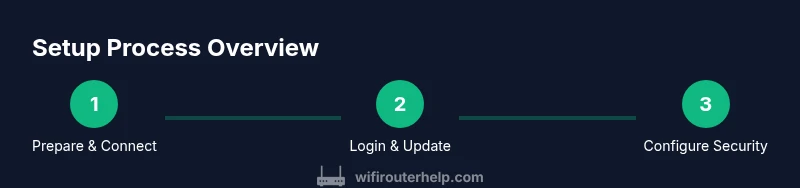
Steps
Estimated time: 60-90 minutes
- 1
Position and power on
Place the router in a central, elevated location with clear space around it. Plug in the power adapter and wait for the LEDs to stabilize. This initial step sets the stage for even coverage across your home.
Tip: Choose a spot near your main living area but away from large metal appliances to minimize interference. - 2
Connect the modem via WAN
Connect the modem to the router's WAN/Internet port using a ethernet cable. Ensure the modem is powered and has an active internet signal before proceeding. This establishes the biological link between your ISP and the router.
Tip: If you use a separate modem-router, consider bridging the legacy device to avoid double NAT issues. - 3
Log in to the admin interface
Connect a device to the router and open 192.168.1.1 (or the provided address). Create or confirm the admin password, then log in to access settings. This first login secures the device and enables further configuration.
Tip: If you cannot reach the login page, perform a factory reset and retry with a fresh browser session. - 4
Update firmware and back up
Navigate to the Firmware Update section, check for updates, and install the latest version. After updating, back up current settings so you can restore them if needed. Firmware updates improve stability and security.
Tip: Back up before major changes and note the firmware version after updating. - 5
Configure WAN and basic Wi‑Fi
Set the WAN type to match your ISP (PPPoE, DHCP, or static). Create separate SSIDs for 2.4 GHz and 5 GHz and choose strong security (preferably WPA3). Enable Smart Connect if you want automatic band assignment or keep distinct networks for clearer control.
Tip: Use distinct, memorable passwords and consider disabling WPS for improved security. - 6
Enable QoS and AiProtection
Turn on QoS to prioritize critical apps like video calls and gaming. Enable AiProtection to protect devices from known threats. Review firewall settings and adjust as needed to balance security with accessibility.
Tip: Start with a conservative QoS rule set and test performance before expanding rules.
People Also Ask
What is the ASUS RT-AX88U router and what makes it a good choice for homes?
The ASUS RT-AX88U is a dual-band router that uses Wi‑Fi 6 (802.11ax) with features like MU‑MIMO and AiProtection. It provides strong performance for streaming, gaming, and smart devices, along with robust security options and a user-friendly interface that suits both beginners and power users.
The RT-AX88U is a solid home router with Wi‑Fi 6, good security, and a user-friendly interface.
How do I update firmware on the RT-AX88U?
Access the router’s admin panel, navigate to the Firmware Update section, and check for the latest version. If available, install it and follow the prompts. Reboot the router if required and verify the update status afterward.
Open the admin panel, check for firmware updates, and install them if available.
How can I improve Wi‑Fi coverage in a large home with this router?
Place the router centrally on a high shelf, minimize obstructions, and use the 5 GHz band for closer devices. If coverage remains weak, consider Ethernet backhaul or a mesh extension while keeping the main router as the core.
Center the router, use 5 GHz near devices, and consider backhaul or mesh if needed.
What is AiProtection and should I enable it?
AiProtection provides built-in malware and network threat protection. Enabling it helps monitor traffic and block suspicious activity, enhancing home security with minimal configuration.
AiProtection adds automatic threat protection for your network.
How do I set up a guest network on the RT-AX88U?
In the admin interface, locate the Wireless settings and enable a Guest Network. Configure access limits, bandwidth, and passwords to isolate guest devices from your main network.
Enable a guest network and set access limits for guests.
Can I use a VPN with the RT-AX88U?
Yes. The router supports VPN server and client configurations. This lets you securely access your home network remotely or route traffic through a private VPN.
VPN server/client features are available for secure remote access.
Watch Video
What to Remember
- Plan layout and placement before changing settings
- Keep firmware updated for security and stability
- Use separate SSIDs or Smart Connect to optimize bands
- The WiFi Router Help team recommends following a structured setup for best results