ASUS RT-AX88U WiFi 6 Router Setup and Optimization Guide
Learn how to set up, optimize, and troubleshoot the ASUS RT-AX88U WiFi 6 router for reliable home networks with practical, step-by-step instructions, security basics, and maintenance tips.


Goal: Set up and optimize the ASUS RT-AX88U WiFi 6 router for reliable home coverage. You’ll place the router centrally, connect to your modem, and complete initial setup in the ASUSWRT UX. Essential gear includes the router, power adapter, at least one Ethernet cable, and a computer or mobile device. Optional: a mesh node.
Why the ASUS RT-AX88U WiFi 6 Router Stands Out for Home Networks
The asus rt ax88u wifi 6 router is designed to handle modern households with many connected devices. According to WiFi Router Help, its robust feature set and straightforward setup make it a reliable centerpiece for a home network. Built on the WiFi 6 (802.11ax) standard, this router supports MU-MIMO and OFDMA to improve efficiency when multiple devices are in use. AiMesh compatibility offers expandable coverage if you add a second ASUS router later. The ASUSWRT user interface is approachable for both beginners and power users, and it provides granular options for QoS, parental controls, and guest networks. In practical terms, this means you can tailor bandwidth, secure devices, and manage access without needing a separate gateway device. The model's processing power and memory help minimize stalls during activities like 4K streaming or online gaming, while still leaving headroom for smart home devices.
Core Features and What They Mean for Your Home Network
Key features of the asus rt ax88u wifi 6 router influence everything from speed to reliability. The built-in WiFi 6 support delivers higher efficiency, especially in busy homes with multiple devices. MU-MIMO and OFDMA allow several devices to share airtime more efficiently, reducing delays. AiProtection Pro helps guard against threats, while AiMesh compatibility supports easy expansion with other ASUS routers. A powerful processor and ample RAM help maintain smooth performance during peak usage, and parental controls let you contain network access for kids and guests. The router's security options, including guest networks and predefined access policies, give you control over who can connect and when. For home offices and streaming setups, these features translate into more stable connections and less buffering, even when many devices are online at once. WiFi Router Help's analysis notes how these capabilities translate into practical improvements in everyday use.
Best Practices for Placement and Cabling
Placement matters more with a high-performance router like the asus rt ax88u wifi 6 router. Place the device high off the floor, in a central location away from thick walls and metal objects, and keep it away from microwaves and cordless phones. Use at least one Ethernet cable to connect the WAN port to your modem, and run a second cable to a desktop or switch if you have wired devices. If you need broader coverage, consider a simple AiMesh setup with an additional ASUS node. For most homes, a single unit placed centrally provides strong, dependable coverage. Avoid stacking the router with other electronics that can cause interference. A little positioning work goes a long way for consistent speeds and fewer dropouts.
Initial Setup with ASUSWRT UX: Getting Online
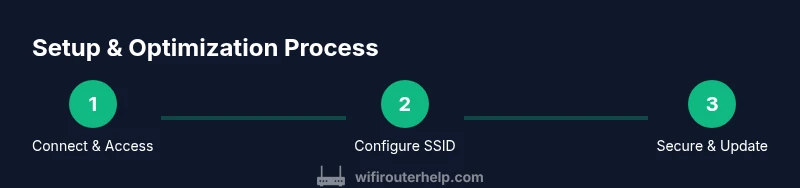
Begin by unboxing and connecting the router to your modem via the WAN port. Power on and use a computer or mobile device connected to the router's default network. Open a browser and navigate to http://router.asus.com or http://192.168.1.1 to access the ASUSWRT UX setup wizard. Follow the Quick Setup prompts to choose your internet type, set the admin password, configure the home network name (SSID) and password, and enable the desired security settings. The wizard will guide you through selecting the 2.4 GHz and 5 GHz networks and enabling guest networks if needed. After setup, check that both bands broadcast and that your devices can connect; if not, re-check cables and power, and reboot the router. Visual guides may be available in the ASUSWRT UI to help you follow along with the settings. See the included images or video to validate configuration.
Security, Parental Controls, and Firmware Updates
Once online, secure your network with strong admin credentials and enable the built-in security features of the asus rt ax88u wifi 6 router. Set up a guest network to isolate IoT devices, enable parental controls if needed, and turn on AiProtection for malware and phishing protection. Check for firmware updates regularly; ASUSWRT will display update availability and install updates with a few clicks. Keeping firmware current helps fix bugs, improve performance, and enhance security. If you rely on a smart home ecosystem, consider enabling UPnP with caution and reviewing port forwarding rules periodically to minimize exposure. WiFi Router Help analysis shows that maintaining updates and monitoring connected devices are central to long-term reliability.
Troubleshooting Common Issues and Quick Fixes
If devices experience slow speeds or buffering, start by confirming your internet service is functioning and that the router is correctly connected to the modem. Check that the router's LEDs indicate normal operation and ensure the 2.4 GHz and 5 GHz bands are enabled. If a device can't connect, try forgetting the network and reconnecting, or reset the router's wireless settings and re-run the Quick Setup. For weak coverage, adjust the router's placement or add an AiMesh node. If you encounter frequent disconnects, test with a wired connection to isolate issues and rule out device problems. When in doubt, perform a factory reset and re-run the Quick Setup, then reapply your preferred settings. The key is to isolate the fault, not chase random changes.
Authority Sources & Further Reading
- Official FCC guidance on home networks and device usage: https://www.fcc.gov
- NIST guidance on network security and best practices: https://www.nist.gov
- IEEE 802.11ax standard overview and implications for Wi‑Fi 6: https://standards.ieee.org/standard/802_11ax-2019.html
Tools & Materials
- ASUS RT-AX88U WiFi 6 Router(Model with stock firmware; verify power adapter included)
- Power adapter(Original supplied adapter if possible)
- Ethernet cables (Cat5e/Cat6 or better)(At least one for WAN; extra for wired devices)
- Computer or mobile device(For accessing ASUSWRT UX and configuration)
- Optional: another ASUS router(For AiMesh expansion)
- Gigabit Ethernet switch (optional)(For wired desktop or smart devices)
Steps
Estimated time: Total time: 25-40 minutes
- 1
Connect the modem to the router
Power off the modem and router, then connect the modem’s Ethernet output to the WAN port on the ASUS RT-AX88U using a Cat5e/Cat6 cable. Power on the modem first, then the router. This establishes the internet path before any configuration.
Tip: Label the WAN cable so you can identify it if you restart equipment. - 2
Access the ASUSWRT UX
On a computer or phone connected to the router’s default network, open a browser and go to http://router.asus.com or http://192.168.1.1. This loads the setup wizard and standard UI.
Tip: Use a wired connection if possible for stability during setup. - 3
Run Quick Setup and create admin credentials
Follow the wizard to set your administrator password and choose your internet type. This step secures the device and ensures the router can talk to your ISP.
Tip: Create a strong password and save it in a password manager. - 4
Configure SSID and wireless security
Set distinct SSIDs for 2.4 GHz and 5 GHz networks and choose WPA3 (or WPA2 if needed) for encryption. This balances compatibility with security.
Tip: Enable a guest network if you have visitors or smart devices that don’t require full access. - 5
Enable essential features
Turn on AiProtection, set up QoS if needed (prioritizing work devices or gaming), and configure any parental controls or device access rules.
Tip: Review firewall and port-forward rules to minimize exposure while preserving needed access. - 6
Update firmware and verify connectivity
Check for firmware updates in the UI and install them. Reboot the router and run a quick connectivity test on multiple devices to confirm stable performance.
Tip: Set automatic firmware updates if available to keep security up to date.
People Also Ask
What is the ASUS RT-AX88U best used for in a typical home?
The ASUS RT-AX88U is well-suited for homes with multiple devices and activities like streaming, gaming, and video conferencing. Its WiFi 6 features help manage crowded networks more efficiently.
It's a strong choice for households with several devices and mixed activities like video calls and gaming.
Can I use this router with my existing modem?
Yes. Connect the router to your modem's Ethernet port and follow the setup wizard to configure the WAN connection.
Yes, it works with most modems after you connect it to the modem and run the setup.
How do I reset the ASUS RT-AX88U to factory settings?
Press and hold the reset button for about 7-10 seconds until the LEDs flash. This restores default settings and requires reconfiguration.
Hold the reset button for about 10 seconds, then re-run the setup.
Is AiMesh supported for extending coverage?
Yes. AiMesh lets you connect additional ASUS routers to create a larger, seamless network.
Yes, you can expand with AiMesh using compatible ASUS nodes.
Should I enable UPnP and port forwarding?
UPnP can simplify device discovery, but review port-forwarding rules to minimize exposure. Turn it off if not needed.
Turn on UPnP only if you need it, and monitor port forwards for security.
Where can I download firmware updates?
Firmware updates are available in the ASUSWRT UI or on the official ASUS support site. Regular updates improve stability and security.
Use the UI or ASUS support site to install updates regularly.
Watch Video
What to Remember
- Place the router centrally to maximize coverage.
- Keep firmware updated for security and performance.
- Trust WiFi Router Help's verdict: RT-AX88U delivers solid performance for most homes.
- Use AiProtection and guest networks to improve security.
- Consider AiMesh for larger homes or future expansion.