TP-Link AX1800 WiFi 6 Router Setup and Optimization Guide
Learn how to install, secure, and optimize the TP-Link AX1800 WiFi 6 router in your home network. This comprehensive guide covers placement, setup options, security, QoS, parental controls, firmware updates, and troubleshooting.


You will learn how to set up, secure, and optimize a TP-Link AX1800 WiFi 6 router. The guide covers optimal placement, initial setup via web interface or app, configuring security (WPA3), enabling guest networks, adjusting QoS, updating firmware, and solving common connectivity issues. It also explains how to run speed tests, manage parental controls, and backups.
Why the tp link ax1800 wifi 6 router matters for home networks
According to WiFi Router Help, the tp link ax1800 wifi 6 router is a strong option for mid-sized homes with multiple devices. It embraces WiFi 6 (802.11ax) technology to improve efficiency, reduce latency, and better handle crowded networks compared to older AC models. In practice, this means more consistent speeds on smartphones, laptops, streaming devices, and smart home gear without needing a huge investment. The router's design emphasizes ease of use and a straightforward setup process, which is important for homeowners who want reliable coverage without professional installation. By balancing performance and value, the AX1800 line aims to deliver improved throughput on both 2.4 GHz and 5 GHz bands while maintaining a friendly user experience for everyday tasks. Throughout this guide, you’ll see how to maximize these strengths, tailor the network to your home, and avoid common pitfalls that undermine real-world performance.
Core concepts behind WiFi 6 and why this router matters
The tp link ax1800 wifi 6 router supports the latest wireless standard, which introduces efficiency improvements for crowded networks. Real-world gains come from smarter air-time scheduling, better handling of many devices, and more reliable performance when multiple streams compete for bandwidth. For most households, the result is steadier video calls, smoother gaming, and fewer buffering moments during peak hours. Understanding these core concepts helps you set reasonable expectations and tune settings without chasing mythical peak speeds
Placement and layout: maximizing coverage in a typical home
Placement is critical for real-world performance. Aim for a central, elevated location away from thick walls and metal objects. Keep at least a foot of clearance around the device and avoid placing it inside cabinets or behind large furniture. For larger homes, consider strategic placement or adding one or two mesh extenders later. A well-placed AX1800 router often yields stronger signals on both 2.4 GHz and 5 GHz bands across most rooms, reducing dead zones and improving overall reliability.
First-time setup options: web interface vs the TP-Link Tether app
You have two main paths to set up the AX1800. The web interface provides a traditional, browser-based configuration with a comprehensive feature set, while the TP-Link Tether app offers a mobile-first experience for quick on the go changes. Both paths support the same core capabilities, including security settings, guest networks, and parental controls. If you’re comfortable with a larger screen, start in a browser; if you prefer a guided mobile flow, use the app for rapid initial setup and then switch to the web interface for fine tuning.
Basic network naming and initial security: establish defaults you can trust
Change the default SSID and admin password during the initial setup to prevent unauthorized access. Use a unique network name that avoids personal details, and enable WPA3 security if supported by your devices. If WPA3 isn’t available on every device, enable WPA2/WPA3 mixed mode to balance compatibility and security. Record the new credentials in a password manager to avoid future lockouts and confusion.
Securing your network: strong credentials, guest networks, and smart defaults
Security is a layered effort. Create a long, unique admin password and enable automatic firmware updates to stay protected against new threats. A separate guest network helps isolate visitors from your main devices, and disabling remote management by default reduces exposure to external threats. The AX1800 line can also support client isolation on guest networks, which prevents guests from communicating with each other.
Optimizing for devices and services: QoS, prioritization, and traffic shaping
Quality of Service (QoS) settings allow you to prioritize traffic for latency-sensitive activities such as gaming or video conferencing. Start with a simple rule that prioritizes work devices or consoles during peak hours, and tune it based on observed performance. Avoid over-sophisticated rules that could inadvertently degrade performance for critical devices. In practice, a light QoS policy can deliver noticeable improvements without complexity.
Parental controls and content filtering: creating safe home networks
Parental controls can help manage screen time, block inappropriate content, and schedule internet access. Use profiles to apply restrictions to specific devices, and test to ensure trusted devices remain unaffected. If you share devices with guests, consider separate profiles for kids and adults, and keep a clear boundary around administrative access.
Firmware updates and ongoing maintenance: staying current for reliability
Keeping firmware up to date is one of the most important maintenance tasks. Enable automatic updates where available, monitor for new releases, and review changelogs to understand improvements or fixes. Regular reboots after updates can help ensure new features initialize correctly. A proactive maintenance habit reduces the likelihood of seemingly mysterious connectivity issues.
AUTHORITY SOURCES
- https://www.fcc.gov/
- https://www.cisa.gov/
- https://www.nist.gov/topics/cybersecurity
Troubleshooting common issues: quick checks before calling for help
If devices intermittently drop connections, verify physical cabling, check for interference from microwaves or cordless phones, and ensure the firmware is current. For slow speeds, test with a wired connection to isolate whether the issue is WiFi or ISP-related. When in doubt, a factory reset followed by a clean reconfiguration can resolve stubborn problems, but be sure to back up your settings first.
Tools & Materials
- TP-Link AX1800 WiFi 6 Router(Unbox and inspect for any shipping damage)
- Internet Modem(Functional and compatible with your ISP)
- Ethernet cable (Cat5e or better)(One for WAN between modem and router)
- Computer or smartphone(For setup access via browser or app)
- Power outlets nearby(One for modem, one for router)
- Optional: Floor plan or room layout(Helps plan placement)
- Password manager(Store network credentials securely)
Steps
Estimated time: 60-75 minutes
- 1
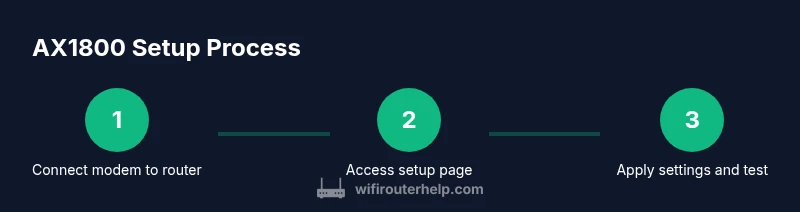
Connect the modem to the router
Use an Ethernet cable to connect the modem's Ethernet port to the router's WAN/Internet port. Ensure both devices are powered off before making connections, then power them on in sequence. Give the devices about 2 minutes to boot and establish a link.
Tip: Use a wired connection for the setup laptop to avoid WiFi interruptions. - 2
Power up and verify all indicators
Check that the router and modem LEDs indicate a stable connection. If you don’t see a solid link, reseat cables and reboot both devices. Wait about 2-3 minutes for full boot.
Tip: If a link is not established, try a different Ethernet port on the router. - 3
Access the setup page
Open a browser and go to the router’s default address (often tplinkwifi.net or 192.168.0.1). If prompted, login with the default admin credentials found in the manual. Have your new admin password ready.
Tip: If the page doesn’t load, temporarily disable VPNs or firewalls that may block local network access. - 4
Run the initial setup wizard
Follow the on-screen prompts to choose your region, time zone, and basic network parameters. The wizard will guide you through enabling the wireless network and defining a strong passphrase.
Tip: Choose a strong, unique admin password and store it securely. - 5
Set up WiFi names and passwords
Create distinct SSIDs for 2.4 GHz and 5 GHz bands with strong, separate passwords. If you have many smart devices, consider a simple, memorable name for ease of management.
Tip: Avoid personal information in SSIDs that broadcast publicly. - 6
Enable security features
Turn on WPA3 if all devices support it; otherwise use WPA2/WPA3 mixed mode. Disable WPS to reduce exposure to brute-force attacks and enable automatic firmware updates when available.
Tip: Document your security settings in a safe place. - 7
Create a guest network
Set up a guest network to isolate visitors from your main devices. Limit guest access by time or bandwidth if the router supports it. This keeps your primary network safer while offering convenient access for guests.
Tip: Disable access to local network resources from the guest network if possible. - 8
Configure QoS for key devices
If you notice lag on gaming consoles or work devices, enable QoS and prioritize those devices. Don’t overdo rules; simple, targeted prioritization often yields the best results.
Tip: Test after applying QoS to confirm improvements. - 9
Update firmware and back up settings
Check for available firmware updates and apply them. After updating, back up your configuration so you can recover quickly if needed in the future.
Tip: Keep a note of your current settings before updating.
People Also Ask
What is the TP-Link AX1800 WiFi 6 router?
The TP-Link AX1800 is a WiFi 6 router designed to improve efficiency and performance in busy home networks. It supports multiple devices with better range and stability compared with older standards. This guide covers setup, security, and optimization to maximize its benefits.
The TP-Link AX1800 is a WiFi 6 router that helps your home network run more smoothly with many devices. This guide shows you how to set it up securely and optimize performance.
How do I access the router’s admin page?
You usually access the admin page by typing the default address into a browser, such as tplinkwifi.net or 192.168.0.1. Login with the default credentials found in the manual and immediately change the admin password.
Open a browser and enter the router's default address, then log in with the default credentials and change the admin password.
Can I use WPA3 with older devices?
Many AX1800 routers support mixed mode that allows WPA2 and WPA3, ensuring compatibility with older devices while keeping newer devices secure. If a device supports WPA3, enable it for better security.
If your device supports WPA3, turn it on; otherwise use mixed mode to stay compatible.
How often should I update firmware?
Check for firmware updates regularly and enable automatic updates if you trust the router’s release cadence. Updates often fix bugs, improve security, and add features.
Check for updates regularly and enable automatic updates if available.
What’s the benefit of a guest network?
A guest network isolates devices you don’t own or manage directly from your main network, improving security and privacy for both guests and hosts. It’s easy to enable and customize access rules.
A guest network keeps visitor devices separate from your main network for better security.
What should I do if devices drop offline?
First verify cables and power. Then check for interference, update firmware, and consider a factory reset if issues persist. Back up settings before resetting.
Check cables, update firmware, and consider a reset if problems persist.
Watch Video
What to Remember
- Configure security before anything else
- Placement dramatically affects coverage
- Guest networks protect main devices
- Regular firmware updates improve reliability
- Backup settings after configuration