TP-Link WiFi 6 Router Setup, Optimization, and Troubleshooting
According to WiFi Router Help, this guide covers choosing, wiring, configuring, and securing a tp link wifi 6 router for stable, fast home Wi‑Fi. Learn setup steps, guest networks, QoS, and maintenance to keep your network thriving.


Learn how to set up and optimize a tp link wifi 6 router for reliable home coverage. This guide covers model selection, basic install, security, and troubleshooting to keep your network fast and secure.
What a TP-Link WiFi 6 Router Brings to Your Home
According to WiFi Router Help, tp link wifi 6 router models are designed to deliver stronger, more reliable wireless performance in crowded homes. The combination of WiFi 6 features—OFDMA, MU-MIMO, and beamforming—lets multiple devices share channels more efficiently, reducing congestion and latency. In real-world use, you’ll notice faster app responses, steadier video streams, and better gaming stability when your ISP speed is adequate. This section explains the core benefits and what to expect from a modern TP-Link WiFi 6 router, including improved range and smarter power management that conserves energy in busy households.
Understanding WiFi 6 Features: OFDMA, MU-MIMO, and More
WiFi 6 introduces several core technologies that improve performance in homes with many connected devices. OFDMA increases network efficiency by dividing channels into smaller subchannels, MU-MIMO allows the router to serve multiple devices simultaneously, and BSS Coloring reduces interference from nearby networks. 160 MHz channel support boosts peak speeds for capable devices, while Target Wake Time (TWT) helps devices conserve battery life during idle periods. For households with smart speakers, cameras, and gaming consoles, these features translate into a smoother experience across devices, especially in crowded RF environments.
Planning Coverage: How to Choose the Right Model
Coverage needs vary by home design and device density. A tp link wifi 6 router is not one-size-fits-all—larger homes or multi-story layouts may require higher-powered units or dual-band/tri-band configurations with stronger antennas. Start by mapping typical usage: streaming in living rooms, conferencing in home offices, and gaming in bedrooms. Consider whether you need a single strong router or a mesh-friendly setup that uses extenders or satellite nodes for uniform coverage. Also, match the router’s WAN port and Ethernet ports to your modem and wired devices to minimize bottlenecks.
Quick Installation: Network Diagram and Physical Setup
Before you begin, draw a simple network diagram: a modem from the ISP, connected to the TP-Link WiFi 6 router’s WAN port, with wired devices on LAN ports and wireless devices on SSIDs. Place the router in a central, elevated location away from thick walls, metal appliances, and microwaves to maximize signal. Use a wired connection to your computer or a mobile device during setup if possible to avoid Wi‑Fi dropouts. Power up both devices and verify LED indicators show a healthy link.
Optimize Performance: QoS, Security, and Firmware
Optimization goes beyond just enabling Wi‑Fi. Enable WPA2/WPA3 security, choose a strong guest network for visitors, and configure QoS to prioritize critical devices or applications like work video calls or gaming. Regularly update firmware to patch vulnerabilities and improve stability. Disable unnecessary features such as WPS if not needed, and review UPnP and NAT settings to balance convenience with security. A proactive approach to security minimizes exposure while preserving performance for your household.
Maintenance and Troubleshooting Common Issues
Even a well-set router may encounter occasional issues. Start with a simple reboot, verify cable connections, and confirm the router is receiving the correct ISP service. If devices report weak coverage, adjust placement or add a mesh node. Common problems include slow speeds on 2.4 GHz devices, dropped connections, and misconfigured DNS. Keep a record of changes you make to retrace steps if problems reappear. The goal is a stable, predictable home network.
Real-World Scenarios and WiFi Router Help Verdict
In typical households, a TP-Link WiFi 6 router provides strong performance for streaming, gaming, and videoconferencing across several rooms. The WiFi Router Help team found that aligning placement, enabling QoS, and keeping firmware up to date yields the best results for most home layouts. A well-configured router can handle simultaneous tasks without noticeable slowdowns, while security hardening keeps guests and devices safe. Implementing these steps helps you get the most from your tp link wifi 6 router.
Tools & Materials
- TP-Link WiFi 6 Router(Any TP-Link WiFi 6 router model intended for home use)
- Modem from ISP(Existing modem or gateway supplied by your ISP)
- RJ-45 Ethernet cable(Cat5e or better for reliable wired connections)
- Power adapter(Included with the router)
- Laptop/phone/tablet(For accessing the setup page and configuring settings)
- Optional Ethernet switch(Useful if you have many wired devices)
Steps
Estimated time: 60-90 minutes
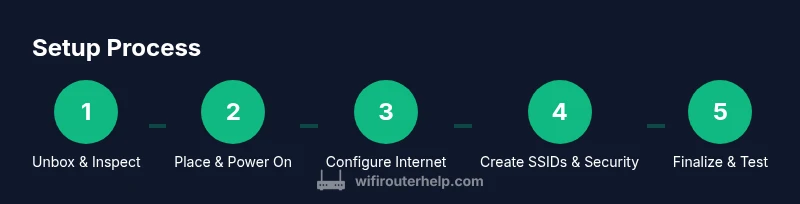
- 1
Unbox and verify contents
Open the box and confirm all listed items are present. Check for any damage and ensure you have the router, power adapter, Ethernet cable, and quick installation guide. This ensures you won’t pause midway due to missing parts.
Tip: Keep the packaging until you complete the setup in case you need to reference model info or perform a warranty check. - 2
Place the router in an optimal location
Position the router centrally on a shelf or high surface, away from thick walls and metal objects. Elevated placement improves line-of-sight and reduces interference from appliances. Avoid placing it inside cabinets or behind televisions.
Tip: Aim for roughly 3-6 feet above floor level for best coverage in typical homes. - 3
Power on and connect to the modem
Power off both devices, connect the modem to the router’s WAN port with the Ethernet cable, then power them back on. Wait 2–3 minutes for the router to boot and establish a link with the modem.
Tip: Check the LED indicators; a solid blue/white light typically means a healthy connection. - 4
Access the router setup page
On a connected device, open the default IP address or web domain printed on the router label (e.g., 192.168.0.1 or tplinkwifi.net). Log in with the default credentials and start the initial setup wizard.
Tip: If you can’t reach the page, reset the router to factory settings and retry. - 5
Configure Internet and Wi‑Fi basics
Set Internet/WAN settings to match your ISP (Dynamic IP or PPPoE as required). Create a unique 2.4 GHz and 5 GHz SSID with strong passwords. Prefer WPA3 if available, otherwise WPA2.
Tip: Use separate SSIDs for 2.4 GHz and 5 GHz to optimize device assignments. - 6
Enable security features and QoS
Turn on the firewall, configure a guest network if needed, and adjust QoS to prioritize work devices or gaming consoles. Regularly check for firmware updates and disable unnecessary features like WPS if not used.
Tip: Set auto-update if your firmware supports it to keep security current. - 7
Test connectivity and cover all devices
Test speeds on multiple devices across your home; run a short speed test near the router and in far rooms to confirm coverage. If speeds are inconsistent, tweak placement or consider a mesh extension.
Tip: Document the test results to track improvements after changes. - 8
Document and finalize
Record your network names, password, and key settings in a safe place. Save a backup configuration if the router UI offers it. This makes future upgrades or resets quick and painless.
Tip: Back up the configuration after every major change.
People Also Ask
Do I need a separate modem to use a TP-Link WiFi 6 router?
Yes, you’ll need an active modem provided by your ISP or a compatible standalone modem. The TP-Link router creates the wireless network by connecting to the modem.
Yes, you do need a modem; the router creates the wireless network.
Which TP-Link WiFi 6 router is best for a small apartment?
For small spaces, prioritize models with excellent range and stable 2.4 GHz performance. Look for compact form factors and good UI support for quick setup.
For small spaces, pick a model with strong range and easy setup.
Can I use a TP-Link WiFi 6 router with older devices?
Yes, older devices will still connect using 2.4 GHz or 5 GHz, but you won’t see the full WiFi 6 speed on those devices. Ensure compatibility with WPA2/WPA3 as needed.
Yes, but older devices won’t get the switch to WiFi 6 speeds.
How often should I update firmware?
Check for updates monthly if auto-update isn’t available. Regular updates help patch security vulnerabilities and improve stability.
Check for updates monthly to stay secure and stable.
What’s the difference between WiFi 6 and WiFi 5 for home use?
WiFi 6 offers higher speeds, better efficiency with many devices, and improved range due to advanced technologies like OFDMA and MU-MIMO. WiFi 5 is slower and less efficient in dense environments.
WiFi 6 is faster and more efficient, especially with many devices.
How can I improve coverage in a multi-story home?
Place the router in a central, elevated location and consider a mesh system or extenders for dead zones between floors.
Place it high and central, or add mesh extenders for multi-floor homes.
Watch Video
What to Remember
- Position the router centrally for best coverage.
- Enable WPA2/WPA3 and keep firmware updated.
- Use QoS and guest networks to manage traffic and security.
- Run regular speed tests and adjust placement as needed.