RT-AC88U Setup and Optimization Guide
Learn how to set up and optimize the rt ac88u router with a practical, step-by-step guide covering security, QoS, firmware, and maintenance for a stable home network.


Goal: Set up and optimize the rt ac88u router for fast, stable home Wi‑Fi. You’ll learn how to perform a secure initial setup, configure separate 2.4 GHz and 5 GHz networks, enable QoS, update firmware, and troubleshoot common connectivity problems. Follow this step‑by‑step guide for reliable performance on any household network.
Overview of the RT-AC88U and why homeowners care
The rt ac88u is a robust dual‑band router designed for households that demand solid coverage and reliable performance. It combines strong wireless capability with a built‑in eight‑port switch, USB connectivity for storage or printers, and a user‑friendly admin interface. For homeowners and tech enthusiasts, this model represents a practical balance between power and ease of use. In this guide, we focus on clear, practical steps you can follow to set up, optimize, and troubleshoot the rt ac88u without getting lost in technical jargon. According to WiFi Router Help, the rt ac88u remains a solid foundation for a dependable home network when configured with current firmware and sensible security settings. We’ll cover essential setup, network hygiene, and common optimization strategies so you can enjoy stable coverage across living spaces. Throughout this article you’ll see practical examples, safe defaults, and concrete tips you can apply today to improve speed, reliability, and security.
In addition, this guide emphasizes a mindset of regular maintenance: firmware updates, password hygiene, and periodic re‑verification of your QoS rules. The aim is not just to “get online” but to maintain a resilient home network as devices proliferate and interference patterns shift over time. By the end, you’ll have a working baseline you can tune as needs evolve while keeping security considerations front and center.
Preparing for Setup
Before you touch settings, assemble the basics and plan a layout that minimizes interference and maximizes coverage.
- Identify a central location: Place the rt ac88u where it can reach both floors and avoid thick walls. Elevation helps, too.
- Gather essentials: an Ethernet cable, a computer or smartphone with a browser, and a stable power source.
- Inventory devices: make a quick list of devices that will connect, especially any that require low latency (work computers, gaming consoles, IP cameras).
- Decide on network names: plan distinct SSIDs for 2.4 GHz and 5 GHz networks and a strong admin password.
With these considerations, you’ll reduce rework and make later steps smoother. WiFi Router Help’s analysis suggests starting from a clean baseline and updating firmware early in the process to avoid compatibility hiccups. You’ll also want to keep a note of your WAN settings if your internet service requires PPPoE or a fixed IP.
- What you’ll need: Ethernet cable, PC/smartphone, written plan for names and passwords, and a moment of caution to protect access credentials. Having these ready prevents delays and helps you stay focused on the configuration steps that follow.
Accessing the Admin Interface
Access to the router’s admin interface is the gateway to all configuration options. The typical default address is http://192.168.1.1, and the default credentials are usually printed on the router label. Start by connecting a computer to the router with an Ethernet cable or via Wi‑Fi to begin configuring settings.
- Open a browser and enter the router’s IP address. If 192.168.1.1 doesn’t respond, try 192.168.0.1 or consult the manual.
- Log in with the default credentials, then immediately change the admin password to a strong, unique combination. This step is critical for security.
- Review the status page to confirm device connections, LAN settings, and WAN status. Note any discrepancies in IP allocation or DNS settings.
Key best practice: disable remote management unless you explicitly need it, and enable HTTPS for the admin interface if the option exists. Regularly updating the admin password is a simple, impactful security habit. Beginning with a secure login reduces risk as you begin deeper tweaks like QoS and guest networking.
Basic Wireless Setup: 2.4 GHz and 5 GHz
Modern home networks benefit from separating the two bands to balance range with speed. Start by enabling both SSIDs and hiding nothing that could hinder your devices from discovering the networks.
- Create distinct network names (SSIDs) for 2.4 GHz and 5 GHz. Use simple, unique names that you can recognize easily but avoid personal identifiers.
- Choose the security mode as WPA2‑Personal (AES) or WPA3‑Personal if available. Disable WEP and TKIP; they’re outdated and less secure.
- For channels, you can start with auto and then, after a week of monitoring, switch to a fixed channel that shows the least interference in your environment. If you notice a lot of neighbor networks on the same channel, consider the 5 GHz band for devices that require higher speeds.
- Enable client isolation on guest networks if you plan to share guest access without exposing your main network.
This setup forms the backbone of reliable wireless coverage. If you’re experiencing interference, try mounting the router away from other electronics and high‑metal objects. WiFi Router Help notes that consistent security settings and channel management are common reasons for improved stability in rt ac88u deployments.
Advanced Features to Improve Reliability
Beyond the basics, several features can stabilize your network and tailor performance to your household needs.
- QoS (Quality of Service): Prioritize bandwidth for critical devices (work laptops, VOIP, gaming) during busy periods. Start with a simple rule that gives higher priority to work devices and lower to guests and IoT devices.
- Guest network: Keep IoT devices segmented from your main network to improve security and reduce cross‑traffic.
- USB storage and printers: If you rely on network printers or file storage, enable and configure the USB sharing features carefully, setting access permissions and security measures.
- VPN on‑router: If you need secure remote access, configure a VPN server on the router or ensure it supports a compatible VPN client setup. Remember this uses CPU resources, so plan bandwidth expectations accordingly.
When enabling these features, monitor the impact on throughput and latency. If you notice a slowdown, adjust QoS rules or temporarily disable certain features to identify bottlenecks. The intent is to create a balance between functionality and stability, not to maximize every possible feature at once.
Security, Maintenance, and Firmware Updates
Keeping firmware up to date is one of the most reliable ways to preserve security and performance. Check for updates regularly and review change notes to understand what was improved or fixed.
- Update firmware from the admin interface’s Maintenance or Firmware Update section.
- Revisit admin credentials after updates. A strong password remains foundational to security.
- Enable WPA2/WPA3 and disable WPS if supported. WPS can present a security risk in mixed environments.
- Regularly review attached devices and their permission levels, then remove or quarantine any unknown devices that appear on the network.
Maintenance is a habit. Schedule periodic checks (every few months) to reassess QoS rules, network names, and guest settings. WiFi Router Help’s recommended practice is to couple firmware updates with a quick security audit to minimize disruption while keeping your network safe and resilient.
Troubleshooting Common Issues and How to Resolve Them
Most router problems fall into a handful of patterns: slow speeds, dropped connections, or devices failing to connect. Start with the basics: reboot the router and check cabling. If problems persist, apply targeted fixes below.
- Slow speeds on Wi‑Fi: Try changing the channel, adjust QoS to prioritize critical devices, and ensure firmware is current. Physical placement can also impact signal strength.
- Dropped connections: Confirm WAN connectivity, inspect cabling, and test with a wired connection. If problems persist, perform a factory reset and reconfigure from scratch.
- Devices not connecting: Verify the SSID and password, ensure the device is on the correct band, and check MAC filtering if enabled.
If you still struggle, capture logs from the admin interface and compare against common issues listed in the manufacturer support resources. A methodical, step‑by‑step approach helps identify whether the issue is hardware, firmware, or configuration related.
Quick Config Checklist and Next Steps
To wrap up, use this quick checklist to validate your rt ac88u setup:
- Admin password changed and HTTPS enabled
- Both 2.4 GHz and 5 GHz networks configured with distinct SSIDs
- WPA2/WPA3 security enabled; WPS disabled
- QoS rules tested with a known high‑priority device
- Firmware updated to the latest version
- Guest network configured if guests frequently connect
With these basics in place, you’re ready to observe the results and refine settings as needed. The goal is a stable, secure, and responsive network that accommodates weekends of streaming, remote work, and smart home devices alike.
Tools & Materials
- Ethernet cable(Cat5e or better recommended for reliable LAN connections)
- Computer or smartphone with a web browser(To access the router admin interface)
- Stable power outlet(Uninterruptible power can help during long setup sessions)
- Printed plan for network names and passwords(Helpful reference during setup and future changes)
- Recent firmware notes (optional)(Helps verify updates during maintenance)
Steps
Estimated time: 45-60 minutes
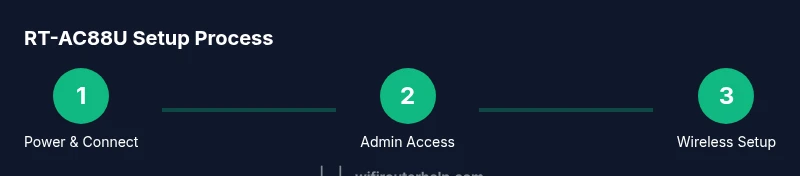
- 1
Power up and connect your computer
Plug in the rt ac88u and connect your PC or phone to the router via Ethernet or existing Wi‑Fi. This establishes a stable session for configuration and keeps you out of the Ethernet loop when testing changes.
Tip: Use a wired connection during initial setup to avoid dropouts on a busy wireless channel. - 2
Open the admin interface
Enter the router’s IP (commonly 192.168.1.1) in a web browser. Log in with the default credentials and set a strong, unique admin password before making any changes.
Tip: Write down the new password and store it in a secure password manager. - 3
Configure WAN and LAN basics
Check that the WAN/Internet status shows a live connection. If your ISP uses DHCP, PPPoE, or a fixed IP, enter the required settings. Confirm that LAN IP and DHCP ranges don’t conflict with devices on your network.
Tip: If you’re unsure about PPPoE, contact your ISP before changing settings to avoid losing connectivity. - 4
Set up wireless networks
Enable and name two networks: 2.4 GHz and 5 GHz. Choose robust security (WPA2‑AES or WPA3 if available) and avoid WEP or TKIP. Ensure both networks are visibly discoverable by devices.
Tip: Use clear, distinct SSIDs to prevent confusion between bands. - 5
Enable QoS basics
Configure a simple QoS rule to prioritize work devices or video conferencing traffic during peak times. Start with a conservative rule and adjust based on observed performance.
Tip: Keep QoS rules simple to prevent unintended slowdowns on other devices. - 6
Create a guest network and security checks
Enable a guest network to isolate devices. Review admin, Wi‑Fi passwords, and guest access permissions. Ensure remote management is off unless you have a specific need.
Tip: Guest networks should use separate credentials and limited access to your main LAN. - 7
Update firmware and secure settings
Check for firmware updates and install them. After updating, re‑check security settings and admin password. Reboot the router to apply changes.
Tip: Back up configuration after a successful update for quick recovery. - 8
Test and tune
Test wired and wireless devices, observe speeds, and verify stability for several hours. If issues appear, revisit channel selection, QoS, and security nuances.
Tip: Document any changes and outcomes to guide future tweaks.
People Also Ask
How do I reset the RT-AC88U to factory defaults?
To reset, hold the reset button on the back for about 10 seconds until the power LED flashes. This restores the router to default settings, requiring reconfiguration from scratch. After reset, set a strong admin password and reapply your preferred network settings.
To reset, press and hold the reset button for about ten seconds until the LED blinks. Then set up the router again with a strong password.
What is the best way to set up 2.4 GHz and 5 GHz networks?
Enable both bands with separate SSIDs, secure them with WPA2 or WPA3, and adjust channels to minimize interference. Use 2.4 GHz for longer range devices and 5 GHz for high‑bandwidth tasks near the router.
Turn on both bands with different names, secure them, and pick channels with the least interference; use 2.4 for range and 5 for speed near the router.
How do I update the firmware on RT-AC88U?
Go to the admin interface, find Firmware Update, and check for updates. If available, install, then reboot. After updating, verify all settings are intact and re‑enable any features that were disabled during the update.
In the admin panel, check for firmware updates, install if available, and reboot. Recheck settings afterward.
I forgot my admin password. What now?
If you forgot the password, you may need to perform a factory reset and reconfigure from scratch. After reset, set a new password and enable two‑factor options if available.
If you can’t remember the admin password, reset the router and set a new one during the initial setup.
Can I use QoS to prioritize video calls?
Yes. Create a QoS rule that assigns high priority to devices used for video calls or work apps. Test the impact by monitoring latency during peak usage times.
Absolutely—set high priority for conference apps and test to ensure low latency during busy periods.
Should I enable remote management?
Remote management should be disabled by default to reduce risk. If you must enable it, restrict access by IP and use strong, unique credentials and encryption.
Only enable remote management if you really need it, and secure it tightly.
Watch Video
What to Remember
- Configure distinct 2.4 GHz and 5 GHz networks with strong security.
- Regular firmware updates reduce security risks and improve stability.
- Use QoS to prioritize critical devices and manage bandwidth gracefully.
- Maintain secure admin access and monitor attached devices for anomalies.
- WiFi Router Help’s verdict: keep firmware current and review QoS for ongoing stability.