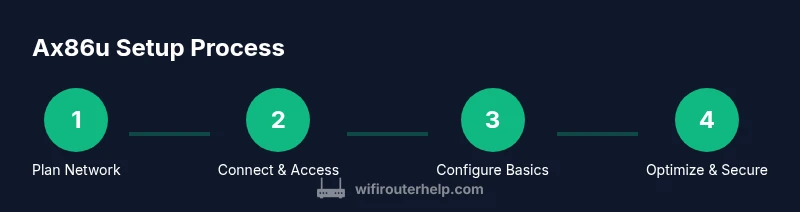
ax86u: Complete Setup, Optimization, and Troubleshooting Guide
Learn how to set up, optimize, and troubleshoot the ax86u router for fast, reliable home Wi-Fi. This educational guide covers initial configuration, firmware updates, security practices, and practical troubleshooting tips from WiFi Router Help.


Goal: set up and optimize the ax86u router for a fast, reliable home network. You’ll configure the basic WAN/LAN, enable Wi-Fi 6 features, create a secure admin password, and tune QoS for gaming or streaming. This guide also covers firmware updates and common troubleshooting steps to keep your ax86u performing at its best.
Why ax86u shines for home networks
According to WiFi Router Help, the ax86u is a strong choice for households seeking fast Wi‑Fi 6 performance, robust security, and flexible features. The router combines a capable processor with hardware acceleration that helps handle multiple streams and applications without choking. Its design supports large homes thanks to a strong signal footprint and scalable features like AiMesh. If you care about gaming, streaming, or smart-home devices, ax86u offers a balanced mix of speed, reliability, and configurability. In this context, readers will learn how to align its settings with real‑world usage, from single‑story apartments to multi‑story houses.
- Wi‑Fi 6 (802.11ax) for improved efficiency
- 2.5 GbE WAN/LAN port for fast uplink
- AiMesh support for expanding coverage
- Strong security features and guest networking
Core hardware features to know before you configure
The ax86u brings a solid hardware foundation for home networks. It typically includes a capable quad-core or similar CPU, ample RAM for smooth multi‑tasking, and a dedicated 2.5 Gbps port that supports fast uplinks to your modem or switch. MU-MIMO and OFDMA help multiple devices share air-time efficiently, reducing latency during peak usage. USB ports enable storage sharing or printer hosting, while AiMesh compatibility allows you to extend coverage with compatible Asus nodes. For most households, understanding these components helps you tailor firmware settings to real-world needs—gaming, streaming, or IoT-heavy setups—without overengineering the network.
- 2.5 Gbps WAN/LAN port
- MU-MIMO and OFDMA for balanced load
- AI features and mobile app management
- USB 3.0 ports for storage or printers
Getting ax86u onto your network: initial setup basics
Starting with the right foundation saves you time later. Before touching any settings, plan your network topology: where will the router live, how many nodes might be needed, and which devices require priority. When you unbox the ax86u, connect it to your modem via the primary Ethernet port and power it on. Use a computer or mobile device to connect to the router’s default SSID, and access the admin interface to begin configuration. The goal is a stable baseline: basic internet access, a named Wi‑Fi network, and a secure admin password before enabling advanced features.
- Position the router centrally, away from obstructions
- Use Ethernet for initial setup if possible
- Prepare your ISP credentials if required by your connection type
Optimizing wireless performance for different use cases
Performance tuning should reflect how your home actually uses the network. For many homes, the 5 GHz band provides the fastest speeds for TVs, consoles, and PCs, while the 2.4 GHz band offers better range for portable devices and smart-home sensors. Start with Auto Channel and Auto Channel Width to let the router pick the least congested options, then test speeds in living rooms, bedrooms, and outdoor zones. Enable features like MU-MIMO and OFDMA where supported, and consider creating separate SSIDs for guests. If you have a large home or concrete walls, AiMesh extension nodes can dramatically improve coverage.
- Use separate SSIDs for 2.4 GHz and 5 GHz bands
- Keep security on WPA3 where available
- Schedule device prioritization for gaming and video calls
- Run speed tests across rooms to verify coverage
Security, guest networks, and parental controls
Security should be a default, not an afterthought. Start with a strong admin password and enable WPA3 on your wireless networks. Disable remote administration unless you need it, and consider enabling the built-in firewall and intrusion protection features. Guest networks keep visitors off your main LAN while keeping bandwidth isolated. Parental controls help manage access times and content categories for younger users or IoT devices. Regularly review connected devices and remove unknown clients.
- Use WPA3 and a strong admin password
- Enable guest networks to segment traffic
- Turn on parental controls and device management
- Regularly check connected devices and revoke unknown access
Firmware updates, maintenance, and recovery
Firmware updates are essential to security and performance. Check for updates through the Asus management interface or the official support site, and back up your current configuration before applying any changes. Keep a recovery plan in case of a failed update: know how to reset to factory defaults and access the router’s recovery mode if needed. Avoid multiple firmware upgrades in rapid succession; apply updates during a stable window and document the changes for future reference.
- Back up configurations before updating
- Use official sources for firmware
- Maintain a simple rollback plan
- Document every major change
Troubleshooting common issues and quick fixes
Most problems with the ax86u can be resolved with a structured approach. If devices cannot reach the internet, verify modem status, WAN/LAN settings, and cable integrity. Slow Wi‑Fi often comes from interference or crowded channels; reconfigure channel settings and consider adding an AiMesh node for coverage gaps. For repeated disconnects, check for firmware updates, review QoS rules, and ensure no misconfigured firewall rules block essential services. When all else fails, performing a factory reset and reconfiguring from scratch can often resolve stubborn issues.
- Check cables and modem status first
- Reassess channel and band settings after changes
- Verify QoS and firewall configurations
- Use a clean reset if problems persist
Tools & Materials
- ax86u router(The primary device to configure and manage. Keep it powered during setup.)
- Ethernet cable (Cat6 or better)(For reliable, wired connections during setup and testing.)
- Smartphone or computer with web browser(Used to access the admin interface and perform initial configuration.)
- Power adapter and spare power cable(Ensure uninterrupted power during updates and configuration.)
- Reset pin or paperclip(Needed only if you need to perform a factory reset.)
- ISP login credentials (if PPPoE or fiber) (Have them ready in case your WAN type requires authentication.)
- Optional USB drive(For network storage or printer sharing if supported by the model.)
Steps
Estimated time: 60-90 minutes
- 1
Power up and connect to the default network
Plug in the ax86u and power it on. Use a device to connect to the router’s default SSID or connect via Ethernet to the LAN port. The goal is a stable link to the admin interface for initial configuration.
Tip: If you have trouble connecting, try a direct wired connection and disable any VPN that might interfere with local network discovery. - 2
Access the admin interface and secure it
Open a browser and navigate to the router’s default IP address. Log in with the default credentials, then immediately change the admin password to a strong, unique value. Enable two-factor authentication if available.
Tip: Write down the new password in a secure password manager and use a long passphrase rather than a simple word. - 3
Configure WAN/LAN and internet connection
Select your connection type (DHCP/PPPoE/PPPoA, or fiber) and enter any required credentials. Confirm that you can reach the public internet from a connected device before continuing.
Tip: If your ISP uses a username/password, copy them exactly and avoid extra spaces. - 4
Update firmware to the latest version
Check for firmware updates within the admin panel and apply the latest version. A successful update improves performance and security but ensure you have a backup of current settings.
Tip: Only update when you have a stable internet connection; avoid updates during critical network use. - 5
Set up SSIDs and wireless security
Create distinct SSIDs for 2.4 GHz and 5 GHz bands and enable WPA3 if available. Use strong, unique passwords for each network and consider disallowing insecure legacy modes.
Tip: Consider a single SSID if you want seamless roaming, but separate SSIDs help with device-specific troubleshooting. - 6
Configure basic network protection
Enable the firewall, consider enabling intrusion protection, and set guest networks to isolate visitors from your main LAN. Review default admin access and disable remote management unless needed.
Tip: Keep firmware up to date and periodically audit connected devices for unknown clients. - 7
Tune QoS and prioritize critical devices
Set up QoS rules to prioritize gaming consoles, work devices, or streaming services. Start with a conservative rule set and adjust after testing real-world performance.
Tip: Test with a device under heavy load and observe the impact on latency and throughput. - 8
Expand coverage with AiMesh (optional)
If you need broader coverage, add compatible AiMesh nodes and integrate them into a single network. Verify backhaul and roaming performance across the home.
Tip: Place AiMesh nodes away from thick walls and avoid interference from microwave ovens or Bluetooth devices.
People Also Ask
What is the ax86u and why should I consider it?
The ax86u is a high-performance Asus Wi‑Fi 6 router designed for home networks that demand speed and reliability. It supports advanced features such as MU-MIMO, OFDMA, and AiMesh, making it suitable for medium to large homes with multiple devices. This guide helps you unlock its full potential.
The ax86u is a high-performance Asus Wi‑Fi 6 router designed for homes with multiple devices and demanding apps.
How do I access the ax86u admin panel for the first time?
Connect to the router's default network, open a web browser, and enter the router’s IP address or 192.168.1.1. Log in with the default credentials and immediately change the password to a strong, unique one. Enable two-factor authentication if available.
Open your browser, go to the router's IP, log in with default creds, then change the password and enable 2FA if offered.
Can I use ax86u with non-AX devices?
Yes. The ax86u supports mixed networks where older devices use legacy 802.11 standards while newer devices benefit from Wi‑Fi 6. You can run both bands with different SSIDs or a single SSID depending on roaming needs.
Yes. It supports both Wi‑Fi 6 and older devices; you can use separate or shared networks depending on roaming needs.
What are best practices for firmware updates on ax86u?
Check for updates via the admin interface or Asus support, apply updates when a stable connection is available, and back up settings beforehand. Avoid multiple updates in quick succession and note changes for future reference.
Check for updates, back up settings first, and apply during a stable window.
How do I configure a guest network on ax86u?
In the admin panel, enable a guest network with its own SSID and password. Limit guest access to the internet only and disable access to your main LAN. Regularly monitor guest activity and revoke access if needed.
Enable a separate guest network in the admin panel, isolate it from the main network, and monitor usage.
What safety precautions should I take when resetting?
Factory resets erase all custom settings; back up where possible. Before resetting, note down essential configurations such as WAN type, SSIDs, and passwords to speed up reconfiguration.
Resetting wipes settings; back up important configs before you proceed.
Watch Video
What to Remember
- Plan network layout before configuring the ax86u
- Secure the router with WPA3 and a strong admin password
- Enable QoS to protect critical devices
- Use AiMesh if you need broader coverage
- Keep firmware up to date and back up configurations