Router to Router: Extend Your Home Wi-Fi
Learn how to connect two routers to expand coverage, improve reliability, and secure your network with practical, step-by-step guidance from WiFi Router Help.


By following this guide, you’ll connect two consumer routers to extend your home network using two practical approaches: wired bridge or access-point mode. You’ll need two routers, an Ethernet cable, and access to each device’s admin page. We cover when to use each method, how to avoid double NAT, and how to lock down security for the extended network.
What router-to-router means and when to consider it
In modern homes, 'router to router' refers to connecting a secondary router to your primary network to extend coverage, improve reliability, or isolate certain devices. There are two common approaches: wired bridge (using an Ethernet backhaul) and wireless options such as AP mode or a dedicated access point. This strategy is especially useful in multi-floor homes, spaces with thick walls, or homes with dead zones. According to WiFi Router Help, understanding the goal of the setup—coverage, speed, or security—sets the right path from the start. A well-planned two-router arrangement can reduce congestion and provide stable connections for smart devices and gaming consoles. Before you begin, confirm you have compatible devices, a stable power source, and a basic network plan. In this section we’ll lay the foundation, clarify essential concepts, and preview the options you’ll consider.
Wired bridge vs AP mode vs dedicated access point
Two primary ways to connect two routers are wired bridge (also called Ethernet backhaul) and AP mode (where the second router acts as an access point). A wired bridge uses a physical Ethernet link to minimize latency and avoid double NAT, but it requires running cable between locations. AP mode turns the second router into a simple Wi‑Fi access point while still routing traffic through the main router; DHCP is typically disabled on the second unit. A dedicated AP or mesh satellite can provide similar results with simpler management but costs more. When deciding, consider cable availability, desire for a single network name, and whether you need advanced features like QoS or guest networks. In WiFi Router Help’s experience, most homes benefit from a wired bridge when possible, while AP mode is a strong fallback when cabling is impractical.
How to decide between bridge, AP, or guest network
To choose the right path, map your home layout and network needs: if you have a clear Ethernet path between floors, a wired bridge offers the most reliable performance. If you must snake Wi‑Fi without pulling cable, AP mode or a guest network can be effective. A guest network is useful if you want to isolate devices (phones, tablets, IoT) while keeping main resources protected. Remember that the more devices you connect behind the second router, the more you should prioritize a clean IP scheme and load balancing. WiFi Router Help suggests drafting a simple network diagram and labeling each device’s role before logging into admin panels.
Basic plan for a two‑router setup
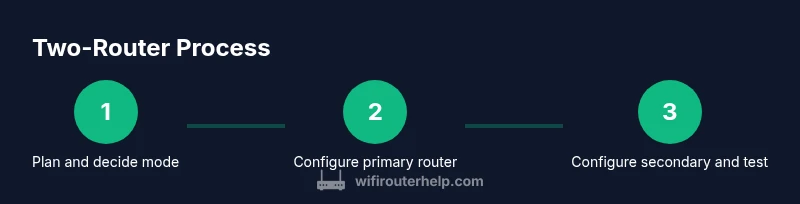
A successful two‑router deployment starts with a clear plan and compatible hardware. Step one is to confirm both routers can operate in the desired mode (bridge/AP). Step two is to decide on a backhaul method (wired Ethernet is preferred). Step three is to set up the primary router with a stable LAN IP and DHCP range that does not conflict with the secondary router. Step four is to configure the second router to the chosen mode, ensuring DHCP is disabled for bridge mode or using the same IP schema for AP mode. Step five is to connect and test throughput, fluctuating signals, and device roaming behavior. Finally, save settings and document your network layout for future tweaks.
Step-by-step setup paths (high-level overview)
Below are two common paths you can follow, depending on your environment:
-
Path A — Bridge mode (wired backhaul):
- Connect secondary router to primary via Ethernet.
- Disable DHCP on the secondary router and assign it a fixed IP outside the primary’s DHCP range.
- Ensure LAN ports are active and confirm access to both admin pages.
- Reboot both devices and run a connectivity check.
-
Path B — AP mode (wireless backhaul or local Ethernet):
- Place the secondary router where Wi‑Fi needs improvement.
- Disable DHCP on the secondary router and set its IP to match the primary.
- Create a unified SSID or keep separate SSIDs as preferred.
- Test roaming and throughput; adjust channel settings as needed.
These steps are simplified for readability; consult your router manuals for exact menus and terminology.
Security considerations, maintenance, and best practices
When you expose a second router on your home network, you must preserve security. Use strong, unique passwords for both admin interfaces and keep firmware up to date on both devices. If you keep DHCP enabled on both routers (which some configurations do for convenience), carefully manage IP ranges to avoid conflicts. Consider enabling WPA3 where available, enabling a guest network for visitors, and turning off features you don’t need (UPnP, WPS) to reduce exposure. Regularly back up configurations and document any changes. A well-secured two‑router setup provides better protection for your devices without sacrificing performance.
Troubleshooting and common mistakes to avoid
Even with careful planning, issues may arise. Common mistakes include leaving DHCP enabled on both devices in bridge mode, using overlapping IP ranges, or misconfiguring the second router’s WAN/LAN distinction. If you experience a stubborn dead zone, double-check cabling, verify that the second router is running in the correct mode, and ensure you can reach both admin pages. When problems persist, perform a factory reset on the secondary router and reapply the setup carefully, keeping notes of each change so you can back out if needed.
Quick-start checklist
- Confirm two routers and an Ethernet cable are available.
- Decide on bridge or AP mode based on cabling and coverage needs.
- Configure DHCP and IP addressing to avoid conflicts.
- Test coverage on every floor and adjust channels and power levels as needed.
- Enable security features and guest networks for visitors.
- Save and document your network map for future maintenance.
Real-world optimization and roaming tips
In real homes, subtle adjustments can yield noticeable improvements. Start with channel scans to identify the least congested 2.4 GHz and 5 GHz channels; avoid auto-channel selection if you can predict interference from neighboring networks. If you notice devices sticking to the main router, enable smarter roaming by aligning SSIDs and password across both devices; this reduces handoffs that cause drops. For multi-floor homes, place the secondary router at midpoints rather than at the edge to balance signal strength. Finally, monitor network health over a week to catch intermittent drops before they become chronic issues.
Tools & Materials
- Two routers (primary and secondary) with at least one Ethernet port(Ensure both support bridge or AP modes.)
- Cat5e/Cat6 Ethernet cable(Use a wired backhaul when possible.)
- A computer, tablet, or smartphone for admin access(You will access the routers’ interfaces.)
- Power adapters for both routers(Optional if power strips share outlets.)
- Knowledge of your main network name (SSID) and password(Used to configure the secondary router seamlessly.)
Steps
Estimated time: 45-60 minutes
- 1
Power on both routers and access admin pages
Power on both devices and verify you can reach each device’s admin interface using a web browser or mobile app. Record the current LAN IP and firmware version for reference. This ensures you can return to a known state if something fails.
Tip: Have the default login credentials handy in case you need to reset a device. - 2
Choose your mode (bridge or AP)
Decide whether you will use a wired bridge, AP mode, or a guest/network isolation approach. The choice determines how you configure DHCP, IPs, and backhaul settings. This step frames the rest of the setup and affects roaming quality.
Tip: Bridge mode with wired backhaul generally yields the best stability. - 3
Configure primary router basics
Set a stable LAN IP for the primary router and define a DHCP range that avoids conflicts with the secondary router. If you’re using AP mode, consider keeping the primary as the main DHCP server; adjust accordingly if you plan IP passthrough.
Tip: Use a non-overlapping IP range like 192.168.1.1–192.168.1.254 for the primary. - 4
Configure the secondary router
Disable DHCP on the secondary router when bridging, or unifying IP schemes for AP mode. Assign a fixed, non-conflicting IP address and align SSID and security settings with the primary network if desired.
Tip: Disable UPnP temporarily while testing to reduce potential exposure. - 5
Test, optimize, and secure
Test client devices across the home for coverage, roaming, and throughput. Adjust channelIf needed, enable WPA3, set guest network options, and back up your configuration when satisfied.
Tip: Keep a backup of known-good settings.
People Also Ask
Can I use two consumer routers to extend Wi-Fi coverage?
Yes. Two consumer routers can extend coverage by using bridge or AP mode, though specifics depend on your hardware. Plan your backhaul, IP scheme, and security to avoid conflicts.
Yes, two consumer routers can extend coverage using bridge or AP mode. Plan backhaul and security.
What’s the difference between bridge mode and AP mode?
Bridge mode creates a single network by passing traffic through the primary router with DHCP disabled on the second unit. AP mode creates a separate access point behind the primary router, typically with DHCP disabled as well, but allows easier roaming.
Bridge mode forwards traffic; AP mode adds an access point behind the main router.
Will double NAT cause problems with gaming or VPN?
Double NAT can cause issues with some gaming consoles and VPNs. A properly configured bridge or IP passthrough setup helps avoid these problems.
Double NAT can affect games and VPNs; bridging or IP passthrough helps.
Do I need a WAN port on the secondary router?
If you’re using AP mode, the secondary router often uses its LAN port for connection to devices. Bridge mode typically uses a LAN-LAN backhaul, but check your model’s instructions.
AP mode may not require a dedicated WAN setup; bridge mode uses LAN-to-LAN backhaul.
How do I reset or recover if I mess up the settings?
Most routers have a reset button to restore factory defaults. If you reset, reapply the original steps carefully and verify each setting as you go.
If things go wrong, reset to default and retry the setup in order.
Watch Video
What to Remember
- Plan backhaul and mode before changes.
- Prefer wired backhaul when available.
- Disable DHCP on the secondary router in bridge mode.
- Secure both devices with strong passwords and updated firmware.
- Test roaming and document your network map.