Router to Router Connection: A Step-by-Step Guide
Learn how to connect two routers to extend your home network using wired backhaul or wireless bridge. This educational guide covers planning, configuration, troubleshooting, and best practices from WiFi Router Help.


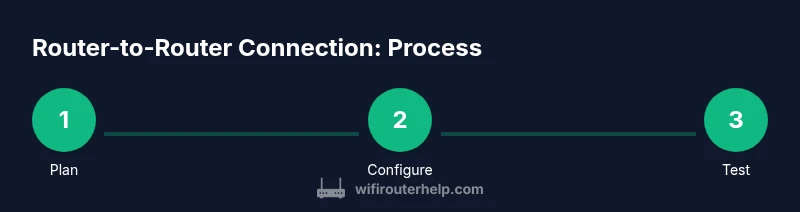
By establishing a router-to-router connection, you can extend your network coverage with a wired bridge, AP mode, or wireless bridge. Start by selecting the topology, collecting a few key cables and a second router, and planning IP/DHCP settings. Follow the steps below for a reliable, low-latency link.
What is a router-to-router connection and when to use it
A router-to-router connection links two separate routers to share a single Internet connection, extend coverage, and simplify network management. The router to router connection approach helps in homes with large floor plans, difficult Ethernet runs, or when you want to isolate a guest network from your main network while maintaining centralized control. According to WiFi Router Help, a robust router-to-router connection can significantly extend coverage when wired backhaul is feasible, reducing dead zones and improving stability. The core idea is to decide how the second router participates in the overall network: as a straightforward access point, as a bridge that passes through IP addresses, or as a secondary router with its own DHCP domain. Your choice influences routing behavior, IP addressing schemes, and security settings, so take a moment to sketch a quick plan before you start wiring or clicking through menus. This planning pays off with fewer reconfigurations and faster troubleshooting later.
Topologies for router-to-router connections
There are several viable topologies depending on your goals and cabling options: wired LAN-to-LAN bridge, AP mode (extended wireless with the same network), and wireless bridge/repeater setups. In a wired LAN-to-LAN bridge, the second router acts as a transparent node, typically sharing the same IP range as the primary router and disabling its own NAT. In AP mode, the second device acts as an access point, providing wireless coverage while deferring routing duties to the main gateway. A wireless bridge uses point-to-point or multi-point wireless links to extend coverage where cabling is impractical. Each topology has trade-offs: wired backhaul offers lowest latency and highest reliability, while wireless options provide flexibility but may introduce latency and interference. WiFi Router Help analysis shows that careful placement and channel planning matter more in wireless bridges than in wired setups. For most homes, a wired LAN-to-LAN bridge or AP mode gives the best balance of simplicity and performance, especially when you can run a single Ethernet backhaul to the second router.
Planning and prerequisites
Before you begin, assemble the required hardware, update firmware on both devices, and set a clear IP addressing plan. You will typically need two routers, a Cat5e (or better) Ethernet cable, power adapters, and a computer or smartphone to access the admin interfaces. Decide which router will act as the primary gateway and which will serve as the extension. If you’re aiming for a clean single-subnet experience, plan to disable DHCP on the secondary device when using bridge mode. Write down the LAN IP you’ll assign to the secondary router (for example, 192.168.1.2) and the SSIDs you’ll broadcast. Finally, confirm that both routers support the chosen topology (some consumer models lack reliable bridge modes). This upfront planning reduces the risk of conflicts and makes the actual configuration faster.
Wired LAN-to-LAN bridge setup (LAN-to-LAN)
A wired LAN-to-LAN bridge keeps both routers on the same IP subnet and requires careful port selection. Start by connecting the primary router’s LAN port to a LAN port on the secondary router using a Cat5e cable. Log in to the secondary router’s admin interface and disable its DHCP server, then set its LAN IP to the static address you planned. Ensure WAN/Internet access is not used for the second router in bridge mode, as this would reintroduce routing. After saving the settings, reboot both devices and verify that devices connected to the secondary router can access the Internet and reach devices on the primary network. If you experience issues, check cable quality, verify that the correct ports were used, and confirm there are no IP conflicts on the network.
Wireless bridging options: AP mode and repeater
When a wired backhaul isn’t possible, you can bridge wirelessly using AP mode or a dedicated repeater. In AP mode, configure the second router to broadcast a wireless network on the same subnet as the primary router, with DHCP turned off or left enabled only on the primary device depending on your plan. In a true wireless bridge, you’ll likely configure a point-to-point link between the routers and ensure the same SSID/password setup yields seamless roaming. Place the second unit within reliable line-of-sight or within the range of a strong signal from the primary, avoiding thick walls or metal obstacles. You may need to adjust channel selection for both devices to minimize interference and maximize throughput. Remember: wireless bridging can introduce higher latency than a wired link, so monitor performance with real devices across floors and rooms.
Troubleshooting, security, and best practices
Double-check that the DHCP server is enabled only on the primary router and disabled on the secondary when bridging. Confirm that both routers aren’t fighting over the same IP range and that the second router’s LAN IP doesn’t clash with the primary. Update firmware on both devices to the latest version and disable outdated features like WPS. Use strong admin passwords and enable the strongest available wireless security (WPA3 if possible). If you’re seeing slow speeds, verify that you’ve chosen the proper backhaul type and consider reducing the number of devices competing for bandwidth on the same channel. Finally, test your network under load to ensure stability when multiple devices are streaming or gaming. The WiFi Router Help team emphasizes documenting your settings and keeping a simple, repeatable backup plan.
Authority sources
To supplement this guide, consult authoritative sources that discuss bridging, NAT behavior, and best practices. The FCC outlines general networking principles and home network tips, while industry publications offer model-agnostic guidance on bridge and AP configurations. For user-focused walkthroughs and model-specific steps, major outlets like CNET and Tom’s Guide regularly publish tutorials and checklists you can compare against your own setup. These references help confirm configurations and keep you informed about evolving standards.
Quick-reference checklist
- Identify topology: bridge, AP mode, or wireless bridge
- Gather two routers, a Cat5e cable, and power adapters
- Plan IP addressing and DHCP roles before changes
- Disable DHCP on the secondary in bridge mode
- Update firmware on both devices
- Test connectivity from wired and wireless clients
Tools & Materials
- Second router(Must support bridge/AP mode or guest network features.)
- Primary router(Gateway that provides DHCP and Internet access.)
- Ethernet cable (Cat5e or better)(Used for wired backhaul; shorter is usually better.)
- Power adapters(For both routers.)
- Computer or smartphone(To access admin interfaces and save settings.)
- Cable tester (optional)(Helpful for verifying cable integrity in long runs.)
- Labeling materials(To mark ports and cables for quick reference.)
Steps
Estimated time: 30-60 minutes
- 1
Assess topology and gather gear
Determine if you’ll use wired backhaul (best for stability) or wireless bridging. Gather two routers, a Cat5e cable, power adapters, and a device to configure settings.
Tip: Label ports and cables to avoid confusion later. - 2
Plan IP addressing and DHCP roles
Decide which router will act as the main DHCP server. If using bridge mode, plan to disable DHCP on the secondary device to prevent conflicts.
Tip: Assign a fixed LAN IP to the secondary router for easy access. - 3
Configure the secondary router
Access the secondary router’s admin panel and set it to AP mode or bridge mode, depending on your topology. Disable DHCP on the secondary router as needed.
Tip: Ensure the wireless network name matches or complements the primary network. - 4
Connect the routers with the correct cabling
For wired backhaul, plug the Ethernet cable from a LAN port on the primary router to a LAN port on the secondary router. Do not connect to the WAN port if bridging.
Tip: Use a short, high-quality Ethernet cable for best results. - 5
Verify connectivity and test internet
Power on both devices and verify you can reach the Internet from devices connected to the secondary router. Check the admin interface for connected clients.
Tip: Test from multiple rooms and devices to ensure coverage. - 6
Secure and optimize the setup
Update firmware on both routers, enable WPA3 if available, disable WPS, and use a strong admin password. Consider setting a separate guest network.
Tip: Record the IP addresses and SSIDs for future changes.
People Also Ask
What is the difference between bridge mode and AP mode when connecting two routers?
Bridge mode makes the second router behave like a transparent bridge, passing IPs from the main router. In AP mode, the second device acts as an access point, providing wireless coverage while relying on the primary router for routing.
Bridge mode passes IPs through; AP mode acts as a standard access point.
Do I need to disable DHCP on the second router?
Yes, when using bridge mode to avoid IP conflicts. If you’re using AP mode, you can choose to keep DHCP on the secondary if you want it to manage its own subnet.
Disable DHCP on the secondary in bridge mode to prevent IP conflicts.
Can I connect two routers wirelessly without Ethernet?
Yes, via wireless bridging or repeater mode, but performance and latency will generally be poorer than a wired backhaul.
You can bridge wirelessly, but expect higher latency and lower throughput than a wired connection.
What if I see double NAT after setup?
Double NAT occurs when both routers perform NAT. Resolve by enabling bridge mode on the secondary router or turning off its NAT.
Double NAT happens when both devices do NAT; switch the second router to bridge or AP mode.
Is bridging compatible with mesh systems?
Most mesh systems use a dedicated backhaul, but some support wired backhaul with bridge-like configurations. Check vendor docs.
Many mesh systems support wired backhaul; check your vendor’s guidance for specifics.
Where can I find the exact steps for my router model?
Refer to the router’s manual or the manufacturer’s support site for model-specific UI paths and terminology.
Look up your model’s manual or support page for exact steps.
Watch Video
What to Remember
- Plan topology before touching devices
- Use wired backhaul for best performance
- Disable DHCP on the secondary in bridge mode
- Keep firmware up to date
- Test thoroughly across devices and rooms