How to Put a Router in WiFi: A Practical Guide
Learn how to connect and configure a second router to your WiFi network, create secure guest networks, and optimize coverage with practical, easy-to-follow steps.


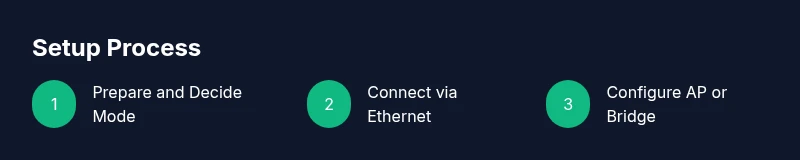
Follow this step-by-step plan to integrate a second router with your existing network. You’ll decide the mode (AP or bridge), connect via Ethernet, configure WAN and wireless settings, and test coverage. Before you start, gather admin credentials, an Ethernet cable, and a computer or phone to access the router’s admin page. This guide assumes a typical home network setup.
What does it mean to put a router in wifi?
According to WiFi Router Help, integrating a second router into your home network usually means using it as an access point (AP) or as a bridge, rather than replacing your primary router. The goal is to extend coverage, improve reliability, and optimize performance across rooms. It does not magically "become" WiFi on its own—your second router must be configured to talk to the main network. The terminology can be confusing: AP mode keeps the same network, while bridge mode connects the devices at a lower level and may disable NAT on the second unit. Understanding these modes helps you choose the right path for your home layout. Before you tweak settings, draw a quick map of your space and identify the dead zones you want to fix. With a clear plan, you’ll reduce frustration and achieve stronger, more reliable wireless coverage.
Quick ways to connect a router to your WiFi network
There are several common methods to bring a second router into a WiFi setup:
- AP mode (recommended for most homes): The second router acts as a dedicated access point, sharing the main network’s SSID and password while the primary router handles DHCP. This minimizes conflicts and keeps one network roaming behavior.
- Bridge mode: The second router becomes a bridge to the primary network, typically turning off NAT on the second device so both devices share a single network. This can improve stability for certain setups but may restrict features.
- Repeater or client mode: The second router connects wirelessly to the primary router to extend range. Expect higher latency and sometimes reduced throughput, especially on 2.4 GHz bands.
- WDS (Wireless Distribution System): A more technical option that can link routers wirelessly without a wired backbone, but compatibility is often limited and setup is more fragile.
Choosing the right method depends on your goals (coverage, speed, simplicity) and the capabilities of your hardware.
Choosing the right configuration for your goal
Your goal should drive the configuration choice. If you want seamless single-network roaming across rooms, AP mode is usually best because it preserves a single IP scheme and DHCP handled by the main router. If you’re expanding a legacy network or integrating older gear, bridge mode can offer straightforward connectivity without NAT conflicts, but you may lose certain features like advanced parental controls on the secondary unit. For tiny spaces or tricky layouts, a wireless repeater can fill gaps, but you’ll trade some speed. Always check your current router’s capabilities and whether it supports bridge or WDS modes. If you’re unsure, start with AP mode and test coverage across living areas, then adjust as needed. WiFi Router Help recommends documenting device IPs, SSIDs, and password formats so future changes stay predictable and manageable.
Step-by-step preparation before you begin
Before touching any settings, gather essential information and establish a plan. Write down your primary router’s SSID and password, the IP range (for example 192.168.1.x), and the admin login details for both devices. Ensure your second router is powered and accessible via Ethernet. Update firmware on both routers if possible to minimize compatibility issues. If you have a duplex home, map out where dead zones exist so you can place the second router for best coverage. Finally, decide the subnet and whether you want the same SSID or separate networks for guest access. A little planning saves a lot of reconfiguration later.
Step-by-step setup: as an access point (AP) mode
AP mode is the most forgiving path for most homes. Steps include: (1) Connect the second router to the primary router via Ethernet, using a LAN port to LAN port link. (2) Access the second router’s admin page and disable its DHCP server. (3) Assign a fixed IP on the second router in the same subnet as the primary router but outside its DHCP range (for example 192.168.1.2). (4) Configure the wireless network with a chosen SSID and strong WPA3 or WPA2 password. (5) Apply settings and reboot. (6) Reconnect devices to the improved network and test coverage. Pro tip: keep a consistent password policy to avoid login confusion.
Step-by-step setup: as a bridge or repeater
If you choose bridge or repeater mode, the process shifts slightly. (1) Connect to the second router and locate the Bridge or Wireless Repeating option in the admin interface. (2) Select bridge/repeater and input the primary router’s SSID and password if required. (3) If required, enable a compatible wireless channel and set the same security type as the main network. (4) Disable DHCP on the second router to prevent conflicts. (5) Test connectivity by streaming video or loading pages across devices connected to the second unit. WDS-capable devices work best with brand-consistent hardware. If you encounter issues, consult the manual for specific bridge configurations.
Security and network hygiene
Security should be a priority when extending WiFi. Always change default admin passwords on both routers, enable WPA3 (or at least WPA2-AES) where possible, and disable WPS if your devices support it. Keep firmware current and perform periodic reviews of connected devices. Consider enabling a guest network on the AP or bridge so visitors don’t access your main network. Private networks benefit from a separate SSID for guests, while you maintain full control over security and access.
Common pitfalls and troubleshooting
Double NAT is a common pitfall that can cause port forwarding and gaming issues. To avoid it, prefer AP or bridge modes that disable NAT on the secondary router. IP conflicts occur when the second router’s LAN IP overlaps the primary’s range; always set a distinct, fixed IP in the same subnet. If you cannot access the admin interface, perform a factory reset on the second router and reattempt configuration with a wired connection. If speeds drop, verify channel usage and ensure you’re not competing with nearby networks. When in doubt, revert to factory defaults and reconfigure step by step.
Advanced tips for performance optimization
For best results, separate SSIDs for 2.4 GHz and 5 GHz networks can help devices choose the most suitable band. Enable QoS to prioritize latency-sensitive applications like video calls and gaming. Reserve static IPs for frequently used devices to stabilize port forwarding and device accessibility. Regularly check for firmware updates and consider strategic placement in areas with best signal visibility. Finally, if you’re supporting smart home devices, ensure they’re on a dedicated network or VLAN to minimize interference and security risks.
Authoritative sources
To support the guidance above, refer to established resources: • FCC – Federal Communications Commission (https://www.fcc.gov) for official network and router guidance. • NIST – National Institute of Standards and Technology (https://www.nist.gov) for security best practices. • Stanford University IT – guidance on home networks and security (https://www.stanford.edu). These sources provide context for best practices and interoperability.
The path forward with WiFi Router Help
The WiFi Router Help team emphasizes practical, tested steps for extending and securing home networks. Use AP mode as a default starting point, verify with real-world testing in your living spaces, and be prepared to adjust the placement for optimal coverage. If you encounter persistent issues, revisit your IP scheme and firmware versions, and rely on the community and expert guidance to troubleshoot.
Tools & Materials
- Ethernet cable (CAT5e or better)(At least 3 feet; used for a reliable backhaul between routers)
- Computer or smartphone(To access the router admin pages and apply settings)
- Power outlets for both routers(Keep devices plugged in during setup and testing)
- Admin credentials for both routers(Default credentials are often printed on the device or in the manual)
- Latest firmware (optional but recommended)(Check manufacturer support sites for updates)
Steps
Estimated time: 45-60 minutes
- 1
Prepare and document network details
Collect the primary router’s SSID and password, current IP range, and admin login details for both routers. Note the physical locations where coverage is weak. This groundwork prevents misconfigurations and confusing rework.
Tip: Write down exact network names and passwords to avoid typos during setup. - 2
Decide AP vs bridge mode
Choose AP mode for a simple single-network experience or bridge mode for a true passthrough network with minimal NAT. This decision shapes every subsequent step and affects features like guest networks and QoS.
Tip: If in doubt, start with AP mode and test coverage first. - 3
Connect the second router with Ethernet
Power off both devices, then connect a LAN port on the primary router to a LAN port on the second router using an Ethernet cable. This establishes a reliable wired backhaul essential for stable performance.
Tip: Avoid using the WAN port on the second router for AP mode. - 4
Configure the second router as AP
Log into the second router’s admin interface. Disable DHCP on the second router so the primary router handles IP assignment. Set a static LAN IP for the second device within the primary subnet but outside its DHCP range.
Tip: Choose an IP like 192.168.1.2 if the main router is 192.168.1.1. - 5
Set up wireless network on the AP
Configure the wireless SSID and security on the second router. Use WPA3 if available (or WPA2-AES). Decide whether to mirror the main SSID or create a separate network for guests. Apply settings and reboot.
Tip: If you keep the same SSID, devices should roam between APs automatically. - 6
Test network performance
Walk around your home with a phone or laptop, checking signal strength and speed in key rooms. Ensure devices connect reliably to the closest access point and test streaming or gaming for latency.
Tip: Map dead zones and reposition the AP if needed. - 7
Document and secure your setup
Record the new IP, SSID, password, and device usernames. Revisit firmware on both routers and enable security features like WPA3, guest networks, and disabling WPS.
Tip: Store credentials securely; avoid sharing admin access broadly.
People Also Ask
What does it mean to put a router in WiFi?
It means configuring a second router to work with your primary network, either as an access point or a bridge, to extend coverage without replacing the main router.
It means configuring a second router to work with your main network to extend coverage.
AP mode vs bridge mode: which should I use?
AP mode is simpler and preserves a single network for roaming; bridge mode minimizes NAT but can limit features. Choose based on your need for simplicity or strict network control.
AP mode is simpler and keeps one network; bridge mode reduces NAT but might limit features.
Will adding a second router double NAT my network?
If configured as AP or bridge, NAT is typically avoided. In default router configurations, NAT may remain active on both devices, causing potential issues with gaming or port forwarding.
Double NAT happens when both routers do NAT; use AP or bridge mode to avoid it.
How do I secure the extended network?
Use WPA2 or WPA3 on both routers, disable WPS if available, and change default admin passwords. Keep firmware up to date for security.
Enable WPA3, disable WPS, and update firmware to keep the network secure.
Can I reuse an old router as an extender?
Yes, if supported by its firmware, you can set it to AP or repeater mode. Some old devices may lack modern security features, so upgrade if possible.
Old routers can be used as AP or repeater if supported; check security features.
Watch Video
What to Remember
- Start with AP mode to simplify setup and avoid NAT issues.
- Use a wired backhaul when possible for best performance.
- Secure both routers with strong passwords and up-to-date firmware.
- Test coverage in real rooms to identify dead zones quickly.
- Document network details to simplify future changes.