Router Access Point Mode Guide: Extend Your Wi-Fi
Learn how to configure router access point mode to extend home Wi‑Fi with a single network. Step-by-step setup, topology tips, and troubleshooting guidance from WiFi Router Help.


Goal: Set up a second router in router access point mode to extend your home Wi‑Fi with a seamless, single network. You’ll need a spare router that supports AP mode, an Ethernet backhaul to your main router, and admin access to both devices. This guide walks you step-by-step through configuring AP mode, adjusting IPs, and testing coverage. We'll cover common pitfalls, security considerations, and how to verify performance with speed tests.
Understanding router access point mode
Router access point mode is a configuration that converts a second router into a dedicated wireless access point. It eliminates the extra NAT layer and creates a single, unified network with one set of credentials for devices to connect. This is especially useful in larger homes or spaces with dead zones, where a wired backhaul to the main router provides the most reliable performance. In AP mode, the primary router remains in control of IP assignment and firewall rules, while the AP simply extends wireless coverage and relays traffic. For homeowners and tech enthusiasts, mastering router access point mode unlocks straightforward, scalable network growth without the complexity of managing multiple subnets.
AP mode vs alternatives: bridge mode, repeater, WDS
AP mode differs from bridge mode and wireless range extenders. In AP mode, the secondary device acts as a wired extension of the main network and does not create a separate network or manage NAT. Bridge mode can be similar but may vary by vendor, potentially enabling limited routing features. A wireless repeater or extender relays wireless signals but often introduces additional latency and may create a separate network name. For the most reliable roaming and simple management, AP mode with a wired backhaul is typically preferred when available.
Router hardware considerations for AP deployment
Choose hardware that supports AP or bridge modes and has stable LAN ports for reliable backhaul. Two routers with at least dual-band Wi‑Fi (2.4 GHz and 5 GHz) provide flexibility for devices that prefer older or newer radios. Check for features like static IP assignment, DHCP passthrough, and a straightforward admin interface. If you plan to place the AP in a different building or floor, consider devices with good heat management and Power over Ethernet (PoE) support if your environment allows.
Network topology with APs: backhaul options
A wired Ethernet backhaul is the gold standard, delivering low latency and minimal interference. If wiring is impractical, wireless backhaul can work, but expect slight declines in peak throughput and potential latency during peak usage. When wiring devices, ensure both routers share a single subnet to prevent communication issues between devices connected to different devices. In all cases, keep the main router as the gateway and DHCP server, while the AP handles wireless access and client traffic forwarding.
IP addressing and DHCP: avoiding conflicts
To prevent IP conflicts, assign the AP a fixed IP address within the main router’s subnet but outside its DHCP pool. Disable the AP’s DHCP server so the main router remains the single source of IP addresses. Document the IP scheme and update any static routes if your network uses them. If you must re-enable DHCP on the AP for any reason, ensure a narrow IP range that does not overlap with the main router’s pool.
Security best practices for AP setups
Use WPA3 on supported devices and strong, unique wifi passwords. Disable remote admin access on the AP unless you explicitly need it, and ensure firmware is up to date on both devices. Consider enabling a guest network separate from your main network if the AP supports it, with client isolation enabled to protect the primary network. Regularly review connected devices to spot unauthorized clients early.
Step-by-step plan for enabling AP mode
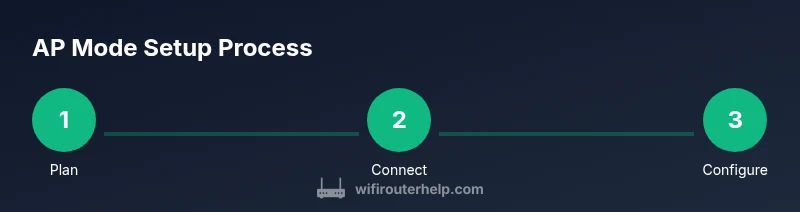
Before starting, map your network layout and collect admin credentials. Physically connect the second router to the main router using Ethernet for a reliable backhaul. Disable DHCP on the AP, assign a fixed IP within the main subnet, and enable AP/Bridge mode on the AP. Reconfigure the wireless settings (SSID, password, and channel) and test with devices across the home to confirm seamless connectivity. Keep a simple network diagram for future reference.
Tuning performance: channel selection, SSID, and guest networks
For stability, use the same SSID and password on both routers to simplify roaming, but consider a distinct channel for the AP if interference is high. Prefer a 5 GHz network for high-density areas while leaving 2.4 GHz broad coverage for older devices. If supported, enable a guest network on the AP with restricted access to your main LAN. Regularly review channel usage to adapt to new wireless networks in your area.
Troubleshooting common issues after enabling AP mode
If devices cannot connect, verify the AP IP, DHCP settings, and the physical Ethernet connection. Ensure the AP is in AP/Bridge mode and that NAT is disabled. Look for IP conflicts or double-NAT symptoms; if observed, re-check DHCP and IP assignments. If roaming seems unstable, test with devices moving between rooms and adjust channel or power settings. Finally, verify firmware consistency across both devices.
Testing and validating your new AP network: speeds and coverage
Run speed tests from multiple locations to map performance. Check signal strength and roaming behavior as you walk through the house with a mobile device. Confirm that devices move between APs without dropping the connection and that the main router still provides internet access. Keep an eye on latency and jitter during peak usage to catch subtle issues early.
Maintenance and future-proofing: firmware, backups, and monitoring
Regularly update firmware on both devices to benefit from security patches and performance improvements. Back up configurations after a successful setup and keep a record of IP addresses, SSIDs, and passwords in a secure location. Periodically re-evaluate your AP placement and consider dual-band upgrades or mesh options if your home grows or if coverage remains patchy.
Tools & Materials
- Second router compatible with AP/Bridge mode(Ensure it supports AP or bridge mode and can be configured without a WAN connection)
- Ethernet cable (Cat5e or better)(Use at least 1 meter to reach from main router to AP)
- Main router with active DHCP and Internet access(Provides the network and IP range for the AP to join)
- Computer or smartphone for admin access(Use a web browser or app to configure AP mode)
- Power adapters for both devices(Keep devices powered during setup)
- Optional: backup firmware/restore points(Helps restore settings if needed)
Steps
Estimated time: 30-60 minutes
- 1
Plan and backup
Define the intended topology and note the main router's IP range and DHCP settings. Back up the current configurations so you can restore them if needed.
Tip: Write down the current IP scheme and admin credentials; take screenshots of settings. - 2
Connect the second router to the main router
Power off both devices, then connect the second router's LAN port to one of the main router's LAN ports using an Ethernet cable. Do not use the AP's WAN/Internet port for this connection.
Tip: Use a dedicated Ethernet backhaul for stability and predictable performance. - 3
Disable DHCP on the second router
Access the AP's admin interface and disable its DHCP server so the main router remains the only DHCP server on the network.
Tip: If the AP interface lacks a DHCP option, plan for a static IP for admin access. - 4
Assign a fixed IP to the AP
Set a fixed IP for the AP within the main subnet, ensuring it lies outside the main DHCP pool to avoid conflicts.
Tip: Record this IP address in your network diagram. - 5
Configure AP mode and wireless settings
Enable AP or bridge mode on the second router, then configure the SSID, security (prefer WPA3 if available), and channel. Consider using the same SSID/password to simplify roaming.
Tip: If guest access is needed, enable it with strong isolation and separate credentials. - 6
Test and verify connectivity
Reboot both devices, connect a client to the AP, and run quick speed tests. Check roaming by moving around the home and observing whether devices stay on the best AP.
Tip: Test with multiple devices and locations to confirm stable coverage.
People Also Ask
What is router access point mode and when should I use it?
AP mode turns a second router into a wireless access point that extends your existing network without creating a new router. It’s ideal when you want one network name and reliable wired backhaul to eliminate dead zones.
AP mode turns a second router into a wireless bridge that extends your existing network with one network name. It’s great for eliminating dead zones when you have a wired backhaul.
Can I use bridge mode instead of AP mode?
Bridge mode can serve a similar purpose, but it varies by device. AP mode is generally more straightforward for expanding coverage with a single network and centralized DHCP.
Bridge mode can work similarly, but AP mode is often simpler and keeps a single network with centralized DHCP.
Do I need to disable DHCP on the AP?
Yes. Disable the AP’s DHCP server and let your main router manage IP addresses to avoid conflicts. If you must access the AP admin, use a static IP outside the main DHCP range.
Yes, turn off DHCP on the AP so the main router handles all IPs. If you need access, set a fixed IP outside the main range.
Will enabling AP mode reduce my speed?
AP mode itself doesn’t inherently slow networks; wired backhaul typically yields better speed and lower latency than wireless backhaul. The total throughput depends on the backhaul path and AP capabilities.
AP mode doesn’t inherently slow things down; using wired backhaul keeps speeds high, while wireless backhaul may add latency.
How do I test roaming between routers?
Move a connected device around the space and watch if it hands off to the closer AP without dropping the connection. Use speed tests in different rooms to ensure consistent performance.
Walk around with a phone or laptop to see if the connection follows you between APs without dropping.
What if my second router doesn’t support AP mode?
If AP mode isn’t available, you can look for bridge mode or use a dedicated wireless extender. For robust networks, consider upgrading to hardware that supports AP mode or a mesh system.
If AP mode isn’t available, use bridge mode or a mesh system for better coverage.
Watch Video
What to Remember
- Plan the topology before wiring the AP.
- Disable DHCP on the AP to avoid IP conflicts.
- Use wired backhaul for best performance.
- Run tests across the home to verify coverage and roaming.
- Keep firmware up to date for security and stability.