How to Set Up a Router with Access Point Mode
Learn how to configure a router with access point mode to expand coverage, manage IPs, and secure your home network with a clear, step-by-step approach.


Using a router with access point mode extends Wi‑Fi coverage by turning your existing router into an access point. You’ll need a second device that supports AP mode, a wired backhaul if possible, and admin access to the router. This guide shows how to enable AP mode, assign a static IP, disable DHCP on the AP, and secure the network for reliable home coverage.
What is a router with access point mode\n\nA router with access point mode turns a standard consumer router into a dedicated wireless access point that serves devices on your network. When AP mode is enabled, the router typically stops performing NAT and instead relays traffic to your primary router. The result is a single, cohesive network with one SSID that supports smooth roaming between rooms. According to WiFi Router Help, AP mode helps reduce double NAT and improve consistency across two or more floors. This setup is particularly helpful in larger homes or spaces with thick walls. By using AP mode, you can preserve stable speeds and simplify guest access, while avoiding routing conflicts that hamper performance.
When to use AP mode in a home network\n\nUse AP mode when your primary router cannot reach every corner of your home, when you want seamless roaming without captive portals on every device, or when you need to extend Ethernet backhaul to distant rooms. AP mode is also valuable if you already own a fast main router and simply want to add a reliable wireless node elsewhere. WiFi Router Help notes that AP mode keeps the network simple: one DHCP server (on the main router) and a unified SSID provide a predictable experience. For apartment living or multi‑story homes, AP mode often delivers the most reliable, low‑latency connections for gaming, video calls, and streaming.
Requirements and compatibility checks\n\nBefore you begin, confirm that both your main router and the second device (the AP) support AP mode or can be configured to operate as an AP. Check the admin interface documentation for terms like AP mode, bridge mode, WDS, or switch to “access point” in the LAN settings. Ensure you have a wired backhaul option (prefer Ethernet) rather than relying on a wireless relay, which can introduce latency. Keep a printable IP plan and note which subnet your main router uses (for example, 192.168.1.x). WiFi Router Help emphasizes planning, because a clear IP scheme makes subsequent management—like remote administration and guest networks—much easier.
How to identify if your router supports AP mode\n\nIdentify AP mode support by checking the user manual, the vendor’s support site, or the router’s firmware UI. Look for terms such as “AP mode,” “bridge,” or “LAN–LAN configuration.” Some devices can be forced into AP mode by disabling DHCP on the router and configuring its LAN IP to a static address within the main subnet. If you cannot locate AP mode, consider upgrading to a model that explicitly lists AP functionality or using a dedicated access point. This step matters because unsupported devices can complicate the network rather than help it.
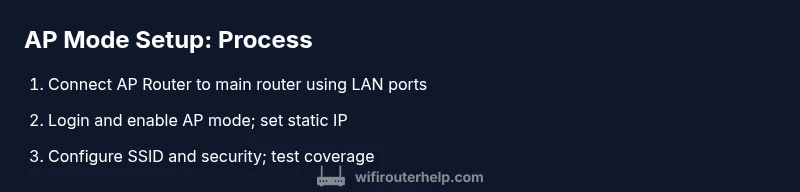
Step-by-step: Quick overview for the router with access point mode\n\nThis section provides a high‑level roadmap; the detailed steps are in the STEP-BY-STEP block. First, verify compatibility and plan a simple IP scheme. Then connect the AP to the main router with an Ethernet cable, log into the AP’s admin page, enable AP mode, assign a static IP in the main subnet, disable DHCP on the AP, and finally configure the wireless SSID, security, and channel settings. Finally, test coverage in different rooms and adjust power and channel to minimize interference.
Configuring IP addressing and DHCP in AP mode\n\nThe IP address of the AP should be in the same subnet as the main router but outside its DHCP range to avoid conflicts. Set a static LAN IP like 192.168.1.2 when the main router uses 192.168.1.1. Disable DHCP on the AP so the main router’s DHCP server handles all devices. Maintain a consistent gateway address (the main router’s IP) and document the values. If the AP and main router are on different subnets, devices may fail to reach the internet or manage local devices. WiFi Router Help recommends keeping DHCP on the primary router only for cohesive management and predictable behavior.
Wireless settings in AP mode: SSID, encryption, channels\n\nIn AP mode, you can reuse the main router’s SSID or create a dedicated AP-specific SSID. Use WPA2‑AES or WPA3‑AES security, strong passwords, and enable automatic nightly channel optimization if supported. Use a fixed channel in 2.4 GHz (1/6/11) to minimize interference, and consider enabling band steering on dual‑band APs to help devices switch seamlessly. If you reuse the same SSID, connect devices’ preference to the strongest signal and ensure shareable guest access is configured on the main router.
Troubleshooting common AP mode issues\n\nCommon problems include IP conflicts, DHCP misconfigurations, or devices failing to roam. If devices can’t access the network, verify the AP’s IP is in the correct range and that DHCP is disabled. Check for a solid Ethernet backhaul; a flaky cable or port can cause intermittent connectivity. Reboot both devices after changes, confirm firmware versions are current, and test with a wired device to isolate Wi‑Fi from backhaul issues. If you still see slow speeds, measure signal strength and inspect channel overlap with neighbor networks. WiFi Router Help notes that patient, methodical testing yields the best results.
AP mode vs bridge mode vs mesh: choosing the right fit\n\nAP mode is simple and cost‑effective for extending coverage on a single network. Bridge mode is similar but often requires careful routing configuration and can limit certain features. Mesh systems provide seamless roaming with multiple nodes but may be more expensive. Your choice depends on budget, desired roaming, and existing hardware. For most homeowners, starting with a single AP in AP mode offers a practical balance of performance and simplicity.
Final best practices for reliability and security\n\nAlways back up current settings before changes, and keep firmware up to date on both devices. Use a unique SSID for the AP if you’re separating networks, or unify SSIDs for seamless roaming. Place the AP centrally and away from thick walls or metal cabinets to improve signal strength. Finally, monitor performance over a few days and adjust power output and channel selection to maintain stable speeds. The WiFi Router Help team recommends implementing a routine check‑in schedule to keep firmware up to date and performance optimized.
Tools & Materials
- Ethernet cable (Cat5e/Cat6)(A straight‑through backhaul between main router LAN port and AP LAN port)
- Computer or smartphone with admin access(Used to log in to the router admin page)
- Secondary router or dedicated AP that supports AP mode(Must support AP mode or be configurable as AP)
- Power adapters for both devices(Ensure uninterrupted power during setup)
- Pen and paper or note app(For IP plan and network layout)
- Admin credentials for both devices(Needed to log in and modify settings)
Steps
Estimated time: 20-40 minutes
- 1
Plan your IP scheme and backup current settings
Before touching devices, map a simple IP plan. Decide the main router’s LAN subnet, the AP’s static IP in that subnet, and the DHCP range to be used. Back up current router configurations to recover quickly if something goes wrong.
Tip: Document the chosen IPs and settings so you can revert easily if needed. - 2
Connect the AP router to the main router
Connect an Ethernet cable from a LAN port on the main router to a LAN port on the AP. Do not use the AP’s WAN port when configuring AP mode; that would create a double NAT scenario.
Tip: Use a wired backhaul whenever possible for the most reliable performance. - 3
Log in to the AP’s admin page and enable AP mode
Open a browser and enter the AP’s static IP. Navigate to the network or mode settings and select AP mode or bridge mode, then apply changes. This step commonly stops NAT on the AP.
Tip: Perform changes with a wired connection to avoid drops from Wi‑Fi during login. - 4
Configure IP, DHCP, and gateway on the AP
Assign a static IP to the AP within the main subnet (e.g., 192.168.1.2) and disable its DHCP server. The main router should remain the DHCP server for all devices.
Tip: Double‑check that the AP’s IP does not conflict with the main router or other devices. - 5
Set SSID, security, and channels on the AP
Choose whether to reuse the main SSID or create a distinct one for the AP. Enable WPA2‑AES/WPA3‑AES, set a strong password, and select a channel with minimal interference (1/6/11 for 2.4 GHz).
Tip: If using the same SSID, ensure your devices roam automatically to the stronger signal. - 6
Test, observe, and adjust
Test from multiple rooms to confirm coverage. If needed, tweak TX power or move the AP to improve dead zones and reduce congestion. Monitor performance over a day or two for stability.
Tip: Document channel decisions and power levels for future changes.
People Also Ask
What is AP mode and how does it differ from a mesh system?
AP mode makes a router act as a single access point, extending the network without creating separate routing domains. Mesh adds multiple nodes that coordinate as a single system for roaming. AP mode is simpler and cheaper, while mesh emphasizes seamless roaming at scale.
AP mode turns one router into an access point to extend coverage. Mesh adds multiple nodes for roaming across larger areas.
Do I need DHCP on the AP or on the main router?
In AP mode, disable DHCP on the AP and keep the main router as the DHCP server. This avoids IP conflicts and ensures a single source of truth for device addressing.
Disable DHCP on the AP and let the main router assign IPs.
Will AP mode slow down my network?
AP mode itself does not slow down traffic; bottlenecks come from backhaul quality and channel interference. A wired backhaul and proper channel selection keep performance high.
If you have a good wired link and clear channels, AP mode won’t slow you down much.
Can I use AP mode with a guest network?
Yes, you can configure a guest network on the AP or on the main router. Ensure consistent firewall and isolation policies to protect devices.
You can, but keep guest access rules consistent across devices for security.
How do I know if my device supports AP mode?
Check the device’s manual or the vendor’s support site for terms like AP mode, bridge, or LAN–LAN configuration. If unclear, contact support or consider a dedicated AP.
Look for AP mode in the settings; if not listed, you may need a different device.
How should I test network performance after setup?
Run speed tests from various rooms, check signal strength, and verify streaming and gaming performance. If problems appear, reassess channel choice and backhaul integrity.
Test from multiple spots to confirm stable speeds and roaming.
Watch Video
What to Remember
- Enable AP mode to extend coverage without double NAT
- Disable DHCP on the AP to rely on the main router
- Use a static IP in the same subnet as the main router
- Keep security strong with WPA2/WPA3 and unique passwords
- Test coverage and adjust channels to minimize interference