How to Put Your Router in Access Point Mode
Learn how to put your router in access point mode to extend Wi-Fi coverage. This step-by-step guide covers prerequisites, configuration, testing, and common pitfalls for a stable home network.


Goal: turn a secondary router into a reliable access point to extend your Wi‑Fi. Ensure you can access the AP’s admin page, have a wired connection to the network, and plan IP addresses that won’t conflict with the main router. Enable AP mode, disable DHCP on the AP, assign a static IP in the same subnet, and configure wireless settings to match or thoughtfully vary SSID for roaming.
What AP mode does and when to use it
AP mode converts a router into an access point rather than a separate router. In this mode, the device offers wireless coverage and extra Ethernet ports while the main router handles DHCP and routing. This setup is ideal for eliminating dead zones in larger homes or multi‑room apartments where a single router can't reach every corner. If you want seamless roaming, you can configure the AP to broadcast the same SSID and security as the primary network, so devices switch gently as you move. Some brands call this a true AP mode; others may offer a bridge or wireless extender option with slightly different behavior. The core principles stay the same: disable NAT on the AP, place the AP on the same subnet as the main router, and avoid IP conflicts by using a static AP address outside the main DHCP range. When in doubt, consult your router’s AP mode guide and reference WiFi Router Help for general setup guidance. This is a practical way to expand coverage without creating another entirely separate network.
Prerequisites and what you’ll need
Before you begin, confirm you can access both routers’ admin pages and that you have a wired Ethernet connection between the AP and the main router. Gather these items: an Ethernet cable (Cat5e or better), a computer or smartphone with a web browser, and the credentials for both devices. Plan the IP addressing: assign a static IP to the AP in the same subnet as the main router but outside the DHCP pool. Decide whether you want the AP’s SSID to mirror the main network or be a clearly separate network for troubleshooting. Check firmware versions and update if necessary. Finally, sketch your topology so you know which LAN port on the main router to use and where the AP will sit in your home. A clean schematic helps prevent misconfigurations during setup.
Understanding the network topology and IP addressing
A properly planned AP deployment retains the main router as the DHCP server and uses the AP purely to extend reach. The AP’s IP address should be within the same subnet as the main router but not within the DHCP range, ensuring no IP conflicts if devices on the network request addresses dynamically. If you have multiple APs, consider a consistent IP scheme (e.g., 192.168.1.2, 192.168.1.3) and enable the same security settings across all APs. Pay attention to channel selection to minimize interference, using non-overlapping channels for your region. In some networks, you may opt to mirror SSIDs across APs for seamless roaming; in others, you may prefer distinct SSIDs to simplify troubleshooting. The key is consistency in security (WPA2/WPA3) and a stable backbone connection to the main router.
Common pitfalls and how to avoid them
Many AP setup issues boil down to NAT and DHCP. Do not leave NAT enabled on the AP, and make sure DHCP is disabled on the AP so the main router handles IP assignment. A common mistake is giving the AP a conflicting IP or placing it on a different subnet; always pick an address outside the main DHCP pool. If devices show double NAT or random reboots, revisit the AP’s mode, IP settings, and bridge vs. router behaviors. Another pitfall is mismatched wireless settings; ensure encryption, password, and frequency bands align with the main network if you want smooth roaming.
AP mode vs bridge mode vs repeater
AP mode is not the same as a repeater or a bridge. In AP mode, the AP extends the network without introducing a second NAT layer, preserving performance and simple management. Bridge mode often disables routing features, turning the device into a transparent bridge that forwards traffic; this can be useful in specific setups but may disable some AP features. A repeater extends wireless range wirelessly, but it can halve bandwidth and add latency. For most homes aiming to improve coverage with minimal hassle, AP mode is the best balance of performance and manageability.
After setup: testing and optimization
Once configured, test your network with multiple devices across rooms. Check IP addresses to confirm that devices obtain them from the main router and that the AP is not issuing its own DHCP addresses. Run a speed test near the AP and away from it to gauge coverage improvements. If roaming isn’t seamless, consider adjusting AP placement, channel selection, and SNR optimization. Document the AP’s IP, SSID choice, and security settings for future tweaks or firmware updates.
Tools & Materials
- Ethernet cable (Cat5e or better)(Connect AP to main router during setup)
- Computer or mobile device with a web browser(Access admin interfaces for both routers)
- Credentials for both routers(Admin usernames and passwords)
- Static IP planning sheet(Choose an AP IP outside the main DHCP range)
- Firmware update files or internet access for updates(Optional but recommended before starting)
Steps
Estimated time: 15-40 minutes
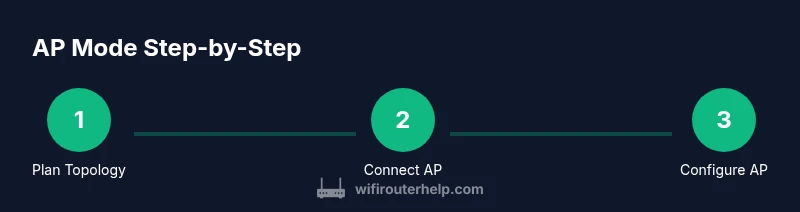
- 1
Plan topology and IP scheme
Decide where the AP will sit and assign a fixed IP address for it within the same subnet as the main router but outside its DHCP range. Document the planned SSID approach (shared or separate) and ensure you have the admin credentials ready.
Tip: A good starting IP is a low-numbered address outside DHCP, e.g., 192.168.1.2 if the main router is 192.168.1.1. - 2
Connect AP to main router with Ethernet
Power on the AP, then connect a LAN port on the main router to a LAN port on the AP using the Ethernet cable. This ensures a stable, wired backhaul for clients.
Tip: Use a port on the AP that’s labeled LAN; avoid WAN on the AP when using AP mode. - 3
Login to AP admin page
From a connected device, open a browser and enter the AP’s default IP address to access its management page. Sign in with the default credentials and begin AP mode configuration.
Tip: If you can’t reach the AP, reset it with the reset button and retry. - 4
Enable AP mode and set fixed IP
In the AP’s settings, switch to AP mode (or bridge mode if that’s the only option). Assign the static IP you planned, disable the AP’s DHCP server, and save/apply changes.
Tip: Double-check the AP IP is reachable from your computer after applying changes. - 5
Configure wireless and security
Match or carefully plan the SSID and security settings to your main network. If you want seamless roaming, use the same SSID and password; otherwise differentiate to simplify troubleshooting.
Tip: Prefer WPA2/WPA3 with a strong passphrase; avoid mixed modes that degrade security. - 6
Test, reboot, and verify
Reboot both devices if necessary, then verify that clients obtain IPs from the main router and can access the internet. Run a quick speed test near the AP and in remote zones to confirm coverage improvements.
Tip: Keep a simple topology diagram and note any dead spots you still observe for future refinements.
People Also Ask
What is AP mode and why should I use it?
AP mode makes a router act as an access point, extending wireless coverage while the main router handles DHCP and routing. It’s ideal for eliminating dead zones without creating a second router on the network.
AP mode turns a router into an extension of your network, great for filling coverage gaps without extra NAT layers.
Can I enable AP mode on any router?
Most recent routers support AP or bridge modes, but the exact terminology and steps vary by brand. Check the user guide or firmware notes for AP mode availability.
Most routers support AP or bridge modes, but you may need to check your model's manual.
Do I need to disable DHCP on the AP?
Yes. The main router should be the only DHCP server to avoid address conflicts. Disable DHCP on the AP after enabling AP mode.
Yep, keep DHCP on the main router and turn it off on the AP.
How can I test whether AP mode is working?
Verify devices get IPs from the main router, check that internet access works in multiple rooms, and test roaming by moving between coverage areas. Use a ping test to the gateway to confirm reachability.
Make sure devices get addresses from the main router and can browse anywhere in your home.
What if my router doesn’t have AP mode?
Consider bridge or client mode if available or update firmware. Otherwise, use the AP in a standard router-to-router link with carefully managed NAT settings, though this is more complex.
If there’s no AP mode, look for bridge/client options or update firmware for similar functionality.
Should the AP use the same SSID as the main network?
Using the same SSID can improve roaming; however, it may complicate troubleshooting. If you prefer easier troubleshooting, keep a separate SSID for the AP.
Same SSID helps roaming; separate SSID makes troubleshooting easier.
Will firmware updates affect AP mode?
Firmware updates can improve stability and security but may temporarily disrupt network connectivity. Check update notes for AP-related changes.
Firmware updates can fix issues but might cause a short network hiccup.
Watch Video
What to Remember
- Plan topology before configuring AP.
- Disable DHCP on the AP to avoid conflicts.
- Match security settings for seamless roaming.
- Test with real devices to confirm coverage and access.