How to Convert a Router to an Access Point
Learn how to turn a spare router into a reliable access point to extend your home WiFi coverage. This educational guide covers wiring, configuration, and troubleshooting with clear steps from WiFi Router Help.


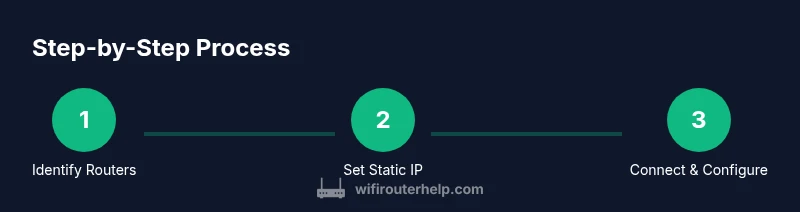
You’ll convert a spare router into an access point by configuring it in AP/bridge mode. Steps include: assign a static IP in the main router’s subnet, disable DHCP on the AP, and connect the AP to the main router using a LAN-to-LAN cable. You’ll need admin access to both devices and an Ethernet cable.
Why Convert a Router to Access Point?
According to WiFi Router Help, turning a spare router into an access point is a practical and cost-effective way to expand coverage in hard-to-reach rooms. An AP provides a stable, dedicated wireless node that inherits the main network’s security and password policy, reducing dead zones without investing in new hardware. This approach also helps you avoid coverage gaps in multi-story homes or long, narrow layouts where a single router cannot reach every corner. When done correctly, the AP becomes a transparent part of your existing network, broadcasting a familiar SSID with strong security settings.
If you’re dealing with a two-story home, thick walls, or a home office that sits far from the primary router, implementing an AP can dramatically improve throughput and reliability. The WiFi Router Help team found that well-planned AP deployments often yield more consistent speeds in living spaces that suffer from signal loss in the farthest rooms.
Wired vs Wireless Backhaul: What to Choose?
A wired Ethernet backhaul from the main router to the access point delivers the best performance, reducing latency and packet loss. This is especially important for activities like gaming, video conferencing, and streaming high-definition video across rooms. If running cables is impractical, a wireless backhaul (AP in wireless bridge mode) can work, but speeds will be lower and more susceptible to interference. In such cases, place the AP within a strong range of the main router and avoid congested channels. For homes with metal studs, concrete walls, or large rooms, wired backhaul is the default recommendation when possible.
From a practical perspective, a wired backhaul also simplifies network management because you won’t need to coordinate multiple subnets or NAT rules across devices. The goal is a single, seamless network where devices roam between coverage zones with minimal interruption. WiFi Router Help’s analysis shows that reliable AP deployments benefit most when backhaul is stable and consistent.
Network Planning: IP Addressing and DHCP
Before you start, plan your IP addressing so there’s no conflict between devices. The AP should have a static IP within the main router’s subnet but outside its DHCP pool. For example, if the main router assigns addresses in 192.168.1.100–192.168.1.199, set the AP to a static IP like 192.168.1.2. Disable the AP’s DHCP server to ensure the main router handles all IP assignments. If you enable DHCP on the AP, you’ll create two routers on the same network, which can cause IP conflicts and connectivity problems.
Also confirm your main router’s DHCP range is large enough to accommodate all current devices plus any future guests. Keeping a simple, predictable IP scheme helps with remote administration and troubleshooting.
Hardware Checklist and Preparation
Gather the items you’ll need before you start: a spare router that supports AP or bridge mode, a reliable Ethernet cable (Cat5e or better), a laptop or smartphone to access both admin interfaces, and power adapters for both devices. Have the login credentials handy for both routers. Label each device clearly to avoid confusion during setup. If the spare router uses a different firmware than the main router, check for compatibility notes on bridging/AP modes to avoid feature mismatches or firmware conflicts.
Planning ahead minimizes back-and-forth iterations. It’s helpful to write down the exact IP plan you’ll use and a quick checklist of settings to adjust on the AP.
Basic AP Configuration: LAN IP, DHCP, and Wireless
Access the AP’s admin interface and begin with the LAN IP configuration. Set the AP’s LAN IP to the static address you chose (e.g., 192.168.1.2) and ensure the gateway equals the main router’s IP (e.g., 192.168.1.1). Disable the AP’s DHCP server, then save. Next, configure the wireless settings by giving the AP a secure SSID and password. It’s common to use the same SSID and password as the main network for seamless roaming, but if interference is present, you can set a distinct SSID and manage them separately. Finally, connect the AP’s LAN port to a LAN port on the main router using a Ethernet backhaul.
After applying these changes, reboot both devices to ensure the new configuration takes effect. If you encounter issues, re-check the AP’s IP and DHCP settings, and verify the Ethernet cable is properly seated.
Advanced Settings for Performance and Security
Once basic connectivity is confirmed, optimize advanced settings for stability and security. Enable WPA3 (or at least WPA2) for wireless security, choose strong passphrases, and consider limiting the AP’s access to guest networks if you have sensitive devices on the main network. Set the AP to a non-overlapping channel or use auto-channel selection to reduce interference. If you have a mesh-capable router, you can keep the AP in bridge-like mode while leveraging some mesh features, but verify compatibility across devices. Consider enabling basic firewall rules or enabling UPnP only if necessary for your setup, as over-permissive rules can invite risk. Regularly update firmware on both devices to close security gaps and improve performance.
With careful tuning, the AP can offer stable, predictable coverage that complements your primary router rather than competing with it.
Testing, Troubleshooting, and Common Pitfalls
Test your network by connecting multiple devices to the AP and the main router to verify consistent connectivity and speed. Check that devices obtain addresses from the main router, and that the AP’s SSID remains reachable as you move through your home. If devices fail to obtain an IP address, re-check DHCP settings on the AP and ensure there is no duplicate IP assignment. Common pitfalls include leaving DHCP enabled on the AP, connecting to the AP’s WAN port, or using different subnets that complicate routing. If you still experience problems, temporarily revert the AP to factory settings and re-apply the steps from the beginning. A clean start makes it easier to spot misconfigurations.
The key to success is patience and methodical checking of each setting. The WiFi Router Help team emphasizes testing range and speed after each adjustment to avoid chasing intermittent issues.
Authority sources
For additional guidance, consult reputable sources on wireless networking and home router configuration:
- https://www.fcc.gov/consumers/guides/wireless-networking-basics
- https://www.nist.gov/publications/wireless-network-security
- https://www.ieee.org/industries/communications/wireless.html
These sources offer foundational information on safe, reliable wireless networking practices and standards that underlie AP setups.
Tools & Materials
- Spare router with AP/bridge capability(Supports AP/Bridge mode or similar; check firmware for AP options)
- Ethernet cable (Cat5e or better)(Used for wired backhaul LAN-to-LAN connection)
- Laptop or smartphone(Access admin interfaces of both routers)
- Power adapters for both routers(Ensure devices stay powered during the process)
- Admin credentials for both routers(Keep them handy and secure)
Steps
Estimated time: 30-60 minutes
- 1
Identify primary and secondary routers
Determine which unit will stay as the gateway and which will become the access point. Confirm both devices are powered on and accessible via their admin interfaces.
Tip: Label the devices to avoid mixing them up during setup. - 2
Plan static IP and DHCP
Choose a static IP for the AP in the main router’s subnet and decide to disable DHCP on the AP.
Tip: Use an IP outside the main DHCP range to prevent conflicts. - 3
Configure AP IP and disable DHCP
Login to the AP’s admin page, set the LAN IP to the chosen static address, and disable its DHCP server.
Tip: Record the AP’s new IP for future access. - 4
Connect AP to main router via LAN
Plug the AP’s LAN port into a LAN port on the main router. Do not use the WAN/Internet port on the AP.
Tip: Ensure the Ethernet cable is securely seated on both ends. - 5
Configure wireless on the AP
Set SSID, security (WPA2/WPA3), and password. Decide whether to reuse the main network’s SSID or use a separate one.
Tip: If you want seamless roaming, consider using the same SSID with strong security. - 6
Test connectivity and performance
Test from multiple rooms, check IPs from the main router, and evaluate speed with a wired and wireless device.
Tip: Move devices around to identify dead zones and adjust AP placement. - 7
Finalize settings and monitor
Save changes, reboot both routers, and monitor for a few days to ensure stability. Update firmware if available.
Tip: Keep a simple diagram of your network layout for future troubleshooting.
People Also Ask
Can I convert any router to an access point?
Most routers can be repurposed as an AP if they support AP or bridge mode. Check the admin interface for AP/Bridge options and ensure firmware supports the feature.
Most routers can be repurposed as an access point if they support AP or bridge mode; check the settings in the admin interface.
What is the difference between AP mode and bridge mode?
AP mode creates a separate wireless node under your main router, offering seamless wireless extension. Bridge mode blends networks to avoid double NAT, but behavior can vary by vendor and may limit management features.
AP mode creates a separate access point; Bridge mode reduces NAT issues by merging networks, depending on the device.
Should I disable DHCP on the AP?
Yes. Disabling DHCP on the AP ensures the main router handles IP assignments and prevents conflicts.
Yes, disable DHCP on the AP so the main router assigns all IPs.
Is a wired backhaul required?
A wired Ethernet backhaul provides the best performance. Wireless backhaul can work but may reduce speed and reliability.
A wired backhaul is best; wireless can work but slower.
What IP should the AP use?
Choose a static IP within the main subnet but outside the main router’s DHCP range.
Pick a static IP in the same subnet outside the main DHCP range.
How do I revert the AP back to a router?
To revert, re-enable DHCP, configure as a router, and reconnect as needed. This may require a reset if settings are unknown.
To revert, re-enable DHCP and configure as a router, then test.
Watch Video
What to Remember
- Decide which router remains the gateway.
- Assign a static IP to the AP within the main subnet.
- Disable DHCP on the AP to avoid conflicts.
- Connect the AP using LAN-to-LAN for reliable backhaul.
- Test coverage and adjust SSID/channel as needed.