How to Use a Router as an Access Point
Learn how to turn a spare router into an access point to extend WiFi coverage, improve reliability, and simplify home networking with practical steps and troubleshooting tips.


According to WiFi Router Help, turning a spare router into an access point is a safe, affordable way to extend coverage without new hardware. In this quick guide, you’ll learn the exact steps, key settings, and common pitfalls to avoid, so you can achieve a stable, seamless network in under an hour.
How to use router as access point
Using a dedicated access point can eliminate Wi‑Fi dead spots, simplify device roaming, and keep your network under a single management umbrella. When you convert a spare router to an access point, you extend coverage without buying new hardware. According to WiFi Router Help, this approach reduces configuration complexity and makes it easier to maintain consistent security across your home network. The core idea is to place the secondary device on a wired backhaul and configure it to provide wireless service with the same SSID and security as your primary router. By doing this, you avoid double NAT issues and keep clients from jumping between networks unnecessarily. LSI terms like AP mode, bridge mode, DHCP, static IP, and backhaul are essential to understand as you plan your setup. In practice, you’ll still manage firmware updates and password policies from the main router, so keep your login credentials organized. The result is a smoother wireless experience with fewer drops, stronger overall coverage, and simpler troubleshooting when issues arise.
Planning the right IP scheme and settings
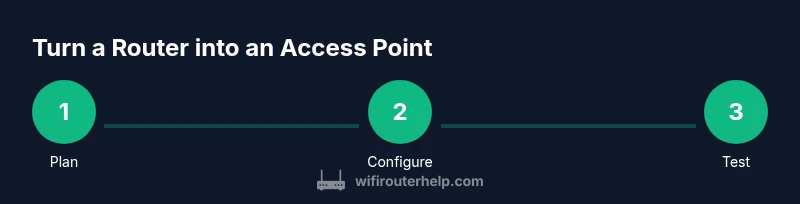
Before you touch any settings, map out your network design. Decide whether you want true AP behavior (no NAT on the secondary router) or a simple wired extender that shares your main network. The key to a stable AP is a clean IP plan: give the access point a fixed LAN IP in the same subnet as the primary router but outside its DHCP range. This prevents IP conflicts and makes management predictable. Review your main router’s DHCP pool and reserve a block of addresses for devices that you don’t want to manually configure every time. Also consider how you’ll handle SSIDs: using the same network name and password on both devices creates seamless roaming, while distinct names can help with troubleshooting when you’re learning. If you’re using guest networks or special VLAN setups, copy those rules to the AP to maintain consistency. Finally, confirm the AP’s WAN port is not used when you’re aiming for pure AP functionality.
Choosing the right hardware and modes
Not every router can serve as a dependable access point. Some devices offer dedicated AP or bridge modes, while others ship with basic replication features. The best choice is a router that explicitly supports AP mode or a dedicated access point function; this avoids double NAT and keeps traffic on your LAN. For home setups, a wired backhaul between the main router and the AP is ideal because it minimizes latency and packet loss. If you only have wireless backhaul, expect slightly reduced performance and more potential interference. When selecting hardware, verify firmware update availability, security options (WPA3 or WPA2), and the ability to disable the router’s built-in firewall for the AP role if needed. If the second device is from a different brand, consult the manual to find the equivalent AP-mode settings and ensure you can configure a static IP and the desired SSID.
Preparation steps before you wire things up
Gather login credentials for both routers and locate the Ethernet cables you’ll use for backhaul. Resetting the secondary router to factory defaults is best for a clean start, and you should note the default IP and login in case you need to recover. Update the firmware on both devices if newer versions are available, which can fix compatibility issues and security gaps. Sketch a quick map of your cabling: main router LAN port to AP LAN port is the recommended connection for a clean AP setup. Disable any existing features on the AP that could create conflicts, such as UPnP, dual NAT, or WAN data paths. If you plan to use a guest network, decide whether it should be preserved on the AP or kept separate to reduce guest traffic impacting the main network.
Step-by-step configuration overview
With planning done, you’re ready to implement the AP configuration. The steps below assume you’re using a standard consumer router as the access point and a typical home network. The goal is to have both routers sharing a single subnet, a single DHCP server on the main router, and identical wireless credentials to enable smooth roaming for devices as you move around the house.
Common pitfalls and how to avoid them
Common issues include double NAT, IP address conflicts, and mismatched wireless settings. Double NAT occurs when both routers perform network address translation; to avoid it, ensure the AP does not route traffic and that DHCP is disabled on the secondary device. IP conflicts happen when the AP shares an IP or when the AP’s IP ends up inside the main router’s DHCP range. Always reserve a unique static IP outside the main DHCP scope for the AP. Mismatched channels or security settings can cause weak performance or connection drops. Align 2.4 GHz and 5 GHz across both devices and use WPA2 or WPA3 with a strong passphrase.
Testing and verification
After configuration, test connectivity from multiple devices in different rooms to confirm coverage. Verify roaming by moving a device slowly across the home and watching the device switch between APs without dropping the connection. Use a device’s network settings to confirm both routers show the same SSID and security type. Run speed tests at various locations to identify dead spots and adjust channel selection if needed. If issues persist, check cabling, retry power cycles, and review firmware versions on both devices.
Maintenance and troubleshooting basics
Keep firmware up to date on both routers and periodically re-check the AP’s IP assignment and DHCP status. If you experience intermittent drops, first check for interference on the 2.4 GHz band and consider switching channels. For persistent problems, reset the AP and reapply the configuration, ensuring you don’t reintroduce DHCP on the AP. Document changes so you can retrace steps later, and maintain a simple changelog for any future upgrades.
Next steps and roaming optimization
Once your AP is stable, consider optimizing roaming by fine‑tuning channel width and selecting non-overlapping channels for 2.4 GHz and 5 GHz. If your home has interference from neighbors, prefer 5 GHz for devices that demand speed and use 2.4 GHz for broader coverage. Periodically reassess your layout as you add devices or furniture that can affect signal paths. The goal is a robust, uniform experience that feels like one seamless network.
Tools & Materials
- Spare router with Ethernet port(Factory reset recommended for a clean start)
- Ethernet cable (Cat5e or better)(One end to main router, other to AP LAN port)
- Computer or mobile device(For configuring both routers)
- Admin credentials for both routers(Needed to adjust IPs and DHCP settings)
- Optional: notebook for notes(Record IPs, SSIDs, and channels)
Steps
Estimated time: 30-60 minutes
- 1
Reset the secondary router
Press and hold the reset button for 10-15 seconds until the lights flash. This ensures a clean slate free of old configurations.
Tip: Note the default login and IP address if you need recovery access. - 2
Choose a static LAN IP for the AP
Set a fixed LAN IP on the AP in the same subnet as the main router, but outside the main DHCP range to prevent conflicts.
Tip: Pick a address that’s easy to remember, e.g., .2 or .10 within the subnet. - 3
Disable DHCP on the AP
Turn off the AP’s DHCP server so the main router remains the sole DHCP source for the network.
Tip: This avoids double NAT and ensures devices get consistent IPs. - 4
Connect the AP with Ethernet
Run an Ethernet cable from a LAN port on the main router to the AP’s LAN port.
Tip: Avoid using the WAN port on the AP to preserve pure AP mode. - 5
Configure the wireless settings
Set the AP’s SSID and password to match the primary router (or use a shared SSID strategy) and enable strong security.
Tip: If using the same SSID, ensure you’re on the latest security standard (WPA3/WPA2). - 6
Save, reboot, and test
Apply changes, reboot both devices if required, and verify devices roam between APs without dropping the connection.
Tip: Test from multiple rooms to confirm even coverage and roaming behavior. - 7
Document the setup
Record IP addresses, SSIDs, channels, and firmware versions for future reference.
Tip: Keep credentials in a secure password manager.
People Also Ask
What is the difference between AP mode and bridge mode?
AP mode makes a device provide wireless access on the LAN without routing. Bridge mode simply connects two networks at Layer 2, which can still keep devices on the same subnet. For a true AP setup, use AP mode or a dedicated AP rather than general bridge settings.
AP mode provides wireless access without creating another router, while bridge mode links networks at the data-link layer. Use AP mode for simple roaming.
Can I use wireless backhaul instead of Ethernet?
Wireless backhaul can work, but it may reduce performance and increase latency. A wired backhaul is preferred for stability and consistent speeds.
Wireless backhaul can work, but wired backhaul is usually better for stability.
Will devices roam automatically between APs?
If both routers share the same SSID and security settings, devices should roam between APs without manual intervention. Some devices may linger on a weaker signal temporarily.
Yes, with the same SSID, devices usually roam automatically.
Do I need to keep DHCP enabled on the main router only?
Yes. Keep DHCP enabled only on the primary router. The AP should have DHCP disabled to avoid IP conflicts.
DHCP should run only on the main router.
What should I do if I lose connectivity after setup?
Check that the AP is on the correct LAN port, verify IP settings, and ensure the main router’s DHCP range hasn’t changed. Reboot both devices if needed.
Check ports and IPs, then reboot if needed.
Can different-brand routers work together as APs?
Yes, as long as both devices support AP mode or bridge-like functionality and you configure the static IP and SSID consistently.
Absolutely, just ensure compatibility and consistent settings.
Should I update firmware before starting?
Yes. Updating firmware on both devices can improve compatibility and security during AP setup.
Update firmware on both routers before you begin.
What about guest networks on the AP?
If you plan to host guests, decide whether to extend a guest network from the main router or keep it separate on the AP. Ensure security is maintained.
Decide if guests share a guest network on AP or have a separate setup.
Watch Video
What to Remember
- Turn a spare router into an AP to extend coverage.
- Disable DHCP on the AP to avoid conflicts.
- Use the same SSID for seamless roaming.
- Prefer wired backhaul for best performance.
- Test coverage and document changes after setup.