Can You Use a Router as an Access Point? A Practical Guide
Learn how to turn a spare router into an access point to extend Wi-Fi coverage, avoid double NAT, and maintain a single network. Practical steps, tips, and troubleshooting for a reliable home network.


You can use a router as an access point by turning off DHCP on the secondary router, assigning it a static IP within the main router's LAN, and connecting them with a wired Ethernet link. This config extends your network while preserving a single SSID and seamless roaming. It's simple, inexpensive, and avoids double NAT for most homes.
Why using a router as an access point helps your home network
If your home network has weak Wi‑Fi in far rooms or on higher floors, repurposing a spare router as an access point is a cost-effective solution. This approach creates a single network name (SSID) and reliable coverage without the complexity of wiring a fresh router into your main network. If you’ve ever asked can you use router as access point, the answer is yes—this technique provides a stable, wired backhaul and distributes wireless coverage more evenly.
According to WiFi Router Help, using a spare router as an access point is a practical way to expand coverage without introducing new routing logic. By using the secondary router as an access point, you let the main router manage DHCP, NAT, and routing while the AP handles wireless distribution. This reduces dead zones and minimizes interference, especially when you choose appropriate channels and frequency bands. The result is a more predictable experience for streaming, gaming, and videoconferencing, with fewer disconnects and fewer devices fighting over bandwidth.
When done correctly, this setup avoids the confusion of multiple networks and keeps your devices on a single, stable SSID. The key is to plan your IP addressing and ensure the AP is wired for a fast, reliable backhaul. You’ll benefit most in homes where long hallways, multiple floors, or thick walls create coverage gaps.
Key terms you should know before you begin
Before you dive in, it helps to understand a few terms that commonly come up when turning a router into an access point. AP mode (access point mode) disables the router’s routing features and focuses on broadcast and forwarding traffic. Bridge mode is similar but can differ in how devices connect to the rest of the network. DHCP (Dynamic Host Configuration Protocol) assigns IP addresses to devices; in an AP setup, DHCP should usually be handled by the primary router. A static IP is a fixed address you assign to the AP so the main router can always reach it. SSID is the network name; you can use the same SSID for seamless roaming or a separate one to keep things simple during setup. Finally, LAN and WAN ports indicate where to connect cables; for an AP, use LAN-to-LAN connections rather than WAN.
Planning your AP deployment: layout, channels, and security
Effective AP deployment starts with a plan. Place the secondary router roughly halfway between the areas with weak signal and the main router, avoiding physical barriers like thick concrete walls or large metal appliances. Use the 2.4 GHz band for broad coverage and the 5 GHz band for higher speeds where you have line-of-sight or shorter distances. If you want seamless roaming, keep the same SSID across both routers, but ensure they use different channels to minimize interference. Security matters: update firmware on both devices, use a strong admin password, and enable WPA3 if supported. Remember that enabling Guest networks or segregating devices can improve security in busy households, but they should be configured with clear rules to avoid accidental isolation of essential devices. WiFi Router Help emphasizes planning and testing in small zones before a full rollout.
Step-by-step overview: what you’ll configure
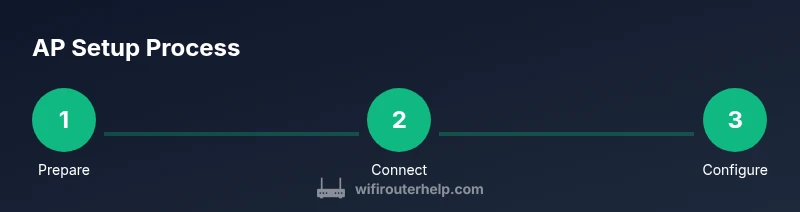
This section provides a concise map of the actions you’ll perform in the dedicated STEP-BY-STEP block below. You’ll prepare hardware, connect the routers with a LAN-to-LAN link, disable DHCP on the AP router, assign a fixed IP, set the AP to operate without NAT, and verify network coverage. Throughout, keep security front and center by changing default credentials and updating firmware. The exact order helps prevent IP conflicts and ensures the AP is reachable from your main network. The overview prepares you for the hands-on steps and avoids common setup pitfalls.
Common mistakes and how to avoid them
A few mistakes commonly derail AP setups. Forgetting to disable DHCP on the AP router leads to IP conflicts and a chaotic network. Connecting the AP via the WAN port can trigger double NAT and reduce performance. Running the AP on identical channels in crowded spaces causes interference; instead, use non-overlapping channels (e.g., 1, 6, 11 for 2.4 GHz and careful 5 GHz planning). Always verify firmware versions and back up existing settings before making changes. If you encounter dead zones after setup, re-check cable quality and confirm the LAN-to-LAN connection is used rather than WAN.
Maintenance and troubleshooting basics
Once your AP is configured, run a quick coverage check by walking through your home with a mobile device connected to the network. Look for dead spots, weak signals, or inconsistent speeds and adjust the AP placement or channels as needed. If devices still struggle to obtain an IP, verify the AP’s static IP, ensure DHCP is off on the AP, and confirm the LAN port connections. A simple reboot of both routers often resolves transient issues. Regular firmware updates on both devices help maintain security and stability and protect against known vulnerabilities. Keep a simple documentation note with IP addresses, SSID choices, and channel assignments for future tweaks.
Authority sources and further reading
- FCC: Using Your Router for Wi-Fi (https://www.fcc.gov/consumers/guides/using-your-router)
- FTC: Secure Your Wi‑Fi and Home Network (https://www.consumer.ftc.gov/articles/0013-secure-your-wi-fi)
- How-To Geek: How to Use a Router as an Access Point (https://www.howtogeek.com/197991/how-to-use-your-router-as-an-access-point/)
These sources provide practical guidance on router configuration, security considerations, and best practices for extending wireless coverage.
References and additional resources
For a visual reference, you can search for tutorials on how to set up a router as an access point. Look for reputable guides from major tech publications and vendor support pages linked above.
Tools & Materials
- Spare router to repurpose(Must support wired LAN ports and 2.4 GHz/5 GHz wireless radios)
- Ethernet cable (Cat5e or better)(At least 1 meter; longer runs may be needed for larger homes)
- Laptop or smartphone for configuration(Used to log into both routers’ admin interfaces)
- Access to main router’s admin interface(You’ll need to know the LAN IP range and credentials)
Steps
Estimated time: 45-60 minutes
- 1
Factory-reset the secondary router
Reset the AP router to factory defaults so there are no conflicting settings carried over. This ensures a clean baseline for the new configuration.
Tip: If you’re unsure of the reset procedure, consult the user manual or manufacturer support site. - 2
Assign a static IP to the AP
Log into the primary router’s admin interface and choose an unused IP address in the LAN range to assign to the AP router. This allows you to reach the AP reliably for future changes.
Tip: Pick an IP outside the AP’s DHCP range to avoid clashes. - 3
Disable DHCP on the AP router
Turn off the AP’s DHCP server so the main router assigns all IP addresses. This prevents IP conflicts and keeps a single DHCP authority on the network.
Tip: Double-check the AP’s LAN IP matches your planned static IP and that DHCP is off. - 4
Connect the routers with an Ethernet backhaul
Use a LAN-to-LAN connection between the main router and the AP router. Do not use the WAN/Internet port on the AP, as that would reintroduce routing/NAT.
Tip: If possible, use a high-quality Ethernet cable and keep cable runs neat for reliability. - 5
Configure the AP to operate as an access point
In the AP router settings, disable NAT and ensure the device is in AP mode or equivalent. Align security settings with your primary network and reuse the same SSID if roaming is desired.
Tip: Enable WPA3 if available; otherwise use WPA2 with a strong password. - 6
Test coverage and fine-tune
Test signal strength in areas that previously had weak coverage. Adjust the AP’s channel and placement to minimize interference and maximize throughput.
Tip: If devices struggle to roam, consider spacing channels or using separate SSIDs during testing, then switch back for roaming.
People Also Ask
What is the difference between AP mode and bridge mode?
AP mode focuses on broadcasting wireless signals and forwarding data to the main router, while bridge mode creates a direct bridge between networks. In typical home setups, AP mode (or a bridge-equivalent) is used to extend coverage without introducing new routing logic.
AP mode is for extending coverage by acting as a wireless access point. Bridge mode connects two networks more directly. In most homes, AP mode is what you want to avoid extra routing complexity.
Do I need to disable DHCP on the AP router?
Yes. The main router should be the only device issuing IP addresses. Disabling DHCP on the AP prevents IP conflicts and keeps the network organized.
Yes, disable DHCP on the access point to avoid conflicts and let the main router assign all IP addresses.
Will this configuration cause double NAT?
If you wire the AP correctly and disable NAT on the AP, there is no double NAT. Double NAT typically occurs when both routers perform NAT; ensure the AP is in bridge/AP mode and only the main router NATs.
No double NAT if you set the AP correctly and keep NAT off on the AP.
What if my second router has only wireless connectivity and no Ethernet port?
If there is no Ethernet port, you may need to buy a compatible AP or use a mesh satellite that supports wired backhaul, if possible. Alternatively, you can still extend Wi‑Fi with wireless bridging, though performance will vary.
If there’s no Ethernet port, you might need a dedicated AP or a mesh node for reliable backhaul.
Can I use the same SSID for both routers?
Yes, using the same SSID can allow devices to roam between APs. If you notice roaming issues, consider using distinct channels or temporarily separate SSIDs during setup.
You can use the same SSID to encourage roaming, but adjust channels if you see interference.
Is this setup compatible with all routers?
Most consumer routers support some form of AP/bridge mode or a disable-NAT configuration. Check your device’s manual for specifics, and update firmware before starting.
Most routers can be set up as APs or bridges, but confirm your model’s features first.
Watch Video
What to Remember
- Disable DHCP on the AP router to avoid IP conflicts.
- Use LAN-to-LAN connections for a reliable backhaul.
- Plan placement and channels to maximize coverage and minimize interference.
- Maintain a single, secure wifi network with consistent security settings.
- Test coverage after setup and tweak as necessary.