Can You Get Another Router? A Step-by-Step Guide
Learn how to add a second router to your home network for better coverage, speed, and guest access. This guide covers setup, bridge vs AP modes, and common troubleshooting with expert guidance from WiFi Router Help.


Yes. To get another router, first define your goal (more coverage, faster speeds, guest network), then choose a compatible model, purchase it, and install it behind your existing modem. Decide between bridge mode, an access point, or a separate NAT router. This guide walks you through the setup, optimization, and troubleshooting steps.
Why you might want a second router
If you’re wondering can you get another router, the practical answer is often yes for households with spotty coverage or crowded networks. A second router can help eliminate dead zones, support many devices, or isolate a guest network for visitors. According to WiFi Router Help, homeowners report noticeable improvements in coverage when a secondary device is deployed as an access point or behind the primary router. WiFi Router Help analysis, 2026 highlights that proper placement and configuration often transform weak spots into reliable listening points. In real terms, a second router is worth considering when you experience drop-offs between floors, have a large home, or run multiple smart devices that compete for bandwidth. This approach also gives you control over your local network security, enabling you to segment IoT devices from your primary work devices. If you proceed, you’ll gain the ability to tailor bandwidth allocation, guest access, and parental controls without overhauling your entire setup.
Quick path options: mesh, second router, or access point
There are several routes to improve coverage with a second device. A full mesh system uses multiple nodes that communicate wirelessly to create a single network with seamless roaming. A traditional second router, configured as an access point (AP) or in bridge mode, can extend coverage without changing your modem’s behavior. A third option is a dedicated secondary router that handles its own NAT, effectively creating a separate network segment for guests or IoT devices. Your choice depends on budget, technical comfort, and whether you want single or dual network names (SSIDs). The key distinction is how the devices handle IP routing and traffic. WiFi Router Help recommends weighing factors like network complexity, preferred management interface, and firmware update cadence when deciding between a mesh system and a stand-alone second router.
How to choose the right second router
Selecting the right second router requires balancing performance, features, and compatibility with your existing gear. Look for at least dual-band support (2.4 GHz and 5 GHz) and a Gigabit WAN/LAN port if you plan to connect it to your modem or main router via Ethernet. If you have many devices, consider a router with 802.11ax (Wi‑Fi 6) or newer (Wi‑Fi 7 or 6E in newer models) and robust QoS to prioritize streaming and gaming. Check whether the router can operate in AP or bridge mode reliably, which helps avoid double NAT. Firmware update frequency matters too; devices with long-term support reduce maintenance, and a good admin interface makes setup straightforward. Finally, ensure the router supports your ISP’s modem compatibility or is easily placed behind it without causing conflicts with your current network.
Step-by-step integration (overview)
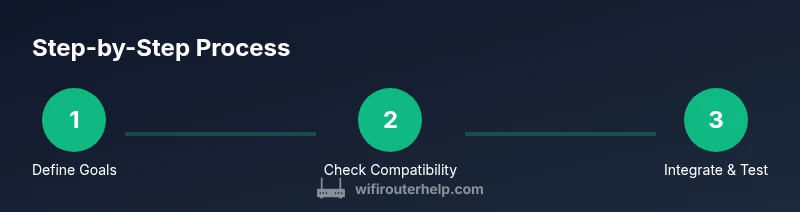
To integrate a second router effectively, you’ll first determine your goal, assess compatibility with your existing hardware, and decide on the deployment mode (AP, bridge, or separate NAT). Then you’ll plan placement for optimal coverage, physically connect the devices, and configure IP addressing and DHCP rules. After that, you’ll secure the network with updated firmware and strong credentials, test coverage with real devices, and refine settings based on results. This section lays out the practical steps in a clear order so you can execute confidently.
From a broader perspective, the process is as much about planning as it is about wiring. A well-placed second router in a central location on a higher floor, or near the edge of your current coverage, often yields the best results. Keep in mind that real-world performance depends on home layout, walls, and interference from neighboring networks.
Common pitfalls and troubleshooting
Double NAT is a frequent stumbling block when deploying a second router. If you’re unsure, start with bridge mode or AP mode on the secondary device to keep a single NAT layer. Firmware updates are critical; outdated firmware can cause connectivity instability or security risks. If the secondary router lacks an Ethernet WAN port, you may still place it behind the primary router using LAN-to-LAN or LAN-to-WAN with careful IP planning. Always verify that your primary router’s DHCP range does not conflict with the secondary device’s IP assignments. If you encounter slow speeds, check channel interference and verify firmware version, radio settings, and QoS rules. In all cases, document changes before you begin in case you need to roll back.
AUTHORITY SOURCES
- FCC: https://www.fcc.gov
- NIST: https://www.nist.gov
- CNET: https://www.cnet.com
For more, see the references cited in WiFi Router Help Analysis, 2026. These sources provide general guidance on network design and device interoperability, which can inform your decision on how to configure a second router.
Tools & Materials
- Second router(New device with at least one Gigabit LAN port; power adapter included)
- Ethernet cable (Cat5e or better)(At least 1 meter; longer for distant rooms)
- Power outlet near both devices(Surge-protected preferred)
- Computer or mobile device for admin access(Web browser or app to configure router)
- Your primary router's admin credentials(Needed to adjust LAN/DHCP and bridge/AP mode if applicable)
Steps
Estimated time: 60-90 minutes
- 1
Define your goal
Clarify whether you want broader coverage, faster speeds, better guest access, or IoT segmentation. A clear goal guides the choice of mode (AP, bridge, or separate NAT) and placement. This upfront step reduces rework later.
Tip: Write down 2-3 priority requirements (coverage, speed, security) before buying. - 2
Check compatibility
Confirm your new router supports AP or bridge mode and has at least one Gigabit LAN port. Ensure it can operate without causing double NAT, or that you can disable NAT by using bridge/AP mode on the right device.
Tip: If in doubt, choose a model advertised as dual-band with stable AP/bridge capabilities. - 3
Plan placement
Place the second router roughly halfway between the main router and the farthest corners of your home, preferably in a central elevated location to minimize wall interference.
Tip: Avoid wiring closets or behind metal appliances that block signals. - 4
Connect the devices
Power up both devices and connect the second router to the primary router with an Ethernet cable. If you’re using bridge or AP mode, connect to the LAN port of the primary router and to the WAN/port on the second if required by mode.
Tip: Use a labeled Ethernet run to simplify future troubleshooting. - 5
Configure IPs and DHCP
Disable DHCP on the second router if you’re using AP/Bridge mode; set a static IP within the primary router’s LAN range to avoid conflicts. If you keep NAT on the second router, ensure distinct subnets and manage routes carefully.
Tip: Document the IP scheme and DHCP ranges for quick reference. - 6
Secure and update
Update firmware on both devices, change default admin passwords, enable WPA3 if available, and review firewall settings. Create a separate guest network if you’re sharing access with visitors.
Tip: Enable automatic firmware updates if the feature is available. - 7
Test and refine
Test coverage by moving a phone or laptop to typical problem areas and running speed tests. Adjust channels and QoS rules based on results, and re-check for any double NAT issues.
Tip: Run multiple tests at different times to account for network congestion.
People Also Ask
Can I use any router as a second router?
Most routers can be repurposed as a second router or AP, but you’ll get the best results if you choose a model with AP/bridge mode and reliable firmware. Compatibility with your primary router matters for seamless integration.
Most routers can work, but pick one with AP or bridge mode for easier setup and better compatibility.
What is double NAT and should I avoid it?
Double NAT occurs when two devices perform network address translation, which can cause problems with port forwarding and gaming. In most cases, use bridge or AP mode on the second router to maintain a single NAT layer.
Double NAT can create issues; use bridge or AP mode to keep one NAT layer.
Is a mesh system better than a second router?
Mesh systems are simpler to manage for whole-home coverage but can be more expensive. A standalone second router in AP/bridge mode can deliver similar coverage at a lower cost and with more customization options.
Mesh is easier, but a second router can be cheaper and more flexible.
Do I need bridge mode for best results?
Bridge mode or AP mode typically yields the cleanest network with a single management interface. It reduces conflicts and simplifies settings when expanding coverage.
Bridge or AP mode is usually the simplest, most effective option.
How long does setup take?
Basic setup can take about 30–60 minutes, with additional time for testing and tweaking. More complex homes may require longer.
Expect about an hour for initial setup and testing.
What security steps should I take?
Update firmware, use strong passwords, enable WPA3 if available, and isolate IoT devices on a separate network when possible.
Update firmware and use strong passwords; isolate IoT devices if you can.
Watch Video
What to Remember
- Define your goals before buying.
- Choose AP/bridge mode to avoid double NAT.
- Place the second router for optimal coverage.
- Secure both devices and update firmware.