Can You Get Multiple Routers? A Practical Home Guide
Explore how to add more than one router at home, when to cascade or bridge, and how to configure for reliable coverage. WiFi Router Help explains setup steps, best practices, and safety.


Yes, you can run multiple routers in a home network. Common approaches include cascading routers with a wired backhaul, using a second router as an access point, or deploying a dedicated mesh system. Key requirements: a primary router, a second router with compatible firmware, Ethernet backhaul if possible, and careful DHCP/IP range planning.
Why You Might Want Multiple Routers
In larger homes, backyards, or apartments with thick walls, a single wireless router rarely provides perfect coverage. According to WiFi Router Help, many homeowners hit dead zones between floors or behind furniture. The WiFi Router Help team found that adding a second router can extend coverage, improve throughput for busy devices, and reduce congestion by segmenting traffic. If you ask can you get multiple routers, the short answer is yes, with the right topology and backhaul. The goal is to place equipment where it can talk to each other reliably, minimize interference, and keep the network simple enough to manage. You’ll also want to consider your internet speed, the size of your home, the number of devices, and your willingness to tinker with settings. In practice, most households benefit from a primary router that handles DHCP and NAT, paired with a secondary device used as an access point or as a dedicated backhaul point. With planning, you can achieve a stable, fast network that keeps smart lights, cameras, and laptops happily connected.
Common Topologies for Using Multiple Routers
There are several practical topologies you can choose from, depending on your goals and hardware. The simplest path is to place a second router in a dedicated zone like a far bedroom or basement and connect it back to the main router with Ethernet. If wiring isn’t feasible, you can still extend coverage with a second router positioned to pick up the best wireless signal, though this may require disabling NAT on the second device or configuring it as an access point. A third option is a full mesh system, which automatically coordinates multiple nodes for seamless roaming. When you ask can you get multiple routers, the best choice usually hinges on whether you can provide a solid backhaul and whether you want one or more common SSIDs for roaming or separate networks for guests and smart devices.
Cascading routers with Ethernet backhaul (the standard method)
Cascading routers with a wired backhaul is the most reliable approach. The primary router handles DHCP + NAT; the second router acts as a dedicated AP or backhaul bridge. This setup minimizes double NAT and supports strong, stable connections across rooms. To implement, place the second router within Ethernet reach of the main unit, connect LAN to LAN, and configure the second router in AP mode so it shares the same subnet. If you must keep two subnets, ensure devices can route between them. This topology is ideal for larger homes with wired outlets and avoids the most common pitfalls of wireless-only expansions.
Using a second router as an access point or wireless bridge
A second router can serve as a dedicated access point (AP) by disabling NAT and DHCP, effectively turning it into a high-performance wireless bridge. This approach preserves a single DHCP server and reduces routing complexity, which is helpful when you want consistent firewall policies and parent-controlled guest networks. When using AP mode, consider keeping a wired backhaul for best performance; if wireless bridging is your only option, set strict channel selection and ensure the AP is placed where signal strength is strongest. You’ll still want to test client roaming to minimize drops as you move around the house.
Mesh networks vs multiple routers: choosing the right solution
Mesh systems are designed to handle roaming and network management across large spaces with minimal configuration. If you’re starting fresh, a mesh system can be simpler and more scalable than configuring several standalone routers. However, if you already own capable routers and want to leverage them, multiple routers in AP or cascade mode can be cost-effective and highly customizable. The right choice depends on your home layout, budget, and willingness to maintain multiple devices. Can you get multiple routers? Yes, and the best configuration aligns with your backhaul availability and your preference for centralized management.
Planning, placement, and backhaul considerations
Effective placement is essential to maximize performance when using multiple routers. Aim to position devices away from thick walls, large metal appliances, and microwaves, and keep backhaul cables tidy to prevent accidental unplugging. For wired backhaul, run Ethernet cables in walls or along baseboards to connect routers via LAN ports. If you’re relying on wireless backhaul, ensure both routers support robust 802.11 standards and place them within two rooms of the main unit to minimize signal loss. Document locations and test speeds in each room to confirm coverage.
Real-world tips for consistent performance
Start with a plan: sketch your home layout and map where devices are used most. Use a single subnet when possible to simplify routing and IP management. Keep firmware up to date on all devices and remember to back up current configurations before making changes. If security is a concern, enable guest networks on the main router and extend them to the AP or mesh nodes as needed. Consistent labeling of ports and SSIDs helps you manage devices as your network grows.
Tools & Materials
- Second router (to be repurposed as AP or cascaded router)(Factory reset before starting; ensure it supports bridge/AP mode or cascaded operation.)
- Ethernet cables (Cat5e or better)(One for backhaul between primary and secondary routers; extra cables for flexibility.)
- Laptop or smartphone for configuration(Access routers' web UI or mobile apps; have admin credentials handy.)
- Power adapters for both routers(Keep spare adapters in case of misplacement.)
- Optional: Wi-Fi analyzer app(Useful for selecting channels and diagnosing interference.)
Steps
Estimated time: 45-90 minutes
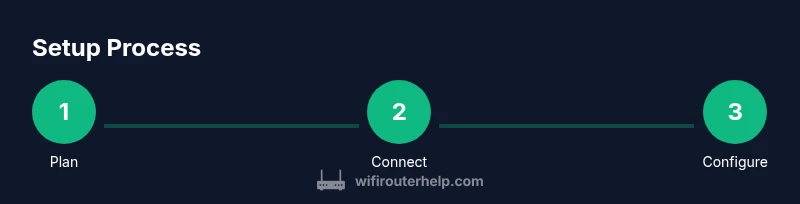
- 1
Decide topology
Choose whether you’ll cascade routers with wired backhaul, place a second router as an access point, or implement a mesh system. This decision guides all following steps and reduces rework.
Tip: Prefer wired backhaul when possible to maximize stability. - 2
Reset the second router
Power on the second router and perform a factory reset to wipe old configurations. This ensures a clean slate and avoids conflicts with existing network settings.
Tip: Label the reset button location for easy access later. - 3
Connect backhaul
Run an Ethernet cable from a LAN port on the main router to a LAN port on the second router. This wired link provides the most reliable performance for cascaded setups.
Tip: Use a cable with shielded connectors to reduce interference in active areas. - 4
Configure DHCP and mode
For AP mode, disable DHCP on the second router; for cascaded setups, keep DHCP only on the primary and set the second device to AP or bridge mode. This prevents IP conflicts.
Tip: If you must use a separate subnet, document the ranges clearly. - 5
Set up Wi‑Fi settings
Configure SSIDs and security on both devices. You can use the same SSID for seamless roaming or distinct networks for guests and IoT devices. Prioritize WPA3 if available.
Tip: Choose channels with minimal overlap using a Wi‑Fi analyzer app. - 6
Test and adjust
Test connectivity across rooms, streaming quality, and latency. Move devices and adjust router placement to optimize coverage. Document the final settings for easy future updates.
Tip: Run speed tests at peak device locations to verify performance. - 7
Secure and maintain
Update firmware on both routers, enable firewall features, and restrict access to admin interfaces. Regularly back up configurations and review connected devices.
Tip: Set a reminder to check firmware quarterly.
People Also Ask
Can I use an old router as a second router?
Yes, an old router can be repurposed as an AP or bridge if it supports the needed modes (AP/bridge). Reset it, disable NAT, and connect it via Ethernet for best results.
Yes, you can reuse an older router as an access point by enabling bridge or AP mode after a reset.
What’s the difference between a second router and an access point?
A second router performs routing functions like DHCP and NAT unless configured as an AP. An access point simply extends the existing network and relies on the primary router for IP management.
A second router can route traffic unless set to AP mode; an access point only extends the network.
Will adding multiple routers slow down my network?
Not necessarily. If wired backhaul is used and DHCP is properly configured, you can improve coverage without sacrificing speed. Wireless backhaul can introduce some latency, so placement matters.
It can, if backhaul is weak, but wired connections help keep speeds high.
How do I avoid double NAT with multiple routers?
Keep NAT on only the primary router. Set the second router to AP or bridge mode, or place it on a separate subnet with proper routing rules.
Disable NAT on the secondary device or use AP/bridge mode to prevent double NAT.
Is wireless backhaul acceptable for a multi-router setup?
Wireless backhaul can work, but it’s less reliable. If possible, use wired backhaul for best performance; optimize placement to maximize signal strength.
Wireless backhaul works but isn’t as stable as wired. Place devices well for the strongest signal.
Should I consider a mesh system instead of multiple routers?
Mesh systems are easier to manage and scale, especially in larger homes. If you already own compatible routers and enjoy hands-on configuration, multiple routers can be cost-effective.
Mesh is simpler for roaming; multiple routers can save money if you already own gear.
Watch Video
What to Remember
- Plan topology before buying gear
- Use wired backhaul for reliability
- Disable DHCP on secondary devices in cascade/bridge mode
- Test coverage and document settings