Can You Plug a Router Into a Router? A Practical Guide
Learn how to cascade routers safely, extend Wi‑Fi coverage, and avoid double NAT. This practical guide covers wiring, AP/bridge modes, and troubleshooting when can you plug a router into a router.


Yes. You can extend or segment your home network by connecting a secondary router to your primary router via Ethernet, then using AP/bridge mode or a carefully configured router setup. The goal matters: improve coverage, create a dedicated guest network, or separate IoT devices. WiFi Router Help outlines practical, safe methods for can you plug a router into a router.
What It Really Means to Cascade Routers
The question can you plug a router into a router often boils down to whether you want a second device that simply expands coverage or a second network that sits behind your main router. In practice, you’re wiring two routers to work together so devices can connect to the strongest signal, or to segregate traffic for better performance and security. According to WiFi Router Help, cascading two routers can be effective when done with proper IP planning, DHCP rules, and a clear role for each device. The key is to choose the right mode for the second router (AP/Bridge) or to deliberately run it as a separate router behind the primary with careful NAT configuration. When used correctly, this setup minimizes dead zones and helps you manage guest access, IoT devices, and gaming traffic without sacrificing reliability.
Common Scenarios and Goals
There are several legitimate reasons to cascade routers, and recognizing your goal helps you pick the right approach. If your sole objective is broader coverage, you’ll likely use AP or bridge mode so the second router acts as an access point. If you want a separate network for guests or IoT devices, you can keep both routers in their default router modes with controlled NAT and DHCP boundaries. WiFi Router Help’s analysis shows that a well-planned cascade can significantly improve wireless reach in larger homes, but it also introduces potential pitfalls like double NAT, IP conflicts, and increased management overhead. Plan your layout on paper first, mapping IP ranges, SSIDs, and firewall policies.
Connection Methods: LAN-to-LAN vs LAN-to-WAN
Two common physical connection methods exist when you plug a router into a router. LAN-to-LAN means you connect a LAN port on the primary router to a LAN port on the secondary router, typically used to extend the same network. LAN-to-WAN involves connecting the primary router’s LAN port to the secondary router’s WAN port, which creates a second network with its own NAT, useful when you want stronger isolation but adds complexity. The choice hinges on whether you want a single consolidated network (LAN-to-LAN) or two separate networks (LAN-to-WAN).
IP Addressing, DHCP, and Subnets
A critical area in can you plug a router into a router is IP addressing. You want a single, non-overlapping DHCP scope to avoid IP conflicts. Common practice is to assign a static IP to the second router within the primary router’s subnet (for example, 192.168.1.2 if the main router is 192.168.1.1) and disable DHCP on the second device when using AP/Bridge mode. If you keep both routers in router mode behind NAT, you’ll run two separate private networks, which can complicate file sharing and gaming. Clear subnet planning helps devices route correctly and reduces unnecessary traffic.
Security and Performance Considerations
Double NAT can impact certain online games, VPNs, and port-forwarding setups. If you need simple multi-device access, AP or Bridge mode is usually best and minimizes these issues. Security-wise, ensure both routers use WPA3 if available, disable universal WAN access to the admin interface, and keep firmware up to date. From a performance perspective, ensure cables are at least Cat5e and avoid long, lossy paths that degrade throughput. Regularly review channel usage and enable QoS for latency-sensitive applications.
Quick Troubleshooting Checklist
If things don’t behave as expected, start with the basics: confirm Ethernet cables are firmly seated, verify IP addresses don’t conflict, and check DHCP settings on both devices. Ensure the second router’s firmware is current. When subnets overlap, devices may fail to obtain an address or wander between networks. If you’re in AP/Bridge mode, re-check that DHCP is disabled on the second router and that the static IP you assign doesn’t collide with the primary router.
How to Stay on the Right Track with WiFi Router Help
The WiFi Router Help team emphasizes planning before you connect. Sketch your network map, label cables, and decide whether you want a single network or two separate ones. This preparation saves time and reduces the chance of misconfiguration. With careful setup, can you plug a router into a router becomes a straightforward path to better coverage and organized traffic.
Tools & Materials
- Primary router with admin access(Ensure firmware is up to date)
- Secondary router with LAN/WAN ports(Supports AP or Bridge mode if possible)
- Ethernet cables (Cat5e or better)(Multiple short cables recommended)
- A computer or smartphone for configuration(Access both admin interfaces)
- Labels or markers(For cable and IP mapping)
- Paper and pen for a quick network plan(Helpful to map IPs and SSIDs)
Steps
Estimated time: 30-60 minutes
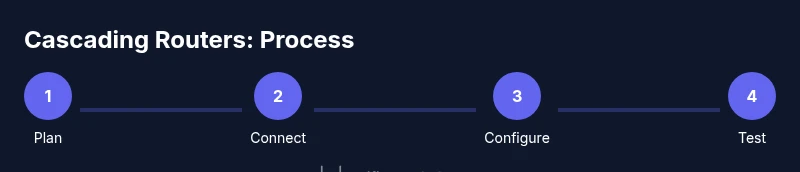
- 1
Define your goal and choose mode
Decide whether you want a single extended network (AP/Bridge mode) or two separate networks behind different NATs. The choice determines how you configure DHCP, NAT, and the WAN/LAN ports on the second router.
Tip: Label the goal clearly to guide the rest of the setup. - 2
Prepare the hardware and plan wiring
Power down both devices before connecting. Decide which Ethernet cables will run where, and keep a simple diagram of IP addresses and SSIDs to reference during setup.
Tip: Use short, high-quality cables and avoid crossed paths in your cabinet. - 3
Connect the routers (LAN-to-LAN or LAN-to-WAN)
For a single network, connect a LAN port on the primary to a LAN port on the secondary. For two networks, connect the primary LAN to the secondary WAN port. This basic wiring sets the foundation for your chosen mode.
Tip: If uncertain, start with LAN-to-LAN to test basic extension first. - 4
Configure the second router’s IP address
Assign a static IP to the second router within the primary router’s subnet (for example, 192.168.1.2 if the main router is 192.168.1.1). This avoids IP conflicts and makes admin access reliable.
Tip: Write down the IP you configure for quick access later. - 5
Set up DHCP and NAT according to mode
If using AP/Bridge mode, disable DHCP on the second router. If you’re creating a second network, keep DHCP on both but ensure non-overlapping ranges. Adjust NAT settings appropriately.
Tip: Avoid overlapping DHCP scopes; otherwise devices may fail to obtain an IP. - 6
Configure wireless settings and security
Set distinct SSIDs and strong WPA3 security where available. For a seamless experience, you may keep the same SSID on both devices, but if one device struggles with handoffs, use different names.
Tip: Assign different channels to reduce interference if both radios operate in the same area. - 7
Test connectivity and refine
Test wired and wireless clients, run speed tests, and verify services (VPN, gaming, streaming). If devices don’t see the internet, recheck IP ranges and DHCP settings.
Tip: Restart both devices after applying major changes to ensure new settings take effect.
People Also Ask
Do I need two routers if I already have good coverage?
Not always. If your current router covers your space well, cascading routers can add features like a dedicated guest network or IoT isolation without adding complexity. Use AP or Bridge mode to keep things simple.
Two routers aren’t always necessary. If coverage is sufficient, a single router with a guest network or QoS might suffice.
Can I have two different networks on the same home?
Yes. You can run two separate networks behind a primary router, each with its own DHCP scope. This is common for isolating IoT devices from main devices, but it adds management overhead.
Yes, but it can complicate management and sharing resources between networks.
What is double NAT and should I avoid it?
Double NAT happens when both routers perform network address translation. It can cause issues with port forwarding and some online services. Using AP/Bridge mode on the second router typically avoids double NAT.
Double NAT can cause problems with some apps and games; AP or Bridge mode often fixes it.
Is AP mode always the best option?
AP mode is usually the simplest path to extend coverage with a single network. If you need separate networks, you may opt for standard router mode with careful NAT rules.
AP mode is usually easiest for expansion; separate networks work if you need isolation.
What if my second router has no AP/Bridge option?
If there’s no AP/Bridge mode, disable DHCP on the second router and use it as a switch, ensuring IPs stay within the primary subnet. You’ll still need to manage wireless settings separately.
If there’s no AP mode, turn off DHCP on the second router and use it as a switch with its own wireless network name.
Can I plug a router into a modem/router combo device?
You can, but ensure the primary router is the one handling DHCP and NAT. The secondary router should ideally operate in AP mode or be configured as a separate network behind the main router.
Yes, you can, but you’ll want the main device to handle DHCP and NAT for simplicity.
Watch Video
What to Remember
- Plan before wiring to avoid misconfigurations.
- AP/Bridge mode simplifies setup and reduces NAT issues.
- DHCP and IP plans prevent IP conflicts.
- Two networks offer isolation but increase management complexity.
- Regular firmware updates improve reliability.