Can You Connect a Router to Another Router? A Complete Step-by-Step Guide
Learn how to extend your home network by connecting two routers. This step-by-step guide covers LAN-to-LAN, LAN-to-WAN, AP mode, IP planning, and troubleshooting. Includes tips, common pitfalls, and a clear path to reliable guest networks and better coverage. By WiFi Router Help.


Goal: learn how to connect a router to another router to extend Wi-Fi coverage or segment networks. You’ll choose between LAN-to-LAN and LAN-to-WAN topologies, decide whether to enable bridge or AP modes, and configure IP addressing and DHCP correctly. This guide also flags common mistakes—like double NAT—and provides step-by-step actions to verify connectivity and security.
Understanding why you might connect two routers
A second router can help extend Wi-Fi coverage, create a separate guest network, or segment devices for improved security. When someone asks can you connect a router to another router, the answer depends on your goals and the network you’re building. According to WiFi Router Help, the most reliable setups are either LAN-to-LAN cascades for coverage extension or LAN-to-WAN cascades when you want a separate routing domain. Before you wire anything, confirm your home layout, the number of devices, and your modem’s capabilities. This section explains why you’d consider a second router and how to decide between topologies.
In practice, you’ll want a clear idea of where coverage is weak and which devices require isolation or simple access. If you’re comfortable with basic network settings, you can achieve reliable expansion without adding complexity. If you’re unsure, start with a single extension point and test performance before wiring more routes. Keep in mind that the goal is to improve reliability, not to create new points of failure.
Throughout this section, you’ll see the central question: can you connect a router to another router in a way that preserves security, minimizes latency, and keeps administration straightforward? The answer is yes, with the right topology and careful configuration.
Topologies: bridging vs cascading vs AP mode
There are several ways to link two routers, each with different outcomes for performance and management. LAN-to-LAN (cascading) connects router A to router B over Ethernet and shares the same IP range, creating a single network. LAN-to-WAN creates a separate network behind router B, which can isolate guest devices but may introduce double NAT if misconfigured. Access Point (AP) mode turns the second router into a Wi-Fi extender without routing, simplifying IP management. When you ask can you connect a router to another router, choosing the right topology is the first big decision. More experienced users often prefer AP mode for simplicity, while cascaded LAN-to-LAN works well in larger homes.
Each topology has trade-offs:
- LAN-to-LAN: single subnet, easier management, fewer NAT issues, but all devices share the same DHCP range.
- LAN-to-WAN: separate subnet, better isolation, requires careful firewall and port forwarding planning.
- AP mode: best for simple extensions, minimal configuration, but you lose independent routing features. Consider your goals and device placement before wiring. A well-chosen topology reduces maintenance and improves overall performance.
Remember to document device roles and IP ranges so you can revert settings if something goes wrong.
Pre-flight checklist and gear
Before you touch any cables, gather the gear and confirm readiness. You’ll need two routers with Ethernet ports, a long Ethernet cable, and a computer or phone to access admin interfaces. Check for updated firmware on both devices and note down current Wi‑Fi names and passwords. If possible, plan a single, non-overlapping IP scheme (for example 192.168.1.x) and decide which router will handle DHCP. Having a clean starting point makes can you connect a router to another router much easier, reduces surprises, and speeds up troubleshooting.
Additional considerations:
- Keep both routers close to each other during setup to avoid miswiring.
- Use CAT5e or higher cables to ensure reliable speeds over longer runs.
- If you’re extending to a large area, consider the physical path of the cable to minimize interference and obstructions.
Once you’ve confirmed gear and firmware, you’re ready to choose a topology and begin the concrete configuration steps. This planning phase is essential to prevent double NAT, IP conflicts, or weak guest networks.
LAN-to-LAN configuration: set the stage for a single-network expansion
Lan-to-Lan (cascading) is a classic method to extend a network with a single subnet. Start by configuring Router A as the primary gateway connected to your modem. Leave Router A’s LAN IP at 192.168.1.1 and enable DHCP to serve devices on the network. For Router B, assign a static IP in the same subnet (e.g., 192.168.1.2) and disable its DHCP server. Connect Router A’s LAN port to Router B’s LAN port with a solid Ethernet cable. This preserves a single network address space and minimizes routing complexity. The key question, can you connect a router to another router in this setup, is addressed by ensuring both devices agree on subnet and IP ranges.
After wiring, reboot both routers and verify that clients connected to Router B can reach the Internet and reach devices on the main network. If issues arise, recheck IP assignments, ensure Ethernet ports are correct (LAN-to-LAN, not WAN-to-LAN), and confirm DHCP is only active on Router A. Make a note of device roles for future maintenance.
By maintaining a single subnet, you simplify management and reduce LAN traffic bottlenecks while ensuring compatible device discovery across the network.
LAN-to-WAN and AP mode considerations: when isolation matters
LAN-to-WAN topology creates a second network behind Router B, which is useful for isolating guest devices or segmenting IoT devices. To implement this, configure Router B as-router (Router mode) with its WAN port connected to Router A’s LAN, and ensure Router B obtains an IP in the Router A subnet or has a clearly defined separate IP range. You’ll likely need to manage port forwarding and firewall rules to reach services behind Router B. However, double NAT can complicate upstream services if you rely on inbound access.
AP mode, by contrast, disables Router B’s routing features and turns it into a bridge. In AP mode you disable DHCP on Router B, assign a static IP within the main subnet, and connect via a LAN port to the main network. This method yields the simplest extension with minimal configuration and avoids double NAT altogether. When you can you connect a router to another router, AP mode is often the easiest path for most households seeking better coverage with minimal headaches.
If you must use LAN-to-WAN for a specific reason (e.g., separate test networks or guest access with a distinct policy), document expected traffic flows and prepare to tune firewall and NAT settings on both devices. Test extensively to ensure essential services function as expected.
IP addressing, DHCP settings, and NAT planning for a smooth rollout
A robust IP-addressing plan is foundational when you connect two routers. Decide on a primary gateway subnet (for example 192.168.1.0/24) and reserve a small, predictable DHCP range for devices on the main network. If you use LAN-to-LAN topology, disable DHCP on the secondary router and set a static IP in the same subnet. This prevents IP conflicts and ensures device discovery works across both routers. If you must enable DHCP on both routers (LAN-to-WAN scenario), shrink DHCP scopes and set clear boundaries to avoid overlaps. In any case, ensure the default gateway and DNS settings point to the primary router to prevent confusion about where requests are routed.
Network address translation (NAT) planning is also critical. In AP mode or LAN-to-LAN, you typically want single‑NAT behavior to avoid double NAT and the associated port-forwarding challenges. Only introduce NAT on the secondary device if you have a specific reason (such as isolating a guest network with strict egress rules). Finally, document the final IP scheme and DHCP scope in a network map for future changes and audits.
As you can see, can you connect a router to another router hinges on a careful IP plan and consistent DHCP management. With a solid plan, you can avoid address conflicts and ensure smooth routing across your home network.
Wireless settings, channel selection, and performance tuning
Once your wired topology is in place, configure wireless settings to maximize coverage and minimize interference. For both routers, ensure SSIDs are clearly named and consider using different channels to reduce overlap. In a single-network LAN-to-LAN setup, you may choose the same SSID for seamless roaming, but if you experience roaming faults, consider distinct SSIDs and enable seamless handoff features if your devices support them. In LAN-to-WAN or AP modes, you may opt for different SSIDs to distinguish networks and apply guest access policies.
Security should not be an afterthought. Use WPA3 (or at least WPA2) with a strong password, disable WPS if supported, and review firewall rules on both devices. Update firmware to shore up security and stability. For performance, align 2.4 GHz and 5 GHz bands for appropriate devices, select non-overlapping channels, and ensure optimization for your home layout. If you’ve chosen an AP mode, limit interference by placing routers away from thick walls or heavy electronics. When you can connect two routers, proper wireless planning translates into reliable coverage and stable speed.
Troubleshooting and common pitfalls: double NAT, IP conflicts, and loops
Even with careful planning, issues can arise when extending a network with a second router. A common pitfall is double NAT, which occurs when both routers perform network address translation. This complicates port forwarding and can break some online services. If you encounter issues, re-check the topology (LAN-to-LAN vs LAN-to-WAN) and confirm that DHCP is only active on the primary router, or that NAT is configured appropriately if you’re using a LAN-to-WAN setup. IP conflicts are another frequent problem; ensure the second router doesn’t duplicate IPs within the DHCP range and that its static IP, if used, is outside the DHCP scope. Loops can occur if both devices are connected in a way that creates a feedback path; ensure the Ethernet cable runs from a LAN port to a LAN port (not WAN to LAN) in LAN-to-LAN setups.
Always reboot after major changes, clear old router caches, and re-test connectivity from multiple devices. If issues persist, isolate one variable at a time—first confirm the correct topology, then check IP addresses, then reboot to verify. With patience and methodical testing, you can find and fix most can you connect a router to another router issues quickly.
Performance optimization and final checks: clean, fast, and reliable
The final phase focuses on ensuring reliability and speed. Confirm that both routers are on the latest firmware, because updates often include security and performance improvements. Revisit your channel selection and ensure your 2.4 GHz band remains usable for older devices, while the 5 GHz band serves newer devices with higher speeds. If you’re sharing a single SSID across both routers, monitor handoff behavior and adjust settings to minimize disconnects as devices roam. For homes with many devices or a mixed mix of IoT gear, consider enabling QoS (Quality of Service) to prioritize critical applications like video conferencing and gaming.
Document the final network map, including IP addresses, DHCP ranges, and security settings. Periodically audit device firmware, check for new features (like mesh integration or improved guest networks), and keep your cables organized to simplify future changes. Finally, validate that devices can reach the Internet, access shared resources, and connect reliably to the network across both routers. A well-executed two-router setup should feel seamless to end users and resilient to everyday usage.
Final verification and troubleshooting checklist
Before concluding, perform a final, structured verification to ensure all aspects of the two-router setup work as intended. Check Internet connectivity from multiple devices on both routers, test access to shared devices (NAS, printers, etc.), and confirm that guest networks behave as expected if you set up a separate subnet. Re-run a speed test across both networks and measure latency to ensure no bottlenecks exist. If any service fails, retrace steps, review the topology chosen, and validate IP addressing and DHCP assignment. Regular maintenance, including firmware updates and periodic security checks, helps maintain a stable and secure two-router network. Remember: can you connect a router to another router is a solvable problem when you start with a clear topology and consistent IP/DHCP rules.
Troubleshooting practical checklists and next steps
If you still face issues after following the above sections, consult the official manuals for both routers, check for known compatibility notes, and search for model-specific guidance on can you connect a router to another router. Revisit the physical layout and cable quality if performance lags, and consider a mid‑step upgrade to higher-end hardware if coverage remains insufficient. With careful planning and testing, you can achieve robust, scalable home networking using two routers that meet your needs.
Tools & Materials
- Two routers (with Ethernet ports)(One will be the primary gateway; the other will extend coverage or host a separate network)
- Cat5e/Cat6 Ethernet cable(At least 1–2 meters for initial testing; longer as needed for device placement)
- Computer or smartphone for admin access(Used to log into each router’s web interface or app)
- Firmware updates(Ensure both routers run the latest available firmware)
- Notebook or network diagram(Document IP ranges, SSIDs, and password details)
Steps
Estimated time: 60-120 minutes
- 1
Decide topology and prepare gear
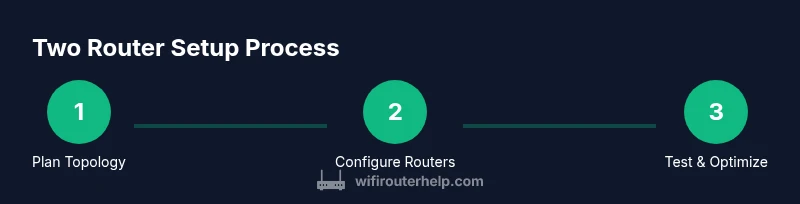
Choose between LAN-to-LAN, LAN-to-WAN, or AP mode based on your goals (extension, isolation, or simplicity). Gather both routers, a suitable Ethernet cable, and a device to access admin interfaces. Label cables and note current network details to prevent misconfiguration.
Tip: Label the primary router's LAN and the secondary router's LAN ports to avoid mixing ports during the setup. - 2
Configure the primary router (Router A) for base networking
Connect Router A to the modem. Ensure DHCP is enabled on Router A and set its LAN IP to a stable address (e.g., 192.168.1.1). Save settings and reboot to apply.
Tip: Record the IP address and DHCP range for reference during later steps. - 3
Configure the secondary router for the chosen topology
If you’re using LAN-to-LAN, set Router B to a fixed IP in the same subnet (e.g., 192.168.1.2) and disable DHCP. If using AP mode, disable DHCP on Router B and use a fixed IP in the same subnet. Leave WAN disabled or unused for AP mode.
Tip: Ensure Router B’s IP is not within Router A’s DHCP range to avoid conflicts. - 4
Create the physical link between routers
Use an Ethernet cable to connect a LAN port on Router A to a LAN port on Router B (for LAN-to-LAN) or to Router B’s LAN port if using AP mode. Avoid WAN ports for this link in LAN-to-LAN setups.
Tip: Test the cable by swapping with a known-good cable if issues arise. - 5
Power cycle and verify basic connectivity
Reboot both routers and verify devices connected to Router B can reach the Internet and resolve internal resources. Check that devices on both routers can see each other.
Tip: Ping test: from a client on Router B, ping 192.168.1.1 (Router A) and a known external site. - 6
Tune wireless and security settings
Configure consistent SSIDs if desired, adjust channels to minimize interference, and enable WPA3 (or WPA2) with a strong password. Update firmware on both routers if needed.
Tip: If roaming issues occur, consider separate SSIDs for each router during initial testing, then unify later if performance is stable.
People Also Ask
Can you connect a router to another router to extend Wi‑Fi?
Yes. You can extend coverage by connecting two routers either in LAN-to-LAN (single subnet) or LAN-to-WAN (separate subnet) configurations. AP mode is often the simplest path for extending without routing complexity.
Yes, you can connect two routers to extend your network. Use LAN-to-LAN for a single network or AP mode for a simple extension.
What’s the difference between LAN-to-LAN and LAN-to-WAN topologies?
LAN-to-LAN keeps one network, which simplifies management and avoids double NAT. LAN-to-WAN creates a separate network behind the second router, adding isolation but potentially more NAT complexity and port-forwarding setup.
LAN-to-LAN uses one network; LAN-to-WAN creates two networks and more NAT work.
Do I need to disable DHCP on the second router?
Typically yes when using LAN-to-LAN or AP mode. Disabling DHCP on the second router prevents IP conflicts and keeps routing centralized on the primary router.
Usually you should disable DHCP on the second router when extending your network.
Will connecting two routers cause a double NAT issue?
Double NAT can occur in LAN-to-WAN configurations. If you want a clean single NAT, use LAN-to-LAN or AP mode and disable DHCP on the secondary router.
Double NAT can happen with LAN-to-WAN; prefer LAN-to-LAN or AP mode to avoid it.
Can I use a wireless link instead of Ethernet to connect the second router?
Wireless backhaul is possible but not recommended for reliable performance due to interference and lower speeds. A wired Ethernet link yields the best stability.
You can use wireless, but wired Ethernet is more reliable.
What cables do I need to connect two routers?
A standard Ethernet cable (Cat5e or higher) is sufficient for the inter-router link. Avoid using a WAN port for LAN-to-LAN connections to prevent routing loops.
Use a good Ethernet cable; connect LAN-to-LAN ports for a single network.
Watch Video
What to Remember
- Plan topology before wiring to avoid double NAT.
- Use LAN-to-LAN for a single-subnet extension when possible.
- Disable DHCP on the secondary device in AP or LAN-to-LAN mode.
- Test connectivity after each change for reliability.
- Keep firmware updated and document settings for future changes.