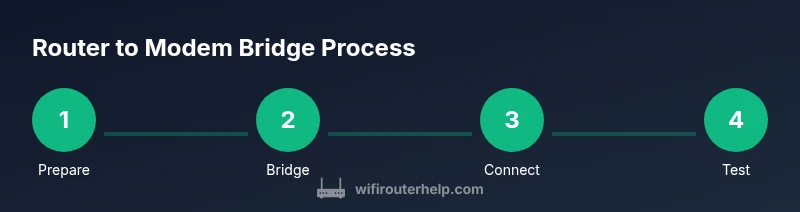
Router to Modem Bridge Setup: A Step-by-Step Guide
Learn how to connect a router to a modem, enable bridge mode, and optimize your home network. This expert guide covers setup, troubleshooting, and best practices from WiFi Router Help.


By connecting your router to the modem, you hand control of your home network back to your router, improving features like QoS, guest networks, and parental controls. To do this, place the modem in bridge mode if supported; otherwise disable its router function and connect the router’s WAN port to the modem. Expect a brief downtime during the switch.
What bridging means for your home network
Bridging the router to modem creates a clearer path for traffic and reduces double NAT, so the router can manage IPs, firewall rules, and WiFi features. According to WiFi Router Help, bridging a router to modem properly improves stability and control across devices. This approach is especially helpful in homes with multiple wireless clients, smart home hubs, and gaming consoles. When you bridge, your devices typically receive their IPs from your router, not the ISP gateway, which simplifies port forwarding and QoS. Keep in mind that bridging can temporarily interrupt service and may require reconfiguring some advanced features, so plan a maintenance window.
Key concepts: bridge mode, passthrough, and double NAT
Understanding bridge mode helps you decide between passthrough and full routing on your network. When the modem is in bridge mode (or its routing is turned off), the router handles DHCP, NAT, and firewall rules. This eliminates the double NAT scenario that can complicate online gaming or VPNs. If you see multiple networks or inconsistent IPs, you may still be dealing with double NAT and should revisit the bridge configuration and device placement.
How to connect your router to the modem: a clear path forward
The core action is straightforward: connect the router’s WAN (or Internet) port to the modem using a stable Ethernet cable, then adjust WAN settings to match your ISP. If the modem supports bridge mode, enable it; if not, disable the modem’s routing functionality and assign the router as the primary gateway. After wiring, reboot both devices to ensure the router receives a fresh WAN IP and can start distributing addresses to your devices.
Troubleshooting common issues during the switch
Downtime during the switch is normal, and you may temporarily lose connectivity during reconfiguration. Common problems include no internet after reboot, devices not receiving IP addresses, or persistent double NAT indicators. Confirm cabling, verify the WAN status in the router's admin page, and check that DHCP is enabled on the router while the modem remains in bridge mode or is disabled as a gateway. If issues persist, re-check ISP login details and WAN type (DHCP vs PPPoE) and test with a direct PC connection.
After-setup optimization: getting the most from your router
Once the bridge is working, optimize your network with updated firmware, strong WiFi security, and clear SSIDs. Enable QoS for latency-sensitive devices, set up guest networks, and review firewall rules. Regularly test speeds at different times of day and consider a mesh system if coverage is spotty in larger homes. Documentation of changes helps future troubleshooting and ensures you can revert quickly if needed.
Tools & Materials
- Modem (ISP gateway)(In bridge mode or with its routing disabled)
- Router(Be configured for DHCP/NAT and WiFi)
- Ethernet cable (Cat5e or better)(For the WAN connection between modem and router)
- Computer or smartphone(To access admin interfaces)
- ISP credentials (if PPPoE)(Needed if your ISP uses PPPoE)
- Current configuration backup(Back up settings before changes)
Steps
Estimated time: 20-40 minutes
- 1
Prepare and backup
Gather equipment and back up current modem/router settings. This ensures you can restore configurations if something goes wrong during the bridge process.
Tip: Document existing WAN settings and note ISP login if PPPoE is used. - 2
Enable bridge mode or disable routing on modem
Access the modem's admin interface and enable bridge mode if available; if not, disable its routing features entirely to prevent conflicts with your router.
Tip: If your modem lacks bridge mode, check for a passthrough option or contact your ISP for guidance. - 3
Connect the router to the modem
Plug the router’s WAN port into the modem with a reliable Ethernet cable. Power cycle both devices to ensure the router gets a fresh WAN IP.
Tip: Keep the cable length reasonable to avoid signal loss; avoid using USB dongles for WAN connectivity. - 4
Configure WAN settings on the router
In the router’s admin panel, set the WAN type to DHCP or PPPoE based on your ISP. Enter credentials if required and ensure NAT is enabled.
Tip: If using PPPoE, enter your ISP-provided username and password exactly as given. - 5
Test, verify, and adjust
Test connectivity from multiple devices, verify IPs come from the router, and check for double NAT indicators. Adjust DHCP ranges and QoS as needed.
Tip: Use a wired device first to confirm stability before testing WiFi devices.
People Also Ask
Do I always need to enable bridge mode on the modem?
Not always. If your modem supports bridge mode, enable it to avoid double NAT. If not, disabling its routing or using passthrough can be alternatives. Always follow your ISP's guidance.
Bridge mode isn’t always required, but it helps avoid double NAT when possible.
How can I tell if bridging worked?
Check that your devices obtain IPs from the router, and verify the modem is not performing NAT. Use an online IP checker or the router's status page to confirm the WAN IP is assigned by the router. If you see two active gateways, reevaluate bridge settings.
Look for the router as the primary gateway and a single NAT router in use.
What if my modem doesn't support bridge mode?
If your modem lacks bridge mode, contact your ISP for a passthrough option or use DMZ to isolate the router. In some cases, you may need to replace or upgrade the gateway device.
If bridge mode isn’t available, talk to your ISP about passthrough or alternatives.
Will bridging affect speeds or WiFi?
Bridging itself doesn’t reduce hardware speed; performance depends on the router, the internet plan, and wireless setup. Ensure firmware is current and that you’re not bottlenecked by outdated hardware or misconfigured QoS.
Speed depends on your router and network setup, not bridging alone.
How long does the process take?
Expect 15-30 minutes for a straightforward bridge, longer if you troubleshoot issues. Have a backup plan in case you need to revert changes.
Usually about 15 to 30 minutes, depending on devices.
Should I disable the modem’s WiFi during bridging?
Yes. Disable the modem’s WiFi to avoid interference and ensure all traffic routes through your router. If you need a separate network, you can enable AP mode on the router instead.
Yes—turn off the gateway’s WiFi when bridging for clean routing.
Watch Video
What to Remember
- Bridge mode centralizes routing on your router.
- Plan downtime and backup settings before changes.
- Verify WAN/IP assignment after wiring.
- Check for double NAT and adjust if necessary.
- Optimize with firmware updates and QoS.