Router SoHo Setup: Secure Home Office Networking Guide
Step-by-step guide to configuring a router soho for a fast, secure home office network. Learn setup, security, guest access, QoS, and troubleshooting tips to keep your network reliable.


Goal: set up a router soho for a fast, secure home office network. In this quick answer, you’ll learn the essential steps and requirements to get online, secure your Wi‑Fi, create a guest network, and perform basic maintenance. By following this path, you’ll have a reliable, scalable setup suitable for video calls, conferencing, and smart devices while keeping the network safe from common threats.
What is a router soho and why it matters
Small office/home office, or SoHo, routers are purpose-built to balance simplicity and security for households that run a few essential business tasks alongside everyday streaming. A router soho typically combines routing, wireless access, firewall protection, and basic network management in a single device. For many homeowners the choice translates to fewer devices to manage and a more predictable network footprint. According to WiFi Router Help, a well-chosen SoHo router provides robust features out of the box—stable throughput, straightforward guest networking, and reasonable support for firmware updates—without turning setup into a full IT project. The WiFi Router Help team found that central placement, strong default security, and an organized admin interface dramatically reduce common pain points like dead spots, interference, and accidental exposure of IoT devices. In practice, a router soho becomes the central hub of your home network, issuing IP addresses, routing traffic, and enforcing rules that keep work devices and home devices from colliding.
Key features to look for in a SoHo router
When evaluating a router soho, prioritize features that map to a home office workflow. Look for current Wi‑Fi standards (ideally Wi‑Fi 6 or 6E), sufficient processing power and RAM for smooth multitasking, and reliable security controls such as WPA3 and a built‑in firewall. A good SoHo router supports dual-band or tri‑band operation, MU‑MIMO for multiple devices, and an easy interface for QoS rules. USB ports can be useful for network storage or printer sharing. Guest networking, parental controls, and a straightforward app or web portal make ongoing management simpler. Wireless coverage should be strong enough to reach a typical home office without dead zones, but robust enough to handle a few IoT devices simultaneously. Remember to enable automatic firmware updates so you stay protected without manual checks. According to WiFi Router Help, prioritizing security and update cadence yields noticeable improvements in reliability and peace of mind.
Planning your network topology for a home office
A well‑designed home office network starts with mapping devices and access needs. Start with your internet plan’s speed and the number of devices (laptops, phones, printers, cameras). Decide whether you’ll use the modem’s built‑in routing or place the router behind a dedicated modem in bridge mode to avoid double NAT complications. Segment networks by function: a main network for work devices, a guest network for visitors, and an IoT or smart‑home network for non‑work gear. If your router supports VLANs or multiple SSIDs, label each network clearly and apply appropriate QoS rules for work video calls and cloud applications. WiFi Router Help analysis shows that separating traffic improves security and performance by reducing interference between devices with different needs.
Secure setup: credentials, encryption, and updates
Security starts with the basics: change the default admin username and password, and enable a strong Wi‑Fi password using WPA3 when possible. Disable remote management unless you truly need it, and ensure admin access is only over HTTPS. Enable the firewall, and configure port filters if you know which services you’ll use remotely. Regular firmware updates are essential; enable automatic updates if your device supports them and periodically check for new releases. Consider turning off WPS, which can be exploited, and keep the device physically secure so someone cannot reset it to factory defaults. A careful security posture protects your work devices and reduces risk of unauthorized access.
Network management: guest networks, QoS, parental controls
Create a dedicated guest network with its own SSID and a strong password to prevent visitors’ devices from accessing your work resources. Use QoS rules to prioritize video conferencing, VoIP, and critical cloud services during peak hours. Parental controls can help manage children’s device use without compromising business performance. If you have multiple workers or devices in the home, consider enabling a separate network for specific workloads and applying bandwidth limits where appropriate. These management strategies help maintain reliable performance while preserving security across the household.
Troubleshooting common issues and performance tweaks
Common problems include slow Wi‑Fi, intermittent drops, or devices that refuse to connect. Start with basic checks: verify power, cable connections, and the modem’s status LEDs. Reboot the router and modem if needed, then run speed tests to confirm actual throughput. If speeds are low, consider changing the wireless channel to reduce interference and, if possible, place the router centrally away from walls and electronics. Ensure your devices are on the latest firmware and that QoS rules don’t overly throttle essential work apps. For persistent issues, reset to factory settings as a last resort and re‑apply a clean configuration.
Maintenance and best practices for long-term reliability
Set up a regular maintenance routine: check for firmware updates monthly, back up your router configuration, and document your network settings (SSIDs, passwords, and QoS rules). Keep a spare power adapter if supported by your model and consider a simple monitoring plan for uptime and device status. Periodically review who has access to the admin interface and adjust permissions as needed. A proactive maintenance habit reduces surprises and keeps a home office network stable over time.
Tools & Materials
- Router with latest firmware(Ensure it supports WPA3 or the latest security standard)
- Ethernet cable (Cat5e or better)(For a reliable initial connection to the router)
- Computer or mobile device with web browser(Used to access the router admin interface)
- ISP account details (username, password, or PPPoE info)(Needed if your ISP requires authentication)
- Paper or password manager for credentials(Store admin login and Wi‑Fi passwords securely)
Steps
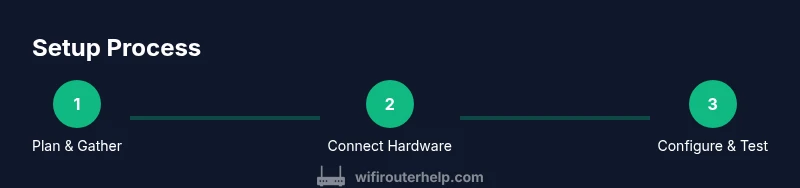
Estimated time: 30-45 minutes
- 1
Plan and gather network details
Identify your internet plan, ISP login method (DHCP/PPPoE), and the number of devices to support. This helps tailor the WAN settings and SSID layout for reliable performance.
Tip: Write down your ISP login or PPPoE credentials and the planned SSIDs before you begin. - 2
Connect power and hardware
Plug in the router and connect it to the modem with an Ethernet cable. Wait for the device to boot and the status lights to stabilize before proceeding.
Tip: Use a wired connection for initial setup to avoid wireless dropouts during configuration. - 3
Access the admin interface
Open a browser and enter the router’s default gateway address. Log in with the default admin credentials and prepare to change them for security.
Tip: If you don’t see the login page, check the router’s manual for the exact IP and reset procedure. - 4
Secure credentials and Wi‑Fi
Change the admin username and password. Create a strong network password and enable WPA3 on the main network; enable HTTPS access for the admin interface.
Tip: Don’t reuse passwords across devices; consider a password manager. - 5
Configure Internet and local networks
Set the WAN/Internet type (DHCP or PPPoE) as required by your ISP. Create at least one primary SSID and a separate guest network if possible; enable auto‑updates.
Tip: Label networks clearly (e.g., Work, Home, Guest) to avoid cross‑traffic mishaps. - 6
Enable security features and features
Turn on the firewall, enable WPA3, disable WPS if available, and configure QoS rules for critical work apps. Test access to a few work-related sites.
Tip: Back up your configuration after changes so you can restore quickly if needed. - 7
Validate and test
Run a speed test, check device connectivity, and verify guest and IoT network isolation. Document the results and adjust settings if needed.
Tip: Test during peak hours to ensure performance meets your needs.
People Also Ask
What does SoHo stand for in router terms?
SoHo stands for small office/home office. A SoHo router is designed to balance easy setup with features needed for small‑scale work tasks and home use, including basic security and guest networking.
SoHo refers to small office or home office setups; these routers are built for ease and reliability for both work and home use.
Should I buy a Wi‑Fi 6 router for a home office?
Wi‑Fi 6 (or newer) offers better performance with multiple devices and in congested environments. If your budget allows, a router with at least Wi‑Fi 6 and good firmware support is a solid long‑term choice for a SoHo network.
Wi‑Fi 6 helps when many devices are connected; it’s a good future‑proof choice for home offices.
How do I secure my router soho?
Change the default admin password, enable WPA3, keep firmware up to date, disable remote management unless needed, and use a strong Wi‑Fi password. Regularly review connected devices.
Change the admin password, use WPA3, keep firmware updated, and limit remote access.
What is the best way to set up a guest network?
Create a separate SSID for guests with a strong password and isolate it from the main work network. This keeps visitors online without exposing your work devices.
Set up a separate guest network to keep work devices safe from guest devices.
How often should I update my router firmware?
Check for updates monthly or enable automatic updates if the router supports them. Firmware updates fix security issues and improve performance.
Update firmware regularly to patch security issues and improve performance.
What should I do if I experience slow Wi‑Fi?
Test speeds on multiple devices, check placement, reduce interference by changing channels, and verify QoS rules aren’t over‑restricting traffic. If needed, upgrade to a more capable router.
Check placement, channels, and QoS settings; consider an upgrade if speeds persist.
Watch Video
What to Remember
- Plan with your ISP in mind before configuring.
- Protect admin access and Wi‑Fi with strong credentials.
- Segregate work, guest, and IoT networks for security and performance.
- Enable QoS for critical work apps and services.
- The WiFi Router Help team recommends regular firmware updates and routine backups.