SoHo Router Setup and Optimization: A Practical Guide
Learn how to select, set up, and optimize a soho router for reliable home office networking. This guide covers setup steps, security practices, and troubleshooting to keep your business-grade home network stable.


Learn how to configure a soho router to deliver reliable Wi‑Fi for a home office. This quick guide covers selecting the right model, enabling essential features, and a practical setup workflow. You’ll also learn security best practices, basic network hardening, and simple troubleshooting steps to keep your connection stable. No jargon—clear, actionable steps.
What is a soho router and why you need one for a home office
A soho router, short for small office/home office router, is designed to manage a modest network with features tailored for small spaces and multiple devices. According to WiFi Router Help, these devices balance performance, ease of use, and security for a reliable work-from-home setup. A typical configuration combines a broadband modem, a dedicated router, and ongoing firmware support to keep devices connected reliably.
For most home offices, a soho router provides a single point of management, guest networks, device prioritization, and straightforward security options. It replaces consumer-only devices that can stall under load and offers better control over bandwidth, latency, and the number of connected clients. The goal is to deliver stable Wi‑Fi across desks, printers, VoIP phones, and collaboration apps without constant tinkering. WiFi Router Help analysis shows that a well-chosen model, paired with a thoughtful placement and routine maintenance, dramatically improves uptime and user experience. The result is a network that feels professional rather than frustrating. As you read, you’ll learn how to pick the right features, place the router for best signal, and configure settings that protect sensitive work devices while simplifying everyday use. The WiFi Router Help team recommends starting with a model that supports both 2.4 GHz and 5 GHz bands, plus robust security features to guard work devices.
Essential features that maximize reliability
Reliability in a home office network hinges on the right mix of features. Look for dual‑band (2.4 GHz and 5 GHz) support, with the option for a second 5 GHz band if you plan to expand. MU‑MIMO and OFDMA can improve capacity when multiple devices stream video or participate in video conferences. QoS (Quality of Service) helps prioritize work apps like VoIP and collaboration tools, while built‑in VPN support can protect sensitive data when working remotely. A solid firewall, WPA3 encryption, and the option to disable WPS add layers of protection. USB ports on the router can enable local storage sharing or a small network printer, though you should disable unnecessary services to minimize attack surfaces. If you share a guest network, ensure it’s segregated from your main workspace. In WiFi Router Help’s experience, investing in a router with good firmware support and automatic security updates pays off in long‑term stability and fewer reboots. Based on WiFi Router Help research, modern routers with strong QoS and security features consistently outperform older models in small offices.
Planning your network layout for a small office
Placement matters. Position the router centrally in your workspace, elevated off the floor, and away from metal objects, microwaves, and dense walls that can block signals. If possible, place the router at least a few feet from devices that emit interference and near the center of your work area to minimize dead zones. Consider a mesh or range extender only if you must cover a larger area or multiple floors; otherwise, a single well‑placed soho router often suffices. Channel selection is critical: use a 2.4 GHz channel that’s not congested by neighboring networks and a 5 GHz channel with minimal interference. If you live in a dense apartment building, enabling band steering can help devices connect to the best band automatically. A well‑planned layout reduces dropouts and keeps conferencing apps stable, which is essential for a productive home office.
Step-by-step setup workflow for a new device
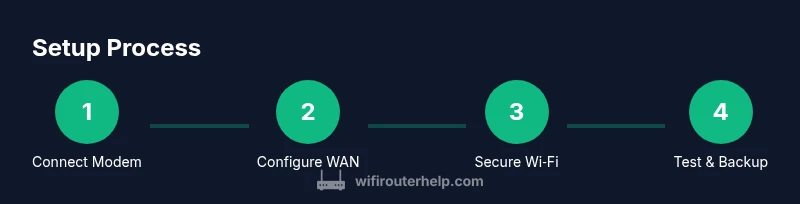
A clear, repeatable setup workflow minimizes headaches when you replace or upgrade your hardware. Start with basic hardware checks and then configure the modem‑to‑router connection, login, firmware, and wireless settings. Keep a simple diagram of your layout to guide placement and cabling. Finally, test the network from multiple devices and rooms to confirm coverage and performance. If issues arise, a methodical approach—checking cabling, power, and firmware version—saves time and avoids guesswork. With a well‑documented workflow, you’ll reduce downtime and maintain a stable home‑office network.
Security, privacy, and ongoing maintenance
Security should be baked into every step of your setup. Change the default admin password and disable remote management unless you need it for specific reasons. Enable WPA3 encryption and use strong, unique passphrases for each network. Regular firmware updates are essential; enable automatic updates if available and back up your router configuration after major changes. Create a separate guest network for visitors and IoT devices, and consider disabling UPnP if you don’t need it for gaming consoles or printers. Periodically review connected devices and adjust QoS rules as your work‑from‑home needs evolve. Finally, keep a simple maintenance routine: quarterly recheck firmware, review security settings, and test your backup pathways for critical devices.
Troubleshooting common issues and when to upgrade
Even the best soho router can run into snags. Common problems include slow Wi‑Fi, inconsistent coverage, and devices dropping offline. Start by checking power, cables, and the WAN link, then verify firmware is current. If performance issues persist, examine channel congestion, adjust band preferences, and test with a wired LAN connection to isolate wireless vs. routing problems. If you consistently hit device limits or have a growing home office, upgrading to a higher‑capacity model with greater CPU power, more RAM, and enhanced QoS options can dramatically improve stability and speed. Note that a clear upgrade path — from entry‑level to mid‑range to premium — helps you balance cost and performance. The WiFi Router Help team recommends keeping a forward‑looking plan: upgrade when you add professionals or devices that strain your current setup.
Real-world scenarios and case studies
Consider a two‑person home office that runs videoconferences, online backups, and multiple smart devices. A moderate soho router with dual‑band support and QoS handles these tasks smoothly, keeping jitter and packet loss low during peak hours. Another case involves a small home business with a dedicated printer and several IoT gadgets. A router with robust guest network options and client isolation helps keep business devices separate from IoT traffic, reducing risk and improving performance. If you frequently work from a coffee shop or client sites, you’ll appreciate VPN support and secure remote access features. In all cases, placement and firmware updates matter as much as hardware specs. The WiFi Router Help team would highlight the importance of ongoing maintenance and mindful network design to sustain performance over time.
Final recommendations and call to action
For most home offices, a modern soho router with dual‑band support, solid QoS, and strong security features will meet needs today and scale as your bandwidth grows. Start with a model that offers firmware updates, good crash resilience, and intuitive management tools. Regular maintenance, smart placement, and disciplined security practices will preserve performance. The WiFi Router Help team recommends beginning with a reputable mid‑range model if you’re upgrading from an older device, then reassess after 6–12 months as your network evolves. By following this guide, you’ll enjoy reliable, secure, and predictable home‑office networking.
Tools & Materials
- Modem (ISP provided or third‑party)(Ensure compatibility and consider bridging in some setups.)
- SoHo router(Model with dual‑band support and current security features.)
- Ethernet cable (Cat5e/Cat6)(For wired connections and initial setup.)
- Computer or smartphone(Access the router’s admin UI and test the network.)
- Power strip with surge protection(Recommended for safety and convenience.)
- ISP credentials (if PPPoE or similar)(Only needed if your ISP requires login.)
- Network diagram or notebook(Helpful for planning placement and documenting settings.)
Steps
Estimated time: 60-90 minutes
- 1
Connect the modem to the router's WAN port
Power on the modem, then connect its Ethernet output to the router’s Internet (WAN) port. This establishes the path from your internet service to the home network. Check the LED indicators to confirm a link and activity.
Tip: Label the ports on the devices to avoid confusion during future maintenance. - 2
Access the router’s administration page
From a connected computer or smartphone, open a web browser and enter the router’s default IP address. Log in with the initial credentials provided in the manual, or your own if you’ve changed them before. If you can’t reach the UI, reset the device and try again.
Tip: Use a wired connection for reliability during setup to prevent wireless drops. - 3
Update firmware to the latest version
Navigate to the firmware update section and install the latest stable release. Back up the current configuration before applying updates. Firmware updates often fix bugs and close security gaps that could otherwise expose your work devices.
Tip: Enable automatic updates if available to keep security current. - 4
Configure WAN/Internet settings
Set the Internet connection type (DHCP by default for most ISPs; PPPoE if your service requires it) and verify the WAN status. Apply changes and confirm that the router obtains a public IP address. Reboot if needed to ensure settings take effect.
Tip: Note your ISP login details if PPPoE is required; misconfiguration will block internet access. - 5
Set up wireless networks (SSID and password)
Create a unique SSID for 2.4 GHz and 5 GHz bands (consider separate names). Use strong, unique passphrases and enable WPA3 if available. Consider enabling a guest network with client isolation for visitors.
Tip: Avoid common SSIDs; use a password manager to store and share credentials securely. - 6
Enable security features and harden the admin interface
Change the default admin password, disable remote management unless needed, and enable a router‑level firewall. Turn off UPnP if not required for your devices. Review connected devices and remove unknown ones.
Tip: Document the admin password in a secure password manager. - 7
Test connectivity and optimize channels
Run wired and wireless speed tests from multiple locations. If speeds are suboptimal, manually select least congested channels for 2.4 GHz and 5 GHz. Renew DHCP leases if devices show IP conflicts.
Tip: Use a Wi‑Fi analyzer app to see channel congestion in your area. - 8
Back up configuration
Export the current router configuration to a safe location. This makes it easy to restore in case of a reset or replacement. Re‑test after saving to confirm the backup integrity.
Tip: Store backups offline or in a secure cloud location.
People Also Ask
What is a soho router, and how does it differ from consumer routers?
A soho router is designed for small offices or home offices and offers more robust features, better security, and simpler management than many basic consumer routers. It supports multiple devices, QoS, and often VPN or more advanced configuration options. This makes it a better fit for professional use while remaining approachable for non‑specialists.
A soho router is built for small offices, with stronger features and better management than typical consumer gear. It helps keep work devices secure and connected reliably.
How do I know if I need to upgrade my router?
Consider upgrading if you notice frequent disconnects, slow conferencing apps, or new devices overstressing your current hardware. If you’ve expanded to multiple work devices, require guest networks, or need VPN support, a new soho router can offer a meaningful performance boost.
Upgrade if you’re seeing slow video calls or many devices; modern features will help your workflow.
Can I run a VPN on a soho router?
Many soho routers support VPN server or client functions, which helps protect remote connections and data. Check that your chosen model offers reputable VPN options and that it’s compatible with your devices and ISP. If VPN is essential, verify throughput expectations before buying.
Yes, many soho routers offer VPN capabilities; verify compatibility and performance.
Should I enable a guest network?
Yes. A guest network isolates visitors and IoT traffic from your main work devices, reducing risk and improving manageability. Use a separate password and enable client isolation so guests cannot access your LAN resources.
Guest networks improve security by isolating visitors from your work devices.
How often should I update router firmware?
Check for updates monthly or enable automatic updates if available. Regular updates fix security flaws and improve compatibility with new devices. Always back up your configuration before applying updates.
Update firmware regularly and back up settings before installing.
What cables or adapters do I need for a reliable setup?
Use Ethernet cables (Cat5e or Cat6) for the wired backbone and testing. Wireless performance relies on quality hardware and placement, but a solid wired link helps during setup and troubleshooting.
Cat5e or Cat6 Ethernet cables are recommended for stability during setup.
Watch Video
What to Remember
- Choose a soho router with current security features and firmware support.
- Plan placement and channel choice to maximize coverage in a small office.
- Enable strong WPA3 security and change default admin credentials.
- Test, backup, and document your configuration for easy maintenance.