Router Compatibility with Xfinity: A Practical Guide for Home Networks
Learn how to choose a router compatible with Xfinity, enable bridge mode, and optimize home WiFi with data-driven guidance from WiFi Router Help.


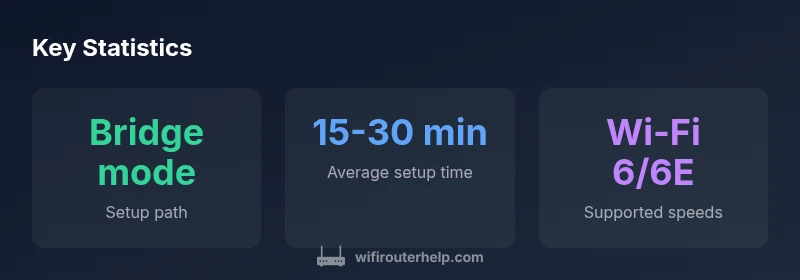
According to WiFi Router Help, a router compatible with Xfinity can be used either behind the Xfinity gateway in bridge mode or with your own modem. The most reliable setups are: (1) a third‑party router paired with a separate modem, and (2) a certified router used with Xfinity’s gateway in bridge mode.
What router compatibility with Xfinity means
Router compatibility with Xfinity means the device you buy or use must be able to work with Comcast's network either by connecting to a separate modem and using your own router or by being used behind the Xfinity gateway in bridge mode. In practice, you are choosing between two broad paths: a standalone modem and router, or a single gateway with a bridged or passthrough configuration. WiFi Router Help emphasizes that the critical factors are whether the modem can pass through a public IP to your router and whether the router can handle your plan’s speed. Understanding these basics helps you avoid double NAT and flaky Wi Fi coverage. This section explains what to look for, such as IP passthrough support, DHCP passthrough, and the ability to disable the gateway router when you need full control of your home network. By focusing on these features, homeowners can gain reliable speeds and simpler management.
How to check compatibility before buying
Before purchasing a router for Xfinity, start by verifying two things: the modem you plan to use and the router’s feature set. Check the Xfinity compatibility list or official support pages to confirm the model is recognized for use with their service. If you already have a compatible standalone modem, confirm that the modem supports DOCSIS 3.0 or 3.1 and that it is rated for the service tier you subscribe to. Then look for essential features on the router side such as bridge mode or IP Passthrough, support for WPA3 security, and adequate CPU/RAM to handle your network load. Consider your home size and whether you need mesh networking or traditional single-router coverage. If you plan to use the Xfinity gateway in bridge mode, ensure you can access the gateway’s bridging controls and that your router supports static IP or dynamic IP passthrough. By gathering this information in advance, you minimize returns and setup frustration.
Setting up a third-party router with the Xfinity gateway in bridge mode
If you choose to bridge the Xfinity gateway, the goal is to pass the public IP from the gateway to your own router, so the latter handles routing and Wi Fi. The generic steps are similar across brands: log in to the gateway admin interface, enable IP Passthrough or Bridge mode, select the appropriate device to pass the IP to, and reboot both devices. On the router, configure WAN as DHCP to receive the IP from the gateway, enable the intended Wi Fi SSIDs, and adjust MTU as needed. Once bridge mode is active, test the internet connection from a wired device first, then optimize your wireless settings. Remember that some Xfinity features tied to the gateway, such as XFi management or certain parental controls, may be limited or unavailable in this configuration. WiFi Router Help recommends testing across rooms to confirm solid coverage.
Using your own modem with a router
Using your own modem with a router is another reliable approach. Start by confirming the modem is compatible with Xfinity and supports the service tier you use. Connect the modem to the router’s WAN port and ensure the router is configured to obtain an IP automatically via DHCP. Disable the gateway or place it in pass through if required to avoid conflicts. If you have a mesh system, consider adding satellites in high-use areas to reduce dead zones. In this setup, your router becomes the primary traffic manager, handling QoS, guest networks, and security features. Regular firmware updates and periodic reboots keep performance stable and secure. This path minimizes double NAT and often yields stronger, more consistent coverage in larger homes.
Performance considerations for a router compatible with Xfinity
Performance depends on both the router and the home environment. For best results, place the router in a central elevated location, away from walls and metal objects. Use the 2.4 GHz and 5 GHz bands appropriately, and enable beamforming if supported. Consider upgrading to Wi Fi 6/6E if you regularly stream, game, or work from multiple devices. In larger homes, a mesh network or additional access points can provide more even coverage. If you are bridging, ensure the WAN link is stable and set the router’s QoS priorities to favor video conferencing or gaming during peak hours. Finally, check your speed tier and ensure the router’s wireless standard can keep up with the plan. WiFi Router Help’s analysis shows that user experience improves when devices negotiate stable channels and sufficient bandwidth across the home.
Troubleshooting common issues during setup
New setups can encounter a few hiccups. A common problem is double NAT when bridging is not configured correctly. If you cannot access the internet after enabling bridge mode, double-check the gateway settings and verify that the correct device is selected for IP Passthrough. Another frequent issue is poor coverage in far rooms; try repositioning the router or adding a mesh node. If speeds drop suddenly, run a speed test on wired and wireless devices to identify bottlenecks and check for firmware updates on both devices. Ensure your DNS servers are functioning and consider switching to a fast public DNS as a temporary test. If security features seem limited, review the router’s firewall and UPnP settings. These checks help maintain reliable performance over time.
Quick-start checklist for immediate setup
- Verify compatibility and speed tier with Xfinity
- Decide between bridge mode or separate modem setup
- Update firmware on the router and modem
- Configure WPA3 security and a strong admin password
- Place the router centrally and test coverage with speed tests
- Enable QoS rules for gaming or video calls
- Create guest networks and ensure parental controls are active if needed
- Document the setup steps and keep a record of device IP addresses
Advanced considerations: security, updates, and parental controls
Keeping your router compatible with Xfinity secure requires timely firmware updates and careful configuration. Enable automatic updates where possible and monitor connected devices for unfamiliar activity. Use a strong password for the admin interface and a unique guest network password. For households with kids, enable parental controls and set schedules if the router supports them. If you are using bridge mode, ensure the gateway’s firewall is still active and consider additional protections on your router. Finally, keep an eye on new features and compatibility announcements from Xfinity and your router vendor. Regular maintenance reduces the chance of outages and keeps your home network robust.
Router compatibility setup paths with Xfinity
| Setup Path | Typical Compatibility Notes | Pros & Cons |
|---|---|---|
| Standalone modem + router | Requires a separate modem compatible with Xfinity; supports IP Passthrough or bridge mode | Pros: more control; Cons: extra device, cost |
| Using the Xfinity gateway in bridge mode | No double NAT; gateway routing disabled | Pros: simple setup; Cons: some XFi features limited |
| Router behind gateway without bridge mode | Double NAT; potential performance issues | Pros: fewer devices; Cons: reliability and features affected |
People Also Ask
Is my current router compatible with Xfinity?
Compatibility depends on the router model and whether you can enable IP Passthrough or bridge mode. Check the Xfinity compatibility list and your plan requirements.
Most routers work if you use a separate modem or enable bridge mode.
Can I use any router with Xfinity if I have a separate modem?
Yes, many routers work behind a separate DOCSIS modem, but you should confirm it is on the approved compatibility list and can handle your speed tier.
Yes, with a compatible modem you can use many routers.
What is bridge mode and how do I enable it on an Xfinity gateway?
Bridge mode disables the gateway's router so your own router handles the network. The exact steps vary by model, but you typically access the gateway settings and enable IP Passthrough or Bridge mode.
Bridge mode lets your own router take control of the network.
Will using a third-party router affect Xfinity features like XFi?
Using a third-party router may limit some gateway features; in bridge mode you may lose XFi-specific services, so plan accordingly.
Bridging typically turns off XFi features; check which ones you need.
How can I test WiFi performance after setup?
Run speed tests at multiple times of day and compare to your plan's advertised speeds; adjust placement and channels for best results.
Run speed tests, move the router, and optimize channels.
“The right router for Xfinity gives you predictable performance and easier control. Bridge mode or a compatible modem setup helps avoid double NAT and keeps features reliable.”
What to Remember
- Decide between bridge mode and separate modem setups
- Check Xfinity's compatibility list before buying
- Opt for a router that supports IP passthrough
- Test performance after setup and adjust settings
- Keep firmware up to date for security