What Routers Are Compatible with Xfinity: A Practical Guide
Discover which routers work with Xfinity Internet, how to set up a third‑party router behind the gateway, and practical tips for bridge mode, speeds, and reliability.


Most consumer routers are compatible with Xfinity Internet when used behind a modem or in bridge mode. To use your own router, connect it to the Xfinity gateway’s LAN port, then disable Wi‑Fi or enable bridge mode on the gateway to avoid double NAT. Ensure your router supports gigabit Ethernet, VLAN tagging if needed, and modern Wi‑Fi standards (Wi‑Fi 5/6/7) for best speeds.
What routers are compatible with xfinity
The question of compatibility often comes up for homeowners who want more control over their home network. In short, the vast majority of consumer routers can work with Xfinity Internet when used behind a gateway—either by connecting the router to the gateway via the WAN port or by placing the gateway into bridge mode. The central idea is to separate the routing function from the ISP’s equipment. If you type in the phrase what routers are compatible with xfinity into a search bar, you’ll see guidance that emphasizes two paths: using the ISP gateway as a modem with a separate router, or using the gateway in bridge mode so your own router handles routing and NAT. This approach lets you leverage your router’s features—better QoS, advanced parental controls, and stronger Wi‑Fi coverage—without being limited by the gateway’s defaults. As you assess compatibility, consider WAN speed, Ethernet cadence, and whether your devices will benefit from features like MU‑MIMO and WPA3.
Bridge mode vs. traditional router mode
Bridge mode is a technique that lets you turn off the routing features on the Xfinity gateway, effectively placing your own router at the network edge. When bridge mode is enabled, the gateway becomes a pure modem, passing public IPs to your router. This eliminates double NAT and often delivers smoother gaming, streaming, and videoconferencing. If you don’t enable bridge mode, be mindful of potential double NAT, which can complicate certain applications. The decision depends on your home network complexity, the number of connected devices, and whether you rely on the gateway for services like VoIP or TV apps. If you choose bridge mode, plan a clean topology: one device at the edge (your router) and a separate access point if you need broader coverage.
How to verify compatibility before you buy
Before purchasing a new router, verify that your Xfinity plan supports third‑party devices and that you’re comfortable with bridge mode setup. Start by checking your current gateway’s capabilities and confirming you can disable its Wi‑Fi or enable bridge mode. Look for routers that support gigabit Ethernet ports (WAN/LAN), at least Wi‑Fi 6 (802.11ax) or newer, and robust security features like WPA3. Read reviews focused on real‑world performance in home environments and ensure the router’s firmware can be updated reliably. If you’re unsure, use the 30‑day trial period many retailers offer to test performance in your home before committing.
Step-by-step setup for using a third-party router with Xfinity
- Identify whether you’ll use bridge mode or keep the gateway in router mode with Wi‑Fi off.
- Connect the third-party router to the gateway via an Ethernet cable from the gateway’s LAN port to the router’s WAN port.
- Enable bridge mode on the gateway (if you intend to bypass its routing features) or disable its Wi‑Fi.
- Access your router’s admin panel to configure WAN to DHCP and set up SSIDs, security, and guest networks if needed.
- Test speed and coverage in key areas of your home and adjust QoS and channel settings as necessary.
- Update firmware on both the gateway and the router after setup for security and performance improvements.
Practical topology options for Xfinity users
- Bridge mode topology: ISP gateway (modem) + standalone router at the edge, with all routing done by your router. This setup minimizes NAT issues and is ideal for gaming and streaming.
- AP mode topology (gateway in router mode, Wi‑Fi disabled): Your gateway still handles IP addressing but you rely on your own router to provide the main Wi‑Fi network. This can be simpler if you want a single ecosystem but may introduce NAT considerations.
- Dedicated modem + router: Use your own modem (DOCSIS) and your own router to maximize performance and control. This option often yields the cleanest network architecture but requires careful configuration and potentially higher upfront cost.
Performance considerations and future‑proofing
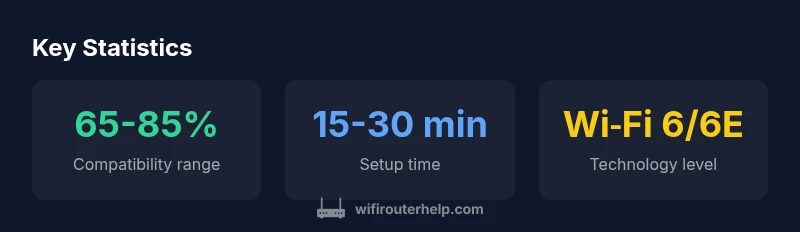
When choosing a router for Xfinity, align with your service tier. A gigabit plan benefits from a router with 2.5 Gbps or faster WAN/LAN interfaces, Wi‑Fi 6/6E for high device density, and strong CPU performance to sustain multiple simultaneous streams. Consider features like QoS, parental controls, and VPN support. If you anticipate upgrading to multi‑gig speeds or expanding your smart home, invest in a router that supports future standards and provides easy firmware updates. Regularly checking for updates helps maintain security and performance levels over time.
Troubleshooting common issues after setup
If you encounter trouble after adding a third‑party router, start with basic checks: ensure all cables are firmly seated, verify the gateway’s bridge mode status, and confirm the router is obtaining a WAN IP via DHCP. If devices report no Internet, reboot both devices and re‑test. Double NAT issues often show up as limited online gaming performance; re‑enable bridge mode or adjust NAT settings on the router. If DNS resolution fails, try a public DNS (like 1.1.1.1) temporarily. Finally, ensure firmware is up to date and that you’re not using incompatible VPN or firewall configurations that conflict with your ISP settings.
Maintaining a stable network long term
Regular maintenance pays off: keep all firmware current, monitor connected devices, rotate Wi‑Fi channels to avoid congestion, and back up configuration files. Document your topology and settings so you can reproduce a working setup if you replace hardware. For households with heavy streaming or multiple gaming devices, a proactive approach to QoS and device prioritization can sustain performance as your home network grows.
Router topologies for Xfinity Internet
| Scenario | Setup | Pros | Cons |
|---|---|---|---|
| Bridge mode with ISP gateway | Disable gateway router functions, enable bridge mode, connect own router via WAN | Single NAT, better performance and easier management | Gateway bridge can disable some ISP features (phone/TV) |
| Gateway in router mode with Wi-Fi OFF | Disable gateway Wi‑Fi, leave gateway in router mode, use own router for NAT | Simplified configuration; fewer devices to manage | Still possible double NAT if bridge mode isn't used; ensure WAN is DHCP |
| Dedicated modem + standalone router | Use your own DOCSIS modem with a separate router | Best performance and control; future-proofing | Requires compatible modem and extra equipment cost |
People Also Ask
Can I use any router with Xfinity Internet?
Most routers work behind the ISP gateway when you place the gateway in bridge mode or use it as a pure modem. Verify your plan supports third‑party devices and ensure you’re comfortable with the setup.
Yes, most routers will work behind Xfinity, especially when you bridge the gateway or isolate its routing functions.
Do I need to disable the Xfinity gateway's Wi‑Fi?
Disabling the gateway’s Wi‑Fi or enabling bridge mode helps prevent interference and double NAT, leading to more consistent performance.
Yes. Turn off the gateway’s Wi‑Fi or bridge it to ensure your router handles routing.
Will using a third‑party router affect Xfinity TV or voice services?
Bridge mode can affect services that rely on the gateway for TV or voice features. Check with your provider before disabling gateway functionality.
Bridge mode can impact some TV or voice features, so verify service requirements first.
What speeds should I expect with a third‑party router?
Speeds depend on your plan and router capabilities. For best results, use a gigabit‑capable router with Wi‑Fi 6/6E and robust processing power.
Expect speeds up to your plan if your router and wiring support it.
How do I set up a third‑party router with Xfinity?
Connect the router to the gateway via Ethernet, configure WAN to DHCP, enable bridge mode on the gateway (or disable its Wi‑Fi), then finish router setup and test.
Connect, configure WAN, enable bridge mode, test and adjust.
What if my gateway doesn’t support bridge mode?
If bridge mode isn’t available, you can use AP mode or place the router at the edge while carefully managing NAT to minimize conflicts.
If bridge mode isn’t available, use AP mode or adjust NAT settings carefully.
Is it worth upgrading to a Wi‑Fi 6/6E router for Xfinity?
If you have multiple devices and want higher efficiency, upgrading to Wi‑Fi 6/6E can improve performance and capacity in busy homes.
Yes, for busy households, Wi‑Fi 6/6E is worth considering.
“When using a third‑party router with Xfinity, the key is a clean network edge—bridge the gateway to avoid double NAT and unlock full speed potential.”
What to Remember
- Choose bridge mode for clean, single‑router NAT performance
- Prioritize gigabit ports and Wi‑Fi 6/6E for future proofing
- Disable gateway Wi‑Fi to avoid interference and double NAT
- Test coverage in high‑demand areas and adjust QoS
- Keep firmware up to date for security and reliability