What Router Does Xfinity Use? Gateway, Bridge Mode, and Third-Party Options
Learn what router does xfinity use, how Comcast's gateway devices work, and how to connect a third-party router for better control, security, and performance.


Xfinity typically uses a gateway device—a combined modem and router—supplied by Comcast to deliver both internet access and Wi‑Fi. These Xfinity gateways can be used in their default mode, or you can replace them with your own router by placing the gateway in bridge or passthrough mode. If you prefer full control, using your own router behind the gateway is common, and many plans support this configuration with proper setup.
What router does Xfinity use and why it matters
According to WiFi Router Help, Xfinity relies on a gateway device—an integrated modem and router—provided by Comcast. This gateway is the primary entry point for your home network and manages both your internet connection and Wi‑Fi network. For many households, this single device is sufficient and simplifies setup, updates, and support. However, power users and households with demanding network needs often want more control, better parental controls, or advanced features that a standalone router can provide. Understanding what router does xfinity use helps you decide between sticking with the provider gateway or introducing a second device. The choice affects where you place the router, how you configure security, and how you optimize performance across rooms.
Xfinity gateway hardware and network fundamentals
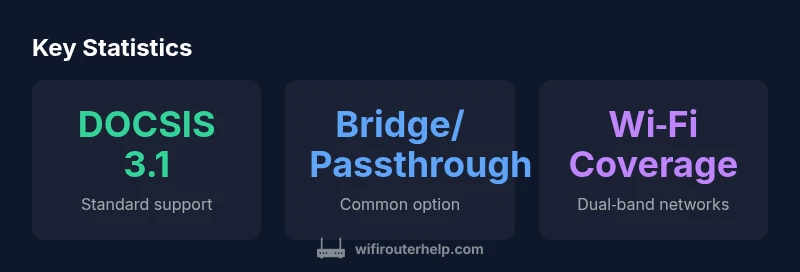
Xfinity gateways are designed to deliver both cable internet access and Wi‑Fi within a single box. The device combines a DOCSIS modem with a built‑in router, handling the handshake with the ISP’s network and creating a home wireless network. In practice, most households get a dual‑band network that supports common Wi‑Fi standards and multiple devices at once. The gateway’s management interface, often accessed through a mobile app or web portal, lets you view connected devices, set parental controls, and run speed tests. Understanding how the gateway handles routing, NAT, and firewall helps you decide when a third‑party router could add features like advanced QoS, more extensive customization, or stronger mesh coverage in large homes.
Using your own router with Xfinity: bridge mode explained
To gain full control over your home network, you can use your own router with Xfinity by enabling bridge mode or passthrough on the gateway. Bridge mode disables the gateway’s routing functions, leaving the internet connection and DHCP to your own router. Passthrough is a related option that can be easier to manage on certain firmware versions. After enabling bridge/passthrough, connect your own router’s WAN port to the gateway, then configure your router for WAN IP, DHCP, NAT, and security. Remember to disable the gateway’s Wi‑Fi to avoid interference and ensure your own network is the primary wireless network in your home.
Step-by-step: enabling bridge/passthrough and setting up a third-party router
- Check your Xfinity plan supports third‑party routing; note potential feature limitations. 2) Sign in to the gateway admin page and locate the bridge or passthrough setting. 3) Enable bridge mode or passthrough and reboot the gateway. 4) Connect your own router to the gateway via Ethernet, then power both devices. 5) Configure the router’s WAN type, DHCP range, security (WPA3 if available), and a strong admin password. 6) Test connectivity, run speed tests, and adjust wireless settings (SSID, channel, and bandwidth). 7) If you use mesh nodes, ensure backhaul is wired where possible.
Security and privacy considerations when using Xfinity gateways and third-party routers
Keeping devices updated is essential. Update the gateway firmware through the provider’s app, and apply firmware updates to your own router promptly. Use a unique, strong password for the router’s admin interface and enable WPA3 if supported. Create a guest network for visitors and disable remote administration unless needed. Regularly review connected devices and the network’s security settings. If you enable bridge mode, monitor how devices rely on gateway services to avoid service interruptions.
Performance optimization for home networks with Xfinity
Performance depends on your plan, your gateway or router hardware, and how you position devices. Place the router high and central, away from walls and metal objects. Use the 5 GHz band for nearby devices and the 2.4 GHz band for longer reach, with appropriate channel selection to minimize interference. Enable QoS rules for gaming or video conferencing if your router supports it. If you use a mesh system, place nodes strategically and ensure backhaul connections are robust.
Troubleshooting common issues with Xfinity gateway setups
If devices fail to connect after enabling bridge mode, verify the gateway is in bridge/passthrough and that your router is obtaining a WAN IP. Restart both devices, check cables, and ensure firmware is up to date. If speeds drop, run a baseline test with a wired device, then optimize placement and channel usage. For persistent problems, use the provider’s diagnostic tools and consider a professional network assessment if your layout is complex.
Mesh networking and multi-router configurations with Xfinity
Mesh networks can extend coverage without sacrificing speed, especially in larger homes. Bridge mode allows a third‑party mesh system to handle routing, while keeping the gateway as a simple modem if necessary. Ensure each mesh node has a wired backhaul where possible, and configure the main router in the mesh to match your home’s wireless name and password for seamless roaming. Regularly update firmware on all mesh devices to maintain security and performance.
Quick-start checklist for new Xfinity users
A quick-start checklist helps you set up efficiently and avoid common snags. First, decide whether you want to keep the Xfinity gateway as your primary device or introduce a separate router for more control. If you choose the gateway alone, ensure Wi‑Fi is enabled and your network name (SSID) is easy to recognize. If you’re bridging to a third‑party router, enable bridge mode or passthrough on the gateway, then connect your own device and start configuring. Update firmware on both devices, set a strong admin password, and enable WPA3 if available. Create a guest network for visitors and enable basic protections such as firewall and NAT settings. Finally, test your internet speeds on wired and wireless devices, try different placements, and adjust channel settings to minimize interference. Keep a simple documentation record of the settings so you can reproduce or adjust the network later.
Comparison: Xfinity gateway vs third-party router setup
| Aspect | Xfinity Gateway (typical) | Using your own router |
|---|---|---|
| Setup effort | Moderate | Higher (additional steps) |
| Control over features | Limited with gateway | Full control with own router |
| Network management | Built-in app/portal | Independent apps and software |
People Also Ask
Does Xfinity require using their gateway?
No; you can use your own router by placing the gateway in bridge or passthrough mode. This gives you more control over features and performance.
No—most plans let you use your own router by putting the gateway in bridge mode.
What is bridge mode on the Xfinity gateway?
Bridge mode disables the gateway’s routing functions, letting your own router handle NAT and firewall. The gateway becomes a simple modem.
Bridge mode turns the gateway into a modem, so your router handles the network.
Will using my own router affect Xfinity TV or Voice services?
Most services continue, but some gateway‑dependent features may require the provider gateway. Bridging can affect support for certain features.
Most services work, but bridging may affect gateway‑dependent features.
Do I need to pay extra to use my own router?
Usually not; you can use your own router with your existing plan. Some providers may restrict certain features when bridging.
Typically no extra charge for using your own router, but check your plan.
Can I use mesh networks with Xfinity?
Yes, via bridge mode. A third‑party mesh system can extend coverage; ensure backhaul and proper configuration.
Yes, you can use mesh networks with bridge mode.
What speeds can I expect with third‑party routers?
Speeds depend on your plan and router capabilities. Choose a router with gigabit WAN and good wireless hardware for best results.
Speeds depend on your plan and the router’s hardware.
“A well‑designed home network starts with understanding your provider's gateway and how to integrate a capable second router.”
What to Remember
- Choose gateway simplicity or personal control based on needs
- Bridge mode enables using a third-party router
- Ensure service compatibility when bridging or passing through
- Test performance with placement and channel selection