Cisco WiFi Router Setup Guide for Your Home Network
Learn how to select, install, secure, and optimize a Cisco WiFi router for reliable home coverage. This step-by-step guide covers setup, security, guest networks, and troubleshooting.


You will set up a Cisco WiFi router and optimize home coverage. You’ll need a compatible Cisco router, a modem (if separate), an active internet plan, and a computer or mobile device for configuration. By following the step-by-step guide, you’ll configure the router, secure the network, and verify performance. This guide covers basic setup, security best practices, network naming, guest access, and troubleshooting tips.
Why Cisco wifi routers matter for home networks
Cisco wifi routers matter for home networks because they combine strong security, stable performance, and enterprise-grade management with user-friendly interfaces for households of different sizes. For homeowners, choosing a Cisco-based solution can simplify long-term maintenance, provide better visibility into connected devices, and improve support for advanced features like VPN and guest access. The WiFi Router Help team found that Cisco devices tend to receive regular firmware updates and offer robust security controls, which can reduce risk without sacrificing everyday usability. Reliability begins with thoughtful placement, proper channel planning, and a clear plan for how many devices will connect simultaneously. If you live in a multi-story home or have many smart devices, you’ll appreciate features such as MU-MIMO, beamforming, and dual-band operation that reduce interference and boost coverage. While price matters, the real value comes from enduring security, scalable management, and predictable performance across rooms and walls. This section outlines why a Cisco router is often a sensible foundation for a growing home network.
Key features to look for in Cisco wifi routers
When evaluating Cisco WiFi routers, prioritize features that directly affect home use. Dual-band or tri-band radios help separate slower and faster devices, while support for the latest standards (Wi‑Fi 6/6E/7 as available) improves throughput and capacity. A capable CPU and ample RAM reduce bottlenecks when many devices stream video, participate in video calls, or game online. Security is non-negotiable: look for WPA3, a robust firewall, VPN pass-through, and a process for automatic firmware updates. Management should be straightforward, whether through a polished web UI or a mobile app, with options to copy settings to multiple units if you’re expanding to a larger home. For homes with smart devices, ensure the router supports device isolation and IoT-friendly features. If you anticipate future expansion, verify mesh compatibility or Cisco’s centralized management platform to keep configurations synchronized. Balance features against cost and consider warranty, support, and firmware longevity. The WiFi Router Help team recommends prioritizing security features and long-term firmware support for lasting protection.
Planning your Cisco home network
Good planning pays dividends. Start with a rough floor plan to map where coverage matters most and identify potential interference from walls or appliances. Decide on SSIDs and a hostname scheme that’s easy to recognize, with at least one primary network and a separate guest network. Plan IP addressing and DHCP ranges, and decide whether to use IPv4 only or enable IPv6 where your ISP supports it. If you own a modem-router combo, determine whether placing the Cisco router in front or behind the device yields the best balance of signal and management. Based on WiFi Router Help research, enabling separate networks for guests and IoT devices reduces risk and simplifies monitoring. Write down your plan so future changes stay predictable, and keep a simple diagram of which devices connect to which SSID. This preparation helps you scale smoothly as your home network grows.
Cisco-specific setup tips: GUI vs CLI and defaults
Most home users will start with the GUI because it’s easier and safer for beginners. Cisco devices often provide a CLI path for advanced users who want precise control, but misconfigurations can be risky. Start by connecting your computer to the LAN port, logging into the admin page, and changing the default login credentials immediately. Disable remote administration unless you truly need it, and create a backup of the current configuration before making changes. When you configure WAN settings, choose the correct type (DHCP, PPPoE, or static IP) as provided by the ISP, and document any required credentials. For wireless, set distinct SSIDs for 2.4 GHz and 5 GHz bands, enable strong security, and choose password-based protection over simple passphrases. In practice, keeping settings organized in a single place reduces confusion during future updates.
Wireless optimization and security best practices
To maximize coverage and reliability, configure both bands with thoughtful channel selection and appropriate bandwidth settings. If your router supports it, enable WPA3; if not, WPA2 with a lengthy passphrase is acceptable. Disable WPS to prevent unauthorized access and enable the built-in firewall and intrusion prevention where available. Enable automatic firmware updates to ensure you’re protected against known vulnerabilities. Consider enabling a guest network with strict access controls and device isolation. Regularly review connected devices and prune any unfamiliar ones; this keeps your network clean and reduces interference. For homes with many IoT devices, consider enabling network segmentation to limit spread of threats. WiFi Router Help analysis shows that timely firmware updates are a key factor in maintaining a secure home network.
Troubleshooting common Cisco wifi issues
Common issues include slow speeds, devices dropping offline, or devices failing to obtain an IP address. Start with the obvious checks: verify modem and router power, inspect cables, and reboot devices. Use the router’s diagnostics tools to test WAN connectivity, DNS resolution, and DHCP status. If devices still don’t connect, check that the LAN IP range doesn’t clash with static assignments on a computer. Look for firmware updates and review changelogs for known issues. If problems persist after updating, back up the current configuration and consider restoring defaults as a last resort. Baseline what a good connection looks like and re-run tests from several locations to confirm consistency.
Authority references (official sources)
For authoritative guidance, consult official sources such as:
- U.S. Cybersecurity and Infrastructure Security Agency (CISA): https://www.cisa.gov
- National Institute of Standards and Technology (NIST): https://www.nist.gov
- Federal Communications Commission (FCC): https://www.fcc.gov
Tools & Materials
- Cisco WiFi router(Model as provided; ensure it supports current Wi‑Fi standards)
- Modem (if separate)(Ethernet connection from modem to router WAN port)
- Ethernet cable (Cat5e+)(One for modem-to-router, another for PC if needed)
- Computer or mobile device(Access the router’s admin interface)
- Power adapter(Keep nearby for uninterrupted setup)
- Backup note pad(Document credentials and settings)
Steps
Estimated time: 60-90 minutes
- 1
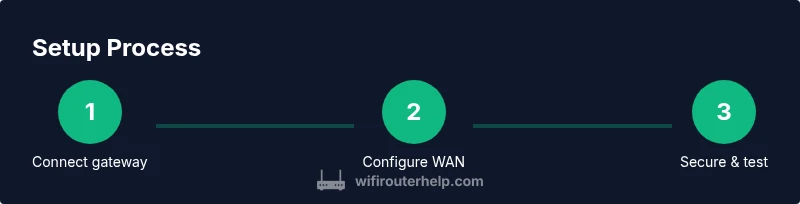
Connect the gateway
Connect the modem to the router's WAN port using a standard Ethernet cable. Power on both devices and wait 2 minutes for a stable link. Confirm the WAN LED indicates an active connection before proceeding.
Tip: Use a straight-through Ethernet cable and avoid adapters that can cause link instability. - 2
Power up and verify boot
Ensure all devices are powered, then check that the router and modem LEDs indicate normal startup. If the lights blink or remain red, power cycle the devices and retry.
Tip: If a light pattern persists, consult the manual for specific LED status codes. - 3
Connect a management device
Connect your computer or mobile device to the router’s default LAN network via Ethernet or Wi‑Fi. Open a browser to access the router’s admin page using the default IP address.
Tip: Prefer a wired connection during initial setup for reliability. - 4
Access the admin interface
Log in with the default admin credentials and immediately change the password to a strong, unique value. Capture the new credentials in a secure password manager.
Tip: Do not reuse accounts from other devices or services. - 5
Configure WAN/Internet connection
Set the Internet connection type (DHCP, PPPoE, or static IP) according to your ISP. Apply settings and verify Internet connectivity on a connected device.
Tip: If using PPPoE, enter the correct username and password from your ISP. - 6
Set up Wi‑Fi SSID and security
Create a unique SSID for each band (2.4 GHz and 5 GHz) and enable WPA3 if available (or WPA2 with a strong password). Disable WPS for security.
Tip: Use a long, complex passphrase; consider passphrases rather than random strings. - 7
Create guest network and isolation
Enable a guest network and enable client isolation so guest devices cannot access your primary LAN devices. Apply separate passwords and restrict access if needed.
Tip: Guest networks should have no access to printer or NAS shares. - 8
Update firmware and backup configuration
Check for the latest firmware and apply updates. Back up the current configuration to your computer or cloud storage.
Tip: Backups prevent configuration loss after a failed update. - 9
Test, document, and monitor
Run speed tests from multiple locations, verify device connectivity, and document settings for future changes. Schedule periodic checks and firmware reviews.
Tip: Keep an eye on firmware release notes for security patches.
People Also Ask
What is the best way to reset a Cisco WiFi router if I forget the password?
Use the reset button to restore factory defaults, then reconfigure with a new admin password. If a hard reset is performed, you may lose custom settings. After reset, secure the device promptly.
If you forget your Cisco router password, reset to factory settings and set a new password during the first setup.
Can I use a Cisco router with my existing modem?
Yes. Connect the modem to the router's WAN port and configure WAN settings as instructed by your ISP. If you have a combo device, place the Cisco unit behind it only if you need advanced features.
Yes, you can use a Cisco router with a separate modem; just connect the WAN port to the modem.
Should I use 2.4 GHz or 5 GHz on Cisco routers?
Use 2.4 GHz for longer range and 5 GHz for higher speeds on closer devices. If your router supports both, enable both bands and use distinct SSIDs.
Choose 2.4 GHz for range and 5 GHz for speed; use separate network names if possible.
How often should I update Cisco router firmware?
Check for updates monthly or when a security advisory is released. Enable automatic updates if supported to reduce manual maintenance.
Update firmware monthly or when advisories are published to stay protected.
How can I set up a guest network on a Cisco router?
Enable a guest network with a separate password and restrict guest access to the main LAN resources. Use isolation for better security.
Set up a guest network with isolation to protect your main devices.
Watch Video
What to Remember
- Plan your network topology before configuring the router.
- Use strong wireless security (WPA3) where possible.
- Regularly update firmware to protect against vulnerabilities.
- Back up configuration after setup.
- Test performance and document settings for future changes.