Wi-Fi Router Setup: A Step-by-Step Guide
Learn to set up and optimize your Wi‑Fi router with clear, practical steps. Secure your network, maximize coverage, and verify connectivity across devices.


Goal: complete a robust wi fi router set up for a reliable home network. Gather a modem, your router, power adapters, an Ethernet cable, and a computer or smartphone for configuration. Then follow a clear, step-by-step process to secure the network, optimize placement, and verify connectivity on phones, tablets, laptops, and smart-home devices.
Why proper wi fi router set up matters
A solid router setup is the backbone of a reliable home network. It affects not only how fast your devices can access the internet but also how well they stay connected as you move around your home. According to WiFi Router Help, a well-planned setup reduces dead zones, minimizes interference, and strengthens security by eliminating vulnerable defaults. The WiFi Router Help team found that users who invest time in organizing their hardware, updating firmware, and configuring sensible defaults typically see more stable connections and fewer troubleshooting sessions. In practical terms, this means fewer buffering events during video calls, smoother gaming experiences, and quicker file transfers between devices. A deliberate setup also makes it easier to diagnose problems when they arise, because the network map and device list are clear and up to date. By starting with a clear plan, homeowners can avoid common pitfalls like placed routers behind large metal objects or using weak, shared Wi-Fi passwords.
Placement and hardware decisions that matter
Where you put your router makes more difference than most people realize. Aim for a central, elevated position roughly in the middle of your living area or on a high shelf away from walls and large metal objects. If possible, place the router at least 2–3 feet from microwaves, cordless phones, and large metal filing cabinets, which can create dead zones. When selecting hardware, prioritize dual-band or tri-band routers with support for at least 802.11ac or Wi‑Fi 5, and ideally Wi‑Fi 6 (or newer) to future-proof your network. Check that the device supports both 2.4 GHz and 5 GHz bands and that the router has enough Ethernet ports for your wired devices. Simple rearrangements can dramatically improve coverage without buying extra hardware.
Security foundations to implement during setup
Security should be part of the setup from day one. Change the default admin username and password to a strong, unique combo. Enable WPA3 whenever possible; if the router or devices don’t support WPA3, use WPA2‑WPA3 mixed mode. Rename your network with a non-identifying SSID and disable WPS to avoid easy entry points. Create a guest network for visitors, separate from your main network, and ensure firmware is up to date. If your ISP provides a modem/router combo, consider putting the ISP device in bridge mode or disabling its wireless radio to prevent double NAT and interference. The WiFi Router Help team recommends documenting your network credentials securely.
Step-by-step setup overview
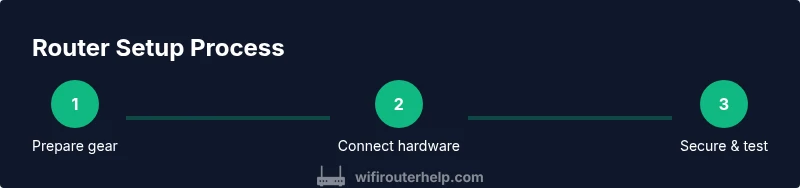
Below is a high-level map of the setup process you’ll follow, then the detailed steps you’ll perform in sequence. Start with gathering materials, powering devices, and connecting the router to the modem. Next, access the router’s admin interface, configure the SSID and password, secure admin access, and enable a guest network. Finally, test connectivity on multiple devices and note any settings you might want to adjust later for performance or security. This overview helps orient you before you dive into the granular steps.
Performance optimization: channels, QoS, and extenders
To maximize coverage and speed, optimize radio channels and bandwidth settings. Use the 2.4 GHz band for longer range with moderate speed, and keep the 5 GHz band for high-speed tasks near the router. If interference is high, switch to a different channel and consider enabling auto-channel selection. Enable QoS for latency-sensitive activities like gaming or video calls, but avoid over-allocating bandwidth to every device. If you have a large home or multiple floors, mesh networks or repeaters can fill gaps, but ensure they are part of the same network name and password to maintain seamless roaming. Regularly check connected-device counts and signal strength to identify weak zones.
Troubleshooting and maintenance
Common setup issues include misconnected cables, incorrect WAN settings, or a browser that blocks the setup page. Double-check the Ethernet cable between the modem and router, ensure the router’s WAN/Internet port is used, and reset to factory defaults if you’re stuck. If devices report no internet, verify the router is obtaining an IP address from the modem (DHCP). Keep firmware updated and back up router configuration after successful setup. If problems persist, consult your ISP or manufacturer support resources for diagnostics and safe recovery steps.
Quick-start checklist
- Gather your modem, router, and cables; confirm power supplies are included.
- Connect the router to the modem using an Ethernet cable to the Internet/WAN port.
- Power on both devices and wait for a stable boot.
- Access the router’s admin page and set a strong password and SSID.
- Enable WPA3, disable WPS, and create a guest network.
- Test Wi‑Fi on several devices and adjust placement if needed.
- Check for firmware updates and enable automatic updates where available.
Maintenance and monitoring (ongoing)
After initial setup, schedule a monthly check to monitor signal strength, connected devices, and firmware updates. Keep a running log of changes to your network, including SSID, password, and important settings. Regularly review connected devices and disable those you no longer use. Consider enabling parental controls or firewall features if appropriate for your household. By maintaining the network proactively, you’ll preserve performance and security over years of use. The WiFi Router Help team recommends maintaining your network with regular updates.
Tools & Materials
- Modem (ISP-provided)(Ensure it’s powered and functioning; use bridge mode if you’re using your own router)
- Wi‑Fi router (dual-/tri-band)(Prefer Wi‑Fi 6/6E if available)
- Power adapters and cables(One for the modem, one for the router)
- Ethernet cable (Cat5e or better)(At least 1–2 meters long)
- Laptop, tablet, or smartphone for setup(With a modern web browser)
- Notepad or password manager(For recording credentials securely)
- Pen and paper(Optional backup)
Steps
Estimated time: 25-45 minutes
- 1
Power down and prep equipment
Power down all existing network gear and unplug from power. Gather the modem, router, cables, and a configuration device so you’re ready to start without interruptions.
Tip: Keep a photo of current connections in case you need to revert. - 2
Connect router to modem
Use an Ethernet cable to connect the router’s Internet/WAN port to the modem’s Ethernet port. This creates the path for your home network to reach the internet.
Tip: Ensure a secure, firm connection and avoid using a USB or phone port. - 3
Power up and boot
Plug in the modem first, wait for the lights to stabilize, then power on the router. Allow 2–3 minutes for a complete boot before continuing.
Tip: Do not unplug devices during boot; instability can cause setup pages to fail. - 4
Access the router’s admin page
On a connected device, open the router’s default gateway URL (e.g., 192.168.1.1) in a web browser and login with the default credentials.
Tip: Use a wired device if possible to avoid wireless dropouts. - 5
Set admin password and SSID
Change the admin login to a unique username and strong password, then create a clear, non-identifying SSID for your network.
Tip: Use a long password with a mix of letters, numbers, and symbols. - 6
Configure WAN/Internet settings
Set the WAN/Internet connection to DHCP if your ISP assigns dynamic IPs; if your ISP requires PPPoE, enter the provided username and password.
Tip: If unsure, check with your ISP’s setup guide or support. - 7
Enable security features
Turn on WPA3 (or WPA2‑WPA3 mixed mode if needed), disable WPS, and create a guest network to keep visitors separate from your main network.
Tip: Disabling WPS reduces a common attack vector. - 8
Test connectivity and placement
Connect multiple devices and confirm internet access. If coverage is weak, consider repositioning the router or adding a mesh extender.
Tip: Test with a smartphone in far corners of your home. - 9
Update firmware and save backup
Check for firmware updates, apply them, and save a backup of the configuration.
Tip: Enable automatic updates where available to simplify maintenance.
People Also Ask
Should I use my own router or the ISP's provided device?
Using your own router gives you greater control over features, firmware, and performance. You can often obtain better security and customization, and you’ll usually have longer-term flexibility. If you rely on the ISP-provided device, you may face restrictions and less transparency in updates.
You’ll usually get more control and features with your own router, and you can keep it longer if you upgrade.
What is the difference between 2.4 GHz and 5 GHz bands?
2.4 GHz provides longer range but slower speeds and is more prone to interference. 5 GHz offers higher speeds with shorter range but less interference. Most networks use both bands simultaneously.
2.4 GHz has longer reach, 5 GHz is faster but shorter range.
How can I improve Wi-Fi coverage in a large home?
Strategic placement, recurring midpoints, and possibly a mesh system or extenders can fill gaps. Using a single SSID helps devices roam automatically, but ensure the network remains stable by managing interference.
Move the router higher and central, and consider a mesh system for big homes.
How often should I update firmware?
Check for updates monthly and enable automatic updates if available. Firmware updates fix security issues and add features, so keeping firmware current reduces risk.
Check for updates monthly or enable automatic updates.
Is WPA3 required for security?
WPA3 is the strongest current standard and is recommended when available. If your devices don’t support WPA3, use WPA2‑WPA3 mixed mode to maintain compatibility while improving security.
WPA3 is best if your devices support it; otherwise use WPA2‑WPA3 mixed mode.
Watch Video
What to Remember
- Secure your admin interface with a strong password.
- Place the router centrally for best coverage.
- Test connectivity on multiple devices after setup.
- Regularly update firmware for security and stability.