Router ASUS IP: Access, Configure, and Troubleshoot
Learn how to manage IP addresses on an ASUS router, including default LAN IPs, admin login, DHCP reservations, and practical troubleshooting for a stable home network.


The router asus ip you need to know is the default LAN IP for admin access, typically 192.168.1.1, which lets you reach the ASUS web UI. In most cases you’ll configure WAN IP via your ISP, and use DHCP reservations to assign fixed IPs to devices. This guide explains how to find and customize these addresses.
Understanding IP basics for home networks
A solid grasp of IP addressing is the foundation of a reliable home network. In the context of a router asus ip, you’ll differentiate between LAN IPs (the IPs your devices use to talk to the router) and WAN IPs (the IP your router presents to the internet). Most homes use private IPv4 ranges (like 192.168.x.x) and, increasingly, IPv6 addresses. The ASUS router’s IP behavior is driven by DHCP by default, which means the router assigns local IPs to devices automatically. Knowing the difference between private LAN IPs and your public WAN IP helps you troubleshoot access issues, reserve addresses, and avoid conflicts as new devices join your network. This is also a good moment to understand how IPv4 subnetting and gateway addresses influence routing inside your home.
How ASUS routers assign IP addresses: DHCP, LAN, and WAN
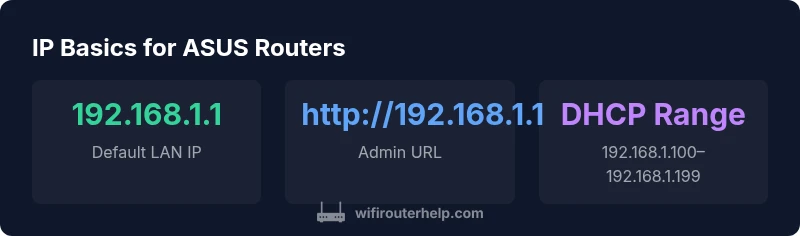
ASUS devices typically operate with a built-in DHCP server that assigns LAN IPs to devices as they join the network. The LAN IP (the router’s address on your local network) is usually 192.168.1.1, but can vary if you customize it. The WAN IP is the address your ISP assigns to your router’s external interface and can be dynamic (DHCP) or fixed (PPPoE/Static) depending on your service. DHCP reservations are the simplest way to ensure a device always keeps the same LAN IP without manual configuration on the device itself. This helps prevent IP conflicts and simplifies port forwarding, family-friendly access controls, and monitoring.
Accessing the ASUS admin panel by IP
To configure IP settings, you must access the router’s admin interface. In most ASUS routers, open a web browser and enter http://192.168.1.1 (or the LAN IP you set). If you forgot the IP, check the network settings on a connected computer or use the router’s status page. For added security, ensure you use HTTPS where available, and consider disabling remote admin access if it isn’t needed. In some cases, the admin page may be reachable at a different default IP (for example 192.168.50.1) on certain firmware versions or when the LAN subnet has been changed.
Setting a static IP and DHCP reservations on ASUS
There are two distinct approaches to stabilize IPs: static IPs set on each device or DHCP reservations managed by the router. DHCP reservations are usually the safer, simpler route because they stay within the router’s control and don’t require changing device network settings. To create a reservation, go to the LAN/DHCP page, add the device by its MAC address, and assign a specific IP within the DHCP range. If you choose a device-specific static IP, ensure the address falls outside the dynamic pool to avoid conflicts. Document the plan so future additions won’t collide with existing addresses.
WAN IP configurations and ISP considerations
WAN IP handling depends on your ISP and service type. Most homes use dynamic WAN IPs assigned via DHCP, but some connections require PPPoE authentication or a static IP. If your ISP provides a static WAN IP, enter it in the WAN settings along with the corresponding subnet mask, gateway, and DNS servers. For IPv6, enable the offered configuration if your ISP supports it, and remember that IPv6 address planning differs from IPv4, often simplifying device addressing but requiring different firewall rules.
Troubleshooting common IP issues
IP-related problems typically involve conflicts, disabled DHCP, or misconfigured subnets. If a device cannot reach the internet, verify it has a valid LAN IP within the router’s subnet, confirm the gateway is the router’s IP, and ensure DNS settings are correct. When two devices claim the same IP, you’ll see intermittent connectivity or disconnects. Restarting the router or refreshing the DHCP lease can fix transient issues. If a static IP was assigned on a device, verify it’s outside the DHCP range and matches the subnet.
IP planning and security best practices
Plan your IP scheme like a small map: keep the router’s LAN subnet consistent, reserve IPs for critical devices, and avoid overlapping ranges with any guest or IoT networks. Disable weak remote administration settings and use HTTPS-enabled admin access. Regularly review DHCP leases, audit connected devices, and maintain a documented IP plan. CONSISTENCY reduces troubleshooting time and improves overall stability on ASUS networks.
Quick setup checklist for new ASUS routers
- Write down the default LAN IP and admin URL.
- Enable HTTPS and disable WAN access if not needed.
- Create a few DHCP reservations for key devices (phones, laptops, NAS).
- Decide on a LAN IP and keep it consistent across firmware updates.
- Document WAN settings advised by your ISP.
- Regularly review connected devices for unfamiliar IPs.
Advanced recovery and optimization tips
If you’re migrating to a new ASUS router, export the current IP plan and reproduce it on the new device. For stubborn IP conflicts, consider temporarily changing the LAN IP to something outside the existing range and re-adding devices. Firmware updates can reset network settings; reapply your saved DHCP reservations and security preferences afterward. Keep an eye on firmware release notes for improved IPv6 support and routing enhancements.
Example IP access patterns for ASUS routers
| Model Type | Default IP | Access Method |
|---|---|---|
| ASUS Router A-Series (generic) | 192.168.1.1 | Web UI at http://192.168.1.1 |
| ASUS Router A-Series (guest network) | 192.168.0.1 | Web UI at http://192.168.0.1 |
| WAN IP assignment | Dynamic / PPPoE / Static | ISP dependent via WAN settings |
People Also Ask
What is the default ASUS IP?
Most ASUS routers use a default LAN IP of 192.168.1.1. You can confirm it on the router's label or in the network settings of a connected device. This address is where you access the admin UI to configure IPs and other settings.
The typical default ASUS IP is 192.168.1.1. Check your router label or device network settings to confirm and access the admin page.
How do I find my router IP?
On a connected computer, open your network settings and view the gateway address. This is usually the router's LAN IP. If you changed the LAN subnet, use that new address to reach the admin UI.
Check your device’s gateway address in network settings. It’s usually the router IP, like 192.168.1.1, unless you changed it.
Can I change the LAN IP on ASUS?
Yes. In the LAN settings or the IP address section of the ASUS admin panel, you can set a new LAN IP (e.g., 192.168.2.1). After changing it, reconnect to the new address and reconfigure DHCP as needed.
You can change the LAN IP in the admin panel under LAN settings. After changing it, reconnect to the new address and adjust DHCP if needed.
Why can’t I access the admin page with 192.168.1.1?
Possible causes include a different LAN IP, a changed subnet, or a network issue. Verify the current gateway address, revert to the default subnet if needed, and ensure the device is on the same network as the router.
If 192.168.1.1 doesn’t work, check your gateway address in device settings and confirm you’re on the same network. You may need to reset the router if necessary.
WAN IP vs LAN IP differences?
LAN IP is the router’s address on your local network; WAN IP is what the ISP assigns to your router on the internet. They serve different scopes and are configured separately in the router’s UI.
LAN IP is the router’s local address, while WAN IP is the internet-facing address from your ISP. They’re set in different sections of the router settings.
“Consistent IP planning is the backbone of a reliable home network. For ASUS routers, understanding where IPs come from and how to manage them reduces troubleshooting time.”
What to Remember
- Know the default IP to access the admin panel
- Use DHCP reservations to stabilize device IPs
- Differentiate LAN IP from WAN IP for clarity
- Plan IP ranges to avoid conflicts during growth
- Secure admin access with HTTPS and appropriate remote settings