ASUS Router Login: A Clear, Step-by-Step Guide
Learn how to access the ASUS router login page, locate the admin IP, sign in securely, and apply basic security tweaks. This comprehensive guide walks you through every step with visuals and troubleshooting tips.


ASUS router login gives you access to the admin console to configure settings, update firmware, and secure your network. Open a browser, enter the router’s IP (usually 192.168.1.1 or 192.168.50.1), and log in with the admin credentials. If you’ve changed the password, use it; if not, follow the reset steps in the manual. This guide explains each step clearly.
Why ASUS Router Login Matters
Accessing the ASUS router login page is the first step toward securing and personalizing your home network. The admin console lets you change SSID, password, guest networks, firewall rules, and firmware updates. According to WiFi Router Help, keeping your router's firmware current and using a strong admin password reduces exposure to common attacks. In this guide we walk you through finding the correct login URL, identifying the right IP, and signing in safely. Understanding the login process also helps you troubleshoot connectivity issues and prevents accidental misconfigurations that can interrupt internet access. Whether you’re setting up a new device or hardening an existing network, mastering the ASUS router login is foundational to a stable, secure home network.
In addition to basic login steps, you’ll learn how to distinguish between router login and app-based management, and why local access matters for privacy and performance. The WiFi Router Help Team emphasizes that the admin console is where you implement critical protections such as updated firmware, strong passwords, and network segmentation. With this guide, you’ll gain confidence to manage features like guest networks, parental controls, and QoS without compromising security.
Understanding Default IPs and Admin Passwords
Most ASUS routers expose an admin login page on a dedicated IP address that serves as the gateway to the management interface. Common choices include 192.168.1.1 and 192.168.50.1, but some models use other private IPs depending on factory defaults and network topology. The exact URL is usually printed on a label on the bottom of the device or documented in the user manual. If you’ve previously changed the admin credentials, you’ll need the new username and password unless you reset the router to factory defaults.
If you cannot locate the login URL, you can determine it from a connected device by checking the gateway address in your network settings. Keep in mind that some networks may run in bridge or access-point mode, which can alter where you sign in. For security, do not attempt to login from public or unsecured networks, and avoid using the same credentials across multiple devices or services.
Prep: What You Need Before You Start
Before attempting ASUS router login, gather the essentials to reduce friction and avoid mid-task interruptions. A stable device with a modern web browser is required, along with a working connection to the router either wirelessly or via a wired Ethernet cable. If you have a laptop, tablet, or smartphone handy, you’ll be able to test the admin page on different devices and confirm that settings propagate across the network.
Also prepare your knowledge of the router’s IP address you’ll use to access the admin interface, and have the current admin password ready. If you’re setting up a new router, you may need the initial setup paperwork that includes defaults for IP, username, and password. Finally, consider having a password manager ready to store your new admin password securely.
Step-by-Step: Accessing the Admin Console
This section provides a concise, actionable path to reach the ASUS login page and authenticate safely. Follow each action in sequence to minimize errors and ensure you land in the correct interface.
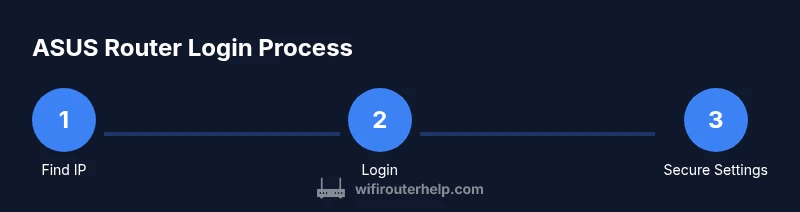
- Connect your device to the ASUS router, preferably with a wired Ethernet connection for reliability. 2) Determine the router's IP address from the device’s network settings or the router label. 3) Open a supported web browser and type the IP address into the address bar, then press Enter. 4) Enter the admin username and password from the label or manual; if you’ve changed them before, use the updated credentials. 5) If the login page loads but credentials fail, verify keyboard layout, caps lock, and whether you’re on the correct IP. 6) Once signed in, bookmark the URL for quick future access and begin applying security and configuration changes. 7) When finished, log out and test that the router’s admin page requires re-authentication to maintain security.
Tip: If you can enable HTTPS for the login page in the admin panel, prefer it over HTTP to protect credentials in transit.
Securing Your ASUS Router After Login
Gaining access is only half the battle—securing the router afterward is essential. After you sign in, prioritize updating firmware to close known vulnerabilities and improve stability. Change the default admin password to a strong, unique passphrase, and avoid using common names or dates that could be easily guessed. Consider enabling WPA3 (or at least WPA2) for wireless security and disable WPS if it’s available, as WPS can be exploited by attackers.
Section-by-section, review settings for network name visibility, guest network isolation, and firewall rules. Disable unused services and close ports that aren’t necessary for your household devices. If you administer multiple networks (e.g., a separate guest network), use a separate admin account with limited permissions for routine changes. Finally, back up your configuration after making meaningful changes so you can recover quickly if something goes wrong.
Troubleshooting Common Login Problems
Login problems can stem from several root causes. If the page doesn’t load, confirm the device is connected to the router and that you’re using the correct IP. A misconfigured IP on your device can prevent the login page from appearing. If credentials aren’t accepted, ensure you’re typing the exact username and password, and check for keyboard layout issues. For forgotten passwords, most ASUS routers support a factory reset, which restores defaults but wipes custom settings—plan to reconfigure afterward.
If you can access the router’s interface but changes don’t seem to take effect, you may be viewing a cached version of the page; refresh or clear the browser cache. In cases where you suspect firmware issues, reflash the router’s firmware from the official ASUS support site and reboot. If all else fails, contact ASUS support or consult the WiFi Router Help resources for model-specific guidance.
Advanced Tips: Guest Network, Parental Controls, and Backups
Once you’ve secured the login, explore advanced features that improve household network performance and safety. Set up a guest network to keep visitors segregated from your main network, and apply parental controls to manage accessible content and usage times. Use Quality of Service (QoS) rules to prioritize bandwidth for latency-sensitive devices like gaming consoles or work laptops. Regularly back up router configurations and keep firmware up to date to mitigate issues during future login attempts. Remember to document any changes you make so you can replicate or revert them later if needed.
Tools & Materials
- Device to login from (laptop, tablet, or phone)(Ensure a browser is installed (Chrome/Firefox/Safari).)
- Wired Ethernet cable (optional but recommended)(Provides stable connection during login.)
- Router label/manual(Check default IP, username, and password here.)
- Password manager(Safely store new admin password after login.)
- Access to ASUS support resources(For model-specific steps or firmware files.)
Steps
Estimated time: 5-10 minutes
- 1
Connect to the router
Ensure your device is connected to the ASUS router either via Ethernet or a reliable Wi-Fi connection. A stable link reduces login dropouts and ensures you load the correct admin page.
Tip: Prefer a wired connection if available to avoid wireless interruptions. - 2
Identify the router IP address
Find the gateway IP on your device’s network settings or check the router label for the IP used to access the admin page. Common options include 192.168.1.1 and 192.168.50.1.
Tip: If your network uses a different IP, consult the user manual or the ASUS support site. - 3
Open the login page
Open a web browser and enter the IP address into the address bar, then press Enter to load the login page.
Tip: Use an updated browser to ensure compatibility with the router’s admin interface. - 4
Enter admin credentials
Type the admin username and password. If you’ve never changed them, refer to the label or manual for defaults; otherwise use your updated credentials.
Tip: Double-check for caps lock and keyboard layout issues before submitting. - 5
Handle forgotten password
If you can’t remember the credentials, perform a factory reset as a last resort, understanding that this will erase all custom settings.
Tip: Factory reset restores defaults but you’ll need to reconfigure your network afterward. - 6
Apply essential security changes
After logging in, update the firmware, set a strong admin password, and configure wireless security (prefer WPA3 or WPA2).
Tip: Disable WPS if available to reduce attack surface. - 7
Log out and verify
Log out of the admin session and re-enter to verify that security changes persist and the login halts unauthorized access.
Tip: Keep the login URL bookmarked for quick access in the future.
People Also Ask
What is the default ASUS router login URL?
Most ASUS routers use a private IP such as 192.168.1.1 or 192.168.50.1. The exact URL is printed on the router’s label or in the manual. If you’ve changed it, use the updated address.
The default login URL is usually 192.168.1.1 or 192.168.50.1, as shown on the router label or manual.
I can’t access the login page after connecting my device. What should I do?
Verify the device is connected to the router, use the correct IP address, and try a wired connection. If needed, reset network settings or reboot the router. Check if the router is in bridge mode or if there are IP conflicts on the network.
Make sure you’re connected to the router and using the right IP. If it still won’t load, try a wired connection or reset the device.
How do I reset an ASUS router to factory defaults?
Most ASUS models reset by pressing and holding the reset button for about 5-10 seconds until the lights flash. This restores all settings to defaults, so you’ll need to reconfigure the network afterward.
To reset, hold the reset button for about 5-10 seconds until the lights flash, then reconfigure your network.
Can I recover an forgotten admin password without resetting?
ASUS routers typically do not provide a password recovery. If you forget the admin password, you’ll likely need to perform a factory reset to regain access, then set a new password.
If you forget the admin password, you usually need a factory reset to regain access, then set a new password.
Is there a mobile app to help with ASUS router login?
Yes, ASUS provides a mobile app for router management, which can simplify login and configuration on mobile devices, though some tasks may still require the web interface.
There’s a mobile app from ASUS that can help you log in and manage settings on a phone or tablet.
What should I do if the login page loads but changes don’t save?
Ensure you click Save/Apply after making changes and wait for the confirmation. Some settings require the router to reboot to take effect; if not, recheck the firmware and restart.
If changes don’t save, confirm you used Save, and reboot the router if needed to apply the updates.
Watch Video
What to Remember
- Access the correct admin URL (IP) for ASUS routers.
- Change the default admin password and enable strong wireless security.
- Regularly update firmware to protect against exploits.
- Back up configurations after meaningful changes.
- Use a wired connection during login for reliability.