ASUS Router Login: Step-by-Step Access and Security
Learn how to safely log in to your ASUS router, locate the admin page, handle credentials, and secure your home network with practical best practices.


You will log in to your ASUS router's admin interface to configure settings, update firmware, and manage your network. Before you start, ensure your computer is connected to the router (via Ethernet or Wi‑Fi) and know the router's IP address, usually 192.168.1.1 or 192.168.50.1, plus the default login credentials printed on the device label.
Accessing the ASUS Router Admin Page
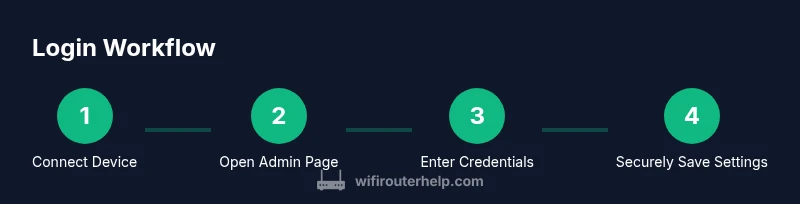
According to WiFi Router Help, accessing the router's admin page is the first step in any configuration or troubleshooting. Start by connecting a device to the router's network, either via Ethernet for a stable link or via Wi‑Fi for convenience. Then open a web browser and type the router’s IP address into the address bar. For most ASUS models, the default address is 192.168.1.1; some older or specialized devices use 192.168.50.1. If you’re not sure, check the label on the bottom or back of the router, or run a quick network scan to locate the gateway. Avoid using public networks for initial login, as they may expose your credentials to risk. If your network uses a mesh or secondary unit, you may need to point your browser to the primary router or the current gateway shown in your device’s connection settings. Once the login page loads, you’ll be prompted for credentials.
Locating the Correct IP Address and Credentials
Finding the right IP address and login credentials is essential. The login page URL is typically the router’s gateway IP. Confirm by checking the device label; if the label lists 192.168.1.1 or 192.168.50.1, use that. If your network uses a different subnet, you can discover the gateway by running a quick command in the command prompt or terminal: on Windows, ipconfig; on macOS or Linux, ifconfig or ip route show. The username and password are often printed on the router label near the model number. Common defaults are admin for both username and password, or admin for the username and a blank password in some cases. If a credential has already been set, use the current ones. If you can't recall them, you can initiate a password reset via the router's reset button or through the web interface if available.
Safe Handling of Default Credentials and Reset Scenarios
If you’re logging in for the first time, use the credentials on the router label and change them immediately after you gain access. Do not leave default credentials active for long. If you suspect someone else knows them, perform a factory reset and reconfigure your settings from scratch. Always document your new credentials in a secure password manager. WiFi Router Help analysis shows that most home users strengthen security by changing the default admin password soon after login.
Troubleshooting Login Problems
If the login page doesn’t load, verify you’re connected to the router’s LAN, not a guest network or VPN. Double-check the IP address and try the alternative common default (192.168.1.1 or 192.168.50.1). Clear browser cookies or try a different browser. Disable browser extensions that might block the login script, and ensure no firewall on your device blocks the gateway. If the page loads but credentials are rejected, reset the password via the router’s reset procedure or use the ASUS recovery option if available.
Securing Your Router After Login
Once you log in, immediately strengthen security: create a strong, unique admin password and avoid shared or easy-to-guess words. Enable HTTPS if available, turn on the router’s firewall, and disable remote administration unless you truly need it. Keep firmware up to date by enabling automatic updates or checking for updates weekly. WiFi Router Help's verdict is that a secure login plus regular maintenance significantly reduces exposure to common home-network threats.
Using the ASUS Router App vs Web Interface
The web interface is feature-rich and ideal for precise configuration, while the ASUS Router app can simplify onboarding and quick adjustments on mobile. If you’re new to router settings, start with the app for guided steps, then switch to the web interface for advanced options like guest networks, firewall rules, and QoS. Make sure any app you use is from the official source to avoid phishing or spoofed login prompts.
Remote Access and Cloud Management Considerations
Remote access can be convenient for monitoring a network while away from home, but it introduces additional risk. Enable remote management only when necessary, set a strong secondary password, and require HTTPS. If you enable cloud features, ensure you’re using a secure ASUS account, two-factor authentication, and monitor connected devices to detect unauthorized access.
Best Practices and Quick Maintenance
Consistently review login activity, change passwords periodically, and back up router configurations after major changes. Keep your device firmware current, and retire old features you don’t use. The path to a resilient home network starts with a secure login and a habit of routine checks. The WiFi Router Help team recommends documenting changes and maintaining a routine security audit to stay ahead of threats.
Tools & Materials
- Device with a web browser(Phone, tablet, or computer connected to the router (Wi‑Fi or Ethernet))
- Router label or documentation(Check for default IP and credentials on the device label)
- Network basics knowledge(Familiarity with IP addresses and basic network terms helps)
- Optional: ASUS Router app(Mobile-friendly login and setup experience)
Steps
Estimated time: 20-40 minutes
- 1
Connect your device to the router
Ensure your computer, tablet, or phone is connected to the router’s network either via Wi‑Fi or a wired Ethernet connection. This creates a direct path to the admin page and reduces login problems caused by cross-network routing.
Tip: Using Ethernet provides a more stable connection during login and initial setup. - 2
Open the router login page in a browser
Launch a web browser and enter the router’s IP address into the address bar. For most ASUS models this is 192.168.1.1, but some devices use 192.168.50.1. If you don’t see the login page, check the router label or run a quick gateway discovery on your device.
Tip: If a different subnet is used, locate the gateway in your device’s network settings. - 3
Enter the login credentials
On the login page, type the administrator username and password printed on the router label or the credentials you previously set. If this is a first-time login, try the common defaults (admin/admin or admin/blank).
Tip: If the default credentials don’t work, do not guess endlessly—use the reset option to regain access. - 4
If you can’t remember credentials
Use the router’s reset mechanism to restore factory defaults. After reset, log in with the label-provided credentials and immediately update your password.
Tip: Resetting will erase custom settings, so plan to reconfigure your network afterward. - 5
Change the admin password
Once you’re in, navigate to the administration or system settings and set a new, strong password. Store this in a password manager or a secure location.
Tip: Choose a password with at least 12 characters including numbers, symbols, and mixed-case letters. - 6
Enable HTTPS and firmware updates
If available, enable HTTPS for the admin page and set firmware to update automatically. This reduces exposure to man-in-the-middle attacks and keeps features current.
Tip: Regular firmware updates fix vulnerabilities and improve performance. - 7
Configure essential options
Set up a strong Wi‑Fi password, enable WPA3 if your hardware supports it, and review remote management settings. Disable features you don’t use (UPnP, WPS) to reduce attack surfaces.
Tip: Limit admin access to trusted devices and avoid exposing the login page to the broader internet. - 8
Log out and verify access
Logout after making changes and verify you can log back in with the new credentials. Reboot the router if you make major changes to ensure they take effect.
Tip: Take a screenshot of the final settings page for future reference.
People Also Ask
Why can't I access the ASUS login page?
Common causes include an incorrect IP, a device not on the same network, or a browser blocking scripts. Verify the IP and ensure the device is connected to the router's network.
If the login page won’t load, check that your device is on the same network and try the router’s default IP again.
Is it safe to login from a mobile app?
Yes, using the official ASUS Router app on a trusted device is generally safe. It provides a guided setup and secure access when you follow best practices.
Yes, use the official app on a trusted device for login and basic management.
Can I login remotely to my ASUS router?
Remote login is possible via ASUS account or WAN access, but it carries higher risk. Enable it only when needed and use HTTPS.
Remote login can be risky; enable it only when necessary and use HTTPS.
What if the IP address doesn’t work and I’m sure I’m connected to the router?
Try the common alternate IP 192.168.50.1 or check the router label or the device’s gateway information to confirm the correct address.
If the usual IP doesn’t work, check the alternate address on the label or in your device’s gateway settings.
Should I reset the router to fix login problems?
Resetting restores factory defaults and should be a last resort. After reset, reconfigure from scratch and set a strong password.
Resetting can fix login issues, but it erases custom settings—be prepared to reconfigure.
Watch Video
What to Remember
- Log in to the ASUS router to control settings
- Change default credentials immediately after first login
- Keep firmware up-to-date and configure essential security options
- Know how to recover access if credentials are forgotten
- Use the official app for quick tasks, web interface for advanced setup