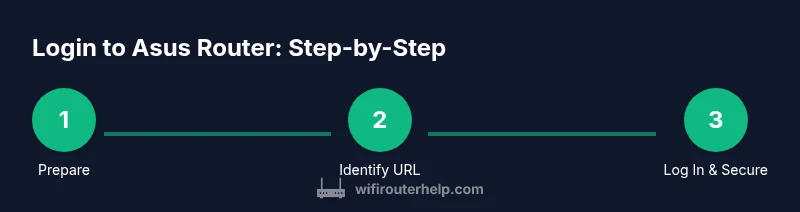
How to Login to an Asus Router: A Step-by-Step Guide
Learn how to login to an Asus router with a clear, step-by-step method. Find the login IP, recover credentials, and securely manage your home network.


To login to an Asus router, open a browser and enter the admin URL (commonly http://192.168.1.1 or http://router.asus.com). Use the router’s admin username and password to access the interface. If login fails, verify the IP address, ensure you’re connected to the router’s network, and try resetting credentials if needed before proceeding.
Why logging in to your Asus router matters
Access to the router’s admin interface lets you view connected devices, adjust Wi‑Fi settings, and tighten security. If you don’t log in, you’re flying blind when you add devices, open guest networks, or enable parental controls. The process is straightforward, but a few details—like the exact login URL and credential handling—vary by model. According to WiFi Router Help, understanding the login flow reduces frustration and helps you apply critical security updates promptly. In this guide, we’ll cover how to identify the correct URL, what credentials you’ll need, and how to safely make changes without disrupting your family’s network. You’ll gain confidence to manage settings, monitor activity, and recover access if you lose credentials.
How Asus routers expose admin interfaces
Most Asus routers expose an admin interface that is accessible via a web browser. The login page is served by the router itself and is not reachable over the public Internet unless you enable remote access. The UI often uses a clean, modern dashboard that groups settings like Wireless, LAN, Internet, and Security. Some newer models may offer a mobile app or a host-based interface through router.asus.com. Regardless of the specific model, the underlying concept is the same: you access a local IP or domain, enter credentials, and land in a control panel where you can adjust options, save changes, and log out. Treat this like your home’s digital front door and keep credentials secure. The WiFi Router Help team found that model differences exist, but the login flow remains consistent across lines.
Default login URLs to try
Depending on your model and firmware, the admin page can be reached at one of several addresses. The most common is http://192.168.1.1, but 192.168.0.1 is also widely used, and some Asus devices respond to http://router.asus.com or http://asusrouter.local. If you’re unsure, start with the URL printed on the router’s label or in the quick-start guide. Ensure your device is connected to the router’s network first, then enter the address in a browser’s address bar. If you see a blank page or a connection error, try an alternative address or confirm that your device is on the correct network. WiFi Router Help analysis shows that many users try the wrong endpoint first and waste time chasing a solution.
What you’ll need before you begin
Before attempting login, gather the essentials. You’ll need a device with a modern web browser, and a network connection to the Asus router—either via Wi‑Fi or a wired Ethernet link. Have the admin username and password ready; if you didn’t customize them, you may have the default credentials provided in the manual or on the router’s label. If you’re unsure, note the firmware version and model number so you can look up model-specific steps in the official guide. Finally, keep a few minutes of time reserved for possible firmware prompts or security warnings that appear after login.
Step 1: Connect your device to the router network
Action: Connect your device to the router via Wi‑Fi or Ethernet. A stable wired connection reduces login errors and helps you reach the admin page reliably. If you’re on a guest network, switch to the main network to avoid access restrictions. Ensure you’re within range and that your device remains connected during the login process. This step sets the foundation for a smooth session.
Step 2: Determine the correct login IP or domain
Action: Identify the correct login endpoint for your model. Look for the printed IP or domain on the router label, manual, or official Asus support page. You can also discover the address via your connected device: on Windows, run ipconfig and note the Default Gateway; on macOS, check System Preferences > Network > Advanced. If you see multiple addresses, begin with the most common 192.168.1.1 and try router.asus.com if the IP fails.
Step 3: Open the login page in a browser
Action: In your browser, type the login URL exactly and press Enter. You should see a login prompt with fields for username and password. Enter the admin username (often admin or as configured) and the password. If the page loads but credentials are rejected, re-check the spelling, confirm the keyboard layout (special characters matter), and consider resetting credentials if you own the device. Avoid using the search bar to navigate to the page; always use the address bar.
Step 4: Enter admin credentials
Action: Type the designated admin username and password into the login form. If you set up a guest network or family profile, ensure you’re using the administrative credentials, not a guest login credential. If you misspell or mistype, the system will reject access and may lock you out after repeated failures. Take a breath, re-enter carefully, and try again. If you previously changed credentials, use the new values only. This step is crucial for securing control of the router settings.
Step 5: Troubleshoot login failures
Action: If the login page won’t load, verify you’re on the correct network and that the device isn’t blocked by a firewall. Try a different browser or clear cookies. If you get a 404 or timeout, reboot the router by unplugging it for 10 seconds and reconnecting. For persistent access problems, consult Asus support resources or your model’s manual. Keep a calm approach and systematically test each potential cause.
Step 6: Reset credentials safely if needed
Action: If you’ve lost admin access and have no backup credentials, a factory reset may be necessary. This restores default settings but erases custom configurations, including your Wi‑Fi name and password. After reset, the default login URL and credentials are typically restored. Follow the manual precisely and re-secure the network by changing the admin password and updating firmware immediately. After a reset, re-create your security posture before reconnecting devices.
Step 7: Secure the login after access
Action: After successful login, perform a quick security audit. Change the admin password to a strong, unique one; enable HTTPS if available; turn off remote access unless you need it; and update firmware to the latest version. Create a separate guest network for visitors, and review connected devices to spot unknown users. Regularly monitor the admin panel for changes to prevent unauthorized access.
Step 8: Log out and verify settings
Action: Log out after changes and test that you can log back in with the new credentials. Validate that essential services (Wi‑Fi name, password, guest network) continue to function as expected. If something is broken, retrace your steps to locate where the change occurred and revert if necessary. A successful login and verified settings mean your network remains secure and functional.
Tools & Materials
- Device with a web browser(Chrome/Edge/Safari/Firefox; ensure latest version)
- Working network connection(Wi‑Fi or Ethernet to the router)
- Router admin URL or IP address(Common: 192.168.1.1 or router.asus.com)
- Admin username and password(If unknown, check router label or manual; do not guess)
- Ethernet cable (optional)(Recommended for a stable login on a desktop/laptop)
Steps
Estimated time: 15-25 minutes
- 1
Connect your device to the router network
Connect your device to the router via Wi‑Fi or Ethernet. A stable connection reduces login errors and helps you reach the admin page reliably. If you’re on a guest network, switch to the main network to avoid access restrictions.
Tip: Wired connections are more reliable for initial login. - 2
Find the login URL or IP
Identify the correct login endpoint for your model by checking the router label, the manual, or Asus support. On many devices you can also determine it from your connected device’s network settings.
Tip: Check the Default Gateway on Windows or macOS to confirm the IP. - 3
Open the login page in a browser
Enter the address exactly in the browser’s address bar and press Enter to reach the login prompt. Do not use the search bar to navigate to the page.
Tip: If it doesn’t load, try an alternate address (192.168.0.1 or router.asus.com). - 4
Enter admin credentials
Input the admin username and password. If credentials are rejected, verify spelling, keyboard layout, and consider resetting if needed.
Tip: Avoid multiple failed attempts to prevent temporary lockout. - 5
Troubleshoot login failures
If the login page won’t load or credentials fail, verify network, clear cookies, and try a different browser. Reboot the router if necessary.
Tip: A simple reboot resolves many ephemeral login issues. - 6
Reset credentials safely if needed
If you can’t recover credentials, a factory reset may be necessary. This erases custom settings, including Wi‑Fi details; you will need to reconfigure afterward.
Tip: Back up essential settings if possible before resetting. - 7
Secure the login after access
Change the admin password to a strong one, enable HTTPS if available, and disable remote access unless you need it. Update firmware to the latest version.
Tip: Use unique, long passwords and enable automatic firmware updates. - 8
Log out and verify settings
Log out after changes and test re-login with the new credentials. Confirm Wi‑Fi and guest networks operate as expected.
Tip: Double-check that critical changes took effect.
People Also Ask
What is the default Asus router login URL?
Many Asus models use 192.168.1.1 or router.asus.com as the login page. If you don’t see either, check the router label or the manual for model-specific details.
The common login addresses are 192.168.1.1 or router.asus.com. If these don’t work, check your device and router manual.
Why can’t I access the admin page even when connected?
Confirm you’re connected to the router’s network, not a guest or other network. Try using a wired connection and verify the URL or IP address. If remote access is enabled but not working locally, disable it for safety and test again.
Make sure you’re on the router’s network, and try a wired connection if possible.
What if I forgot the admin password?
Use the password recovery options if available, or perform a factory reset after backing up any critical configuration. After resetting, set a new admin password and reconfigure security settings.
If you forgot the password, look for recovery options or reset the router, then set a new password.
How do I reset the router to factory settings?
A factory reset restores default settings and credentials but erases custom configurations. Use a small pin to press the reset button or follow the manual precisely, then reconfigure your network.
To reset, press and hold the reset button for about 10 seconds, then reconfigure.
Is login over HTTP secure, or should I use HTTPS?
Some Asus models support HTTPS on the admin page for encrypted communication. If HTTPS is available, prefer it and verify the certificate before entering credentials.
HTTPS is preferable when available to protect credentials.
Can I change the admin username?
Most Asus models let you change the admin username, but some default to a fixed username. Check the firmware UI and security settings to customize.
You can usually change the username in the Security or Administration section.
Watch Video
What to Remember
- Identify the correct login URL for your Asus router
- Use a strong, unique admin password
- Know how to recover or reset credentials safely
- Secure the admin interface after logging in
- Regularly update firmware to maintain security