How to Access an Asus Router When in AP Mode
Learn how to access an ASUS router when it’s operating in AP mode. This comprehensive guide covers web GUI access, mobile app steps, and troubleshooting to keep your home network stable.


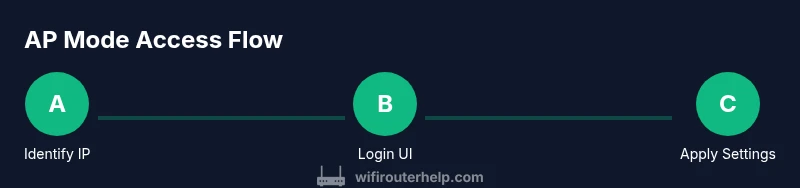
To access an ASUS router when it’s in AP mode, connect a device to the AP’s network, then open a browser and enter the AP’s LAN IP (commonly 192.168.1.1) or the gateway shown in your device’s network settings. Log in with the router’s admin credentials, and ensure WAN/DHCP settings align with AP mode guidelines. If login fails, reset to default or verify the IP via your network map.
how to access asus router when in ap mode
Accessing an ASUS router while it operates as an access point is a common task for homeowners expanding coverage without changing the main gateway. In AP mode, the ASUS device acts as a bridge, not as the primary router, which changes where you log in and how IPs are assigned. According to WiFi Router Help, starting with a clear map of devices and IPs reduces login errors and configuration mishaps. The first step is to verify the AP’s LAN IP address on your client device—this is the address you’ll use to reach the web interface. While many ASUS APs default to 192.168.1.1, you should confirm through your device’s network settings or the AP’s label. If you cannot reach the UI, check that your device is on the same subnet and that there are no IP conflicts. Remember: AP mode commonly disables the WAN port on the ASUS device, so you won’t see a traditional WAN login page. Keeping notes of the AP IP, the current DHCP range, and the main router’s IP helps prevent surprises later on.
What AP Mode changes for login and access
AP mode modifies how you access the device compared to traditional router mode. The ASUS unit in AP mode typically does not provide WAN access, and its DHCP server may be disabled so the main router handles address assignment. Because of this, you’ll log in via the AP’s LAN IP within your local network, not through a WAN URL. If your main router uses the 192.168.0.x or 192.168.1.x subnet, ensure the AP sits in the same range to simplify access. If you previously logged in using a different IP, you may need to re-check your computer’s gateway and DNS settings to discover the correct AP address. Finally, avoid changing the AP’s IP while you’re connected, as that can lock you out of the device.
Methods to access: Web GUI, Asus Router App, and SSH/Telnet
Most users access an ASUS AP in several ways. The Web GUI is the primary method: open a browser and type the AP’s LAN IP. The Asus Router app can also be used to view basic settings and confirm connectivity, though some advanced AP-mode configurations may require the web interface. SSH or Telnet access is less common and may be disabled by default in AP mode; only enable these if you understand the security implications and have explicit authorization to do so. Always log out after making changes and test connectivity by checking devices on the network and reloading the main dashboard to confirm the AP’s status.
Common pitfalls and how to avoid them
Double NAT, IP conflicts, and stale routes are the most frequent issues when working with AP mode. To avoid them, ensure the AP is set to bridge or AP mode with DHCP disabled, and verify that the main router is the only device issuing DHCP. Use a unique IP within the AP’s subnet and document it for quick access. If you accidentally change the AP’s IP and lose access, reset the AP to factory defaults as a last resort, then reconfigure from scratch. Always confirm that wireless settings (SSID, password, security mode) are consistent with your main network to avoid roaming problems.
Security considerations when AP mode
AP mode is convenient but can expose weak points if not secured properly. Use a strong admin password, disable remote administration, and keep firmware up to date. Regularly audit connected devices and monitor for unfamiliar MAC addresses. If possible, enable a firewall on the AP and ensure the main router handles secure filtering and NAT. Document changes and back up configuration before applying large updates.
Tools & Materials
- Device with a web browser(Phone, tablet, or computer connected to the AP network)
- Active AP connection(Wi-Fi or Ethernet link to the ASUS AP in question)
- IP discovery method(Check network settings, AP label, or use a network scanner)
- AP admin credentials(Username and password you use to login to the ASUS UI)
- SSH client (optional)(Only if you plan to enable/secure SSH access in AP mode)
- Pen and notes(Record IPs, ranges, and changes for future reference)
Steps
Estimated time: 30-45 minutes
- 1
Identify the AP's LAN IP address
Start by locating the AP’s LAN IP address. Check the label on the device, review the main router’s DHCP client list, or use a network scanner on a connected device. Make a note of this IP for quick access during the login process.
Tip: Document the discovered IP in a single place to prevent confusion if you reboot devices. - 2
Connect to the AP network
Ensure your computer or mobile device is connected to the AP's Wi‑Fi network or via an Ethernet cable. Accessing the web UI works best when the client is on the same LAN segment as the AP.
Tip: Prefer a wired connection when possible to reduce wireless interference during login. - 3
Open the AP web interface
Open a browser and type the AP's LAN IP you identified in step 1. You should see the ASUS login page or a setup wizard if the AP is brand new.
Tip: If the page doesn't load, clear your browser cache and try another browser. - 4
Enter admin credentials
Log in using the admin username and password you set during initial setup or the default credentials if you haven't changed them yet. If you forgot, check your label or perform a safe reset from the device to restore defaults.
Tip: If login fails after a reset, wait a few seconds and retry; ensure you’re on the correct IP for the AP, not the main router. - 5
Configure AP mode settings (WAN/DHCP)
Navigate to the LAN and DHCP sections. In AP mode, disable the AP’s WAN interface if present and ensure DHCP is handled by the primary router. Save changes and apply them.
Tip: Do not disable Wi‑Fi radios unless you are sure you want to stop AP broadcasts. - 6
Apply changes and reboot if needed
Click Save or Apply. Some changes require a reboot to take effect. If the UI prompts for a reboot, allow it and wait for the AP to come back online.
Tip: After reboot, re-check the AP IP and login page to confirm access is restored. - 7
Test access and roaming behavior
Reopen the AP IP in a browser from a device connected to the AP. Test basic features like SSID visibility and password, and verify the main router provides Internet access to clients.
Tip: Test on multiple devices to ensure consistent access and roaming between routers.
People Also Ask
What is AP mode, and why does access differ from router mode?
AP mode turns the ASUS device into a bridge, extending your network without acting as the main router. Access is through the AP's LAN IP rather than a WAN address, and DHCP is typically handled by the primary router.
In AP mode, you log in via the AP's local IP rather than the internet-facing address, because the device isn't acting as the main gateway.
I can't find the AP IP address. What should I do?
Check the AP label, consult your main router's DHCP client list, or use a network scanning app to identify the LAN IP. Ensure your device is on the same subnet as the AP.
Use a network scanner or your main router's client list to find the AP's IP on the same subnet.
Can I use the ASUS Router app to access AP mode?
Yes, the ASUS Router app can typically view basic AP settings and status. For advanced changes, use the Web GUI on the AP's LAN IP.
The app helps check status, but you may need the web interface for deeper AP-mode tweaks.
Why disable DHCP on the AP in AP mode?
Disabling DHCP on the AP avoids IP conflicts and ensures the main router assigns addresses consistently across the network.
Turn off DHCP on the AP so the main router manages all IP addresses.
What if login keeps failing after a reset?
Ensure you’re using the correct AP IP, perform another reset if needed, and reconnect to the AP network before trying again.
If login fails, recheck the AP IP and try resetting again as a last resort.
Is enabling SSH on AP mode safe?
SSH can be enabled for advanced management, but it increases the attack surface. Use strong keys, disable when not needed, and follow ASUS documentation.
SSH offers power but adds risk; enable only if you need it and protect access.
Do I need to reboot devices after changes?
Yes, rebooting the AP (and sometimes the main router) ensures new settings take effect. Check connectivity after reboot.
A quick reboot helps apply settings and verify everything works.
Watch Video
What to Remember
- Identify the AP's LAN IP before login
- Log in via the AP IP, not the WAN address
- Disable AP WAN and DHCP on the AP to avoid conflicts
- Test connectivity after each change