Orbi Router Login: How to Access and Manage Your Orbi Network
Learn how to safely access the Orbi router admin page, update credentials, manage settings, and secure your home network with our clear, step-by-step guide from WiFi Router Help.


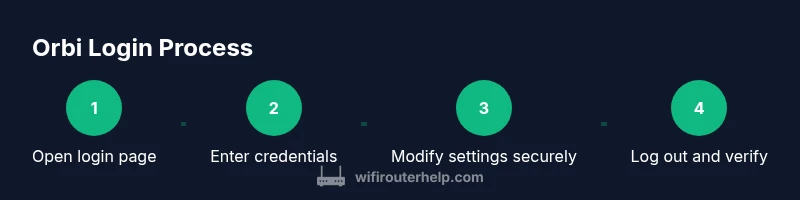
To login to your Orbi router, open a web browser and go to orbilogin.com or enter the device’s IP address (often 192.168.1.1 or 10.0.0.1). Enter the administrator username and password you created during setup, then navigate to the settings you need. If login fails, try a password reset or factory reset as a last resort.
Why login to your Orbi router matters
Gaining access to the Orbi router’s admin portal is the first step toward a secure and reliable home network. The login process gives you control over who can manage settings, what devices connect, and how data moves through your network. Regular login checks help you confirm firmware status, password strength, and privacy options. In practice, this means you can enable features such as guest networks, parental controls, and firewall rules, reduce exposure from unfamiliar devices, and prevent unauthorized changes. The WiFi Router Help team emphasizes that a strong admin password and a unique login for the router are foundational to ongoing network health. If you’re setting up a new Orbi system or troubleshooting connectivity, a quick login helps you verify that devices can reach the internet and that your network name (SSID) is correctly advertised. Keeping login information secure is a small step with big payoff for stability and safety.
Methods to access the login page: orbilogin.com vs IP address
Access to the Orbi login page can be achieved through two reliable methods. The preferred approach is to type orbilogin.com into any web browser on a device connected to your Orbi network, which redirects to the admin interface. If the domain fails to resolve, you can alternatively enter the router’s local IP address, typically something like 192.168.1.1 or 10.0.0.1. In many setups, either method will present a login prompt asking for the administrator username and password created during setup. Note that you must be on the same local network as the router to load the page; attempting to log in from outside your network requires enabling remote management, which is generally discouraged for security reasons. If you’re using a mesh system, you may need to log in via the router unit administrator or a dedicated admin node, depending on your model. The key is to ensure your device has an active connection to the Orbi’s network and that your browser accepts cookies and scripts from the router interface.
Understanding the login interface and common prompts
Once the login page loads, you’ll typically see fields for an administrator username and password. On most Orbi setups, the first login prompts you to establish or confirm an admin password and may offer a choice to sign in with your Netgear account. If you recently reset the router, you may be prompted to create a new password before accessing advanced settings. Be aware that the interface may show a warning panel about firmware status or feature changes. If the system warns about weak passwords or suspicious devices, take action immediately. For those who forgot the password, look for a password recovery option, or consider a factory reset as a last resort after you have exhausted password recovery methods. Maintaining a strong password and updating it regularly reduces risk of unauthorized access.
Secure login practices: passwords, two-factor, and admin access
Secure login practices start with a strong, unique admin password. Avoid common phrases, reuse across devices, or default credentials. If your Orbi supports account-based login, ensure the Netgear account is secured with a strong password and two-factor authentication if available. Disable remote management unless you need it, and restrict admin access to trusted devices. Regularly review the list of attached devices in the admin interface to spot unknown connections. Consider setting a separate guest network for visitors and disable device-level admin access when possible. Finally, keep firmware up to date, since updates often include security enhancements that affect login safety, even though firmware updates are a separate topic.
Troubleshooting common login issues
If the login page won’t load, first check that your computer or phone is connected to the Orbi network. Ensure you’re using the correct URL (orbilogin.com) or IP address and that DNS isn’t blocking the domain. Clear browser cache, try a different browser, and disable any VPNs that might interfere with local routing. If the page loads but credentials are rejected, re-check the username and password, looking for case sensitivity and trailing spaces. If you still cannot login, skip to the next section for recovery options and potential factory reset steps. Remember: make changes one at a time to avoid cascading configuration issues.
Password recovery and factory reset options
If you forget the admin password, search for password recovery options within the login screen or consult the manual for recovery links. If recovery fails, a factory reset restores the router to its default state, enabling you to start fresh. Note that a reset wipes custom settings, so plan to reconfigure your network afterward. After resetting, you’ll typically login with the default credentials and then immediately set a new, strong password. Always back up important configurations if you can access the interface before performing a reset.
After login: security hardening and routine maintenance
Once you gain access, secure your network by changing the admin password, disabling remote management, and enabling strong wireless security (WPA2/WPA3). Create a separate guest network for visitors, limit admin access to trusted devices, and review connected devices regularly. Schedule periodic firmware checks and updates to close security gaps. Back up configuration settings and document the changes you make so you can reproduce them if needed. Regular maintenance keeps your Orbi login area reliable and your home network safer.
Authority sources
- FCC.gov: Consumer guidance on securing home networks and router best practices. https://www.fcc.gov
- FTC.gov: Articles on securing Wi-Fi and protecting personal information online. https://www.ftc.gov
- Major publications: Practical guides and tutorials on router login and settings from sources like CNET. https://www.cnet.com
Tools & Materials
- A web browser on a connected device(Chrome, Firefox, Edge, or Safari work; enable cookies and JavaScript)
- A device connected to the Orbi network(Use Wi-Fi or a wired Ethernet connection)
- Orbi router and power adapter(Ensure the router is powered on and LEDs indicate normal operation)
- A recent admin password or recovery options(Helpful if you’ve changed the password before; keep a secure record)
- Ethernet cable (optional but recommended for reliability)(Helpful for a stable login session during initial setup)
Steps
Estimated time: 15-25 minutes
- 1
Prepare your device and connect to the Orbi network
Power on the Orbi router, ensure the satellite units are synced if you have a mesh setup, and connect your computer or mobile device to the network. A stable local connection reduces login errors and DNS lookups that can block access to the admin page.
Tip: If possible, use a wired connection during the first login for maximum reliability. - 2
Open the login page using the recommended URL or IP
In a browser, type orbilogin.com or the router’s local IP address (commonly 192.168.1.1 or 10.0.0.1). If the page fails to load, try a different browser, clear cache, or restart the router. You should see a login prompt within seconds.
Tip: Avoid typing orbilogin.net if your browser resolves to a different locale; stick with the tested options. - 3
Enter administrator credentials
Provide the admin username and password created during setup or the ones provided by Netgear’s guidance. If you’ve never set a password, look for a password reset option in the login screen or the manual.
Tip: Be mindful of case sensitivity and avoid copying with trailing spaces. - 4
Access the admin dashboard and review basic settings
Once logged in, navigate to basic settings to confirm your network name (SSID), password, and device list. Check the status indicators for firmware availability and security prompts.
Tip: Document any changes you make for future reference. - 5
Change password and strengthen security
If you can, immediately replace the default admin password with a strong, unique one. Consider enabling additional security options like a guest network and disabling remote management if not needed.
Tip: Use a passphrase of 14+ characters with a mix of numbers, symbols, and uppercase/lowercase letters. - 6
Log out and test the login flow again
Sign out, close the browser, reopen, and attempt to log back in to confirm the new credentials work. This confirms your changes and prevents session hijacking.
Tip: Always test login with two devices if you have multiple users. - 7
Plan a quick maintenance routine
Schedule a monthly check of connected devices, firmware status, and password strength. Keeping a routine reduces the chance of forgotten settings and weak security.
Tip: Set calendar reminders and keep firmware upgrade notes handy.
People Also Ask
What is the default Orbi login URL?
The default login URL is typically orbilogin.com or a local IP like 192.168.1.1. If one method doesn’t work, try the other. Ensure your device is on the same network as the Orbi router.
Try orbilogin.com first, then the router's local IP if needed.
What should I do if orbilogin.com isn’t loading?
First check your device is connected to the Orbi network. Clear the browser cache, disable VPNs, and try a different browser. If it still fails, reboot the router and try again.
Check connection, clear cache, and retry with a different browser.
How do I reset the admin password if I forgot it?
Look for a password recovery option on the login page or reset the router to factory defaults as a last resort. After a reset, you’ll need to reconfigure your network settings.
Use password recovery first; reset only if needed.
Can I login to Orbi using my Netgear account?
Some Orbi models support sign-in via a Netgear account for easier access management. Check your model’s documentation to enable this feature if available.
Netgear account login is model-dependent; verify with your device.
Is it safe to enable remote management?
Remote management can expose your network to external access. Disable it unless you have a strong reason and restrict access to trusted devices.
Remote management is risky; keep it off unless necessary.
What should I do after a successful login?
Immediately update your admin password and review connected devices. Consider enabling a guest network and checking for firmware updates.
After login, secure your password and review devices.
Watch Video
What to Remember
- Access the official login page from the local network only.
- Choose a strong, unique admin password and avoid defaults.
- Disable unnecessary remote management to reduce risk.
- Review connected devices and firmware status regularly.
- Back up configurations after meaningful changes.