Orbi RBR20 Setup and Troubleshooting Guide
A practical, step-by-step guide to setting up, optimizing, and troubleshooting the Orbi RBR20 router for reliable, secure home WiFi connectivity.


You will set up and optimize the Orbi RBR20 for stable home WiFi by following this article’s step-by-step guide, covering placement, configuration, password best practices, and firmware updates. Required: a modem with internet, an Ethernet cable, and a device to access the admin interface for initial setup and ongoing management.
Why this guide helps homeowners
Setting up the Orbi RBR20 can feel straightforward, yet many users stumble over placement, ISP activation, and firmware gaps. This guide provides a practical, step-by-step approach designed for homeowners and tech enthusiasts who want reliable coverage and predictable performance. According to WiFi Router Help, the Orbi RBR20 can deliver robust coverage for typical homes, but achieving consistent performance relies on proper placement and up-to-date firmware. By following these sections, you’ll learn how to plan your network, connect the hardware correctly, configure the admin interface, and verify performance across wired and wireless devices. You’ll also find tips for security, guest access, and routine maintenance so your network stays safe and stable over time. The Orbi RBR20 is a solid choice for many households, but maximizing its potential means avoiding common misconfigurations and interference. Keep your ISP modem in bridge mode if supported, and make sure to note down login credentials for the Orbi admin portal. This article uses plain language, practical steps, and real-world examples so you can get from unboxing to a humming network quickly. orbi rbr20 friendly for beginners and power users alike.
Network planning for the Orbi RBR20
Before powering up the hardware, sketch your network plan. Decide on a network name (SSID) that’s easy to recognize and a strong password that isn’t shared with other services. If you have both 2.4 GHz and 5 GHz devices, decide whether to keep them separate or rely on the Orbi’s Smart Connect, which automatically steers devices to the best band. For homes with smart speakers, cameras, and streaming devices, plan a simple QoS strategy to reserve bandwidth for latency-sensitive devices without starving other clients. Avoid using personal identifiers in the SSID. In addition, choose a secure admin password and enable two-factor authentication if available. The orbi rbr20 model benefits from a clean, well-documented network plan, because interference, channel overlap, and weak passwords are the most common causes of slowdowns. As you map devices, keep a note of which ones belong to the guest network and which should see your main network. This forethought saves time during final testing and troubleshooting.
Initial hardware checks and connections
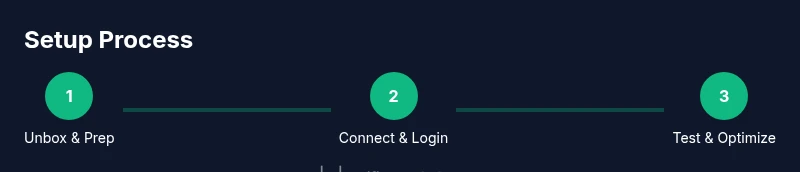
Unbox the Orbi RBR20 and verify you have a modem and the required power adapter. Connect the modem to the Orbi’s WAN port using an Ethernet cable, then plug in the device and wait for the status lights to stabilize. If you’re replacing a legacy router, power down the old device only after the Orbi shows online status. Check that the modem’s own link light is active and that you can browse to a simple site from a connected computer. Keep your ISP login details handy in case activation is required. If you use a bridge-mode setup, follow your ISP’s instructions to avoid double NAT, which can hurt gaming and video conferencing. With the Orbi RBR20 in hand and the right cables, you’re ready to move on to the admin configuration.
Configuring the RBR20: admin interface basics
Open a web browser and navigate to http://orbilogin.com or http://192.168.1.1, or use the Orbi app to start the setup wizard. Create a strong admin password and enable secure settings such as WPA2/WPA3 on the wireless network. Set your network name (SSID) and password for the 2.4 GHz and 5 GHz bands, or enable Smart Connect if you prefer automatic band assignment. Save changes and let the router reboot if prompted. If you’re replacing an existing network, ensure the old network is removed from client devices so they connect to the new one automatically. Take a moment to review connected devices and remove anything unfamiliar. For business or power-user environments, consider enabling UPnP and adjusting firewall settings with care to avoid disrupting legitimate traffic. Remember: the admin login credentials are the keys to your network, so keep them secure and don’t share them broadly.
Performance optimization: placement, channels, and firmware
Place the Orbi RBR20 centrally in your home, ideally on a shelf or table at about chest height, and away from large metal objects, microwaves, and thick walls. Use the Orbi app or web interface to view signal strength, client distribution, and speed tests; adjust the placement until the coverage is uniform. If you’re in a high-interference environment (dense apartment complexes, nearby networks), manually select 2.4 GHz and 5 GHz channels or enable Smart Connect if your devices benefit. Regularly check for firmware updates, and enable automatic updates if you prefer hands-off maintenance. A clean network with a solid password, updated firmware, and stable hardware reduces dropouts and improves gaming, streaming, and voice calls. For households with multiple devices, consider enabling QoS rules for latency-sensitive applications and turning off unused features like remote management when not needed. The goal is a stable, fast, and predictable network rather than a perfect single-point speed test.
Authority Sources
To help you verify guidance and stay up to date, refer to official government and major publications:
- FCC: Federal Communications Commission, https://www.fcc.gov
- CISA: Cybersecurity and Infrastructure Security Agency, https://www.cisa.gov
- Wired: How-To guides on home networking, https://www.wired.com
Tools & Materials
- Modem with active internet connection(If your ISP uses a gateway, ensure bridge mode is enabled if supported)
- Orbi RBR20 router(Includes power adapter; ensure firmware is current after setup)
- Ethernet cable (Cat5e or better)(Use a reliable cable for the modem-to-router link)
- Device to configure network (computer, tablet, or smartphone)(Have a browser or the Orbi app ready for setup)
- Paper and pen or digital note(Record SSID, password, and admin credentials)
Steps
Estimated time: 60-75 minutes
- 1
Unbox and prep equipment
Unbox the Orbi RBR20 and verify the power adapter and Ethernet cable. Inspect for any shipping damage. Prepare a stable workspace near your modem so you can connect without stretching cables. This initial step reduces setup friction and helps prevent misplaced components.
Tip: Keep the modem powered off during unboxing to avoid any static issues. - 2
Position the router and connect to modem
Place the Orbi RBR20 in a central, elevated location away from large metal objects. Connect the router’s WAN port to your modem with an Ethernet cable. Power on the modem first, then the Orbi, and wait for the status lights to indicate online.
Tip: Avoid placing the router inside cabinets or behind furniture for best signal propagation. - 3
Log in to the admin interface
Open a browser and navigate to orbilogin.com or 192.168.1.1, then sign in with the default credentials and change the admin password. This first login unlocks access to essential settings. If you’re using the Orbi app, follow the on-screen prompts to pair the router.
Tip: Create a unique, strong admin password and store it securely. - 4
Configure network name and security
Set distinct SSIDs for 2.4 GHz and 5 GHz or enable Smart Connect. Create strong passphrases and ensure WPA2/WPA3 is enabled. Avoid common passwords and boring names that reveal personal details.
Tip: Consider separate passphrases for guests to protect your main network. - 5
Verify internet connectivity
Connect a test device to the new network and confirm internet access. Check both wired and wireless devices. If the page loads slowly, reboot the router and modem and re-test.
Tip: If you see no internet, recheck the modem’s connection and the WAN port status. - 6
Update firmware
Check for firmware updates in the admin interface or via the Orbi app and install them. Firmware updates fix security issues and improve stability. Reboot if required after updating.
Tip: Enable automatic updates for ongoing protection without manual checks. - 7
Optimize wireless settings
Review recommended channel settings and consider enabling Smart Connect if your devices benefit from seamless band transitions. Test signal strength in several rooms and adjust the router’s location if signal is weak.
Tip: Turn off nonessential features (remote management) if not used to reduce overhead. - 8
Set up guest network
Enable a guest network to isolate visitors from your main network. Configure a separate password and limited access duration if possible. This protects your primary devices while guests stay connected.
Tip: Only enable guest access when needed; disable it afterward to reduce exposure. - 9
Configure security features
Enable firewall protections and consider enabling UPnP with caution. Review devices connected to your network and remove any unknown clients. Keep a clean list of devices for easier troubleshooting.
Tip: Document the DHCP lease ranges so you know which devices should obtain an address. - 10
Test performance across devices
Run speed tests on multiple devices in different rooms. Compare wired versus wireless performance and adjust placement or QoS rules as needed. Validate latency for gaming and video conferencing.
Tip: If gaming latency is high, consider adding QoS rules to prioritize gaming traffic. - 11
Back up configuration
Export or note down your important settings in a secure location. This makes recovery faster after a reset or hardware change. Testing and documenting helps you avoid repeating steps.
Tip: Store a copy of the admin credentials in a safe place. - 12
Document credentials and routine checks
Record SSIDs, passwords, and admin login details. Schedule periodic checks for firmware and performance. Keep a small log of changes to simplify future maintenance.
Tip: Set a reminder to review firmware updates monthly.
People Also Ask
What is the best placement for the Orbi RBR20 to maximize coverage?
Place the router in a central, elevated location away from thick walls and metal appliances to maximize coverage. Avoid enclosed spaces like cabinets. If needed, adjust location based on signal strength reports from the app.
For best coverage, position the Orbi RBR20 in a central, elevated spot away from walls and metal objects, then fine-tune using the app's signal map.
How do I reset the Orbi RBR20 to factory settings?
Press and hold the reset button on the back of the RBR20 for about 15 seconds until the lights blink. This returns the device to its default credentials and requires reconfiguration.
Hold the reset button for about 15 seconds until the LEDs blink, then reconfigure from scratch.
Should I use a separate modem or the router’s built-in modem?
The Orbi RBR20 is a router, not a modem. You’ll need a modem from your ISP. Connect the router to the modem via the WAN port to create your home network.
You’ll need a modem from your ISP; connect it to the Orbi RBR20’s WAN port to get online.
How do I enable a guest network on the Orbi RBR20?
In the admin interface, go to Guest Network, enable it, and set a separate password. Limit guest access to the main network to protect your primary devices.
Enable a guest network in the settings and give guests a separate password to keep your main network secure.
How often should I check for firmware updates?
Check for firmware updates monthly or enable automatic updates. Updates improve security, stability, and feature support for the Orbi RBR20.
Check monthly for updates or enable automatic updates to stay current.
What should I do if devices can’t connect after setup?
Verify the correct SSID and password, ensure devices are on the right band, and reboot both modem and router. If problems persist, re-run the setup wizard.
Recheck SSID/password, reset the connection, and reboot devices to resolve setup issues.
Watch Video
What to Remember
- Plan placement before powering on the Orbi RBR20.
- Use strong, unique passwords for both admin and WiFi.
- Keep firmware up to date for security and stability.
- Test coverage across rooms and devices after setup.
- Document credentials and back up configurations.